







Confluence Cloud Migration: 5 Differences in the Table Filter, Charts & Spreadsheets app

In September, Atlassian announced the end of life for the Data Center hosting by the year 2029.
This means that, inevitably, a lot of Confluence Data Center users will one day log in to a whole new world.
In this article, we’ll share 5 differences between the Data Center and Cloud versions of Table Filter, Charts & Spreadsheets for Confluence to make your Confluence Cloud migration process as smooth as possible.
The 5 main differences are:
- The Table Toolbox macro
- The Table Filter macro
- Missing app buttons from the editor’s panel
- Incompatibility with the Scroll PDF/Word Exporter apps and Comala Document Management
- Confluence default features with the app
Let’s go over them one by one.
1. The Table Toolbox macro
This is probably the main difference in the app you will face.
In Data Center you were able to nest macros one inside another without any problems. The Table Toolbox macro was specifically developed to overcome the nesting limitations of the new Cloud editor. Without this macro, it’s unfortunately impossible to wrap macros with bodies one into another in Cloud.
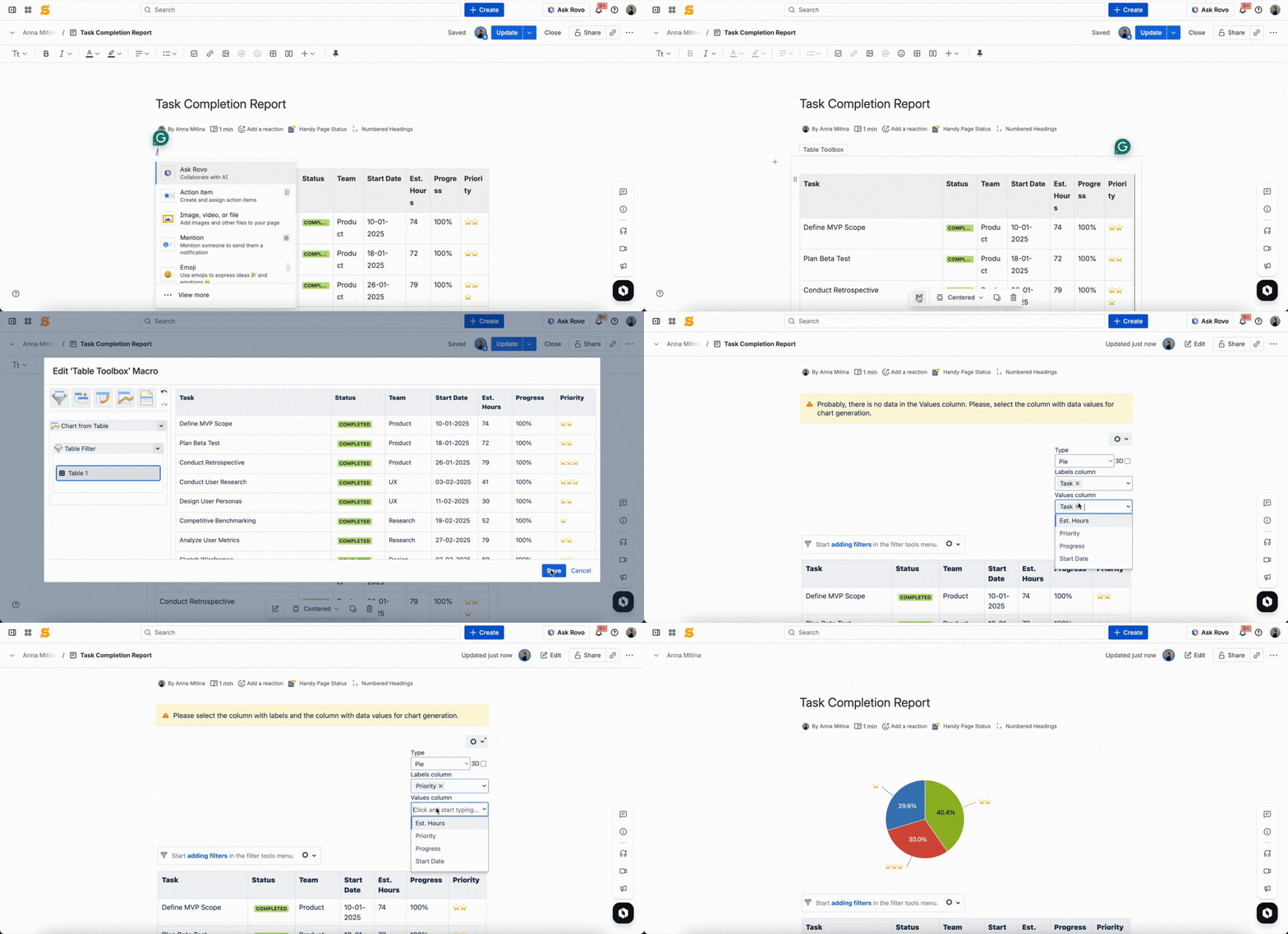
Working with the Table Toolbox macro is extremely easy. Type “/table toolbox” to add the macro and place the original table inside it. Select the macro and start editing it. In Table Toolbox, you can combine these 5 macros with bodies:
-
Table Filter
-
Table Transformer
-
Pivot Table
-
Chart from Table
-
Table Excerpt
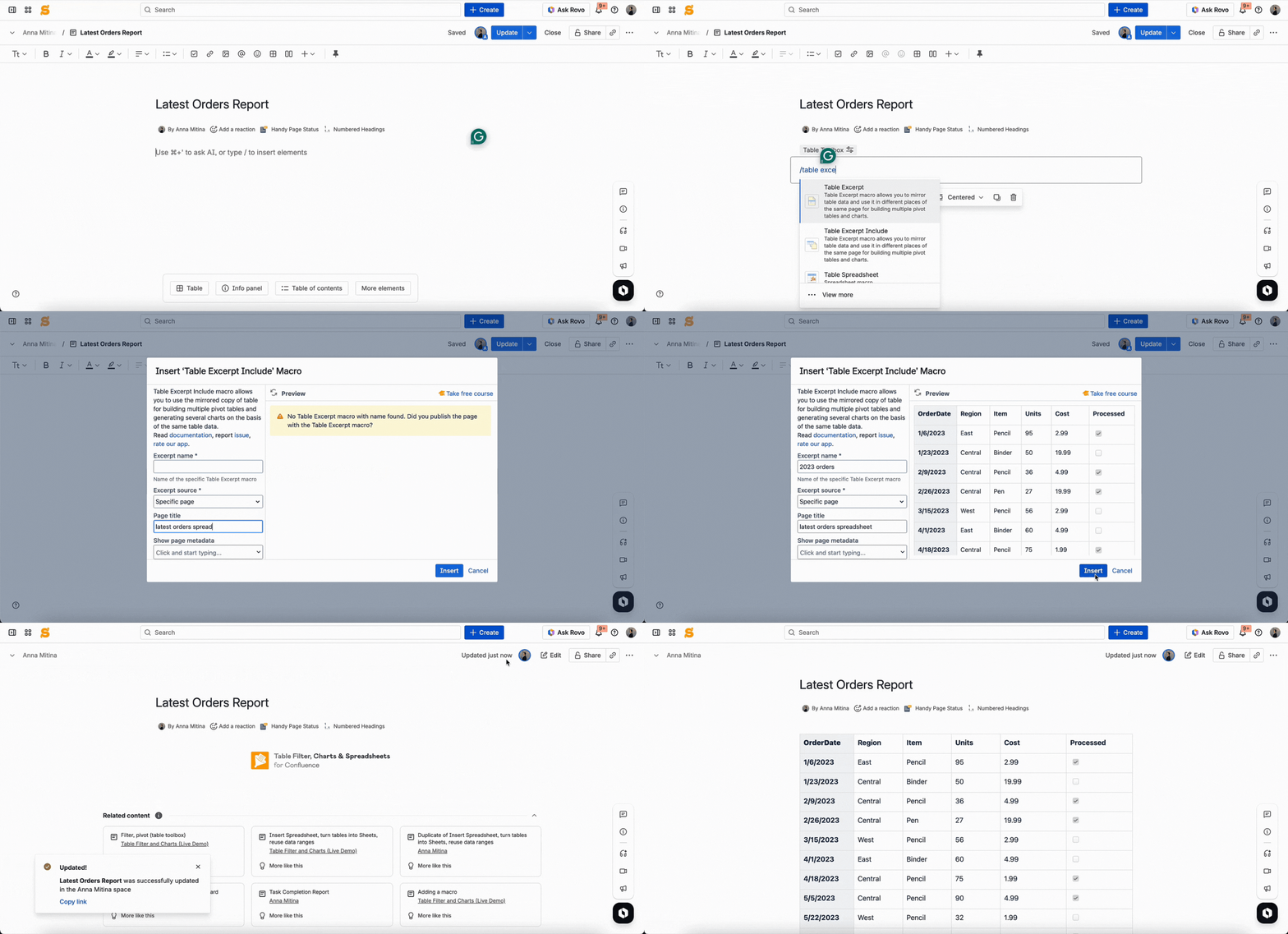
Manually created and bodiless macro-generated tables (for example, Table Excerpt Include, Jira Issues, Page Properties Report, etc.) should be wrapped into the Table Toolbox macro directly on the page.
2. The Table Filter macro
There are 2 main differences to our most popular macro. But don’t worry, they are minor.
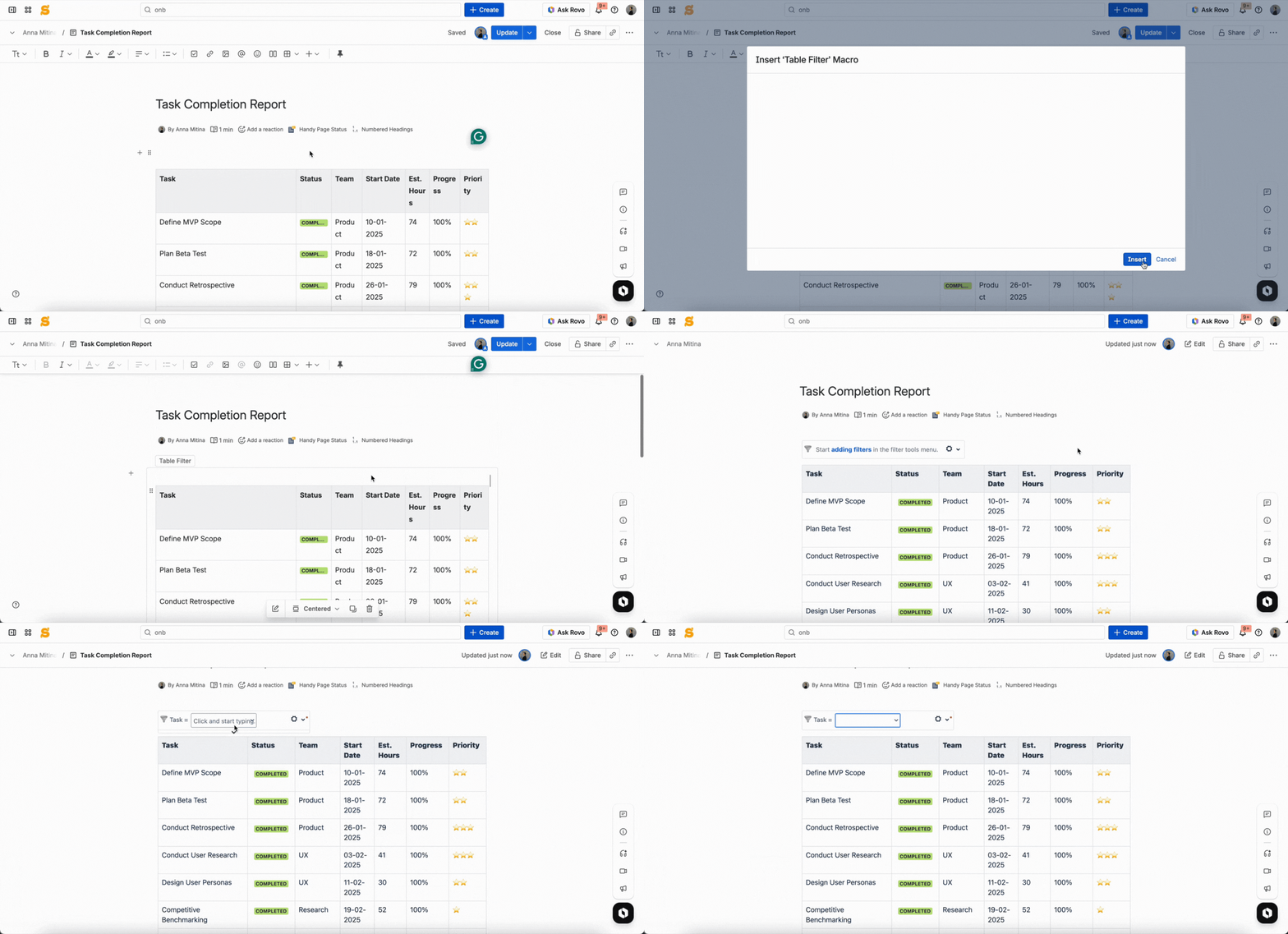
First of all, Cloud has no live filtration. This means that filters in the table headers should be enabled manually due to the new Cloud editor limitations.
You can either:
-
add the Table Filter macro in the edit mode; or
-
click on the three dots in the upper right corner in the view mode, then navigate to Apps and click on Use Table Filter App Macros.
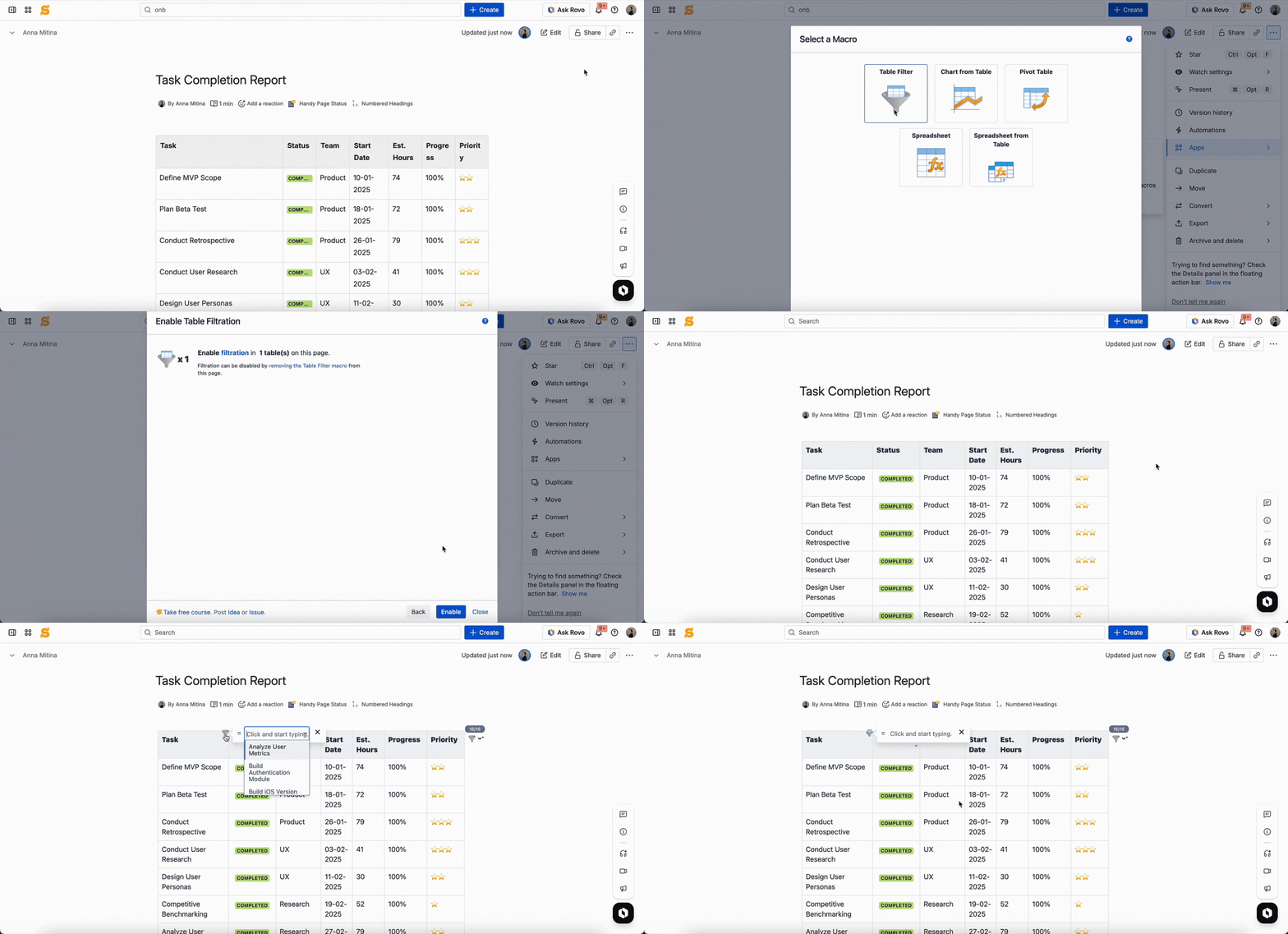
Secondly, the show filter option in the page edit mode is unavailable in Cloud. You will be able to preview the changes you’ve made to the table in edit mode, but you won’t be able to show the filtered version of the table in the same edit mode.
3. Missing app buttons from the editor’s panel
Due to the same Confluence Cloud limitations, the app’s action buttons are now missing from the editor’s panel.
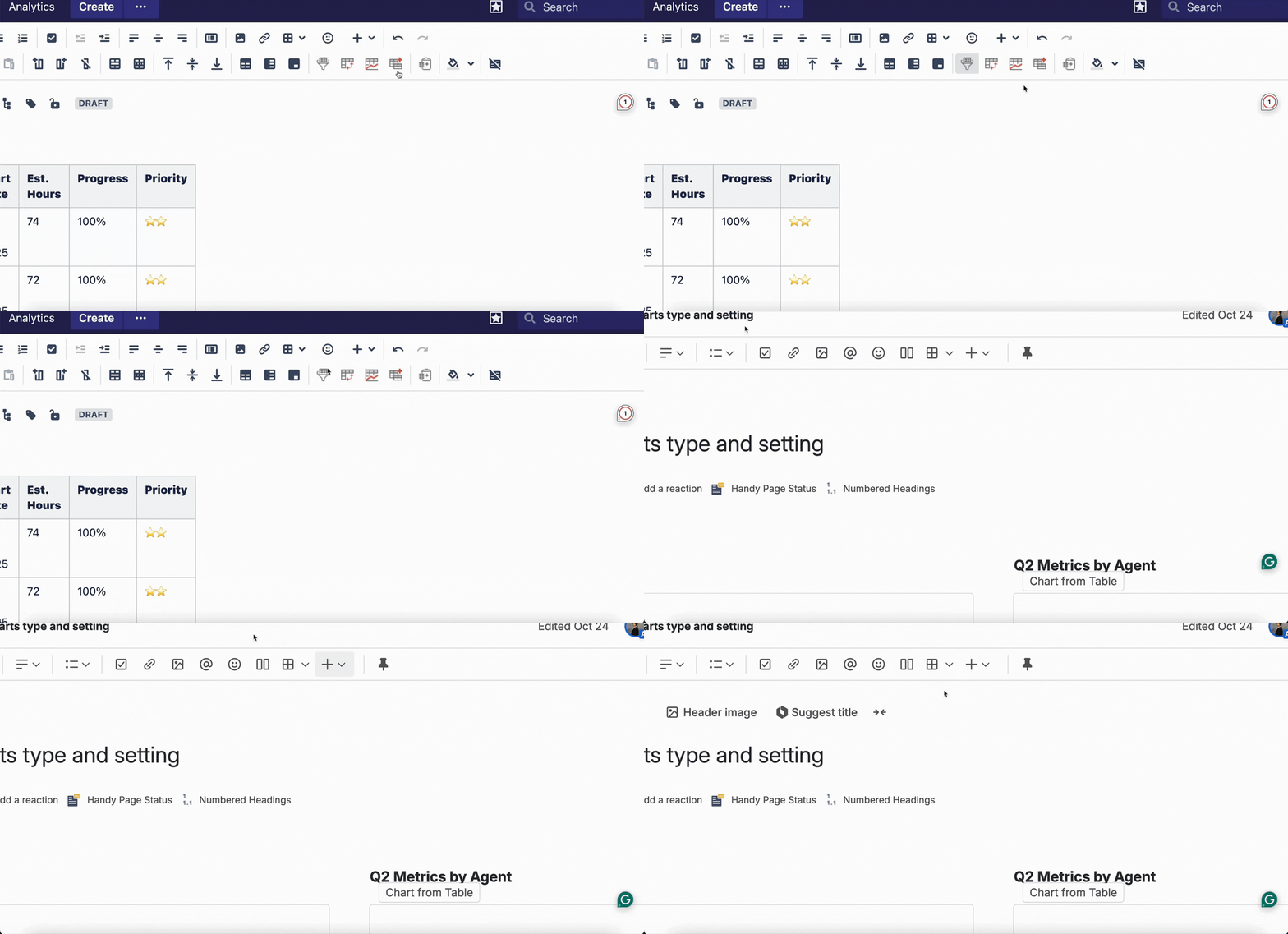
Nonetheless, it is still pretty fast and easy to add macros just by typing a slash (“/”) and the name of the macro (e.g., Table Filter). To make it even easier, all of our macros include the word TABLE in them, so type that, and the list of our macros will be at your disposal.
4. Incompatibility with the Scroll PDF/Word Exporter apps and Comala Document Management
You might face some issues when exporting the macro outputs with the Scroll PDF/Word Exporter apps or setting workflows with Comala Document Management.
We are cooperating with Atlassian and the apps’ vendors to solve the issue and will share the updates as soon as there are any changes to the situation.
5. Confluence default features with the app
Some of the Confluence default features, unfortunately, don’t work inside the app’s macros.
These are:
-
Creating Jira issues from the highlighted text in the page view mode
-
Adding inline comments to the highlighted text in the page view mode
-
Navigating to anchors and heading links placed inside the app’s macros
We will notify our customers of any changes to these features.
Confluence Cloud Migration: Same App, New Hosting
We hope this article helped you to lower the stress of migrating to a new Cloud instance. For your convenience, we have also prepared a video that you could easily share with your colleagues.