






Why Smart Attachments on Jira Cloud can be a better choice for managing Jira documents

4 Reasons to Migrate Your Jira Documents to Cloud
Smart Attachments for Jira offers enhanced document workflow solutions and management capabilities, making Jira Cloud an attractive option for teams. Here’s why it might be a better choice with improved efficiency than staying on Data Center/Server hostings:
- Scalability: Cloud infrastructure supports seamless scaling as your team grows, without the need for manual server management.
- Accessibility: Users can access Jira Cloud from anywhere, promoting collaboration across distributed teams.
- Automatic Updates: Cloud users benefit from automatic updates, ensuring access to the latest features and security enhancements without manual intervention.
- Integration Capabilities: Jira Cloud often provides better integration with other cloud-based services, streamlining workflows, and improvind team productivity.
Attachment Organization: Categories vs Labels
This is the biggest difference between the two hosting options.
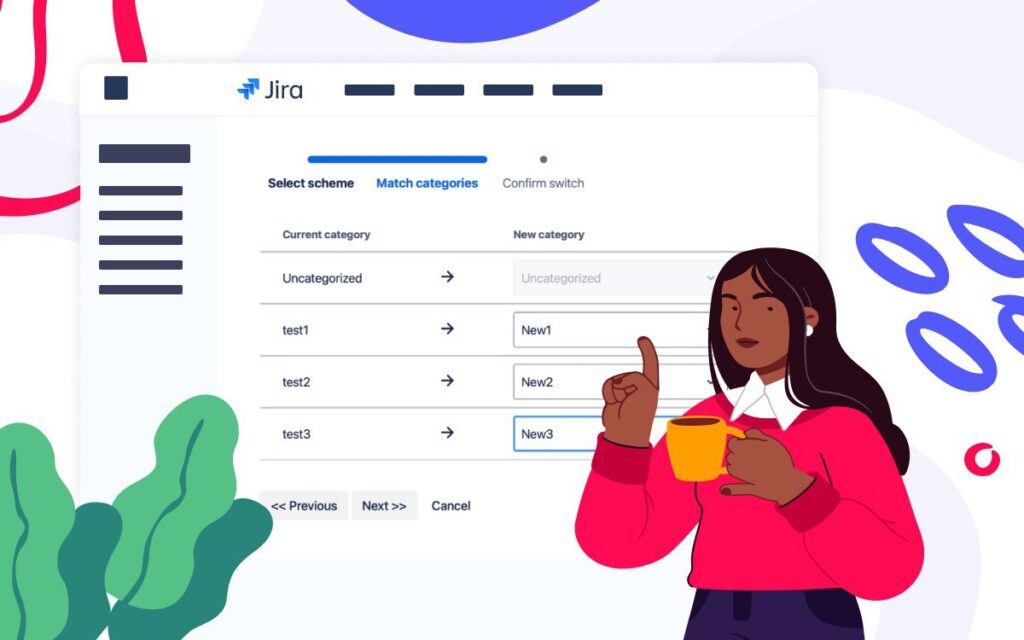
Jira Software Data Center: Classic Categories
In the Data Center version, we organize attachments through categories — a structured taxonomy that teams often build into their document management processes.
How do attachment categories work?
- Jira admins create and manage categories
- Can be used globally (shared across Jira projects)
- Attachments can only be assigned to one category
- Categories’ list are fixed and controlled
Users can:
- Assign Jira documents to predefined categories
- Re-order categories for individual convenience
- Upload files to multiple categories

This system works well for teams that want strict, hierarchical organization.
Jira Software Cloud: Flexible Label-Based Tagging
In Jira Cloud, Smart Attachments uses labels instead of traditional categories. Labels:
- Are created by users (unless restricted via label-creator groups)
- Can be multiple per attachment
- Behave like Jira labels — free-form and dynamic
- Are managed through Label Management
Labels are more flexible but work differently:
- Each attachment can have up to 5 labels
- Labels can be applied, changed, or removed at any time
- Jira documents in the issue view can be grouped by label

This makes labels ideal for teams that prefer lightweight, non-hierarchical organization with flexible processes.
Revision Management
Smart Attachments for Jira Data Center includes full revision management. You can upload revisions in 3 ways: upload the file with the same name, upload a new file and attach it to the required Jira documents, select the uploaded file and convert it into a revision. This allows to have a clear version history with the generic document names. Additionally, it is possible to rename revisions directly from the Jira issue screen.

The Cloud version uses a simplified model, where app groups attachments with the same file name automatically. This approach keeps things simple but is less formal than traditional revision management.

Bulk Operations
Both versions support bulk actions, but the depth differs.
Data Center hosting supports a wider range of bulk actions, including:
- Bulk re-categorization
- Bulk deletion
- Bulk downloads
- Complex category-based updates, like moving between issues or projects

Cloud supports bulk actions as well, but with some limitations:
- Bulk delete
- Bulk download
- Bulk label management (replace, remove, add)
You may not see all the advanced operations available in the Data Center due to Cloud platform restrictions.

Search and Filtering
Both versions let you quickly find the project documents you need, but Cloud relies on the newer UI elements.
In Jira DC, users can filter attachments using categories, author, date, file type, and other metadata within the Smart Attachments view.

Cloud provides similar filtering, but based on labels rather than categories: by label, by uploader, by date. It also allows sorting and grouping attachments in the issue view. The experience is more visual and Cloud-native, but slightly different in structure.

User Interface and Experience
The Cloud version offers a more modern, flexible UI:
- The Smart Attachments panel can be placed either in the issue body or in the sidebar
- Labels appear as visual tags directly on attachments, each having its own color
- Grouping in the issue view is lightweight and intuitive
This makes the Cloud app feel more integrated into the Jira Cloud experience.
Data Center relies on traditional Jira UI locations and app points:
- Attachments appear in the classic Smart Attachments panel
- Users can display categories in structured layouts
- Revision and bulk features sit in an organized, utility-focused interface
It’s reliable and powerful, but less customizable.
Smart Attachments for Jira Cloud is constantly evolving, and we’re actively bringing powerful admin controls to the cloud version. One of the upcoming features is Label Sets, inspired by category schemes in Data Center. It will allow instance and project admins to restrict label creation, organize labels into structured sets, and ensure users can assign only relevant labels within each project. Label sets will be configurable per one or multiple projects, giving teams better governance, consistency, and scalability as they grow in the cloud.
Summary of Key Differences
Cloud Version
- Uses labels instead of attachment categories, which offers flexibility but changes how grouping works.
- A bit less bulk operations compared to Data Center.
- Attachment panel UI is more flexible and modern.
Data Center Version
- Traditional attachment categories rather than labels.
- More complete bulk and revision features.
- Classic Jira app placement limits the UI; less flexible than Cloud’s modern UI.
Benefits of moving to Cloud from Data Center
- Reduced IT Overhead: Minimizes the need for on-site IT management and maintenance.
- Enhanced Collaboration: Anytime, anywhere access enhances team collaboration.
- Instant Access to Innovations: Immediate access to the latest features and improvements.
Moving to Jira Cloud with Smart Attachments can streamline your document management processes while providing the flexibility and efficiency needed in today’s dynamic work environments. Try a world-class software environment with a purpose-built experience that bppsts confidence in managing complex projects for operations, finance, project management, software teams.
You can find more information about migrating Smart Attachments for Jira from DC to Cloud in our docs.