







How to Build a Gantt Chart in Confluence (From Basic to Advanced)

If your entire project lives in Jira, building a Gantt chart there may be enough. But if your timeline needs to reach beyond the delivery team, doing it in Confluence is often more practical.
In this guide, you’ll learn five practical ways to create a Gantt chart in Confluence: from the basic, native Roadmap Planner to more complex, data-driven charts built from tables, Jira work items, and external sources.
Key takeaways
-
Confluence is often the better place for timelines that need context and visibility beyond the delivery team.
-
Roadmap Planner is the native Confluence option for a quick roadmap, but it requires manual upkeep and doesn’t scale well for complex timelines.
-
For a true Gantt chart, start with a simple three-column table (task, start date, and end date) and generate the timeline from it using the Table Filter, Charts & Spreadsheets for Confluence app.
-
You can turn a basic project schedule into a trackable view by enriching the source data with progress, milestones, planned activities, and dependencies.
-
To avoid duplicating effort, keep one source table on a dedicated page and reuse it across multiple charts and pages.
-
When your project data already lives elsewhere, use live source tables that aggregate it automatically so your timeline stays up to date.
-
For cross-functional projects, combine Jira and non-Jira data into one timeline so stakeholders don’t have to piece the plan together across tools.
Why build a Gantt chart in Confluence instead of Jira?
There are plenty of cases where a Gantt chart in Confluence makes more sense than a Jira timeline, even if your team uses Jira every day:
-
Keep the timeline and context together on one page: Confluence lets you publish the Gantt chart alongside other project documentation so stakeholders get the full picture without switching tools.
-
Share the plan with a wider audience: Not everyone who needs to view a roadmap has Jira access, especially executives, external contractors, or teams outside IT.
-
Plan early without Jira overhead: When the project is still taking shape, you can quickly draft a timeline from a simple table in Confluence and show it in a meeting before creating a single Jira work item.
-
Use more than one data source: Jira timelines typically rely on work items only, while Confluence can combine Jira-based data with other inputs in the same table or chart.
Method 1. A Gantt chart using Confluence’s native Roadmap Planner macro
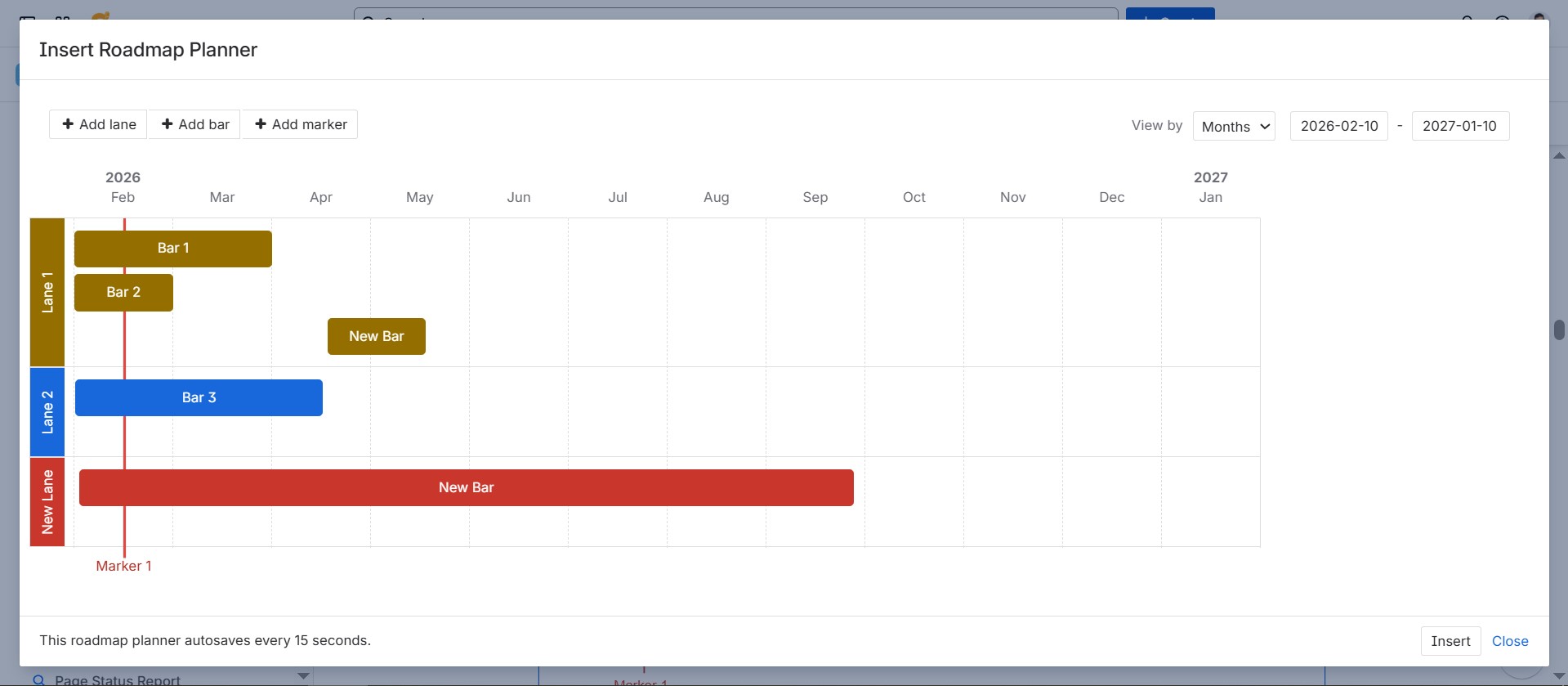
Confluence includes the Roadmap Planner macro, which lets you drag and drop lanes and bars to visualize phases of work. While it appears similar to a Gantt chart at first glance, it lacks advanced project management features and instead serves as a high-level strategic planning tool.
Here are the key Roadmap Planner limitations you should be aware of:
-
Limited time scale: You can display the roadmap only at the weekly or monthly level, which means no true daily planning and no native quarter/year compression for multi-year roadmaps.
-
No real Gantt logic: There is no way to link tasks to show sequential relationships. If one task is delayed, dependent tasks won’t automatically adjust, so you must manually reposition every affected element.
-
Manual data entry: The macro does not sync with Jira or external data sources, so you must manually drag and update each bar whenever a project date changes.
-
Hard to reuse across pages: If you want the same roadmap shown in multiple places and kept in sync, that’s not supported natively (it’s an open request as of early 2026).
-
Export and reporting friction: PDF/Word export behavior has been a known pain point. Atlassian has fixed specific export bugs over time, but requests such as exporting only the macro as an image/PDF remain unresolved.
-
Customization is basic: You can change things like text and colors, but deeper layout controls (like reliably controlling the macro’s rendered size) are still a recurring request.
Method 2. A Gantt chart from a simple Confluence table
This approach works especially well for early-stage project planning or mapping a simple process from start to finish. In those scenarios, a table-based Gantt chart is often faster and easier than creating and maintaining a complete set of Jira work items.
To create a Confluence Gantt chart, you only need a three-column table listing tasks and their start and end dates, and a Gantt chart tool such as the Chart from Table macro from the Table Filter, Charts & Spreadsheets for Confluence app.
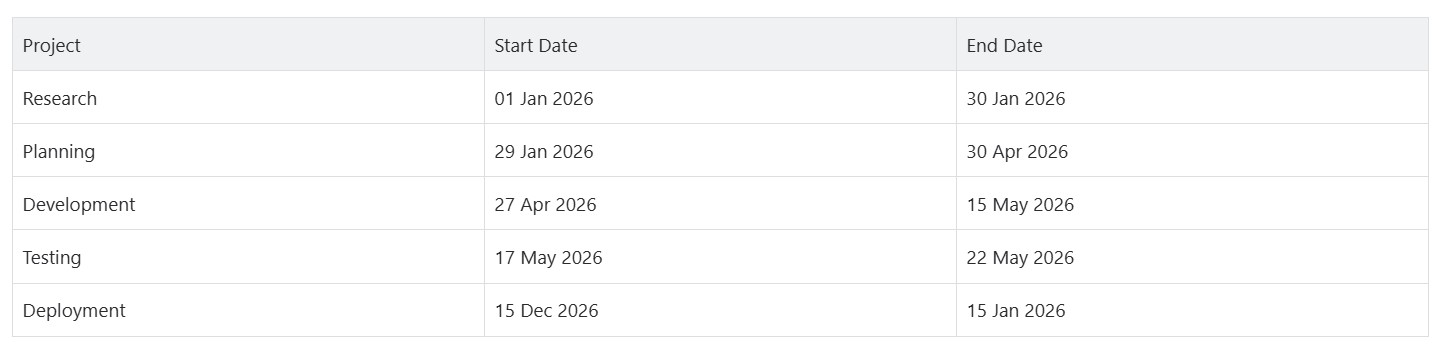
Here’s how to generate a Confluence timeline chart from a table:
-
Add the Chart from Table macro to your Confluence page.
-
Wrap your table in the macro.
-
Choose Gantt as the target chart type and specify the settings.
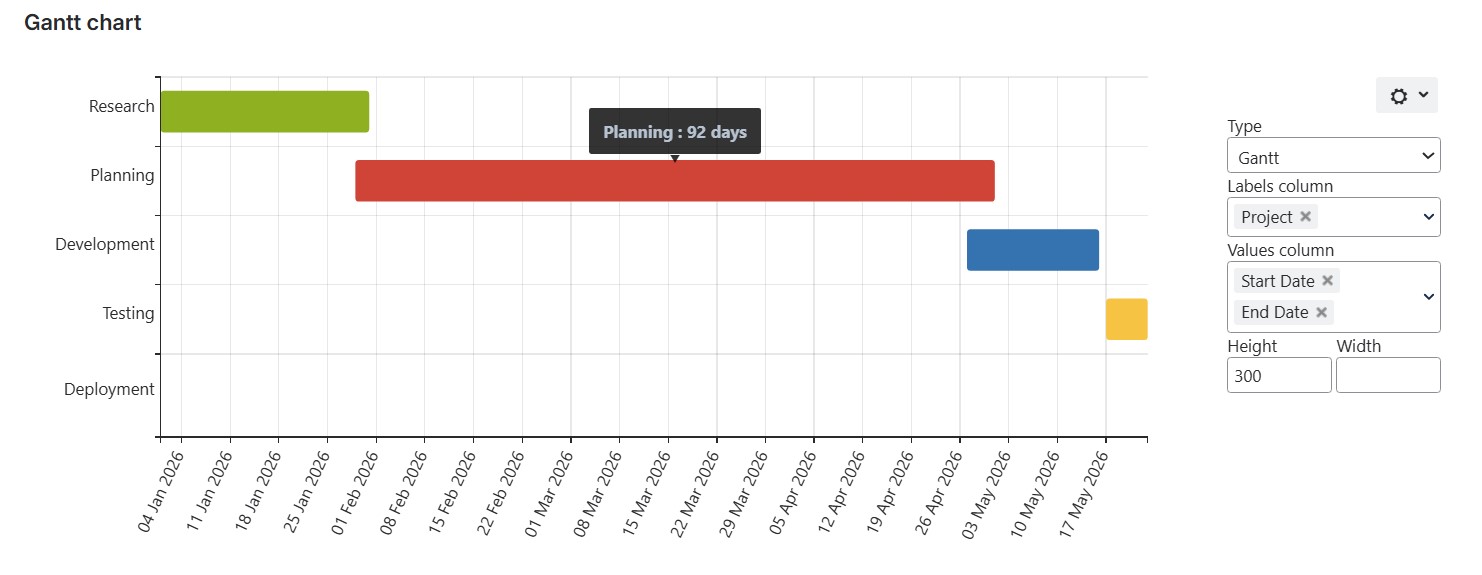
This Confluence Gantt chart example is straightforward. It shows all the project’s main stages and automatically calculates the duration of each stage in days (hover over a bar to see it).
Method 3. A Gantt chart leveled up with progress, milestones, and dependencies
A basic Gantt chart is a good start, but you can make it far more useful by adding a few extra columns and tables to your source data:
-
Break each stage into specific tasks, add task descriptions, and set start and end dates for each task.
-
Add a Completion column to your original table to show progress bars directly on the timeline.
-
Introduce milestones to highlight key project dates.
-
Factor in planned activities by adding an events table and enabling the Today marker. It shows a line for the current date, making it easier to see where the project stands.
-
Set dependencies between tasks to clarify sequencing and identify potential bottlenecks early.
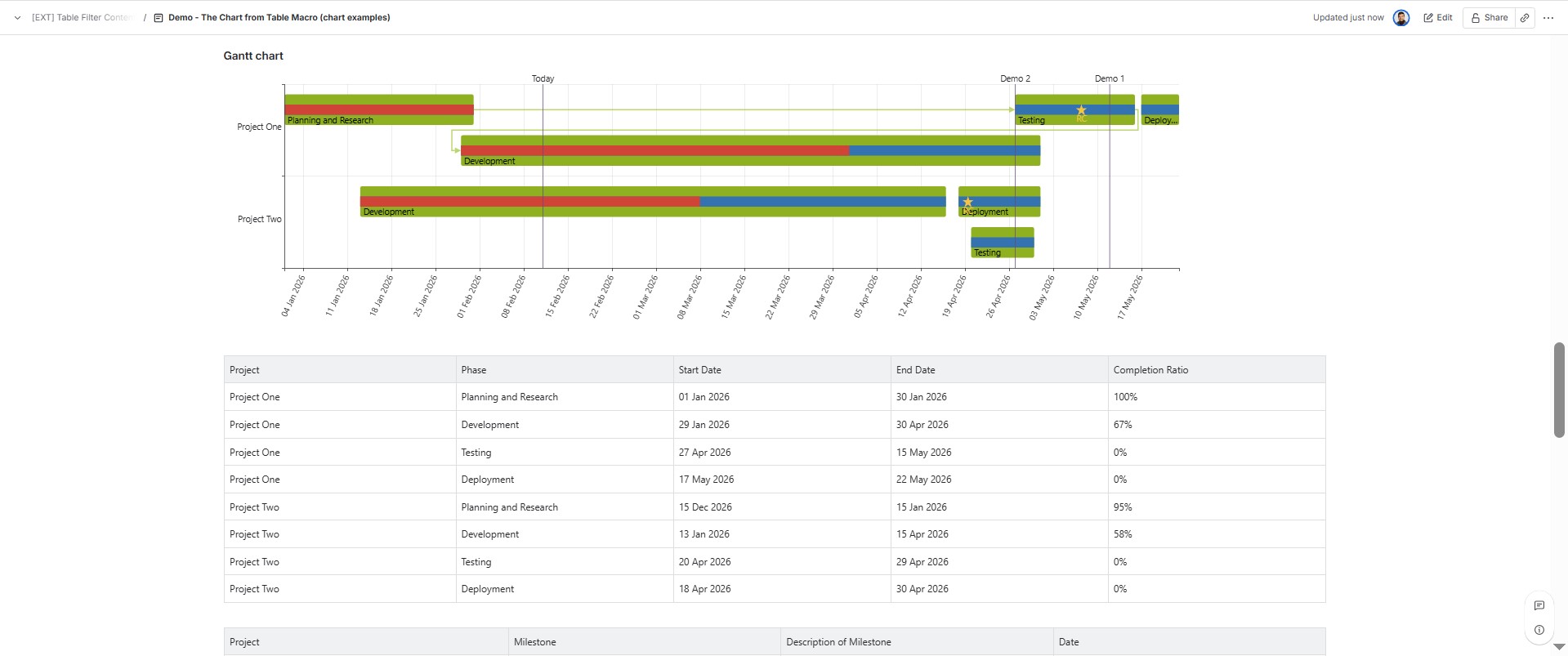
This setup works well when a high-level timeline isn’t enough and you need a meeting-ready view you can zoom and adjust on the spot.
Method 4. A Gantt chart from a table sitting on another Confluence page
This setup is ideal when you want to reuse your Gantt chart across multiple pages. Instead of maintaining separate tables for each report or team view, you keep a single source table on a dedicated page and reuse it anywhere you need the same timeline.
Here’s how you do this using the Table Filter, Charts & Spreadsheets for Confluence macros:
-
Create a separate page for your source data and add your table there.
-
Wrap the table in the Table Excerpt macro.
-
Open the page where you want to display the Gantt chart.
-
Insert the Table Excerpt Include macro to pull in the excerpted table from the source page.
-
Nest Table Excerpt Include inside the Chart from Table macro.
-
Set the chart type to Gantt and configure the Labels and Values columns.
The result looks like a standard Confluence timeline chart, but now it’s reusable. Modify the source table once, and all the charts that reference it update in real time as well.
Method 5. A Gantt chart from multiple sources
If your timeline data already exists elsewhere, you can use it as the source table and keep the Gantt chart up to date automatically.
You can use input from:
-
Other Confluence pages using native macros, such as Content properties and Content properties report;
-
Jira data via the Jira work items macro;
-
External structured data using the Table Filter, Charts & Spreadsheets app macros, such as Table from CSV or Table from JSON.
It’s especially handy for portfolio reporting, cross-team planning, or any meeting where copied data can become outdated even before you present it.
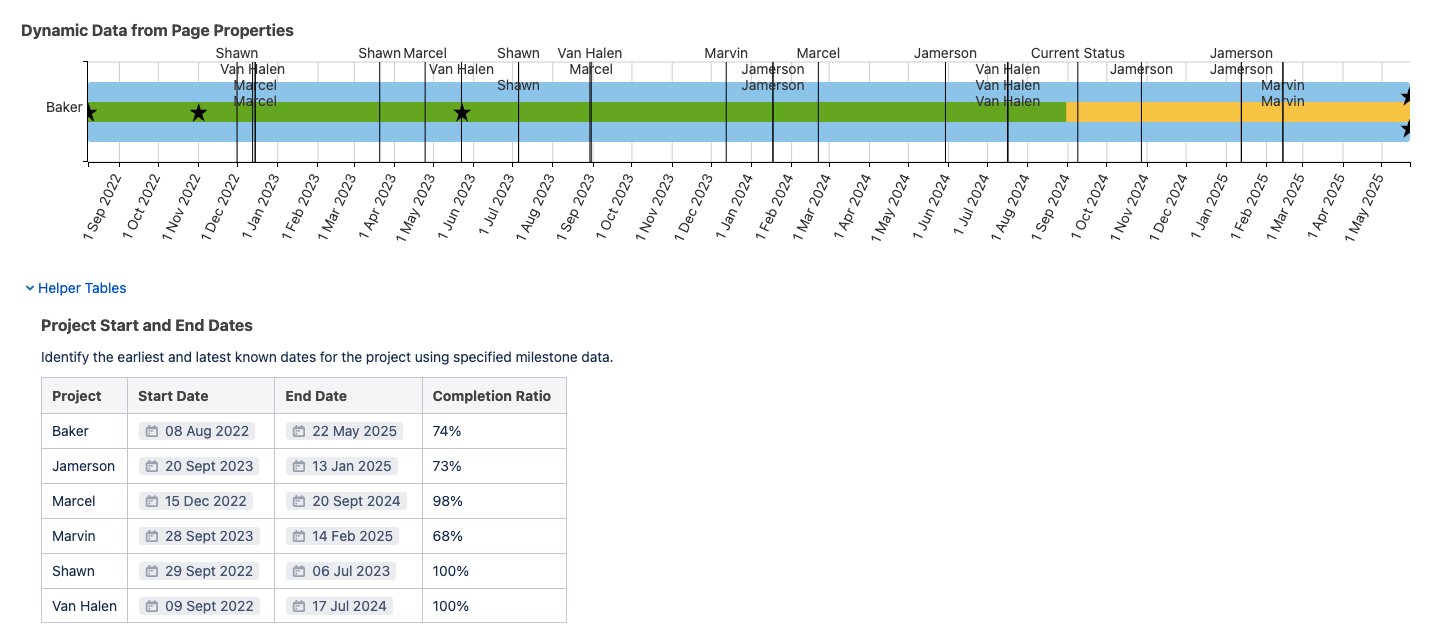
This method also lets you combine Jira and non-Jira work in one timeline so stakeholders don’t have to piece the plan together across tools. It’s useful for teams that track delivery in Jira but still have work handled outside Jira by external contractors or field workers.
Use the Table Transformer macro to merge multiple source tables into one dataset with a cohesive timeline.
Beyond Gantt: Take your project management in Confluence to the next level
Once you have your Gantt chart set up, you can use the Table Filter, Charts & Spreadsheets for Confluence app to reduce manual reporting and keep your project views up to date:
-
Build Jira-based dashboards in Confluence: Turn one Jira work items source table into a dashboard with multiple charts and pivot tables that stay in sync with the original data from your project management tool.
-
Create sprint and release reporting: Slice issues by type, fix version, sprint, or release using filters and pivots, and visualize the distribution in charts for quick scope checks.
-
Run risk management: Maintain a risk table and generate a risk matrix to review exposure at a glance.
-
Work with Jira data in spreadsheet form: Turn tables (including macro output) into an Excel-like sheet and use familiar formulas to run calculations directly on the page, without exporting anything to Excel.
-
Track budget and spend vs plan: Combine and transform tables to calculate budget variance and status labels (under/over/on budget), and reuse the result in reports.
-
Clean up and standardize reporting data: Reshape, merge, and enrich tables with presets or SQL, then filter the final view for different audiences.
Try Table Filter, Charts & Spreadsheets for Confluence for free
FAQs
Does Confluence have a built-in Gantt chart feature?
Not exactly. In Confluence, the only native option that resembles a Gantt chart is the Roadmap Planner macro, a simple, drag-and-drop roadmap meant for high-level timelines. It’s limited, so if you need a data-driven Gantt chart with progress, milestones, dependencies, and dynamic source tables, you’ll typically use an app like Table Filter, Charts & Spreadsheets, which offers a dedicated Confluence Gantt chart macro.
What is the Chart from Table macro in Confluence?
Chart from Table is a macro that lets you create a Gantt in Confluence (along with 14 other chart types), provided by the Table Filter, Charts & Spreadsheets add-on. It’s not a native Confluence feature; you’ll see it only after installing the app from the Atlassian Marketplace. If you don’t see the Chart from Table in the macro list, it means the add-on isn’t installed on your instance.
How can I filter or hide certain tasks in the Gantt chart without removing them from the table?
By default, if you filter the source table, the chart will update to reflect the filtered data. If you want the page to show the full table but a Gantt chart of only part of that data, the workaround is to create a dedicated table for the chart. Use the Table Excerpt and Table Excerpt Include macros from the Table Filter, Charts & Spreadsheets app to pull the data you need into a secondary table elsewhere on the page and generate a Gantt chart of just the filtered subset.
Can I combine multiple project timelines into one Gantt chart using the Table Filter app?
Yes, you can merge data from multiple tables (even across pages) into a single table before visualizing it. For example, if you maintain individual project timelines in different Confluence pages (each as a table), you can collect them using the Table Excerpt Include macro and stack or merge them into a single aggregated table. Once you have a combined table of all projects, you can apply the Chart from Table macro to show an all-encompassing timeline.
What is a Gantt chart?
A Gantt chart is a timeline view of a project plan. Gantt charts display a task list as horizontal bars across a calendar, providing a high-level overview of when each task starts and ends, how long it lasts, and which tasks overlap.