







Three Ways to Create Jira Checklist Templates

Manually adding checklist steps to every Jira work item can quickly become routine when you often deal with recurring tasks. The same Definition of Done, the same QA steps, the same onboarding tasks copied and pasted over and over again. It’s not hard work, but it quietly eats time and can cause rework when someone forgets to add a step.
The solution is quite simple: create Jira checklist templates. Instead of rebuilding the same list every time, you save it once and reuse it across your repetitive tasks.
In this guide, we’ll walk through three practical ways to create checklist templates in Jira using the Checklists for Jira (Templates & Automation) app, since Jira doesn’t have such built-in functionality.
First way: Create checklist templates in Jira tasks
Most probably, the best Jira checklist templates are the ones you’ve already been using, so why not save them for future tasks?
With Checklists for Jira, it’s as easy as pie:
- Open a Jira task with the checklist you want to save.
- Click the … menu and select Save as Template.
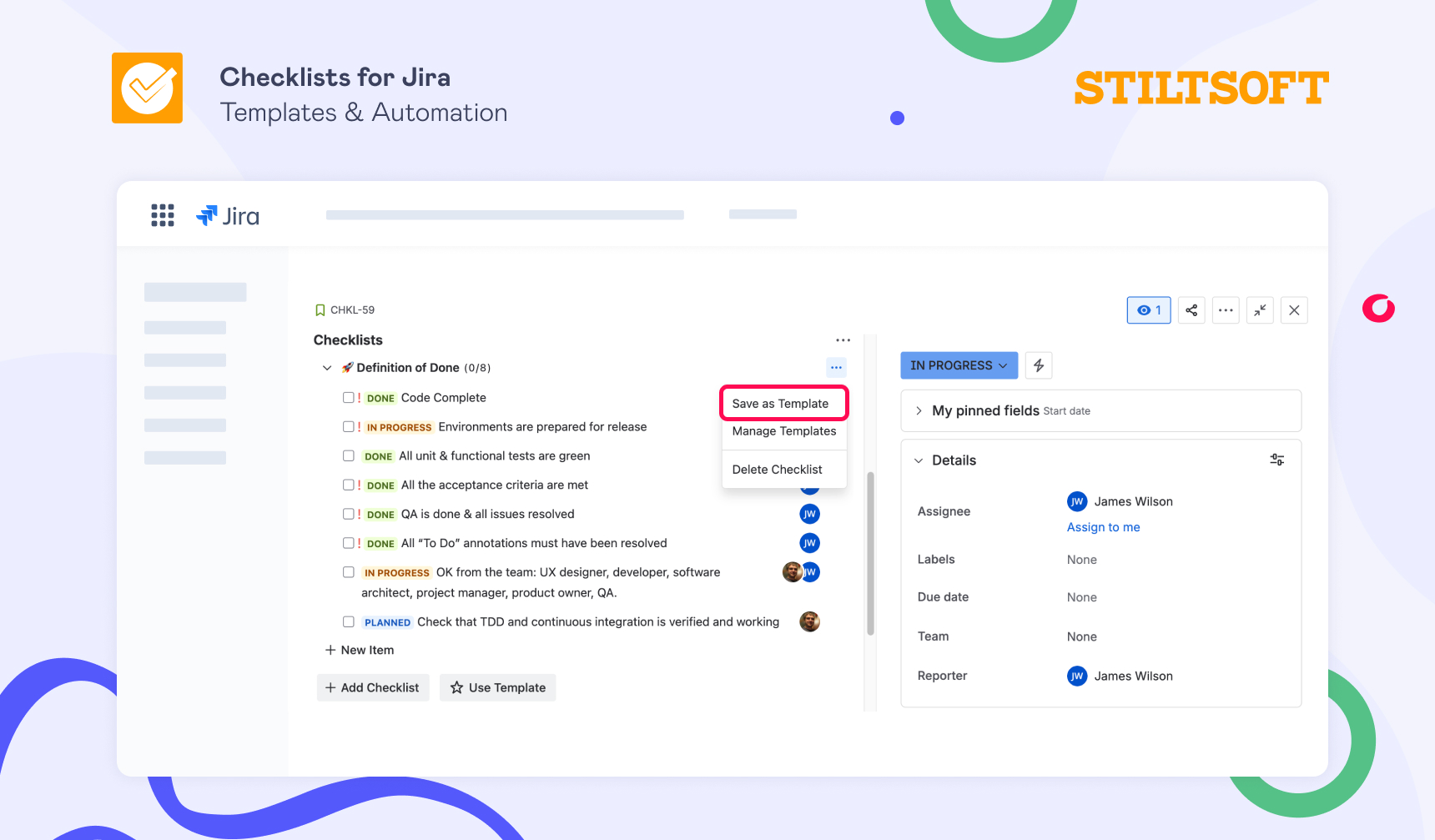
You’re all set. That checklist is now a template, ready to be reused across future work items in the project.
And if the process changes tomorrow? You can edit your template in the “Manage Templates” view, and everyone will get the updated version the next time they use it.
This option fits you if you already have a process that works well for your team, and you want to make everyone follow it.
Second way: Create Jira checklist templates from the app menu
Maybe you don’t have a checklist ready for a task yet, that’s fine, too. In this case, Checklists for Jira lets you create a template from scratch inside the Templates menu:
- Open any Jira work item in your project.
- Click the app menu and select Checklists.
- Go to templates by clicking the Use Templates button in the Checklists panel.
- In the Templates view, click Create template.
- Give your checklist a name and fill in the checklist items you want to include.
- Hit Save, and your new template is live.
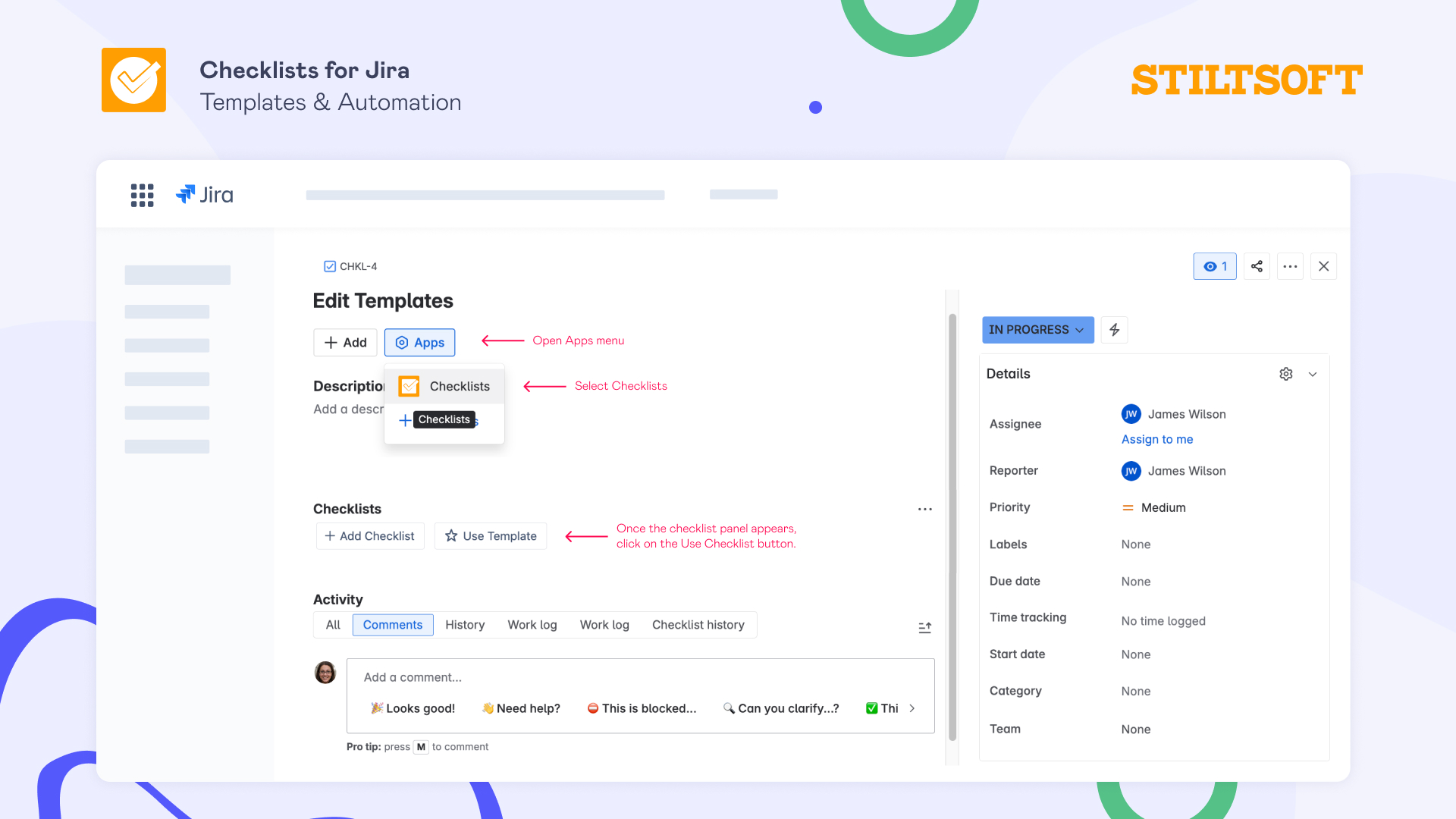
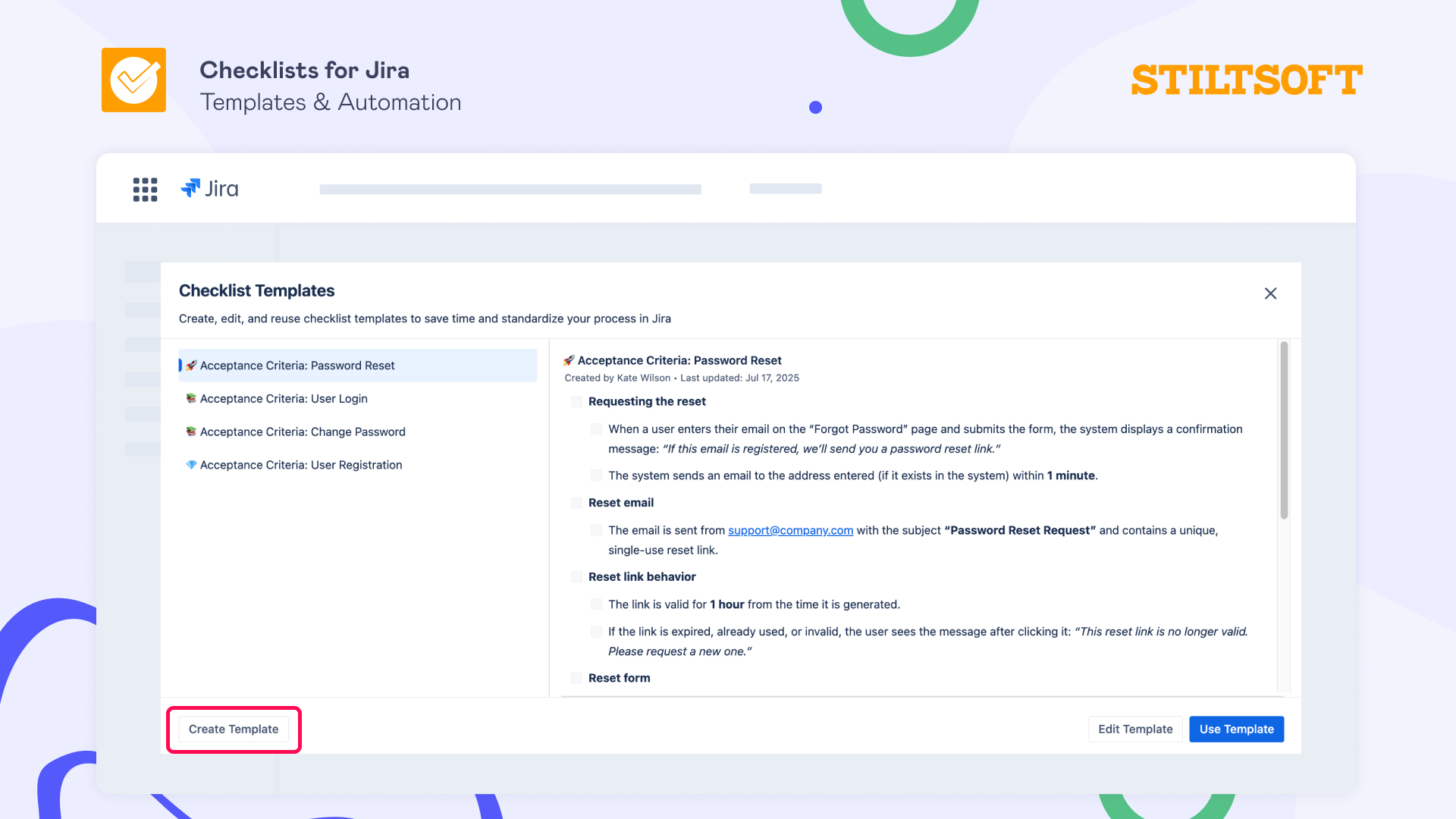

Now, every time you create a Jira task, you can just click the Use Template button and pull in your pre-defined checklist.
This approach is ideal when you’re setting up a workflow for a recurring process that hasn’t happened yet or lives somewhere in Confluence, e.g., onboarding, Definition of Done, test cases, release steps, you name it.
Third way: Create dynamic checklist templates in Jira automation
Here’s where things can get really customizable. What if your Jira checklist template needs to change depending on the work item type, or assignee, or other fields? Instead of manually updating every task, you can build dynamic templates inside Jira automation with a little bit of checklist syntax magic:
- Open Jira Automation for your project.
- Create a new rule or edit an existing one.
- In the “Add Checklist to work item” action type your template using the app’s syntax.
- Use Jira smart values to dynamically enrich checklist items.
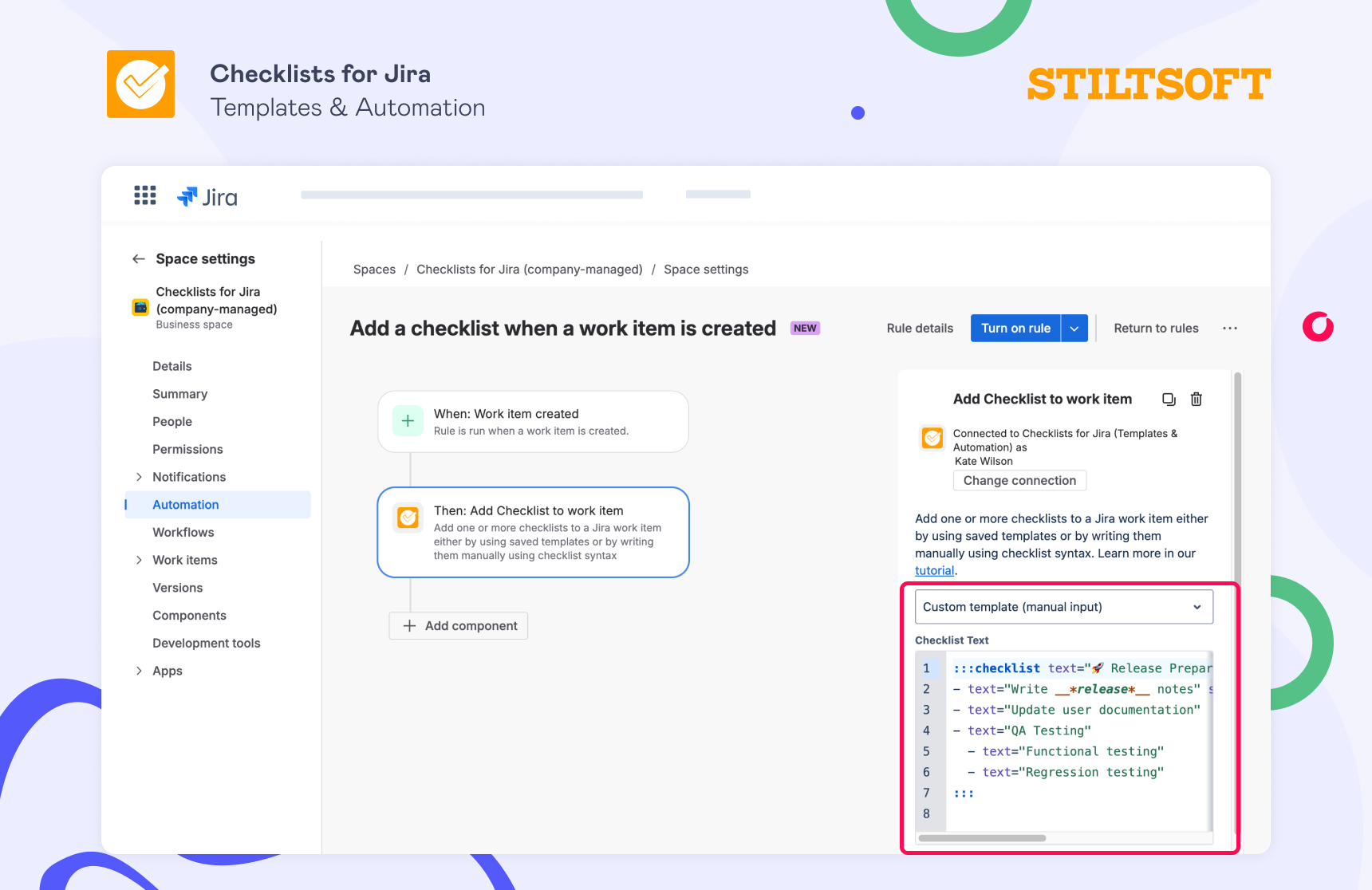
Thus, every new task that fits the criteria of automation rules will have its own checklist, customized with Jira smart values.
You can check out our step-by-step tutorial “How to Automatically Add Checklists to Jira Tasks” that provides more details on using checklists with Jira automation.
This option works well for teams working on multiple projects at once and needing to make small changes to tasks based on context.
Final thoughts
If your team has many repetitive tasks, setting up Jira checklist templates is one of the simplest ways to save their time. Instead of relying on memory or copying tasks from old work items, you create templates once and reuse them everywhere.
The Jira Checklists app allows you to:
- Save a checklist from a Jira work item,
- Build a template directly in the Templates view, or
- Create a dynamic checklist template in Jira automation.
You can try Checklists for Jira free for 30 days and let your team focus on actual tasks while leaving tedious repetition to templates and automation.