






Two-Minute How-to: Tracking Time in Status in monday.com
The Time in Status report helps teams identify bottlenecks and optimize project workflows. By generating this report, you gain instant visibility into how long each work item spends in every stage – such as “To Do,” “In Progress,” “Stuck,” or “In Review.” This clarity makes it easy to spot delays, focus on the most critical work items, and drive meaningful efficiency improvements.
monday.com allows teams to define multiple sets of statuses, making it easy to tailor workflows to virtually any type of work. Whether you’re managing IT projects, product development, customer support, recruiting and onboarding, construction execution, or financial and legal processes, statuses help structure work and keep everyone aligned.
You can easily create a Time in Status report using our Board Email Reports | Item Updates Reports app – turning raw status data into actionable insights in just a few clicks.
How to Create a Time in Status Report
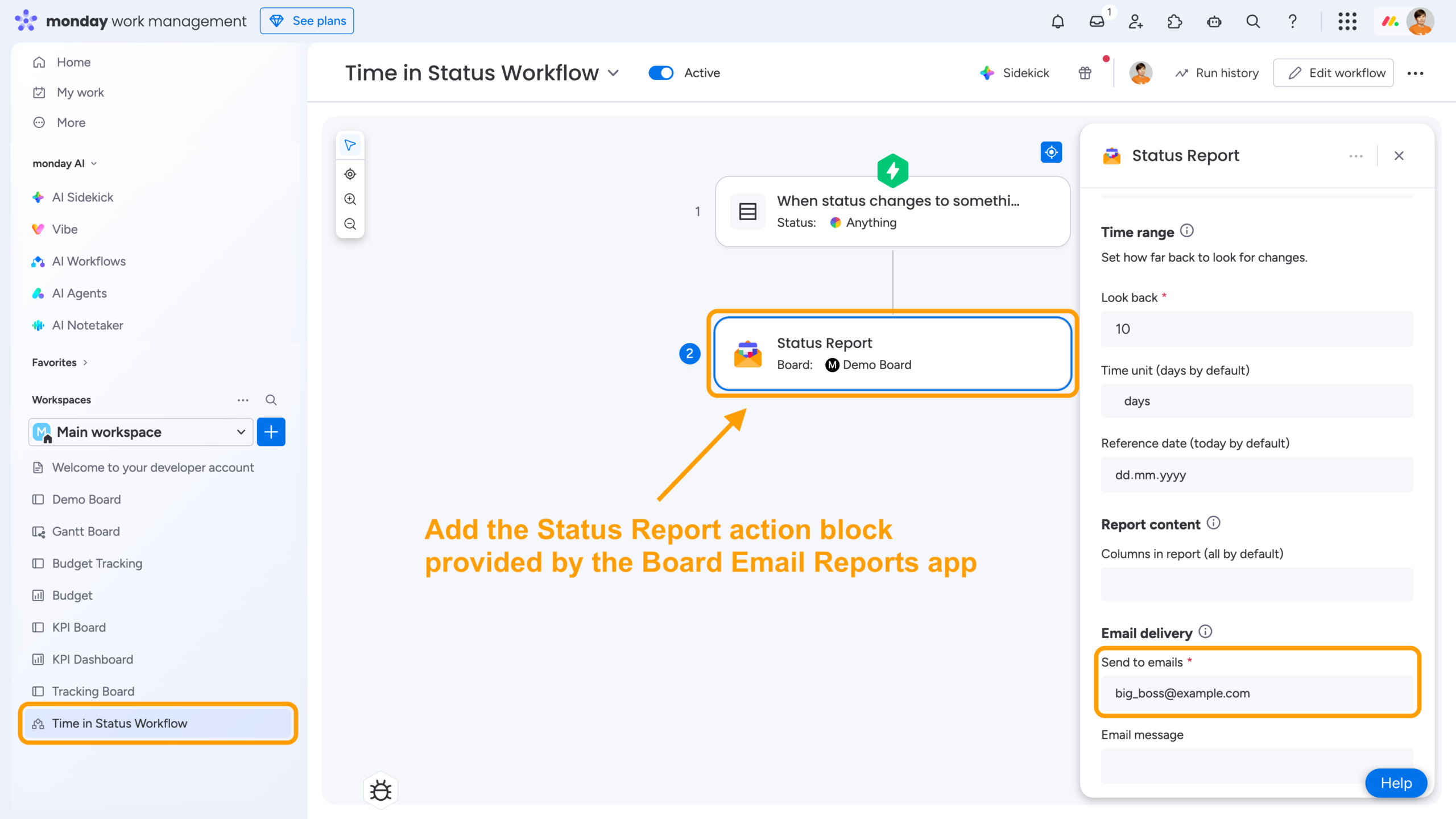
One way to create a Time in Status report is by adding a workflow that uses the Status Report action block from the Board Email Reports | Item Updates Reports app.
This action block lets you select the board and groups you want to analyze, define how far back the report should look for status changes, and specify the email addresses where the report will be delivered.
Another way to create the report is through the Automation Center. Simply open the app’s folder, choose a predefined template, and apply it to your board.

If you prefer more control, you can also start from scratch and build your own automation by adding the Status Report action block from the Board Email Reports app. This allows you to tailor the report exactly to your workflow and reporting needs.

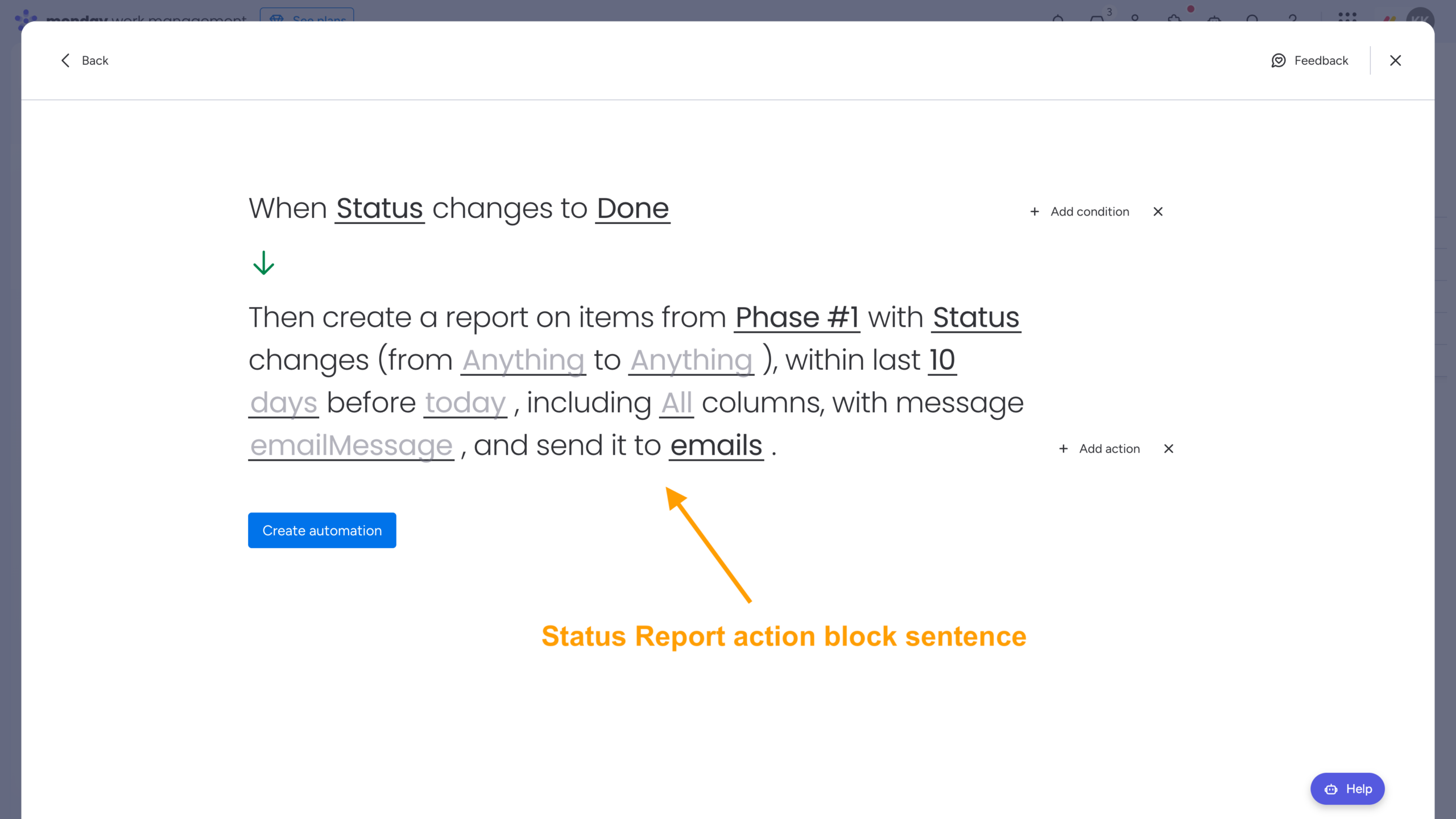
Note that when creating a report through a Workflow or by choosing Create from scratch in the Automation Center, you can define any trigger that fits your process – such as a status change, a scheduled time, or another board event. The trigger determines when the report will be generated and delivered. If you use a predefined template, the trigger is already included but can still be adjusted after applying the template.
Another advantage is the flexibility of the Status Report action block itself. You can customize the email body, choose which columns to include in the report, define the reporting period, and analyze data across any combination of statuses. This makes it easy to tailor the report to your workflow and focus on the metrics that matter most.
We’re also gradually migrating all reports in our Board Email Reports | Item Updates Reports app to the new monday.com builder. This means more reports will soon become available with the same level of customization and automation – similar to the Time in Status report discussed earlier.
What Report You’ll Receive
No matter how the Status Report is triggered – through a workflow or from the Automation Center – you’ll receive a detailed .xlsx report directly in your email.
The report contains two tabs:
-
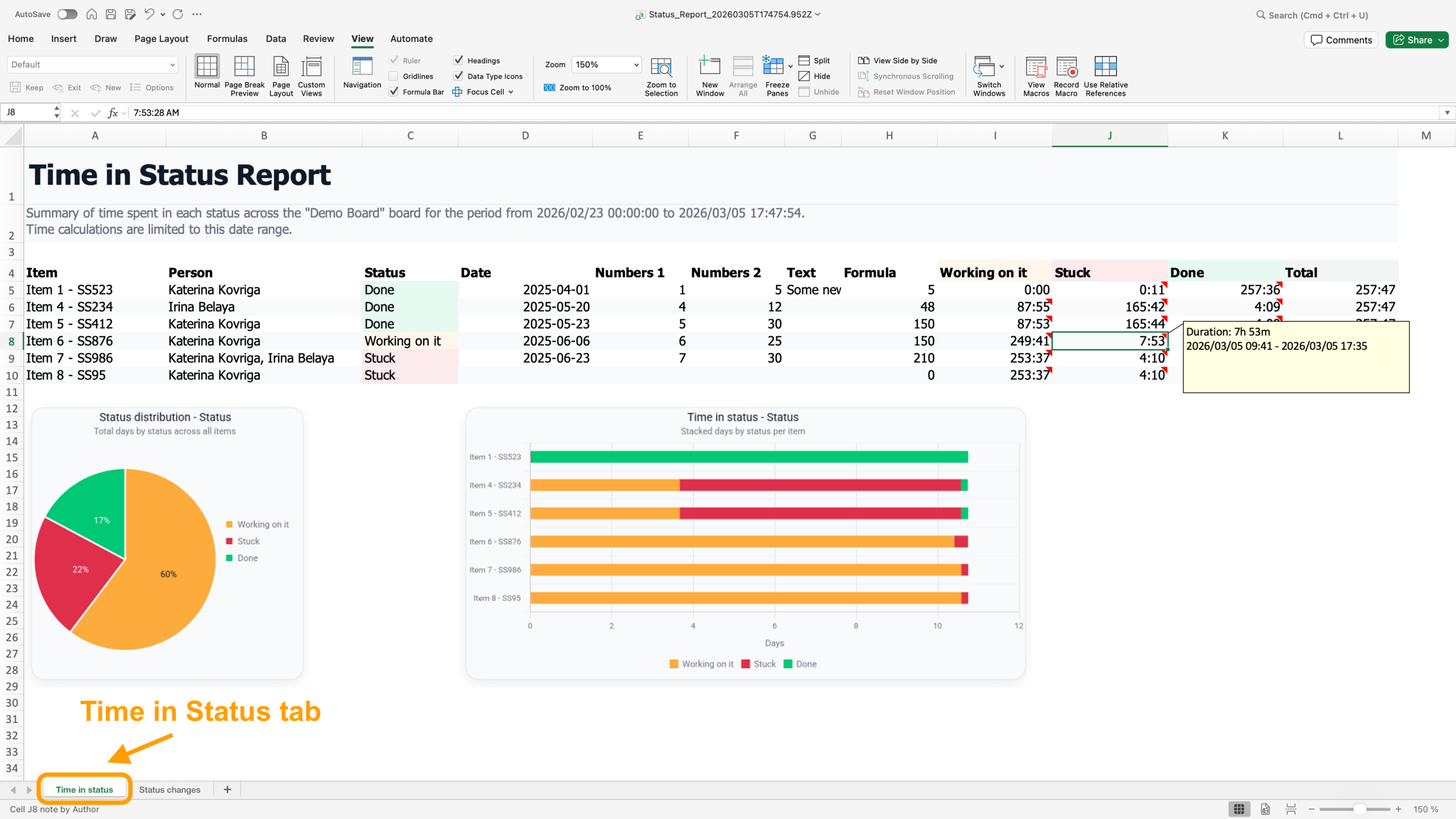
Tab 1: Time in Status. A summary showing the time spent in each status across the selected items.
-
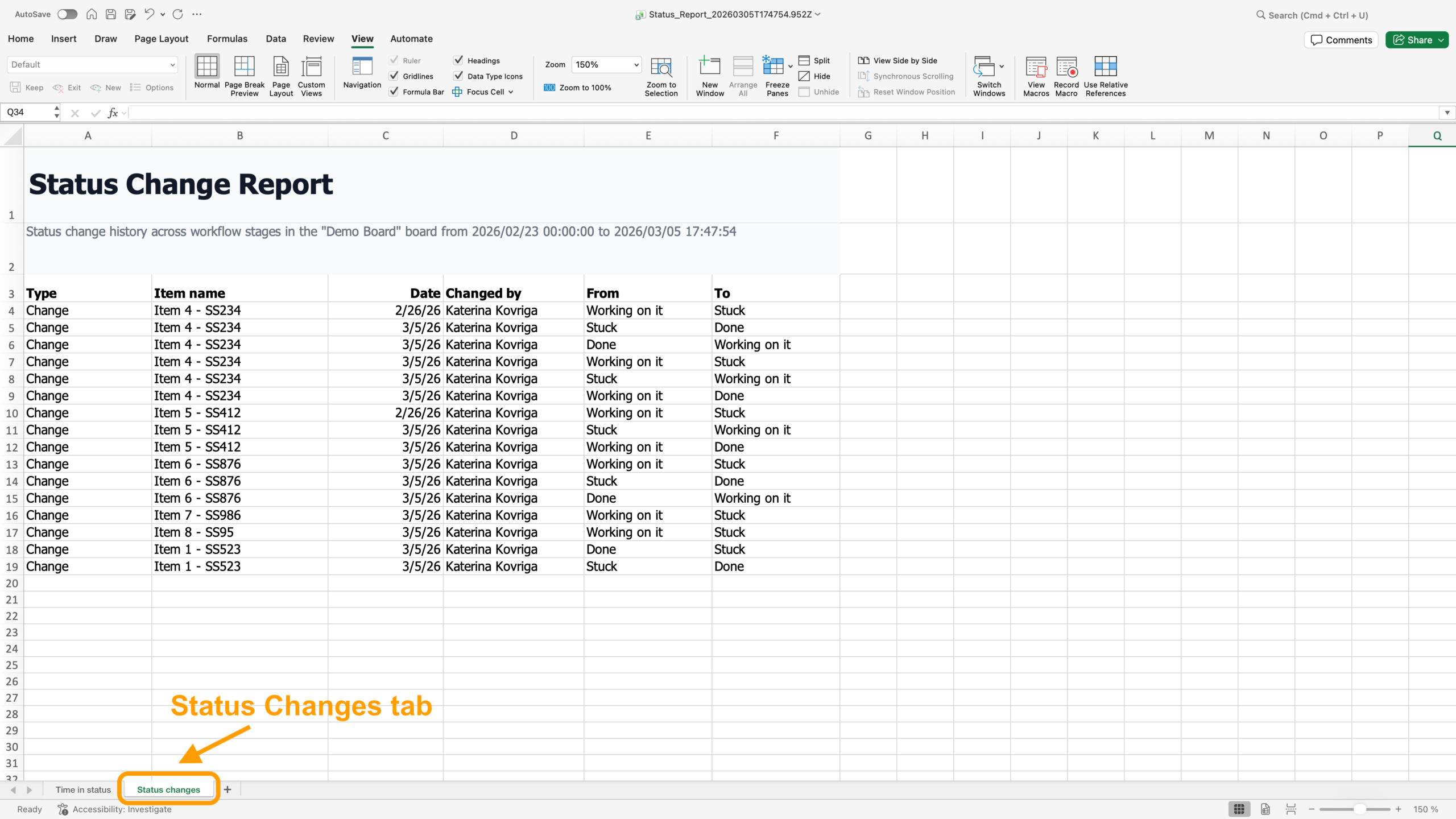
Tab 2: Status Changes. A chronological list of all historical status changes for the items included in the report.
The first tab provides the classic Time in Status view, helping you quickly identify workflow stages where items spend an unusually long time. For example, items may remain in the “Stuck” status due to blockers or dependencies.
The second tab helps you understand why this happens. It shows whether an item stayed in the same status for a long period or frequently moved between statuses. For instance, a single long “Stuck” period may indicate a major blocker, while repeated switching between “In Progress” and “Stuck” could suggest multiple smaller issues or gaps in preparation.
Together, these insights help you perform a deeper workflow bottleneck analysis, identify root causes of delays, and improve overall workflow performance.
 Pro tip: If you’re using our Smart Spreadsheet | Templates, Formulas, Charts app and want to build a status distribution report, check out our latest post: Two-Minute How-To: Getting Current and Historical Status Distribution in monday.com.
Wrap-Up
Tracking Time in Status is one of the simplest ways to understand how work actually moves through your workflow. By analyzing the time spent in each status and reviewing status changes, teams can quickly identify bottlenecks, improve process efficiency, and make delivery timelines more predictable.
With the Board Email Reports | Item Updates Reports app, creating these insights in monday.com is quick and effortless. Automated reports deliver clear time in status analytics and status-based metrics straight to your inbox, helping your team monitor workflow performance without manual data gathering.
Set up the report once, and start turning your workflow data into actionable insights.
FAQ
What is Time in Status?
Time in Status (also called a Status Duration report) shows how much time a work item spends in each stage of your workflow. It breaks down the time spent in each status – such as “To Do,” “In Progress,” “Stuck,” or “In Review” – across the entire task lifecycle.
This kind of time in status analytics helps teams see how work actually moves through their workflow and understand workflow performance beyond simple start and end dates.
Why Time in Status matters?
Time in Status matters because it reveals where work slows down. Instead of looking only at total cycle time, it shows which workflow stages consume the most time.
With these status-based metrics, teams can:
-
Identify workflow bottlenecks faster
-
Improve process efficiency metrics
-
Set more realistic timelines
-
Make delivery more predictable
In just a few minutes, Time in Status insights can highlight exactly where optimization is needed.
How to find bottlenecks in monday.com workflow?
To find bottlenecks in a monday.com workflow, focus on statuses where items spend significantly more time than expected.
Using time in status analytics – for example, through our Board Email Reports | Item Updates Reports app – you can:
-
Compare time spent in each status across items
-
Spot stages that increase overall cycle time
-
Run a quick workflow bottleneck analysis
-
Track workflow performance over time
If one status consistently stands out, it’s a clear signal of a bottleneck. Fixing these slowdowns helps work flow faster and keeps your workflow efficient and predictable.