






External Collaboration on monday.com: A Complete Guide
Maintaining external collaboration on monday.com shouldn’t mean exposing your entire “backstage.” Every project manager knows this tension: you want clients to stay informed, but not at the cost of revealing internal margins, half-baked ideas, or team chats. External collaboration on monday.com often comes down to walking a fine line — somewhere between “the client sees nothing” and “the client accidentally deleted my main workflow.”
In this guide, we’ll break down how to approach external communication on monday.com, highlight common pitfalls, and explore practical ways to handle them.
How to Set Up External Collaboration on monday.com
Effective external collaboration starts with a simple choice: how much of your workflow do you actually want your clients to touch?
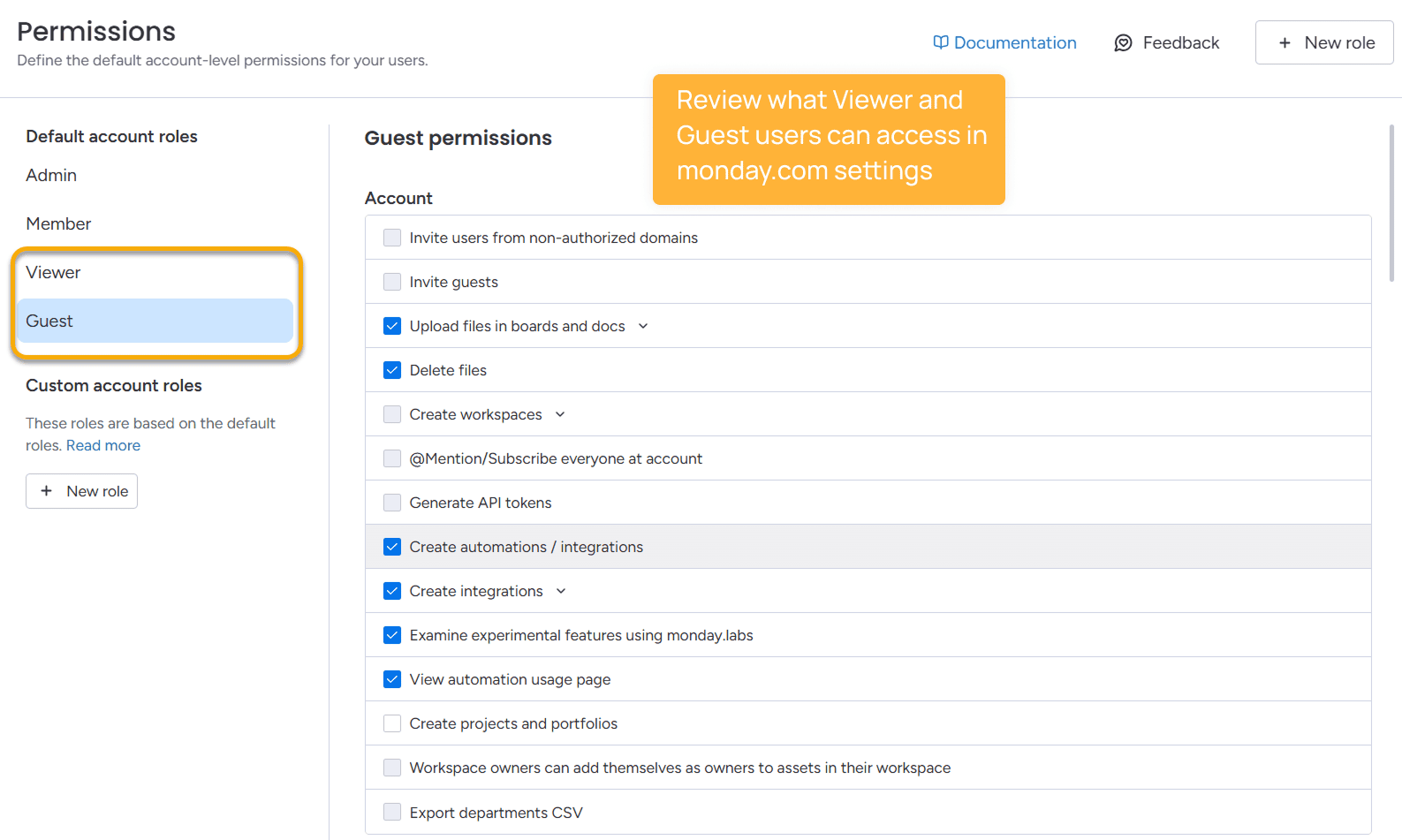
When collaborating with people outside your monday account, you have two main roles: Viewers and Guests. You can manage them in your admin settings (Profile picture → Administration → Permissions → Viewer/Guest).
At first glance, the distinction seems simple, but choosing the right role has a direct impact on how smoothly your external collaboration works.
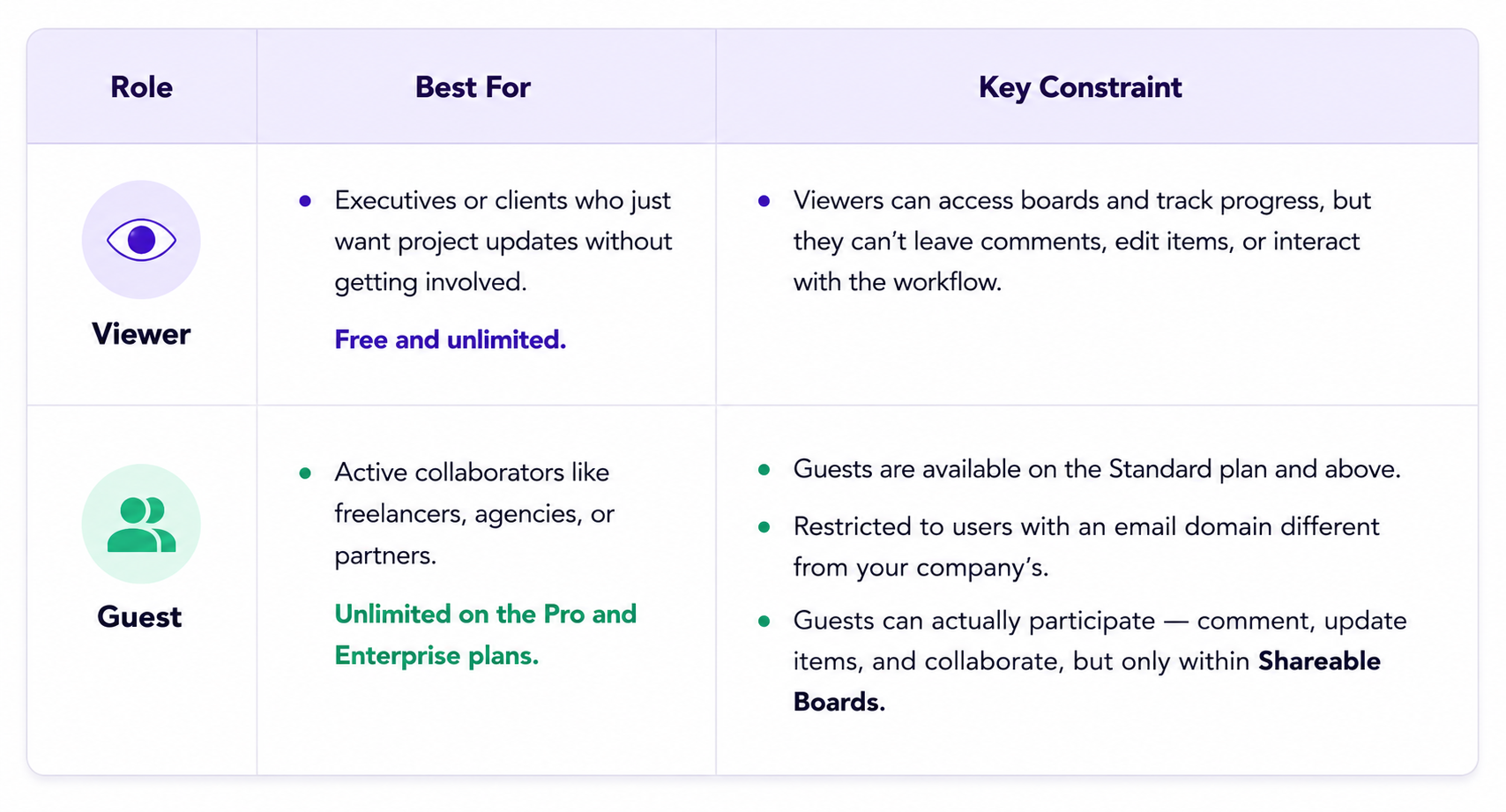
The catch? Neither role perfectly balances total transparency with total control. Viewers are often too restricted, while Guests might see more than you’re ready to show. This gap is exactly why most teams eventually need a more strategic approach.
Takeaway: Choose Viewers for passive “eyes-on” reporting and Guests for active “hands-on” collaboration. If neither fits perfectly, you’ll need to look beyond basic roles and adjust your board architecture.
Common User Pains with External Communication on monday.com
Based on user feedback from the monday.com community, here are the most common “pains” related to external communication in monday.com.
1. The “All or Nothing” Visibility
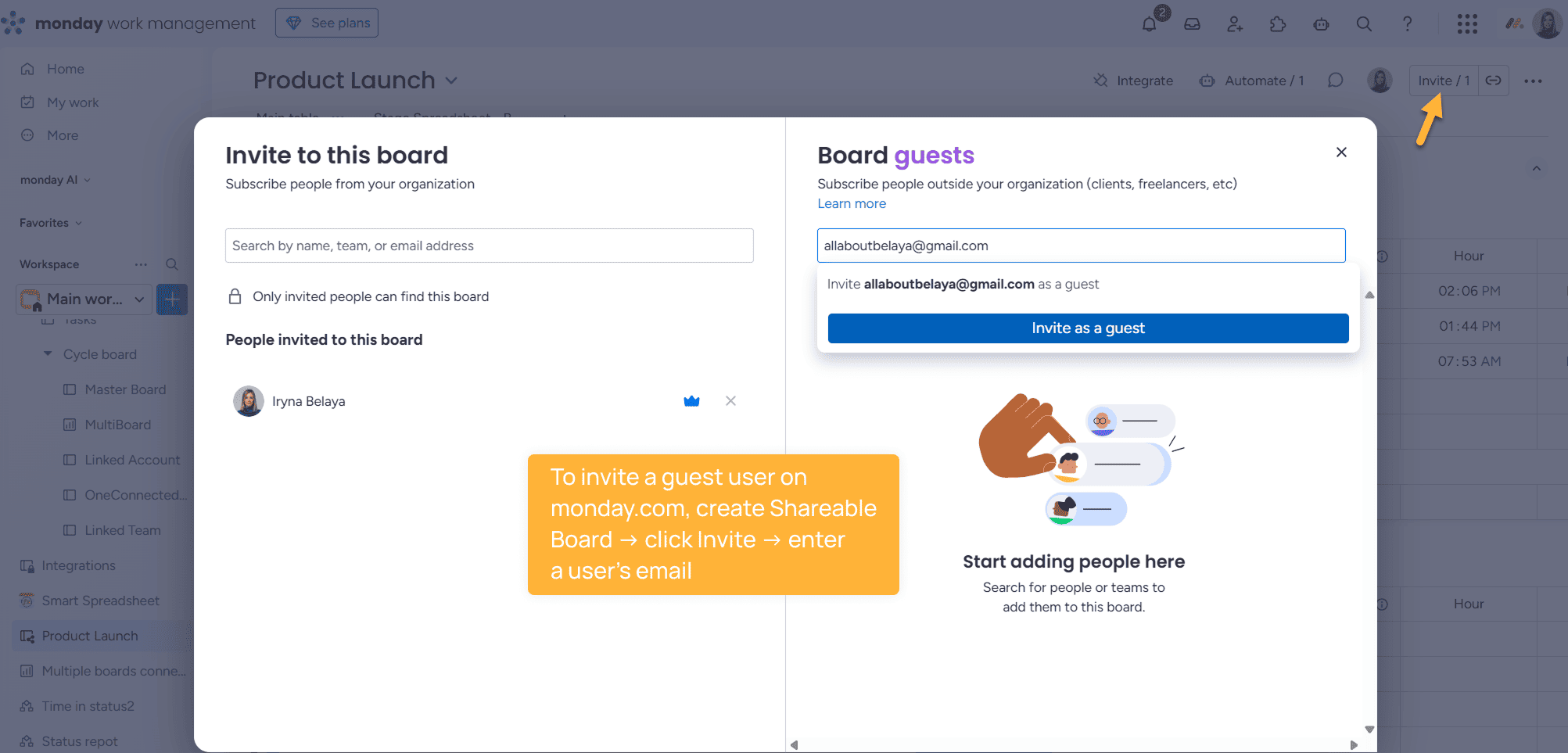
In monday.com, permissions to external users are board-wide. If you invite a Guest to a board, they see every group and every column.
“Our team needs item-level guest permissions to manage freelancers effectively without exposing the entire board.”
2. The “Silent” Viewer
To save on costs, many use the free Viewer role. However, commenting is considered an “edit-level” interaction.
“Right now, there is no way to combine a View license with comment permissions. It forces us to buy full seats just for simple feedback.”
3. The “Too Much Power” Problem
When you give a Guest access to update a status or status labels, they also gain the power to accidentally delete columns or add automations. There is no “safe mode” for clients to interact with the data.
4. The “Unshareable Updates”
Inside monday.com, item updates act as the central place for team communication — decisions, context, and progress all live there.
But when it comes to sharing that information with clients, teams hit a wall.
There’s no clean way to:
- share selected updates externally
- separate internal vs client-facing communication
- turn updates into a structured, client-ready view
As a result, teams end up copying updates into emails or Slack messages, duplicating work and breaking the single source of truth.
5. The “Out-of-Context Timeline” Problem
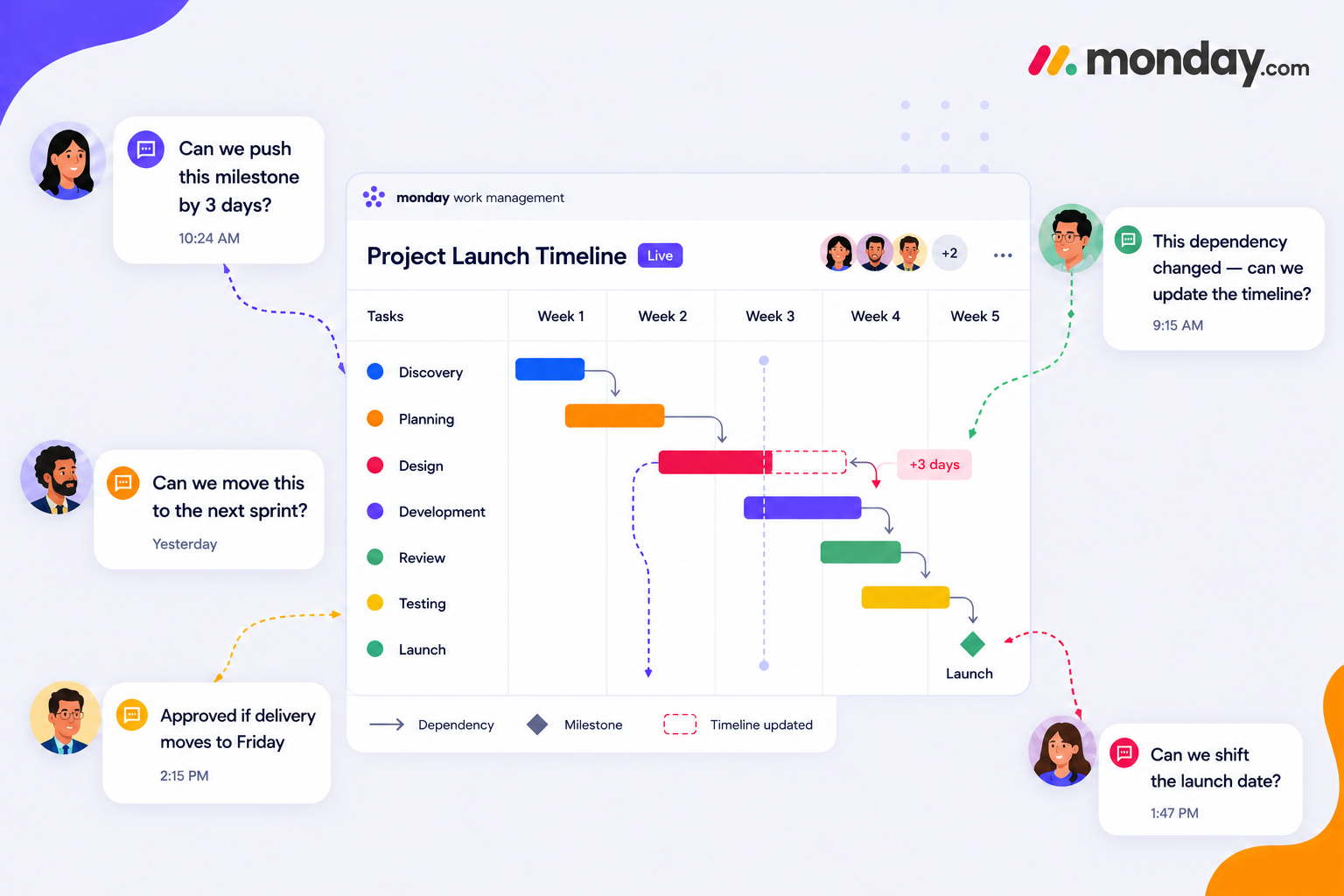
Project timelines are not static; they constantly evolve. Clients ask for changes, teams adjust deadlines, and dependencies and deadlines shift. The timeline is a living system.
But in monday.com, there’s no easy way to collaborate on that timeline with external stakeholders.
Teams are stuck between two imperfect options:
- keep it safe → share a timeline or Gantt view as PDF
- make it interactive → invite the client into the board
The first option is controlled but leads to PDF version chaos and a long approval cycle. The second allows interaction, but introduces risk. Once a client is inside the board, even a small accidental action, such as shifting a timeline bar, can trigger automations and affect the entire schedule.
And without a clear way to safely explore changes or revert them, teams hesitate to give that level of access.
Takeaway: The main limitations of external collaboration in monday.com come down to a lack of granular access control, no update-sharing option, and an easy way to collaborate with clients on timelines.
How To Work Around External Collaboration Limits
Method 1: Fine-Tuning Default Permissions
The simplest starting point is to tighten the leash on permissions. In your account settings, review the default permissions for Guest users and uncheck any “excess” capabilities (like creating new boards or automations). This creates a safer baseline for all external interactions.
Method 2: The “Mirror & Share” Hybrid
You create a Shareable Board for the client and sync data from your internal board using Mirror Columns.
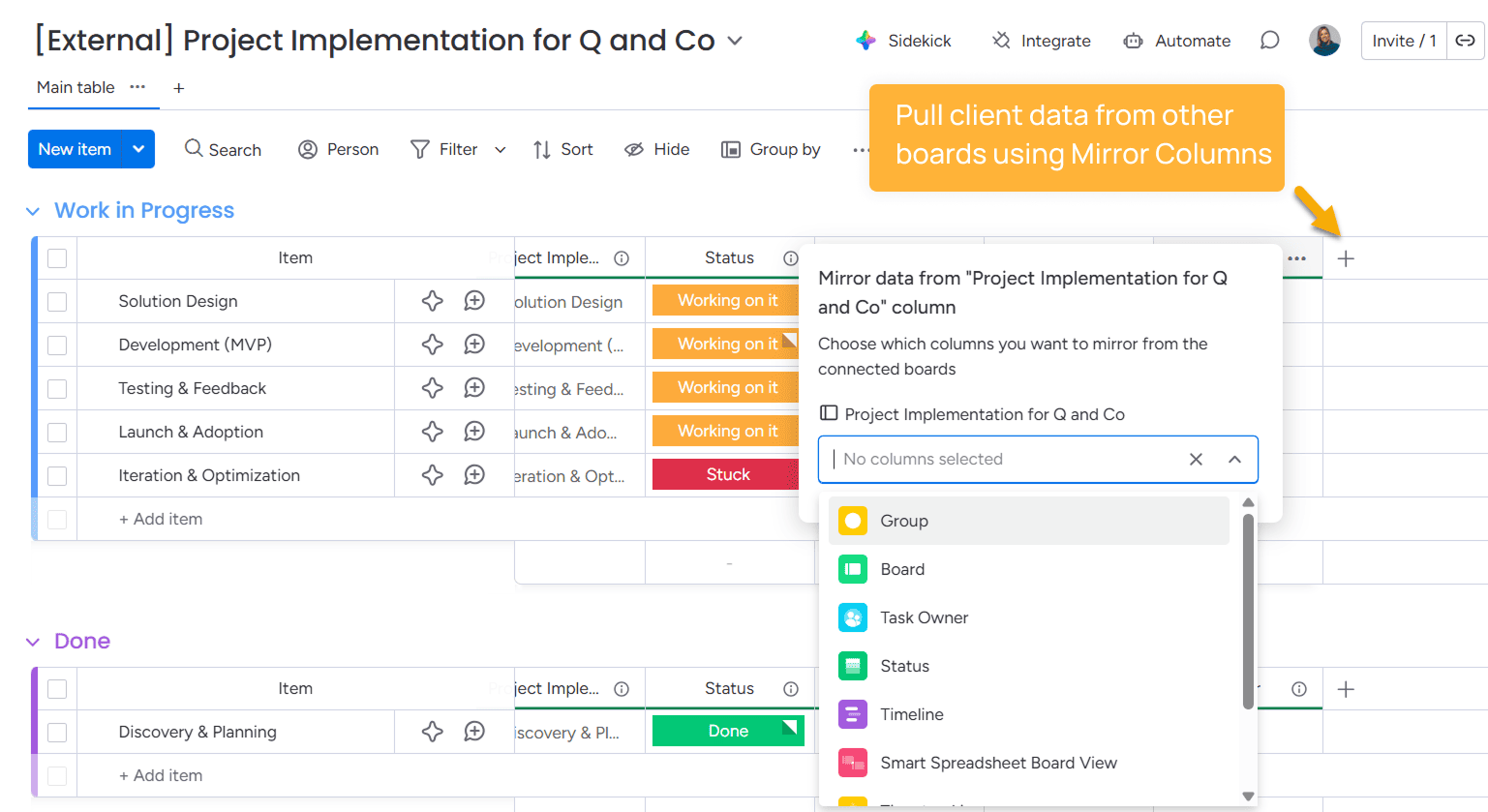
The Setup:
You keep your main board private and expose only selected columns (status, deadlines) via connected boards. The client gets access to a “clean” version.
The Catch: Administrative Overload
This approach doesn’t scale well. 20 clients → 20 extra boards to maintain, sync, and keep in structure.
Method 3: High-Level Dashboards (The Executive Overview)
Great for showing the “big picture” across multiple projects. You can even schedule them to be sent as a PDF.
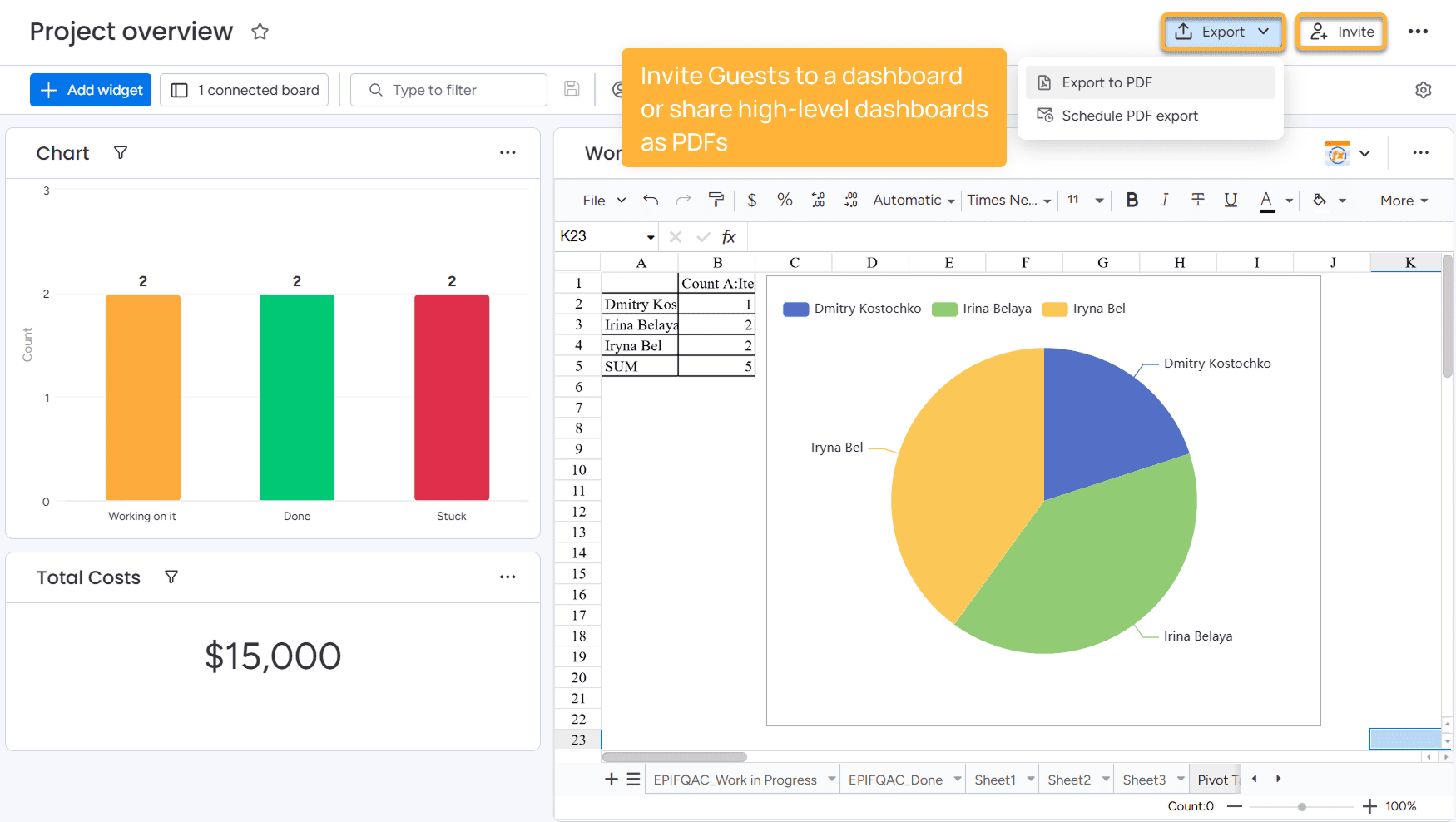
The Setup:
You build a dashboard with charts, battery widgets, and timelines, then share it with Viewers or Guests.
The Catch: No Drill-Down
Dashboards work well for reporting, but not for coordination. If a client spots a delay, they can see that something is wrong, but not why it happened or what to do next.
Method 4: Share a Live Gantt Chart View
When sharing a timeline with a client, the most straightforward path is often a shared Gantt view. This is usually a defensive move: teams want to provide visibility while preventing accidental changes that are difficult to track or revert. Another common, though tedious, workaround is to export the Gantt as a PDF and email it.
However, both options suffer from the same flaw: they are static.
The moment feedback begins, the conversation migrates away from the timeline and into fragmented emails, calls, or chat threads. Decisions are made without context, approvals take longer, and every minor tweak must be manually tested and mirrored back into the project.
👉 What should be a quick alignment becomes an exhausting feedback loop.
Here comes Interactive Gantt Timeline that bridges the gap between ‘look but don’t touch’ and unregulated editing that can break your project structure. It doesn’t replace monday’s native Gantt. It adds an external collaboration layer for working with clients and stakeholders outside your workspace.
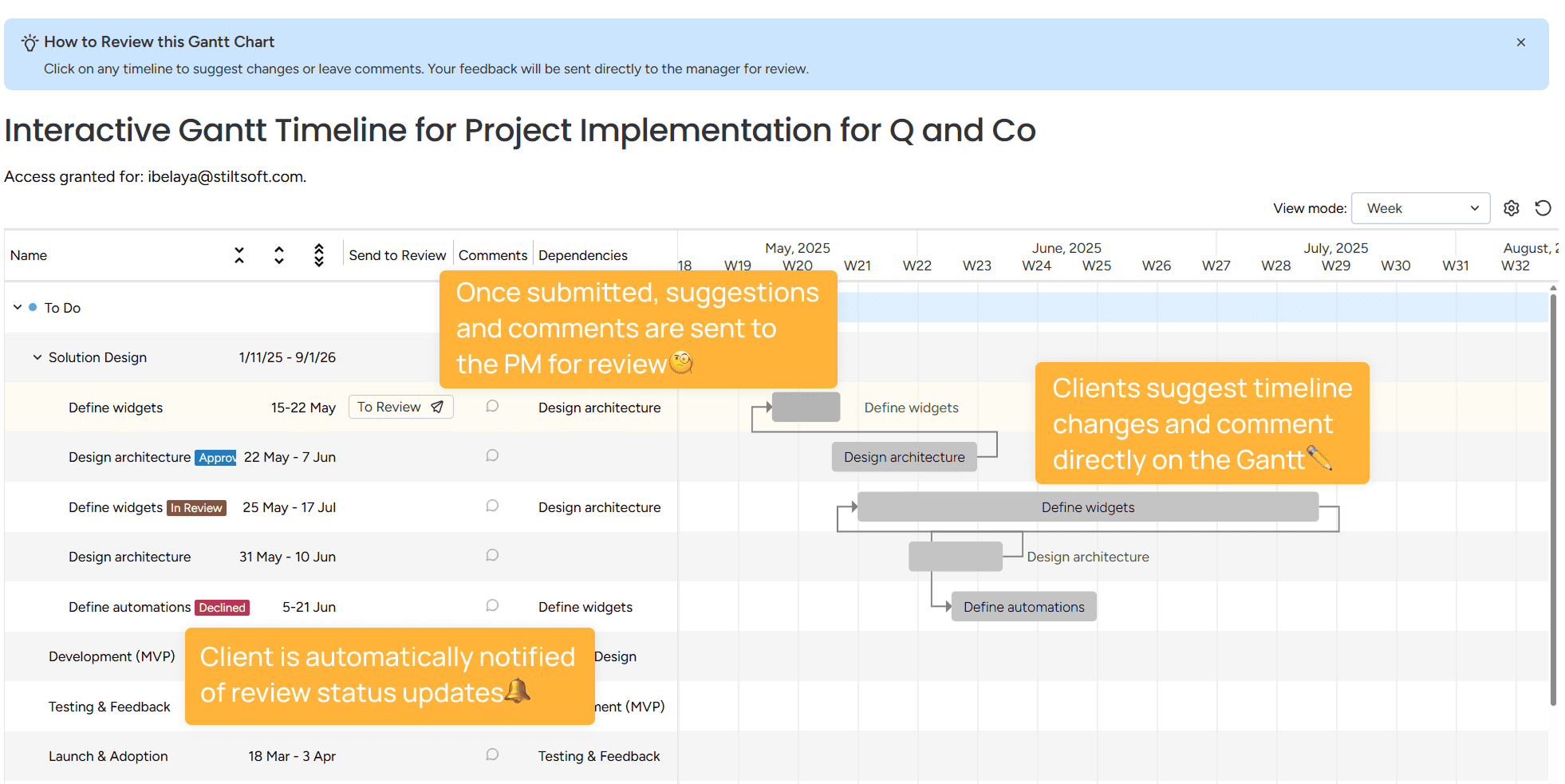
The benefits of this approach:
- 📡 Single Source of Truth: Share one live Gantt timeline that updates in real-time.
- 💬 In-Context Collaboration: Collect comments and timeline suggestions directly on the timeline, keeping the “why” attached to the “when.”
- 🧪 The “Sandbox” Mode: In monday, use What-If Analysis to test timeline adjustments in a safe environment before committing them to the live board.

- 🔔 Automated Sync: Keep stakeholders notified automatically as milestones shift, eliminating the need for “status update” emails.

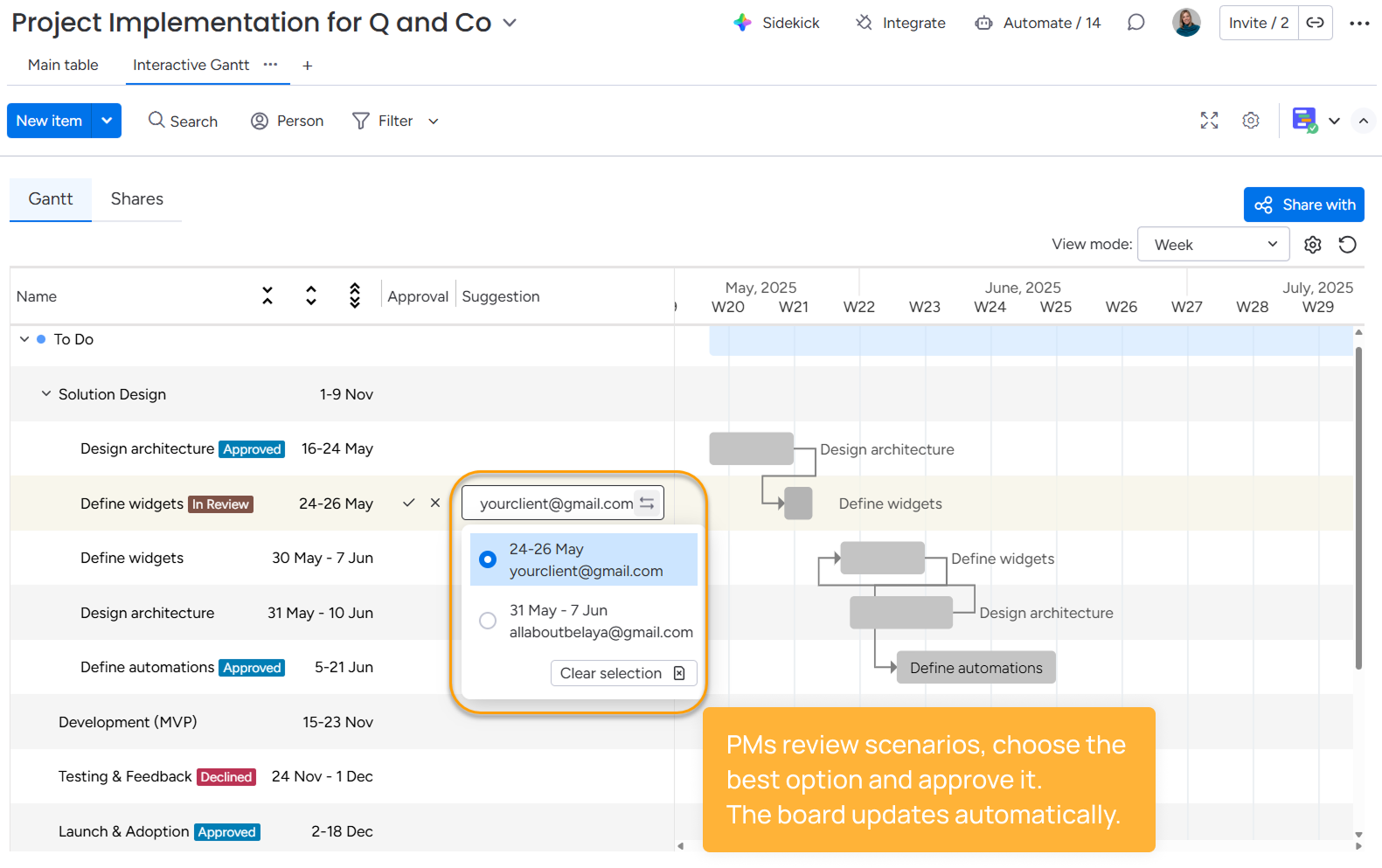
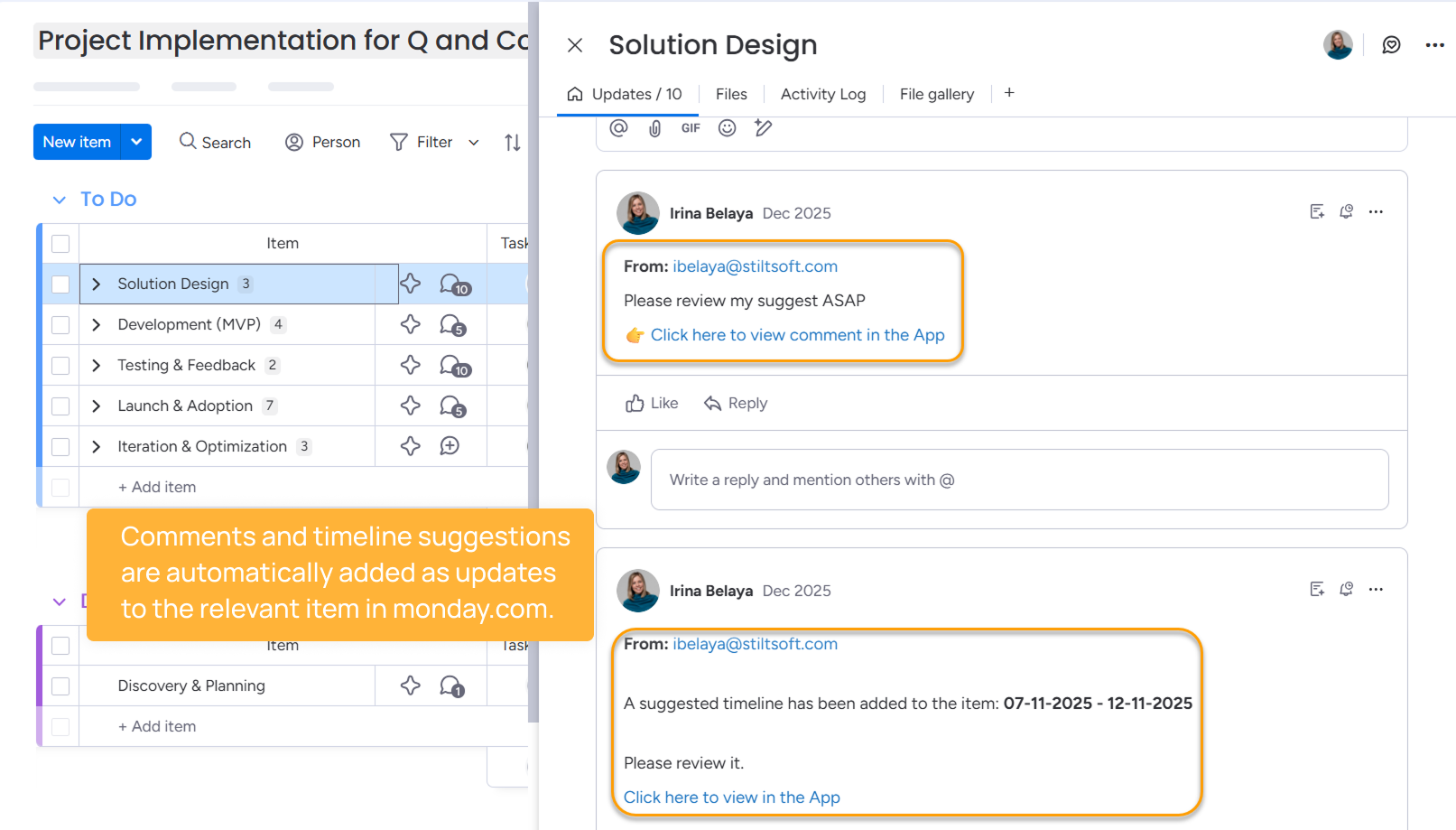
Unlike native monday collaboration roles, this approach lets you work with unlimited external stakeholders without adding them to your account or dealing with email domain limitations.
With Interactive Gantt Timeline, you, as a PM, shorten feedback loops and turn timeline collaboration into a structured, controlled process.
Takeaway: Every workaround in monday.com has its own trade-offs. The right approach depends on your team’s priorities — whether it’s controlled visibility, cost efficiency, or real-time collaboration with external stakeholders.
Wrap-up on external communication on monday.com
External collaboration in monday.com is built around trade-offs.
- Use Viewers for passive visibility when stakeholders only need to track progress
- Use Guests for active collaboration when external users need to comment or update items
When Viewer feels too restrictive and Guest access too broad, teams turn to workarounds:
- Fine-tuning permissions — restrict Guest capabilities to reduce risk, but still limited to board-level control
- Mirror & Share — create client-facing boards with mirrored data to control visibility, at the cost of extra maintenance
- Dashboards — share high-level insights and reports, but without drill-down or real collaboration
- Interactive Gantt Timeline — share a live timeline externally, collect feedback directly in context, and test suggested changes without risking your project schedule.
FAQ
What is the difference between a “Guest” and a “Viewer” in monday.com?
Viewers can only see data and cannot comment or interact. Guests can comment and edit items, but only within Shareable Boards.
Can I share only specific items or groups with external users?
No, monday.com permissions are board-level. To limit visibility, teams usually create separate boards and use Mirror columns for pulling necessary data for clients.
Can Viewers leave comments in monday.com?
No, commenting is considered an edit-level action and requires Guest or Member access.
How can I collaborate with clients on a Gantt chart in monday.com?
You have a few options, depending on the level of interaction you need.
- For simple visibility, you can share a Gantt view via a board or export it as a PDF — but both approaches are static and lead to long feedback loops.
- For more interaction, you can invite clients as Guests to a Shareable Board with a Gantt view, though this gives them direct access to your workflow.
- For more structured and controlled collaboration, tools like Interactive Gantt Timeline allow clients to review the timeline, leave feedback, and suggest changes directly in context — without risking your internal setup.
How do teams usually share project updates with clients?
Teams typically use a mix of approaches, depending on how interactive the communication needs to be:
- Shareable boards — give clients access to item updates, where progress, decisions, and discussions happen in context
- Manual updates (email or Slack) — used when teams don’t want to expose the board, but this often leads to duplicated communication and loss of context
- Third-party tools — for example, Interactive Gantt Timeline or Board Email Reports.
It depends on the level of control and interaction you need.
- For visibility, dashboards and Viewer access work well
- For basic interaction, shareable boards with Guest access allow clients to comment and update items
- For structured timeline collaboration, solutions like Interactive Gantt Timeline provide a more controlled approach — enabling feedback and suggestions directly on the timeline without exposing or risking your internal workflow