


New VLOOKUP Builder for monday.com: Find and Match Data Across Boards

Working with multiple boards in monday.com often means dealing with related information stored in different places. Let’s say you manage projects on one board, while employee roles and hourly rates are stored on another. When preparing project budgets, you need to retrieve the correct hourly rate for each employee.
The same applies to many other scenarios:
-
A project board and a separate employee directory with roles and contact details.
-
A sales board and a product catalog with current prices.
-
An orders board and a customer database with account information.
-
A task board and a resource board with assigned teams or project details.
Finding the right information manually and copying it between boards can quickly become tedious. It takes time, leaves room for human error, and creates extra maintenance work. If the original value changes, you have to find and update every copied value yourself.
monday.com’s Connect Boards and Mirror Columns offer another way to handle related data. They work well when you need to establish relationships between specific items and display information from linked records. However, setting this up can take time, especially when you have many items to connect. You need to find the corresponding items and establish connections between them, rather than simply defining a matching condition and let the system find the right records automatically.
There’s another limitation: Mirror Columns are primarily designed to display data from connected items. If you want to use that data in further calculations, formulas, or reports, you may run into additional limitations and need extra workarounds.
That’s why we’ve introduced the VLOOKUP Column Extension in Smart Spreadsheet for monday.com. It automatically finds matching items on another board and retrieves the values you need – just like VLOOKUP or XLOOKUP in Excel.
Unlike Mirror Columns, the extension returns regular cell values that you can use in further calculations, formulas, and reports. These values are also automatically synchronized with the source board, so they stay up to date whenever the source data or lookup value changes.
Meet the New VLOOKUP Column Extension
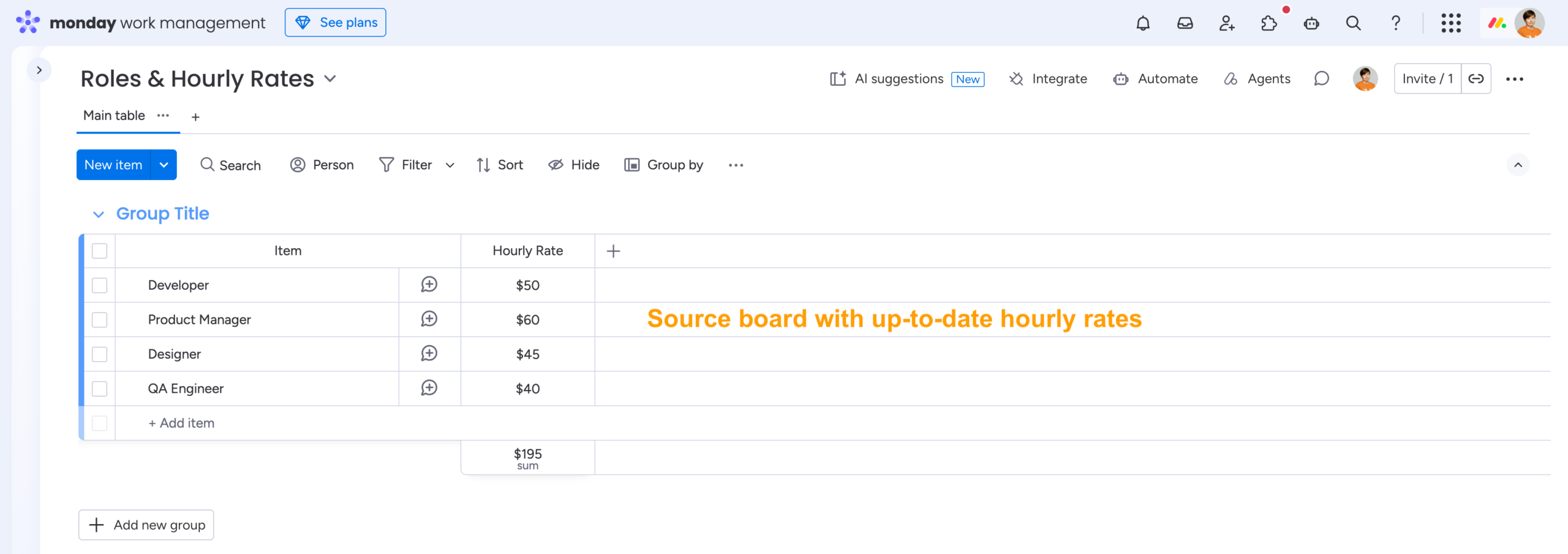
Let’s look at a simple but common scenario. You have a source board where you store employee roles (developer, product manager, designer, etc.) and their corresponding hourly rates.
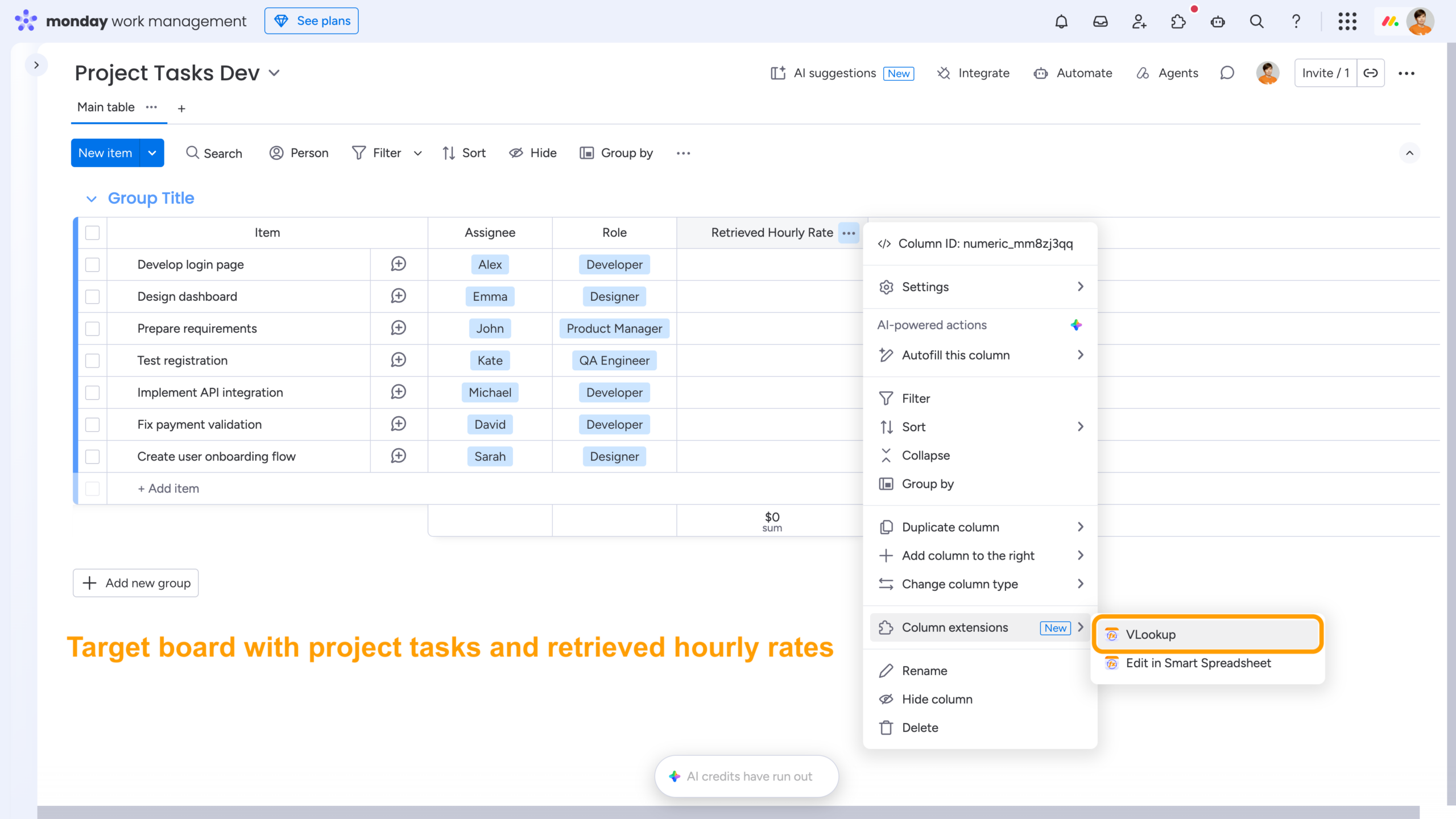
On your project board, you need to retrieve the correct hourly rate for each employee based on their role. To do this, open Column Extensions and select VLOOKUP.
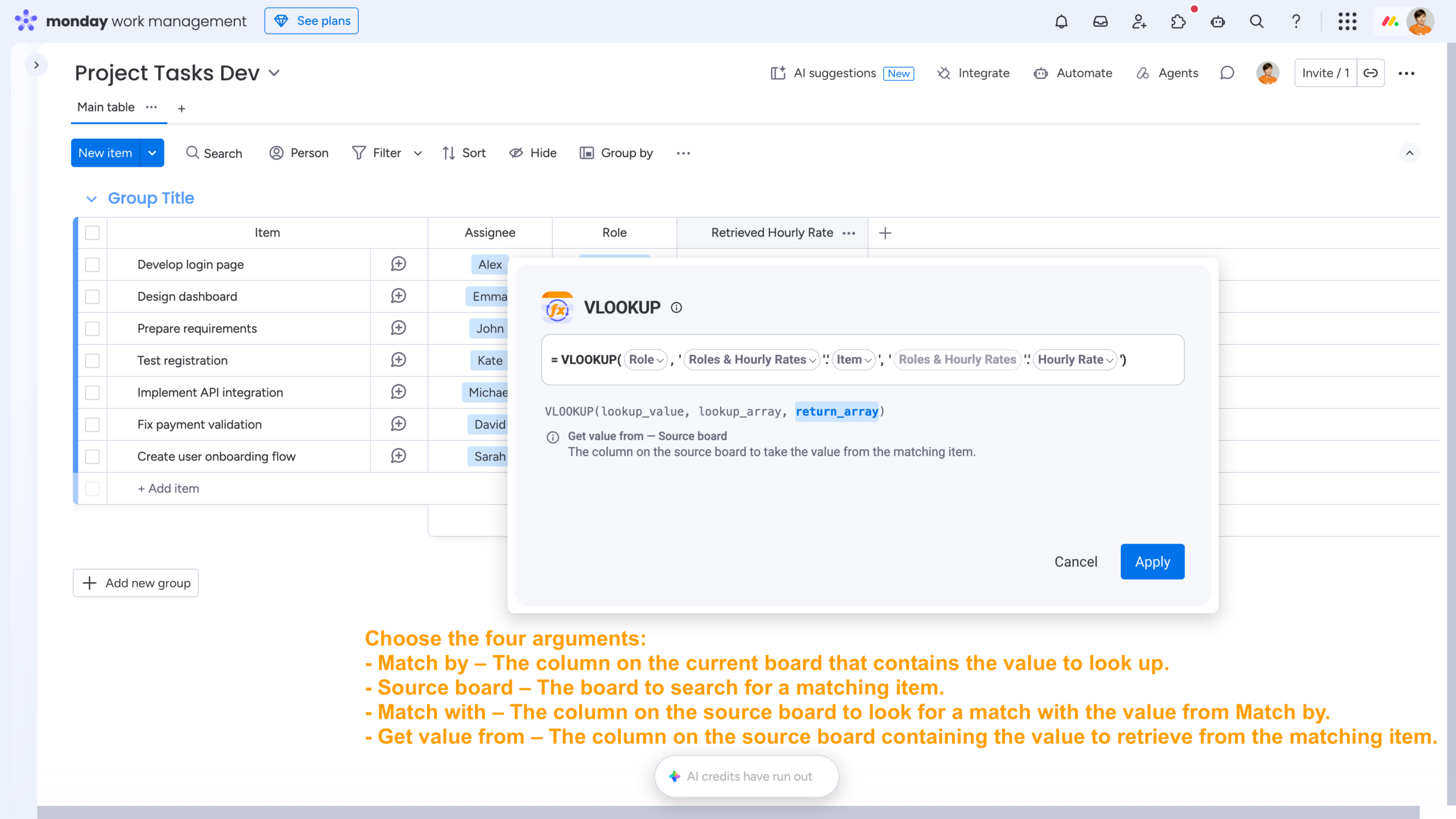
Next, configure four arguments:
-
Match by – Select the column on your current board containing the value you want to look up.
-
Source board – Choose the board where the matching information is stored.
-
Match with – Select the column on the source board where the extension should look for a match.
-
Get value from – Choose the column containing the value you want to retrieve.
That’s it! The extension finds the matching item and retrieves the corresponding value in your target board.
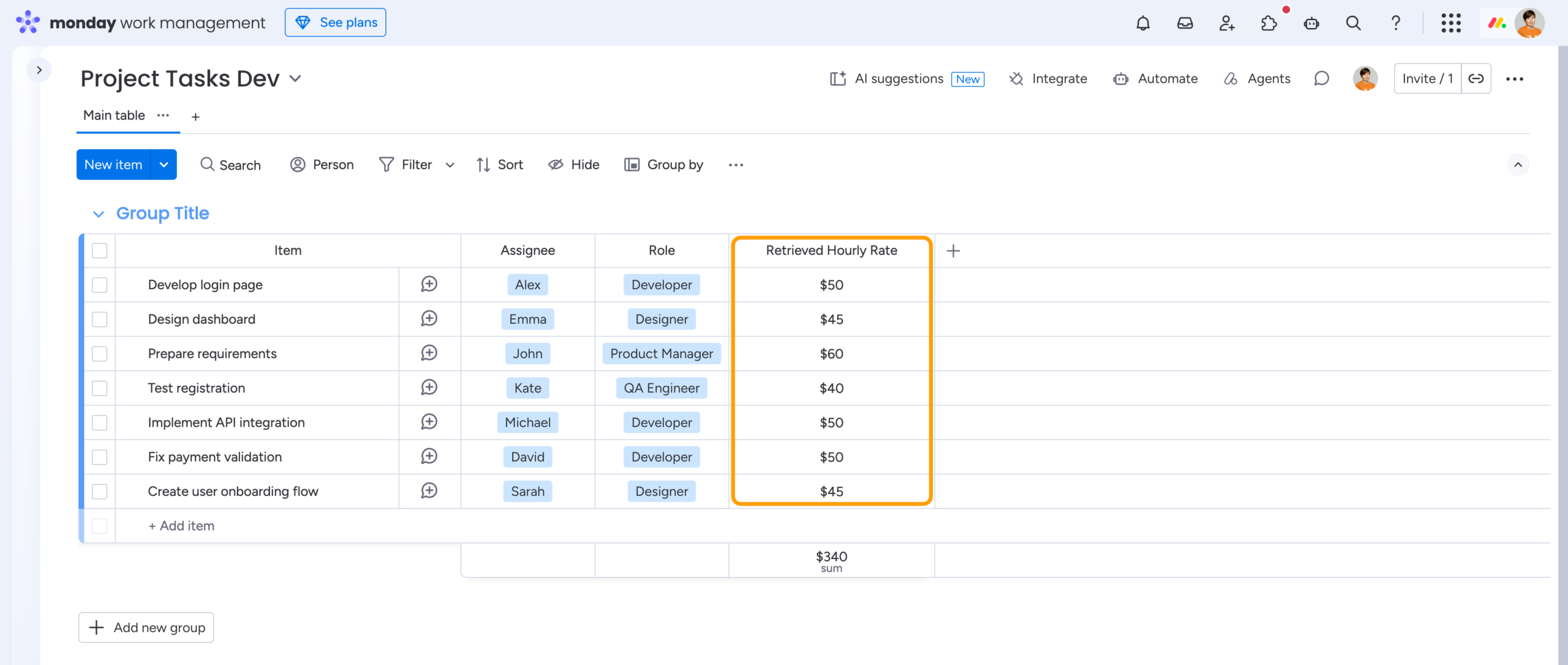
Whenever the source data changes, the retrieved values are updated automatically, so you don’t have to keep track of changes or copy values again.
Get Started with Smart Spreadsheet for monday.com
The VLOOKUP Column Extension makes it easier to work with related information across multiple monday.com boards. Whether you need employee rates, product prices, customer details, or project information, you can retrieve actual values that are ready to use in your calculations and reports – with automatic synchronization to keep them up to date whenever the source data or lookup value changes.
Ready to give the VLOOKUP Column Extension a try?
Find Smart Spreadsheet on the monday.com Marketplace and and enjoy a 14-day free trial.
FAQ
Do I need to connect my boards to use the VLOOKUP Column Extension?
No. Unlike the native Connect Boards and Mirror Columns approach, the VLOOKUP Column Extension can retrieve matching values directly from another board without setting up item connections.
Are the retrieved values updated automatically?
Yes. The VLOOKUP Column Extension automatically updates the retrieved values whenever the source data changes or the lookup value on the target board is modified. This ensures that your target board always displays the corresponding value from the source board.
What else can I do with Smart Spreadsheet?
Smart Spreadsheet offers several ways to work with spreadsheet data in monday.com:
-
Smart Spreadsheet View – Work with live monday.com board data in an Excel-like spreadsheet, using formulas, pivot tables, charts, conditional formatting, and more.
-
Google Drive Embedder – Embed and edit Google Sheets, Docs, and Slides directly in monday.com using their native Google interfaces.
-
Google Sheet View – Create and edit spreadsheets in monday.com using a familiar Google Sheets interface, without connecting a Google account or an existing Google Sheets file.