







How to Use monday.com for Financial Management: Budgets, Tracking, and Reporting

You can use monday.com for a wide range of financial management tasks – from budgeting and expense tracking to estimating and reporting. While it isn’t a full-fledged accounting system, monday.com is highly flexible and allows you to build (or customize) the workflows and dashboards your team needs. Let’s take a look on how to use monday.com for financial management: budgets, tracking, and reporting. We’ll cover:
- Finance board templates for fast, simple setup
- Custom columns to tailor financial workflows
- monday.com automations and dashboards for accurate budget control
- Spreadsheets for familiar Excel-style tracking and automated finance reporting
Finance Templates for a Quick and Easy Setup
monday.com offers a rich collection of templates covering many business processes, including finance. Instead of building boards from scratch, you can quickly start with a template that fits your use case and tailor it as needed. The template library continues to grow, so it’s worth checking back regularly for new additions.
In the meantime, here’s a closer look at some of the most relevant options:
- Budget Plan. A straightforward template that helps you track how much each department, team, or person is spending compared to their budget. You can quickly see whether you’re on track or overspending.
- Cost Comparison. This template lets you compare prices from different vendors side by side. View offers, cost breakdowns, and final prices in one place so you can easily choose the best option.
- Cost Estimate. The template outlines client details, project timelines, and estimated costs. It automatically calculates the final price, and the Gantt view makes it easy to avoid scheduling conflicts and plan upcoming projects.
- Expense Report. A simple, customizable way to log expenses like items purchased, purchase dates, total amounts, and payment details.
- Finance Request Handling. This template helps streamline finance-related requests by automatically translating messages, detecting tone, sorting requests by type, assigning them to the right person, and tracking them until resolved.
- Finance Requests. The template collects all finance requests from your team in one place. Track statuses, updates, and approvals so everyone stays informed.
- Financial Accounting. A helpful template for tracking outstanding payments and due dates. It shows what’s owed, what’s been paid, and what deadlines are approaching.
- Financial Statement. This template documents your company’s yearly financials – revenue, expenses, taxes, and profit. It includes both a board and a document so you can add formulas, automations, and extra notes.
- High-level Marketing Budget. A clear and easy-to-follow template for tracking your marketing spend and budget allocation. See how your marketing budget is distributed at a glance.
- Purchase Orders. The template helps you manage purchase orders more efficiently by uploading documents and letting AI pull out key details like vendor, amount, and dates. Track each purchase order from review to completion.
- Receipt Management. This template keeps receipts organized by having AI extract important details such as total amount, vendor, and purchase date. Easily track approvals and reimbursements.
- TFD: Finance Habit Tracker. Created by The Financial Diet, the template helps you monitor your monthly finances and spending habits. Set goals and track your progress to stay on top of your budget.
Here is an example of the board created with the help of the Budget Plan template:
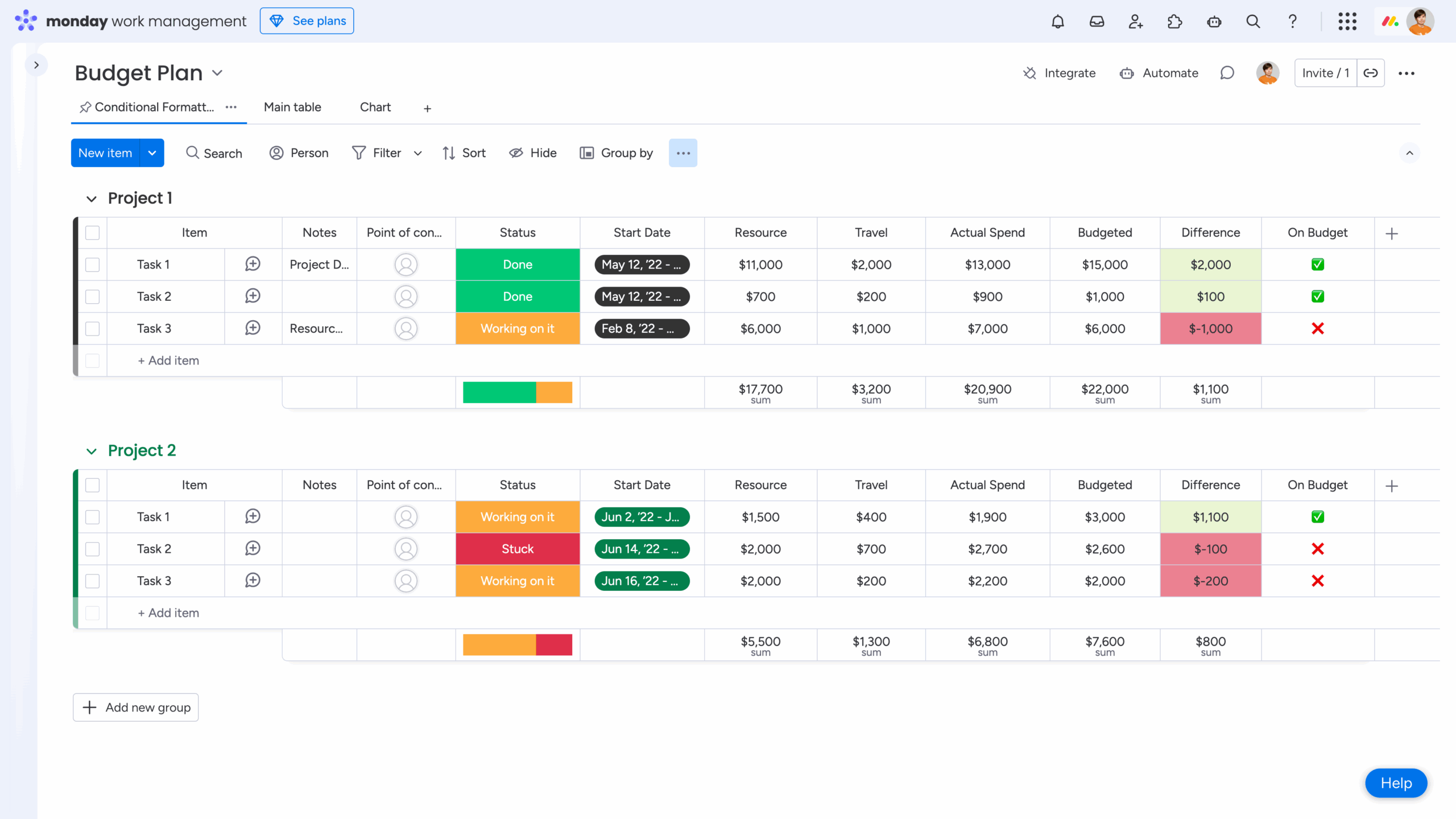
Now you can easily adjust it for your needs.
💡 Takeaway: Use finance templates to save time on initial board setup.
Custom Columns to Tailor Your Financial Workflows
You can customize any monday.com board with the columns you need to manage your financial workflows effectively:
- Numbers Column: use this to enter monetary values such as budgets, actual spend, income, or revenue.
- Formula Column: great for calculations and logic. You can compute taxes, remaining budget, or build conditional rules. For example: IF({Travel} > 200, “Contact Brad”, “Good”).
- Conditional Coloring: highlight important insights automatically. For instance, flag rows where spending exceeds the allocated budget.
- Date Column: track expense dates, invoice deadlines, payment due dates, and more.
- Status & People Columns: assign responsibility, track approval stages, and indicate who needs to sign off on specific expenses or financial steps.
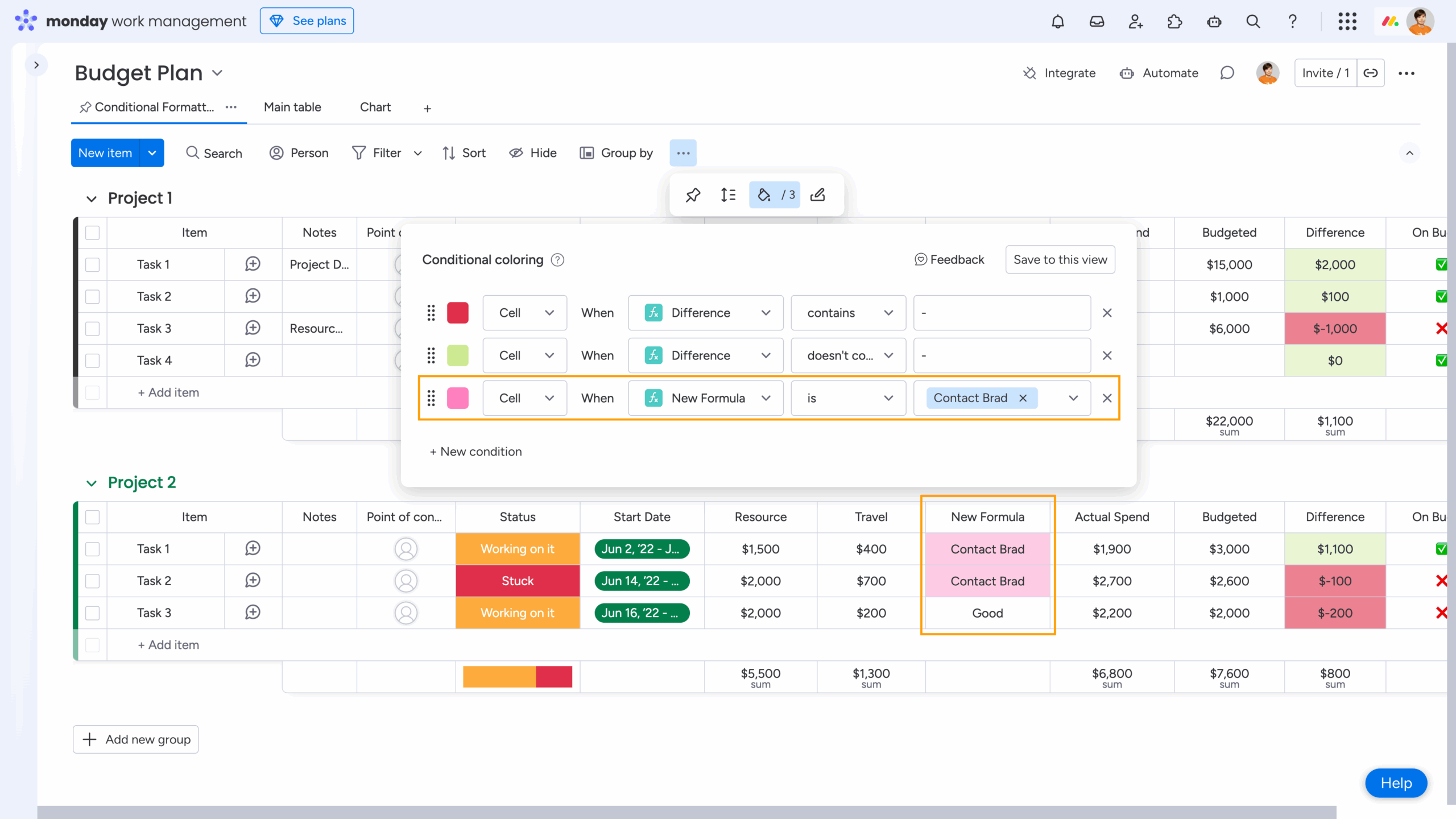
monday.com also provides group-level summaries, allowing you to sum up costs for each category or project. You can view total column sums across the entire board as well, making it easy to monitor overall budget usage.
Plus, multiple currencies (USD, EUR, and GBP) are also supported that is helpful for teams working across regions.
Although monday.com doesn’t offer a native “Fiscal Year” field for boards, you can easily recreate one with a few columns:
- Add a Date column for the required financial dates. Let it be Creation Date for our example.
- Add a Formula column to calculate the fiscal year based on your company’s fiscal-year start. For example: if your fiscal year begins in July, you can set a formula that assigns the next calendar year when the date is in July or later, and the current year otherwise: IF(MONTH({Creation Date}) >= 7, YEAR({Creation Date}) + 1, YEAR({Creation Date})).
- Use board filters or saved views to display only the items that fall within a specific fiscal year.
If you want to adjust the fiscal year for your Gantt chart, please check out Tip #9 in our recent blog post, “10 Tips I Wish I Knew When I Started Using monday.com“.
💡 Takeaway: Customize columns to align boards with your specific workflows.
Automations and Dashboards for Accurate Budget Management
monday.com also offers a wide range of standard automations and dashboard widgets that can make any project tracking (including financial planning and budgets managing) easier, faster, and far more reliable. These tools help you reduce manual work and stay fully in control of your numbers.
Financial workflows often involve repetitive actions – setting due dates, checking for overdue invoices, monitoring overspending, sending reminders, and so on. Automations remove this manual effort and make sure nothing slips through the cracks.
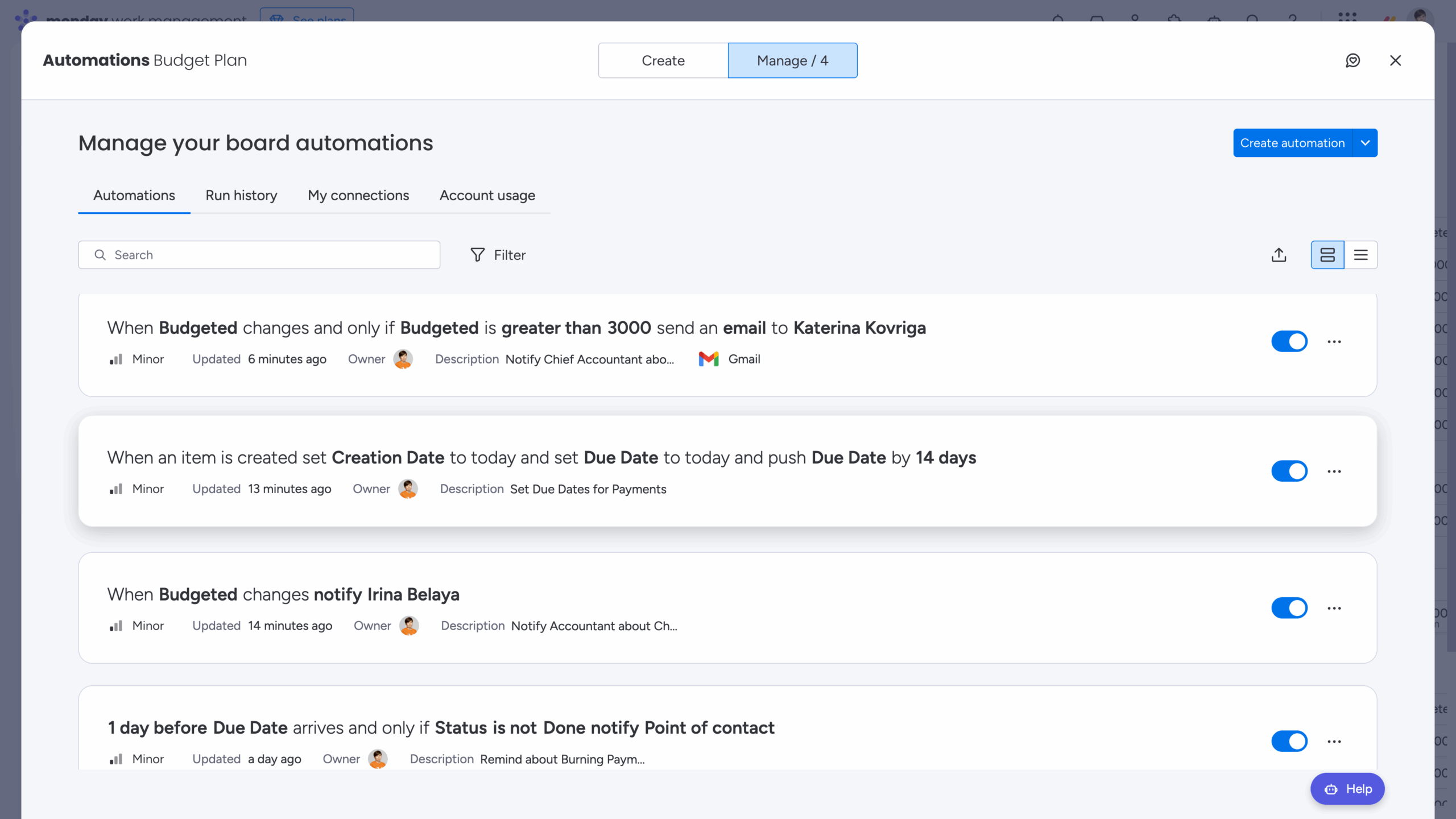
For example, you can set up a simple automation that assigns payment due dates automatically: when an item is created → set Creation Date to today and set Due Date to today + 14 days. This ensures every payment request starts with a clear schedule.
You can then build on this by adding smart notifications in the automation center. For example:
- Notify the chief accountant when a due date is approaching but the status is still not “Done”.
- Send a notification to the accountant when any key column is updated.
- Alert the finance manager when the budgeted amount exceeds a certain threshold.
These small automations add up to significant time savings and help maintain accuracy – which is critical when dealing with money.
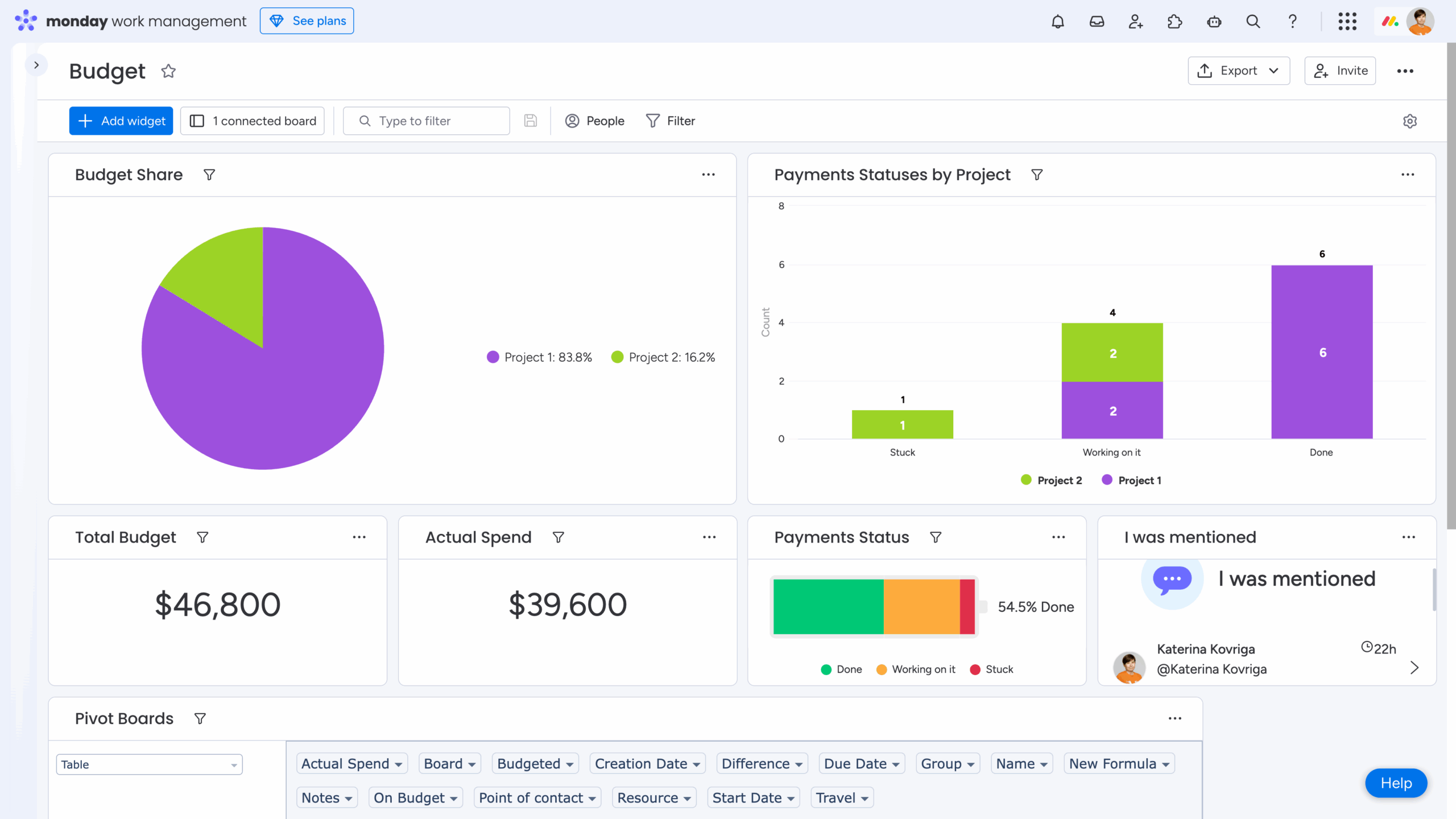
monday.com dashboard widgets bring your financial data together in one place and give you instant visibility into budgets and spending patterns. For example:
- Charts (compare budgets and visualize progress)
- Pivot Boards (summarize expenses by category, vendor, team, or month)
- Numbers Widgets (display total budget, actual spend, remaining sums)
- Battery Widgets (visualize progress tracking)
All of these can be customized, providing a high-level overview without digging into multiple boards, groups, and items.
💡 Takeaway: Use monday.com automations and dashboards to make finance tracking easier and more accurate.
Spreadsheets for Excel-Style Financial Tracking and Reporting
You can also extend monday.com’s native capabilities by using third-party apps. For example, we build Smart Spreadsheet for monday, an app that brings the familiar Excel and Google Sheets experience directly into monday boards, dashboards, and docs.
With Smart Spreadsheet, you can:
- Work with advanced Excel-style features – including familiar formulas (such as COUNTIF(), SUMIF(), TODAY(), DATEDIF(), etc.), dropdowns, conditional formatting, filters, pivot tables, charts, and more.
- Sync your boards with live spreadsheets to keep your data consistent, accurate, and transparent.
- Automate your reporting by scheduling recurring .xls exports for stakeholders or creating time-stamped board snapshots for audits, reviews, and compliance.
Discover more use cases with short, practical tips from our related YouTube playlist.
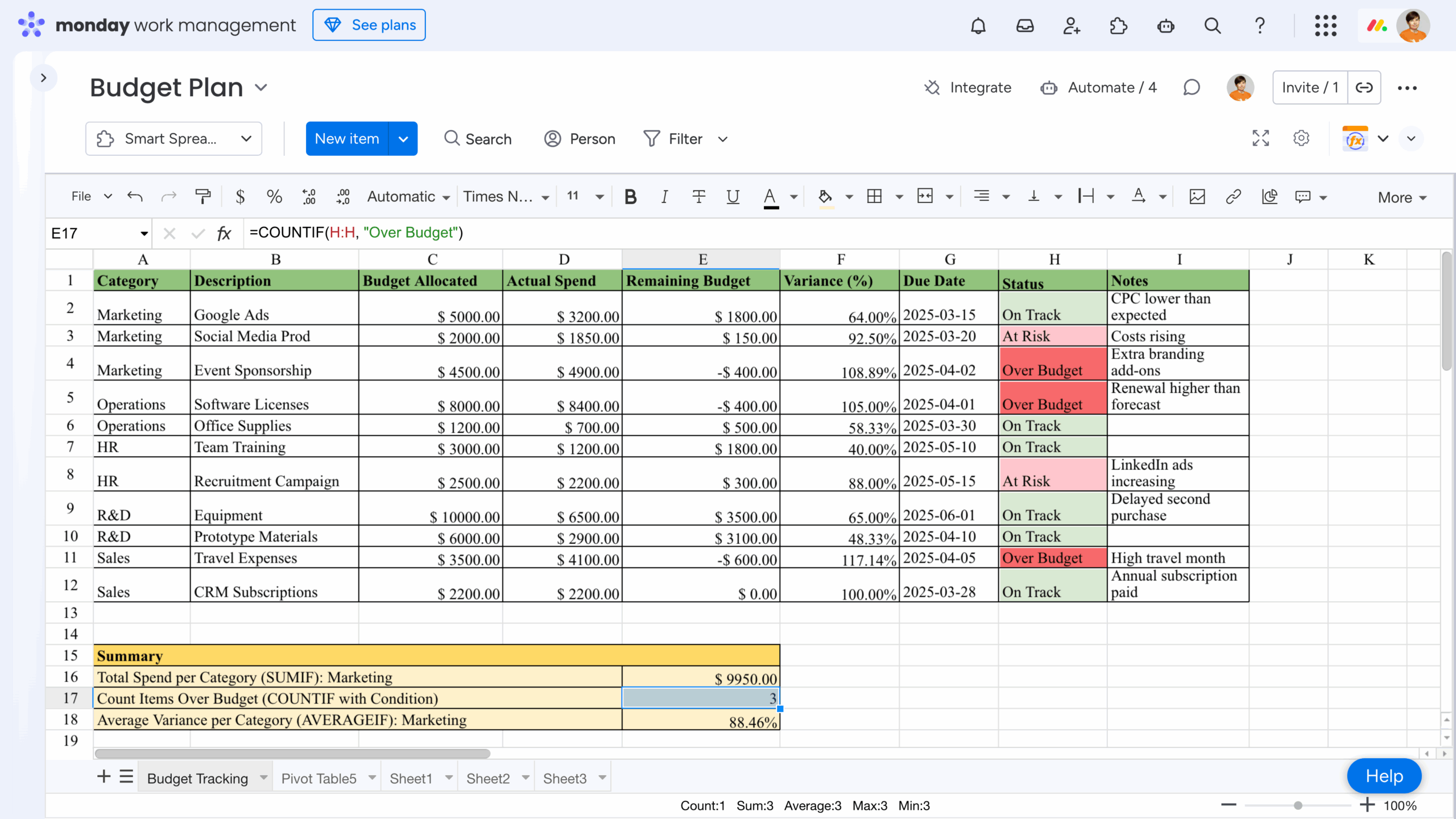
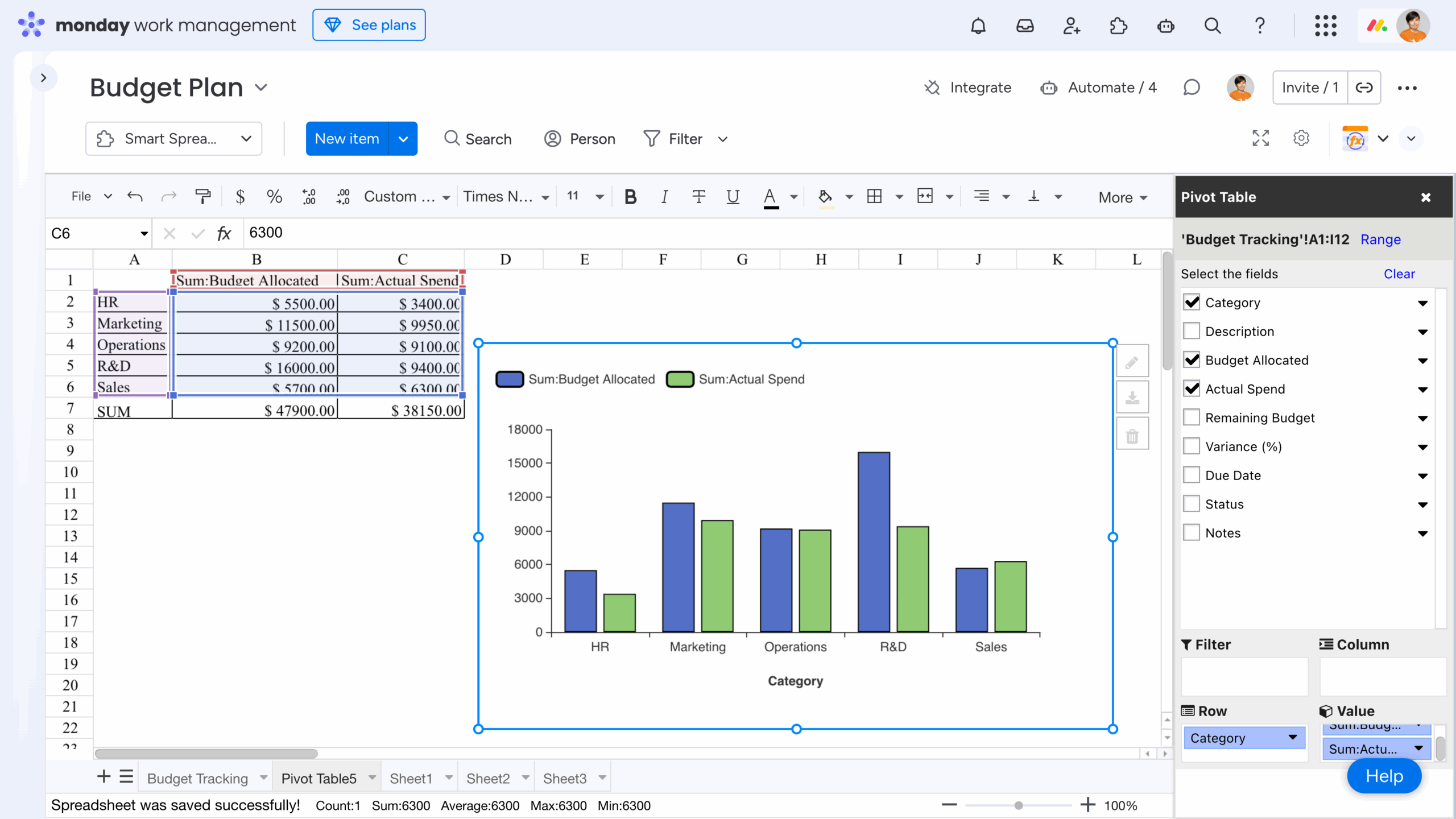
Smart Spreadsheet combines the flexibility of spreadsheets with the structure of monday.com – giving finance teams, analysts, and project managers a powerful way to model data, run calculations, and track financial metrics without leaving their workspace. For example, the “From Excel to monday.com: Ultimate Migration Guide” blog post features a purchase order use case in “Stage 4. Testing and Feedback” section, demonstrating how Smart Spreadsheet can be used as an Item View:
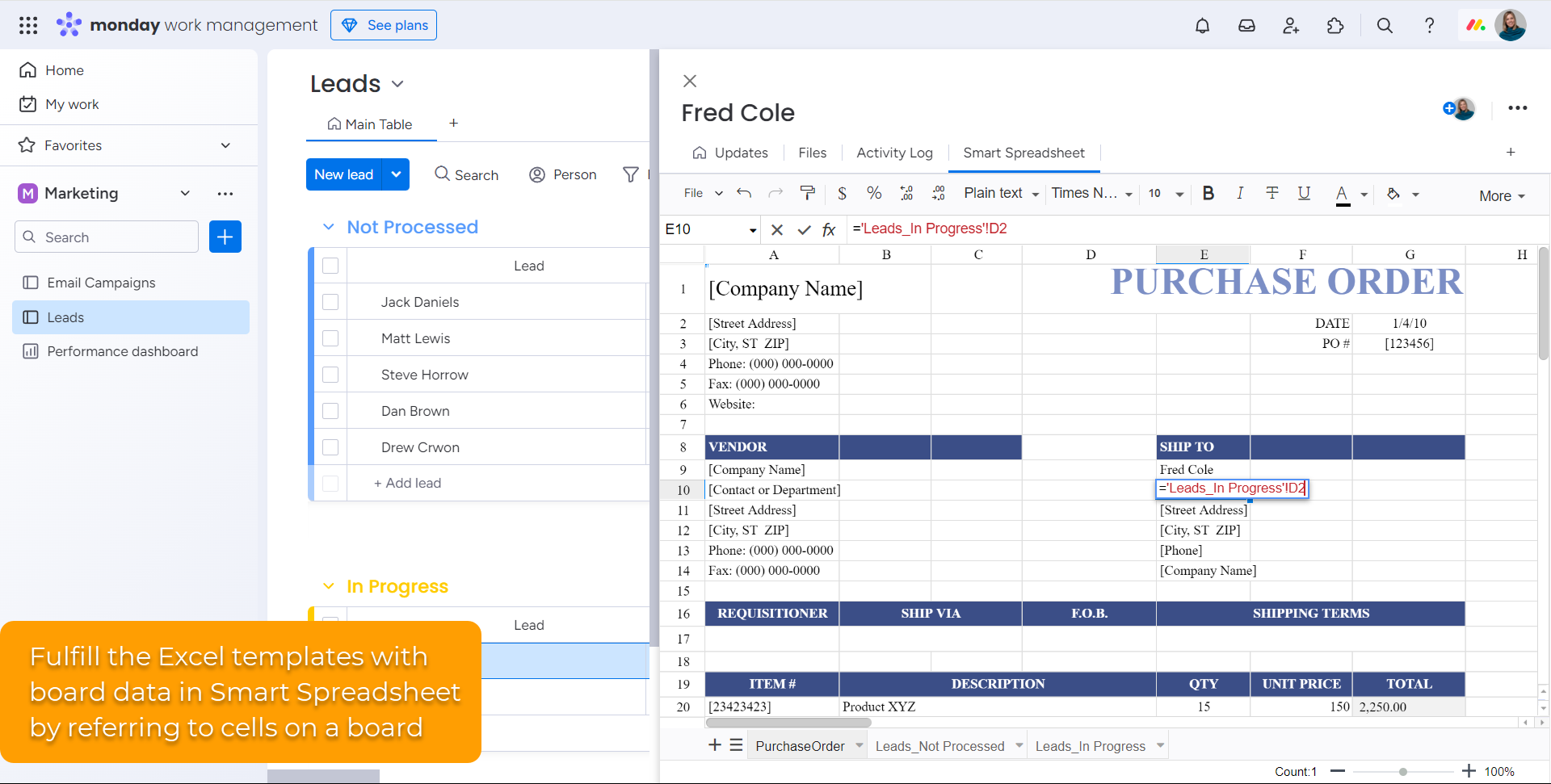
💡 Takeaway: Combine Smart Spreadsheet with monday.com boards, dashboards, and docs to bring Excel-style tools and automated reporting into your finance workflows.
Wrap-Up
Managing finances in monday.com is absolutely achievable – and even efficient – when you combine the right building blocks. Here’s a quick recap of how to make it work:
- Start with templates, not blank boards. Use monday.com’s ready-made finance templates as your foundation, then tailor them to match your processes.
- Customize for clarity and control. monday.com is highly flexible, so adjust columns, views, and workflows to fit the way your team tracks budgets, expenses, and approvals.
- Leverage automations and dashboards. Automations help eliminate repetitive tasks, while dashboard widgets give you instant visibility into your financial status and trends.
- Enhance your setup with third-party apps. Tools like Smart Spreadsheet for monday bring Excel-like formulas, conditional formatting, pivot tables, charts, and automated reporting right into your monday ecosystem.
By combining templates, customization, automation, and enhanced tools, you can turn monday.com into a powerful and user-friendly financial management hub.
FAQ
How do I create a finance board using a monday.com template?
Open the Templates Center, choose a finance-related template (e.g., Budget Plan, Expense Report), and click Use Template. Once created, you can rename groups, adjust columns, and switch views to match your budgeting or expense workflow.
How can I add and configure dashboard widgets for budget tracking?
Create a new dashboard, click Add Widget, and select a block (e.g., Numbers, Chart, Pivot Table). Then choose the columns you want to visualize, such as total spend, remaining budget, or payment status.
How do I import board data into Smart Spreadsheet for monday?
Install Smart Spreadsheet for monday, add it as board or item view, dashboard or docs widget and click File → Import Board. Your board data will populate into spreadsheet rows and stay automatically synchronized both ways.
How can I apply currency formatting to my budget and expense board columns?
Select Settings → Customize Numbers Column in a Numbers column or Summary row in a Numbers/Formula column and set the required currency format (USD, EUR, etc.).