






How to Use Permissions Configuration in Awesome Graphs for Bitbucket Data Center

Engineering analytics are valuable across an entire organization, but contributor-level data and REST API access often need to be limited to specific roles or teams. Until recently, Awesome Graphs for Bitbucket relied entirely on Bitbucket’s native permission model, which meant feature access was tied to general page access. The good news is that we have just launched Permissions Configuration, allowing System Admins to control who can access specific app features in Bitbucket Data Center. In this article, we will explore how this new configuration works and what you can achieve with it.
Awesome Graphs for Bitbucket is a tool that natively integrates into Bitbucket and provides ready-to-use developer activity reports on instance, project, and repository levels as well as REST API endpoints. Working with commit, pull request, and lines of code data, it is trusted by more than 1000 engineering teams around the world to optimize delivery.
Why feature-level permissions matter
In larger Bitbucket Data Center instances, analytics are used by a wide range of people:
-
Developers check repository changes
-
Team leads monitor delivery trends
-
Engineering managers review contributor-level insights
-
Integration owners set up custom reporting with REST API endpoints
These different roles often require different levels of access. Contributor metrics may only be valuable to leadership, REST API endpoints may be reserved for admins, and certain reports may be relevant only to a subset of teams. Feature-level permissions, now available in Awesome Graphs, provide the granularity required to support these scenarios without affecting Bitbucket’s native access controls.
How Permissions Configuration works
The Permissions page can now be found in the Awesome Graphs section of the Bitbucket Administration area, which is managed by System Admins. It uses an allow-list model: by default, all features are Unrestricted and available to any user with access to the relevant Bitbucket pages. Once a user or a group is added to a feature, its status changes to Restricted, and access is limited to the specified users and group members only.
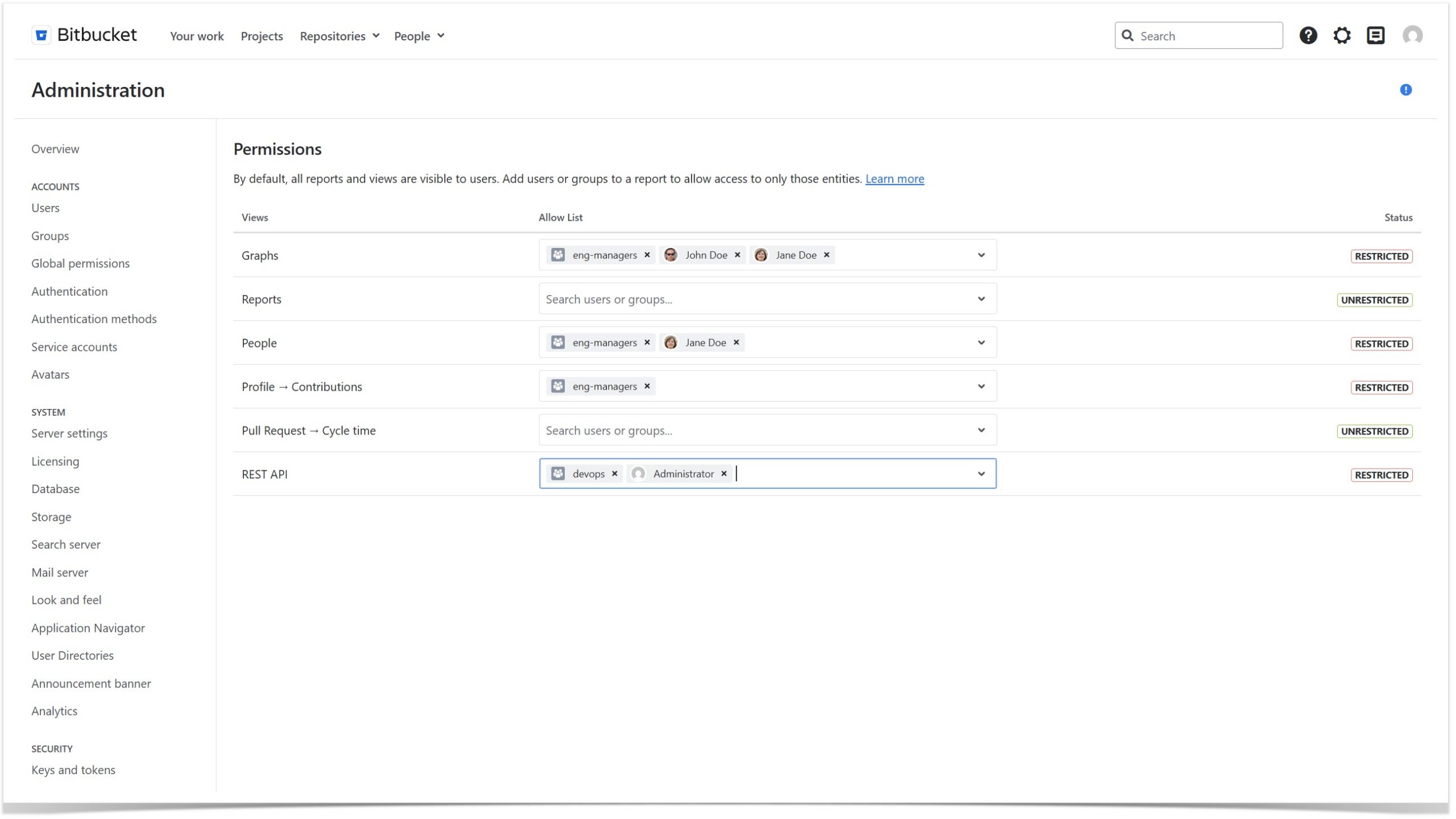
When a feature is restricted, Awesome Graphs also hides the corresponding tabs, buttons, links, and menu items from users without access. This keeps the interface clean and ensures that users only see the features they are entitled to use.
It is important to note that these settings govern only the visibility of the Awesome Graphs feature and do not replace Bitbucket’s native permission model. Users still retain the corresponding Bitbucket access to projects, repositories, pull requests, and profile pages.
What you can achieve with Permissions Configuration
Using Permissions Configuration in Awesome Graphs, organizations can manage access based on how engineering analytics are used internally. For example, you can:
-
Limit REST API access to integration owners who use Awesome Graphs data in custom reporting, dashboards, or internal tools
-
Reserve contributor-level analytics for leadership roles when individual activity data is preferred not to be available to all users
-
Control access to global analytics so that only target teams or roles can view organization-wide engineering insights
-
Tailor available reporting to the needs of each individual team
Permissions Configuration in your Bitbucket
To start using the new Permissions Configuration page, make sure that the latest version of Awesome Graphs for Bitbucket Data Center is installed in your instance. For a detailed overview of this feature, refer to our documentation. If you are new to Awesome Graphs, you can install the app from the Atlassian Marketplace and try it for free.
More from our blog:
➡️ Explore engineering statistics options available in Awesome Graphs Data Center
➡️ Review of the engineering analytics available in Awesome Graphs Cloud
➡️ A guide to our Cloud Pull Request REST API
➡️ Learn to get user commit data from Bitbucket repositories