










Best Ways to Import CSV & JSON Data into Confluence Cloud

Confluence Cloud has evolved far beyond a traditional documentation platform. Today, many organizations use it as a central workspace for operational reporting, project tracking, dashboards, and knowledge sharing.
At the same time, business data often lives outside Confluence – in Google Sheets, REST APIs, BI systems, CSV exports, or internal databases.
As a result, Confluence users still spend hours every week manually copying data into Confluence pages, updating reports, and rebuilding tables.
This often happens when they:
-
publish SLA exports from Jira Service Management,
-
update budgeting spreadsheets every reporting cycle,
-
share CSV exports from monitoring tools,
-
maintain release reports in Google Sheets and copy updates into Confluence.
Over time, this creates outdated documentation, duplicated work, and dashboards people stop trusting.
Fortunately, several Confluence Cloud apps now make it possible to connect external CSV and JSON data directly to Confluence pages – from simple CSV viewers to advanced analytics and live integrations.
In this article, we compare popular Atlassian Marketplace apps that help teams import and work with external CSV and JSON data in Confluence Cloud, and explain which type of solution fits different reporting scenarios best.
Disclaimer: This comparison is based on publicly available Atlassian Marketplace information and common Confluence reporting use cases.
Key takeaways
-
Confluence Cloud can display both CSV and JSON data from attachments and external sources.
-
Some apps focus on simple table display, while others provide live synchronization and analytics.
-
Live integrations help reduce manual CSV/JSON uploads and reporting overhead.
-
The best solution depends on whether you need visualization, synchronization, or analytics.
Why external data matters in Confluence Cloud
Many business workflows depend on data that changes constantly:
-
support and SLA metrics,
-
Jira issue reports,
-
release tracking,
-
finance and budgeting,
-
operational KPIs,
-
API monitoring,
-
customer analytics.
Without automation, people often rely on manual CSV/JSON exports, recurring uploads, or copy- paste routines to keep Confluence pages updated.
For example:
-
support specialists export SLA reports from Jira Service Management for weekly stakeholder updates,
-
operations teams publish uptime reports generated by monitoring APIs,
-
finance departments maintain monthly budget tables in spreadsheets,
-
product managers track roadmap and feature delivery status across Jira and planning tools.
The challenge is not only displaying the data – it is keeping the information accurate and synchronized with its original source.
This is why more organizations now expect Confluence pages to work as live connected dashboards rather than static documentation.
Different approaches to external data in Confluence
Not every app solves the same problem.
Some apps focus on displaying CSV files as readable tables. Others specialize in live integrations with APIs and external systems. Some provide advanced analytics and dashboarding capabilities for reporting-heavy teams.
The right choice usually depends on whether your team needs:
-
simple CSV/JSON visualization,
-
interactive tables,
-
live synchronization,
-
dashboarding and analytics,
-
or enterprise-level reporting.
Below is a breakdown of the most common approaches available for Confluence Cloud.
Apps for live external data integration
Live Tables from CSV & JSON for Confluence
Best for: lightweight live synchronization from external sources
Live Tables from CSV & JSON for Confluence is purpose-built to convert external structured data into live Confluence tables.
The app supports importing CSV, JSON, and TSV from both Confluence attachments and live external sources.
Data can come from REST API endpoints, Google Sheets, Google Drive files, Jira, Bitbucket, GitLab, and other URL-based sources, allowing information displayed in Confluence to stay synchronized automatically.
Users also have control over how imported data appears on a Confluence page. Content can be rendered as tables, plain text, wiki markup, or Markdown. In addition, built-in sorting makes larger datasets easier to navigate, while JsonPath parsing helps extract only the relevant data from JSON sources.
The app is developed by Stiltsoft – the vendor behind Table Filter, Charts & Spreadsheets for Confluence – and both apps work together as part of a broader reporting workflow.
A common setup looks like this:
-
Connect external CSV or JSON data with Live Tables,
-
Synchronize the data inside Confluence automatically,
-
Filter, aggregate, and visualize it using reporting macros.
One notable advantage is accessibility: the app is completely free, making it easy for companies to evaluate without budget approvals or procurement cycles.
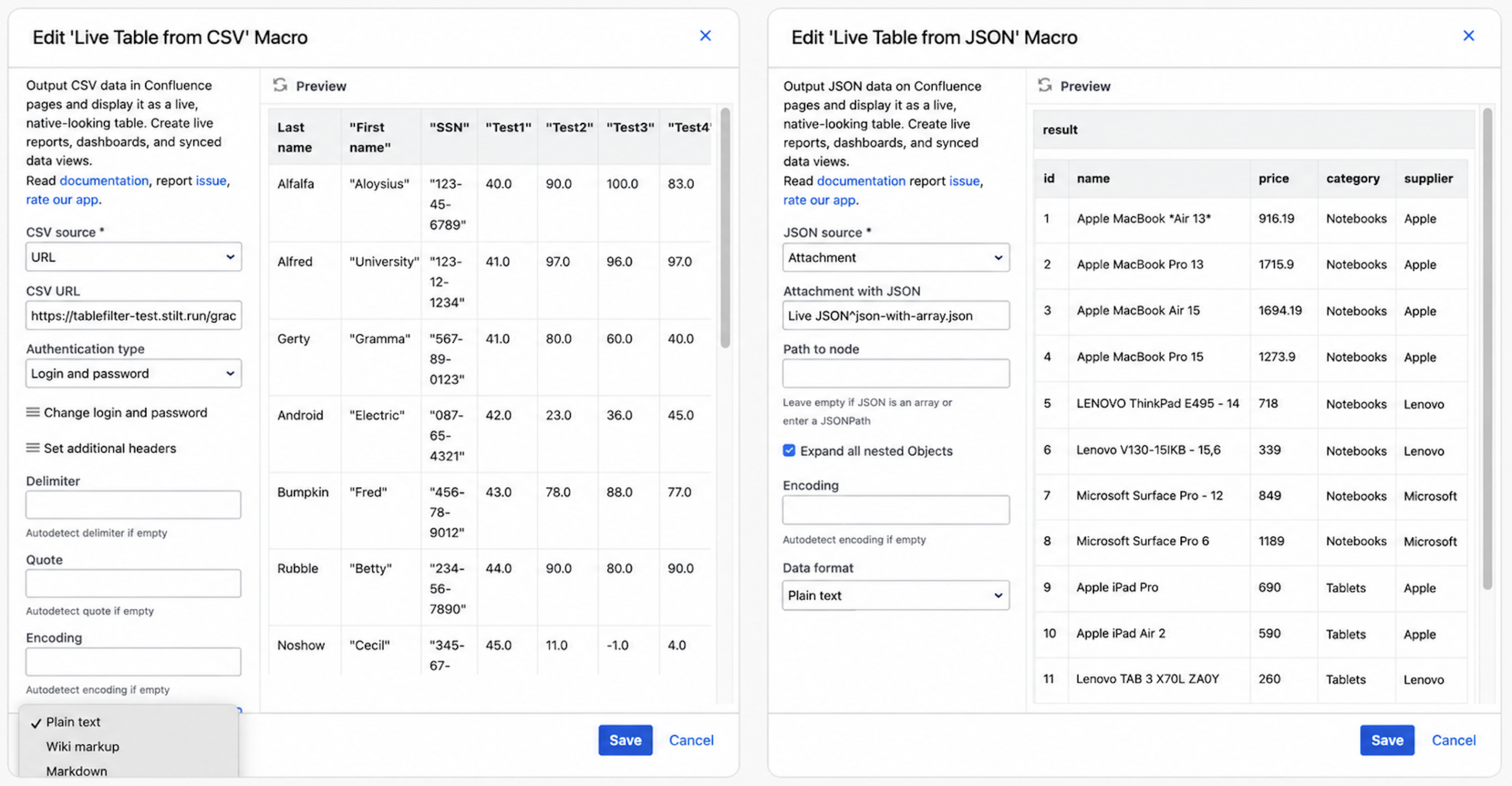
Macro configuration – Live Tables from CSV & JSON for Confluence
External Data for Confluence
Best for: connecting multiple business systems to Confluence
External Data for Confluence is positioned more as an integration tool than a simple CSV/JSON importer.
Supported data sources: Salesforce, SharePoint, HubSpot, Airtable, Snowflake, SQL databases, and REST APIs.
It also includes advanced capabilities such as:
-
JsonPath parsing,
-
SQL-style filtering,
-
OAuth 2.0 authentication,
-
JavaScript transformations,
-
chart visualizations.
This makes it useful for cross-functional dashboards that combine customer, operations, and product data inside a single Confluence workspace.
For example, a customer success team could combine Salesforce account information with support metrics and display a shared customer health dashboard directly in Confluence.
Compared to lightweight CSV table apps, External Data for Confluence may require more configuration and technical setup. However, the broader integration capabilities can be valuable for organizations managing multiple business systems.
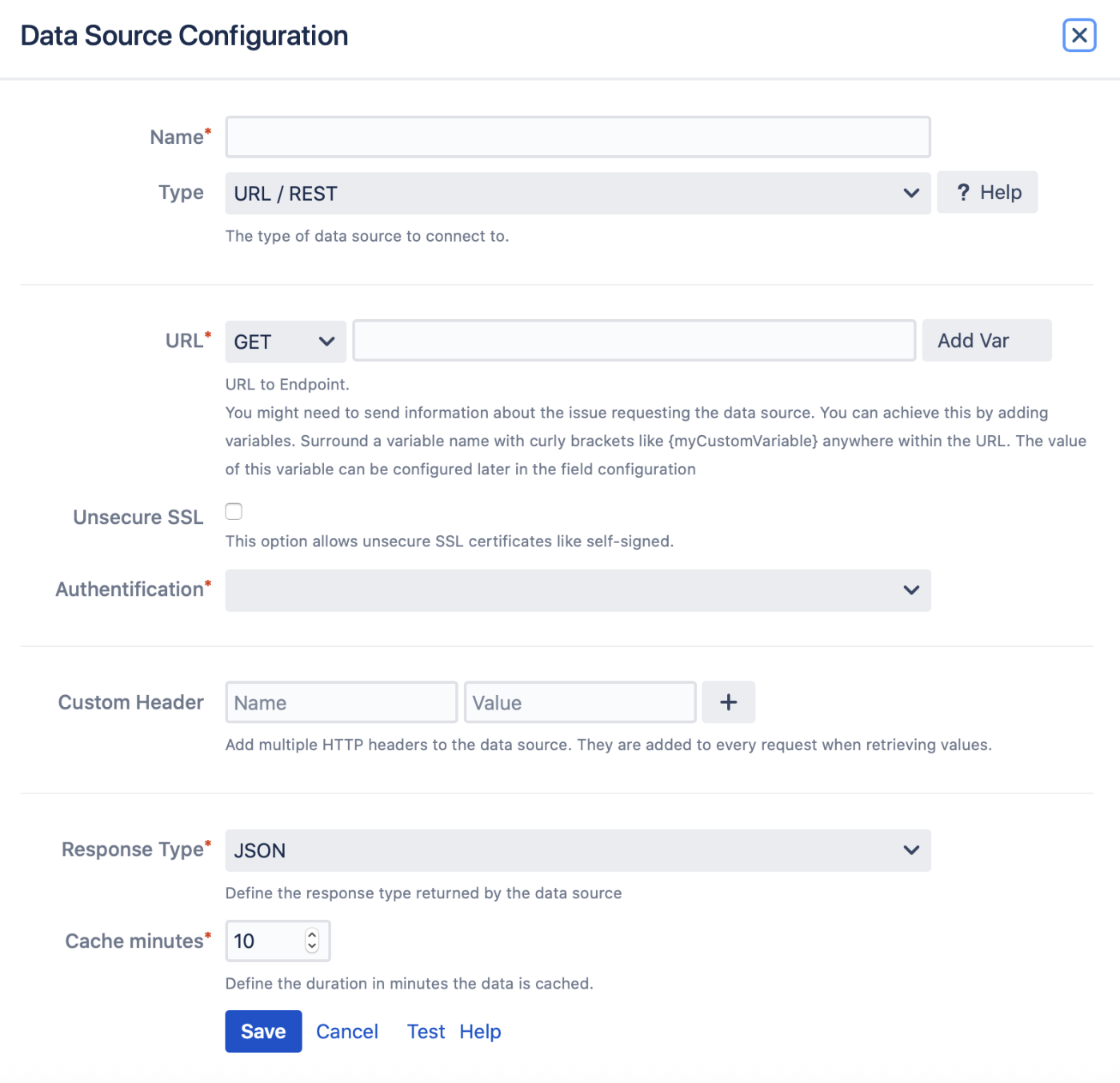
Data source configuration – External Data for Confluence
eazyBI for Confluence Reports, Charts, and Dashboards
Best for: enterprise analytics and BI- style reporting
easyBI for Confluence Reports, Charts, and Dashboards is not mainly a table import app. It is closer to a full analytics and dashboarding platform for Confluence.
The app is relevant for automated external data synchronization and allows to import and analyze data from CSV/JSON files, REST APIs, SQL databases.
It also provides:
-
advanced dashboards,
-
drill-through reporting,
-
calculated metrics,
-
charting,
-
trend analysis.
eazyBI works particularly well when imported data becomes part of a larger analytics process involving multiple data sources and long-term reporting.
For example, organizations can combine Jira delivery metrics, operational KPIs, and financial reporting data into a centralized Confluence dashboard for leadership reporting.
It is powerful for enterprise-grade dashboards and advanced analytics inside Confluence.
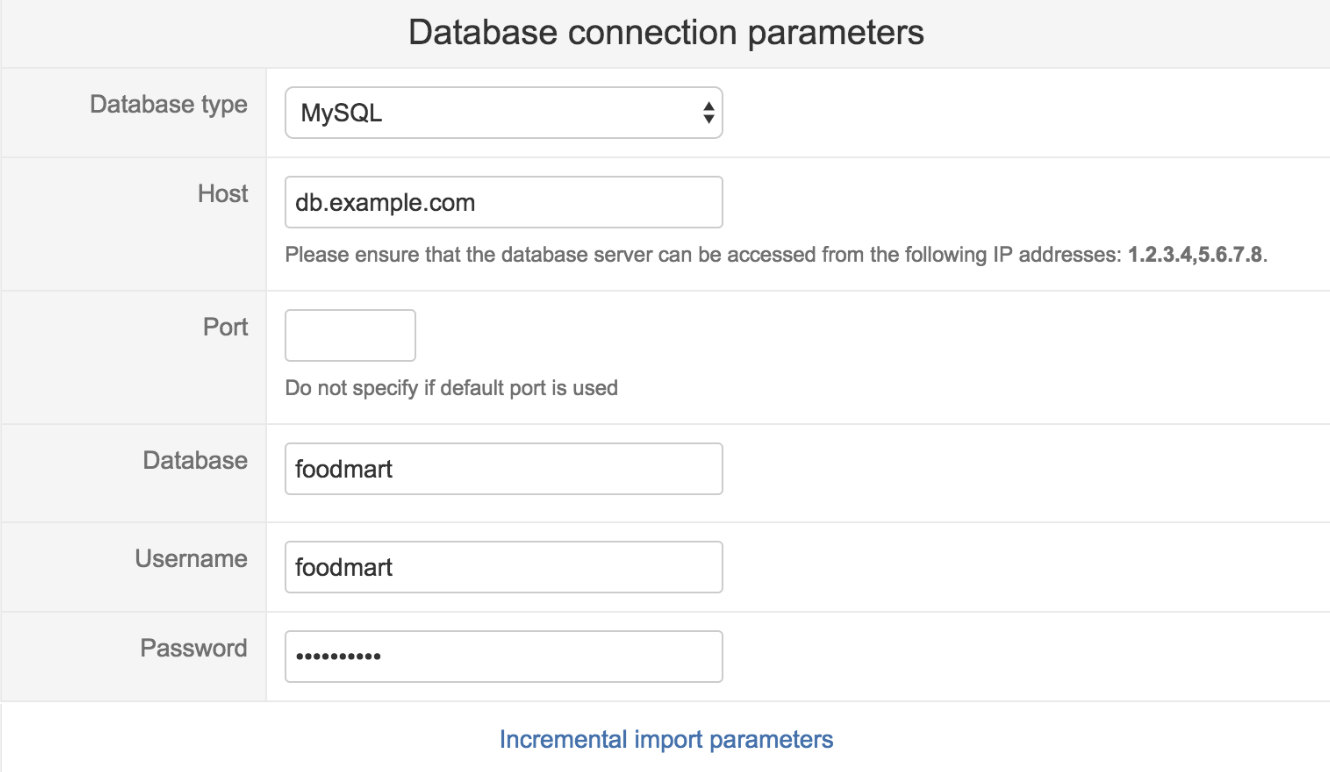
eazyBI database connection
Apps for interactive reporting and table analytics
Table Filter, Charts & Spreadsheets for Confluence
Best for: transforming imported data into dashboards and reports
Table Filter, Charts & Spreadsheets for Confluence is one of the most widely used reporting and table analytics solutions in the Atlassian Marketplace.
The app can display CSV and JSON attachment data as Confluence tables,
Furthermore, it creates Excel-like spreadsheets, applies formulas, builds charts, generates pivot-style reports, and filters and aggregates large datasets.
Its Table Spreadsheet macro also allows teams to upload and edit:
-
Excel files,
-
CSV files,
-
ODS spreadsheets.
For teams working with live external data, the app can be combined with the free companion Live Tables from CSV & JSON for Confluence app.
Using this combination, product managers can synchronize release metrics from Google Sheets and then use charts and pivot-style summaries to build release readiness dashboards for stakeholders.
This approach works especially well for operational dashboards and recurring reporting workflows where teams need both live synchronization and advanced visualization.
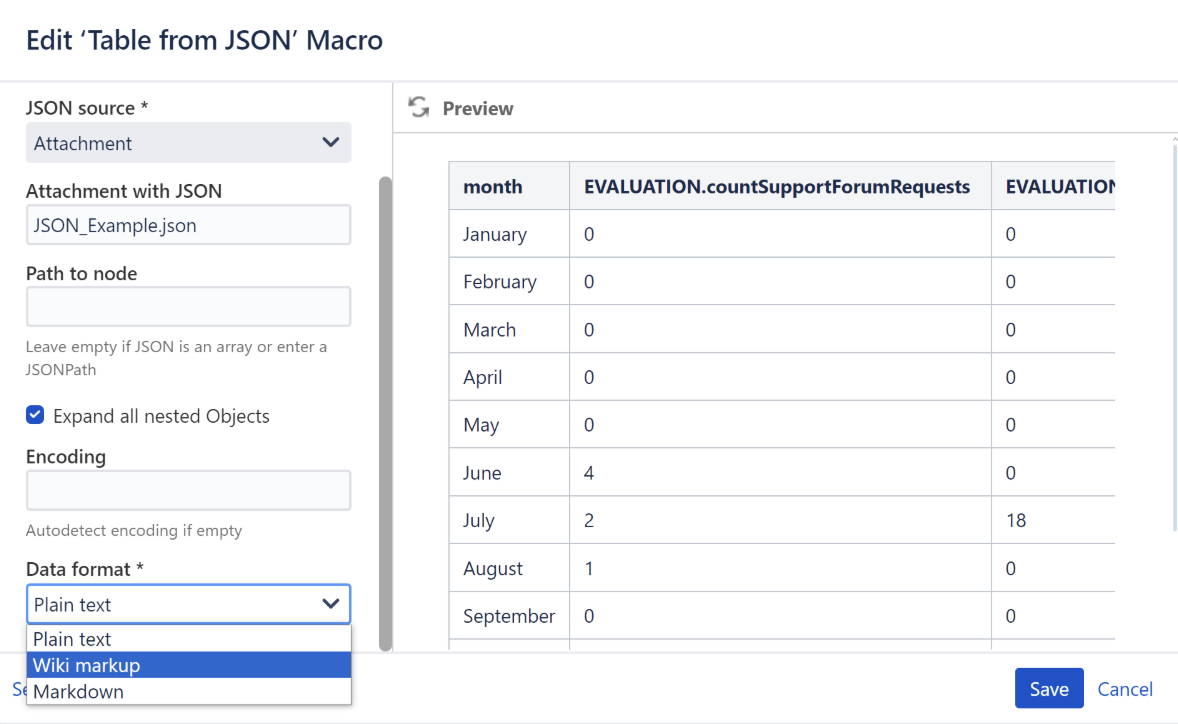
Table from JSON – Table Filter, Charts & Spreadsheets for Confluence
Advanced Tables for Confluence
Best for: improving table presentation and usability
Advanced Tables for Confluence focuses on making imported tables more interactive and easier to work with.
The app is positioned as a CSV and JSON integration solution. To import and display CSV or JSON data from attachments and external URLs, users can choose from the following macros:
-
CSV Table
-
JSON Table
It also offers additional table capabilities such as sorting, filtering, totaling, numbering, and custom CSS styling.
Unlike dashboard-focused analytics tools, Advanced Tables is more focused on improving the readability and usability of structured data directly on Confluence pages.
This makes it useful for teams that regularly publish operational or reporting tables and want better presentation and interaction options.
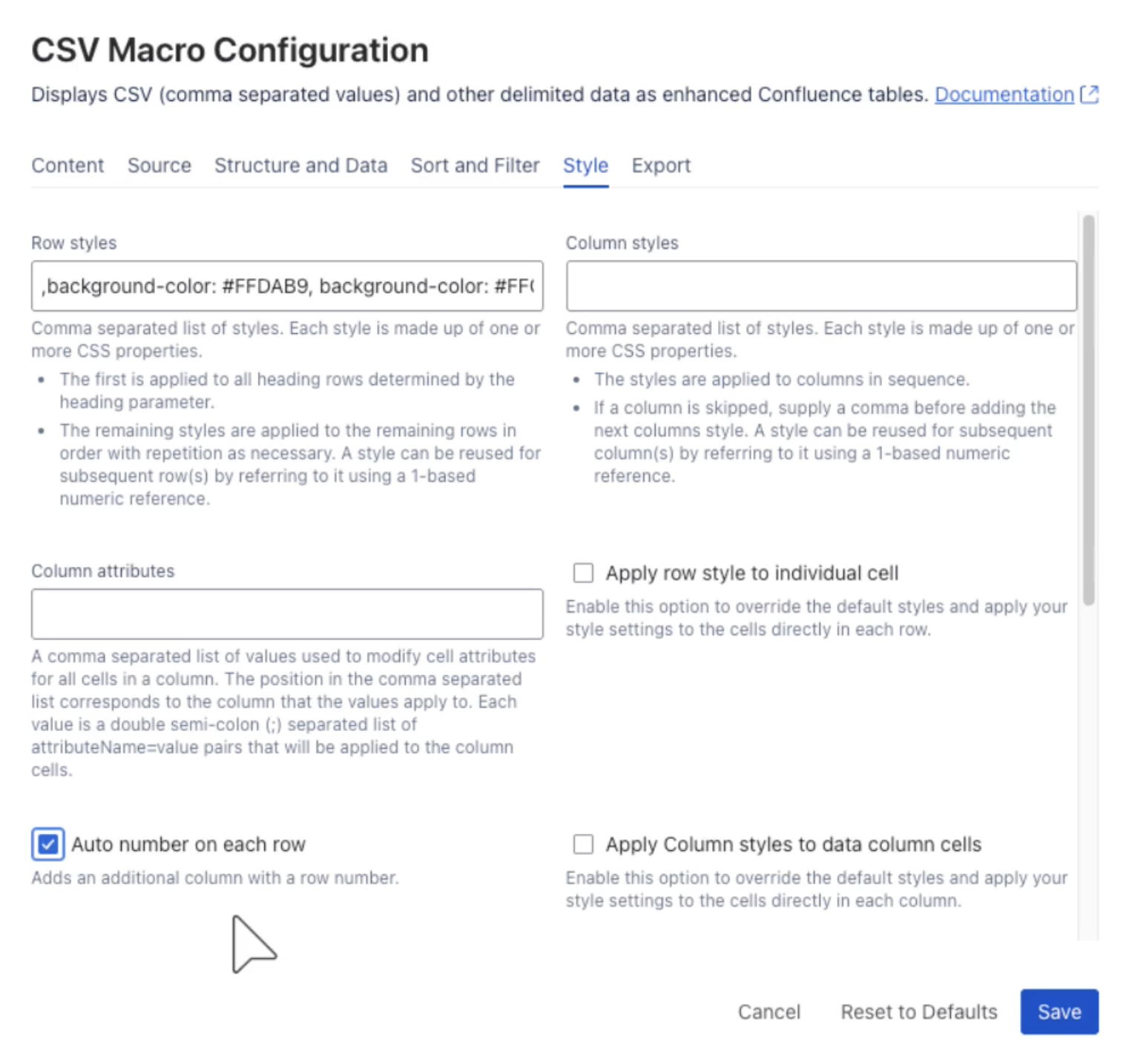
CSV macro – Advanced Tables
Data Tables for Confluence
Best for: navigating large CSV-based tables
Data Tables for Confluence helps users work more efficiently with large datasets embedded into Confluence pages.
The app works with regular Confluence tables, CSV data, a list of attachments, It can load CSV data placed in the macro body, from URL and attachments.
Its main strengths are usability features such as:
-
filtering,
-
grouping,
-
searching,
-
exporting,
-
interactive navigation.
Users who manage large infrastructure inventories or audit tables can make long datasets significantly easier to explore and review with this app.
Data Tables can upgrade CSV-based content into more interactive Confluence tables, but it is not positioned as a JSON import tool.
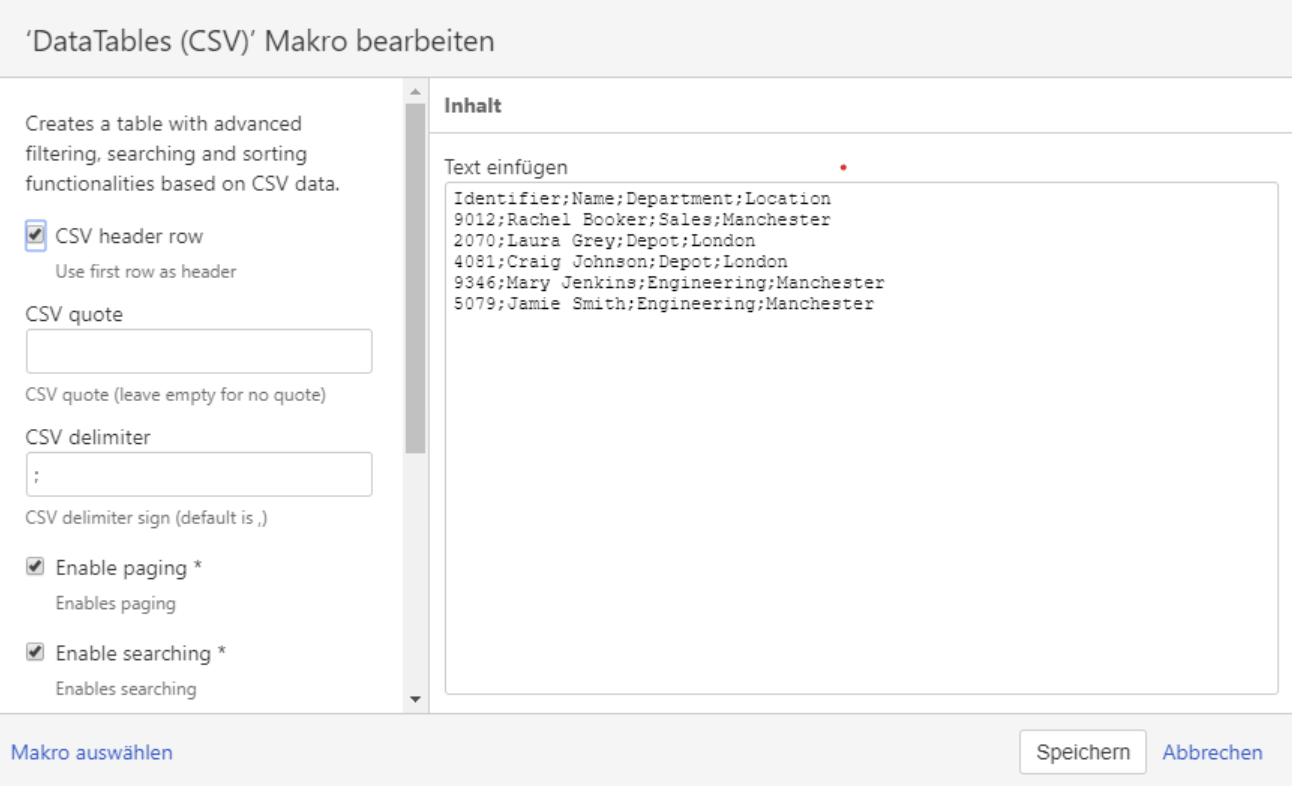
DataTables (CSV) macro – Data Tables for Confluence
Apps for simple CSV display
Csv To Table for Confluence
Best for: quick CSV-to-table conversion
Csv To Table for Confluence keeps the workflow intentionally simple: it turns CSV data into a sortable Confluence table.
The app converts CSV content from:
-
attachments,
-
URLs,
-
pasted/raw content.
Its narrow scope can actually be an advantage for organizations that only need lightweight CSV visualization without advanced reporting features or configuration.
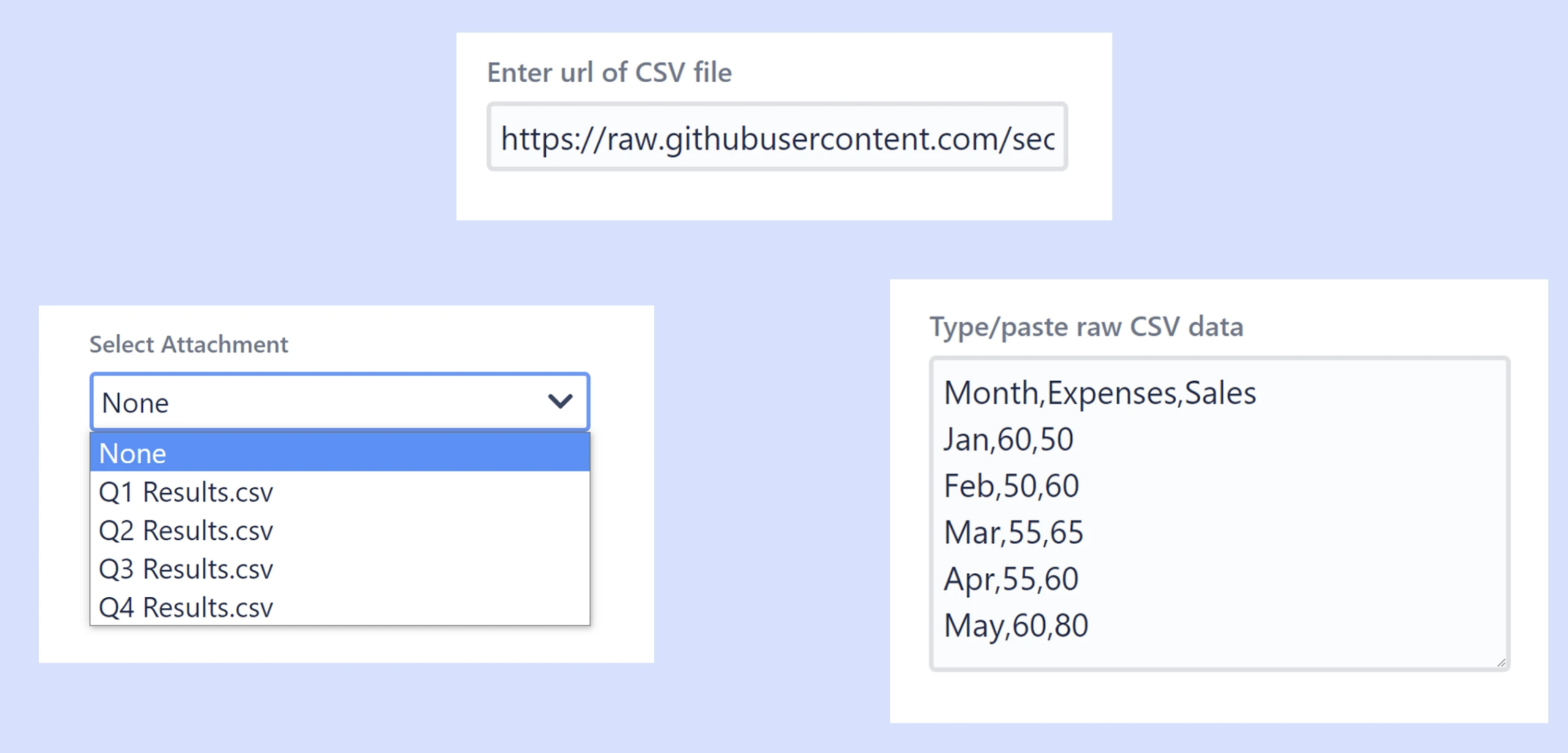
Data Import – Csv To Table for Confluence
Table from CSV in Confluence
Best for: improving readability of CSV files
Table from CSV in Confluence displays attached or remote CSV files as readable Confluence tables
The app has small but useful features:
-
search through the table,
-
sort columns by clicking headers,
-
scroll through wider datasets,
-
links display,
-
markdown-style formatting.
It works well when organizations already manage operational data in CSV files and simply want a better viewing experience inside Confluence.
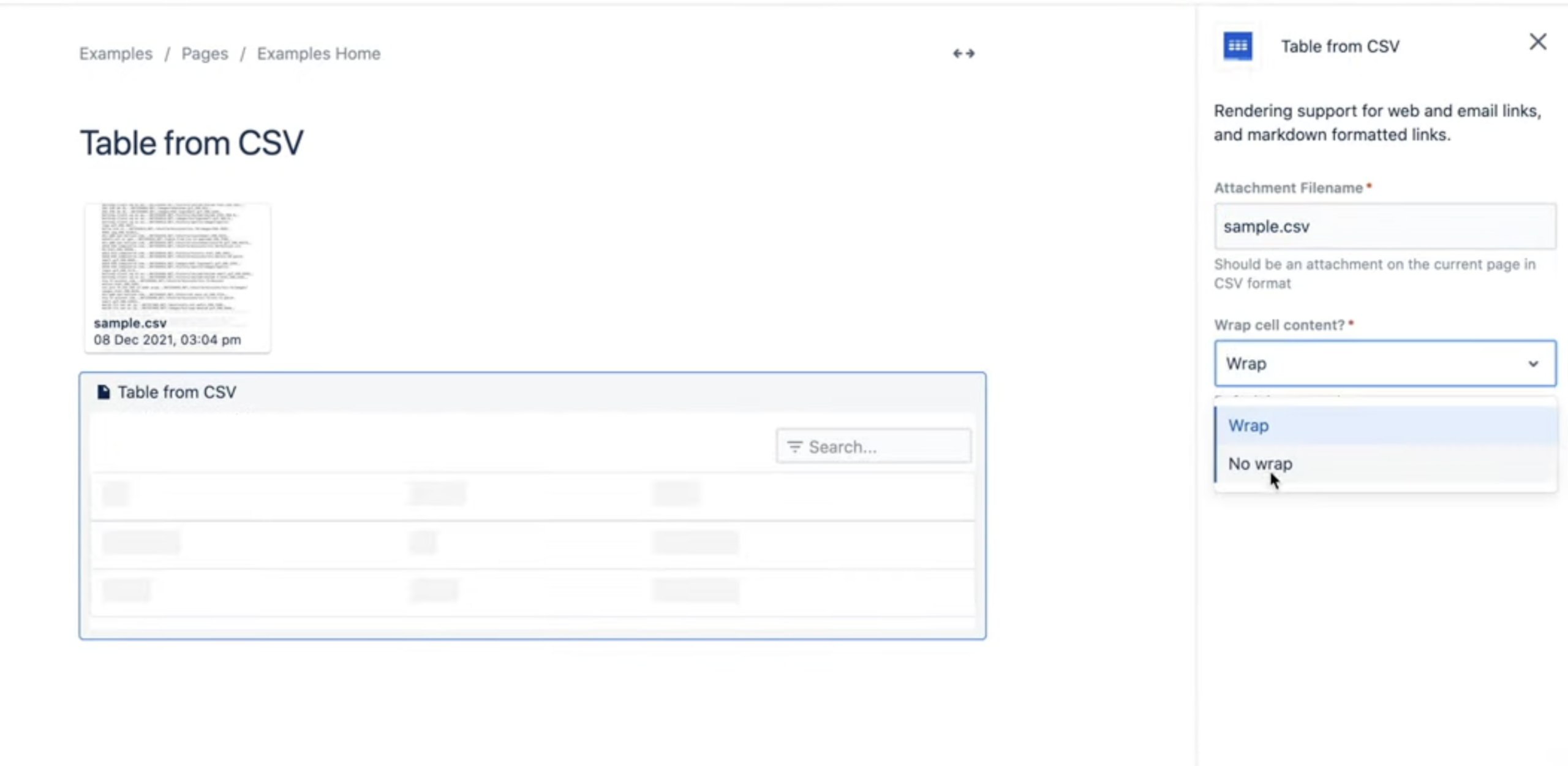
Table from CSV in Confluence configuration
CSV File To Table for Confluence
Best for: simple CSV table rendering
CSV File To Table for Confluence converts CSV files into tables in Confluence.
The app can display CSV files uploaded from their desktop or stored as Confluence page attachments.
It has basic navigation options such as search, sorting, pagination.
This makes it a practical option for organizations that periodically upload reporting CSV files and mainly need a clean presentation layer.
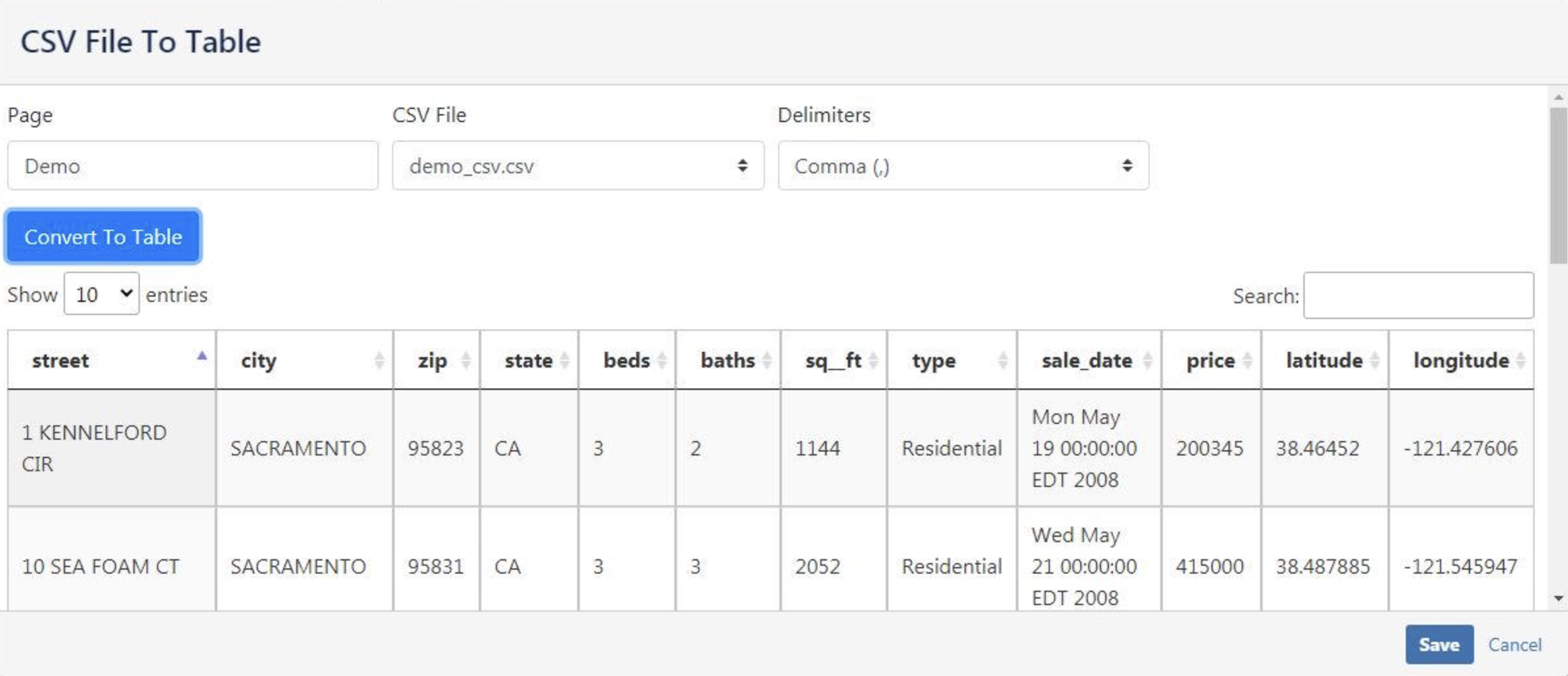
CSV File To Table macro browser
Smart Tables for Confluence
Best for: inline editing for CSV and excel- based tables
Smart Tables for Confluence focuses on editable table workflows inside Confluence pages and can import Excel and CSV files.
It is better suited for manually maintained datasets where teams periodically refresh uploaded files rather than connect live external sources.
For example, internal operations teams can maintain shared inventory or planning tables collaboratively without leaving Confluence.
The app has the inline table editing feature, so users can adjust and organize data in the page view mode. Real-time updates can also help teams maintain shared tables where several people contribute to the same dataset.
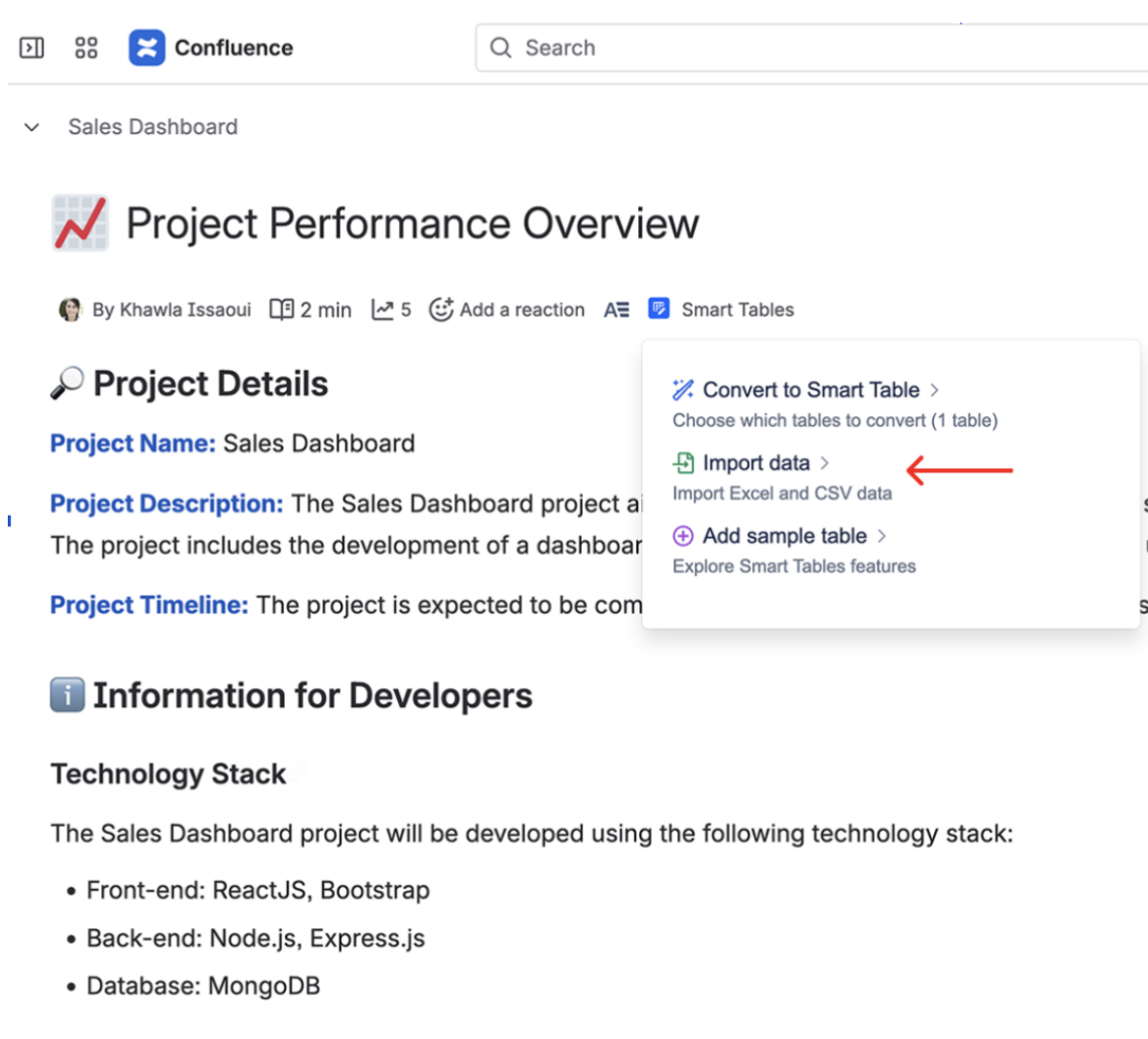
CSV Import – Smart Table for Confluence
Which type of app fits your use case?
Different teams require different capabilities.
- Lightweight CSV viewers are best for simple CSV-based tables with minimal setup.
- Interactive reporting tools are suitable for dashboards, large datasets, and advanced filtering, charting, or spreadsheet-style calculations.
- Live integration solutions are designed for teams that rely on APIs, Google Sheets, or other external sources and need automatically updated reports.
- BI platforms are ideal for combining multiple data sources, analyzing trends, and supporting enterprise reporting.
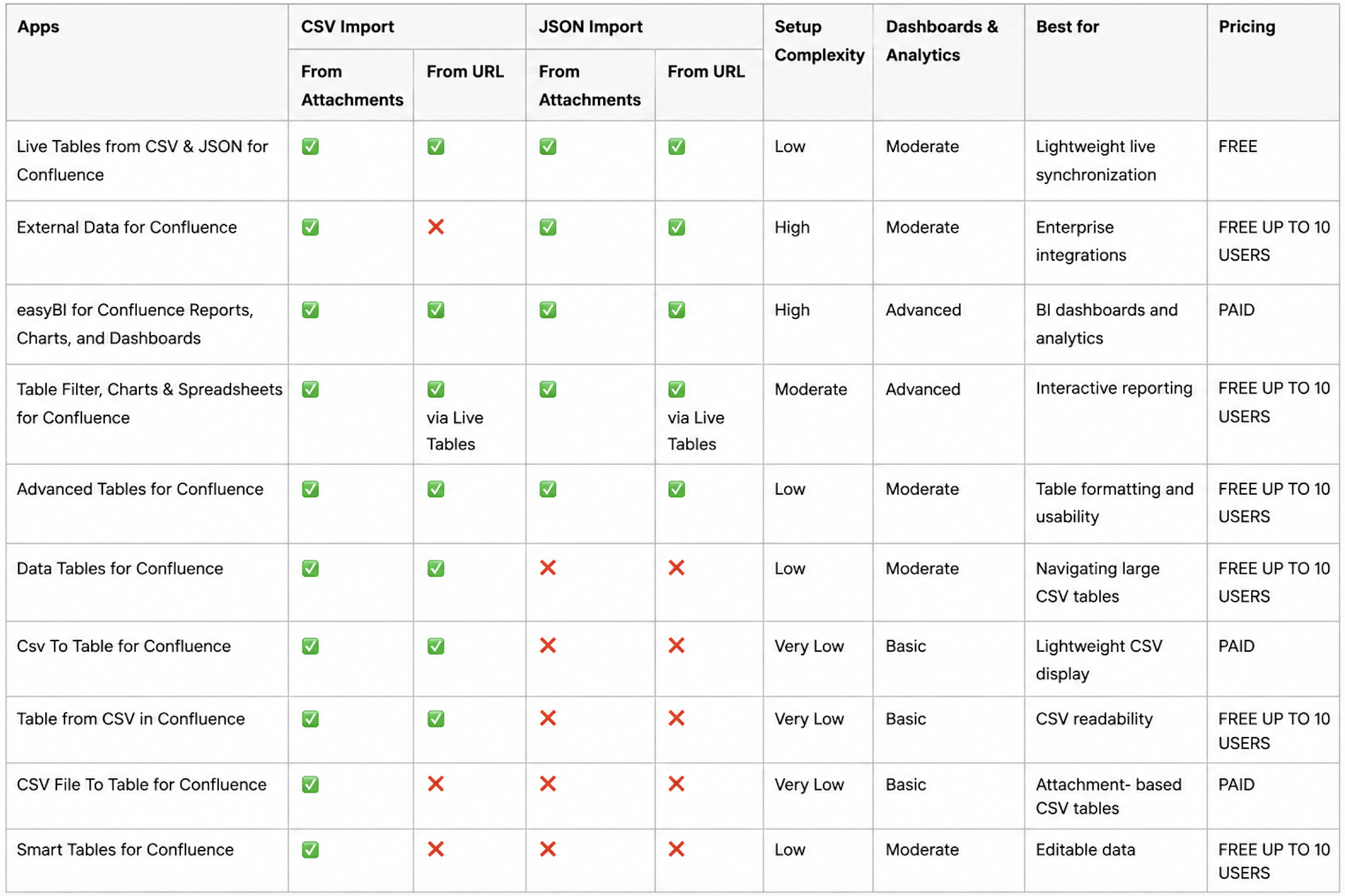
Feature Comparison Table
Final thoughts
As Confluence Cloud becomes increasingly connected to external systems, live data integration is quickly becoming a standard expectation rather than an advanced capability.
Organizations increasingly want:
-
dashboards that stay updated automatically,
-
reporting based on real operational data,
-
and workflows that reduce repetitive manual updates.
Fortunately, Confluence Cloud users already have several practical options available today – from lightweight CSV viewers to advanced analytics platforms and live synchronization tools.
The best choice ultimately depends on how your organization works with data: whether you only need readable tables, interactive reporting, or fully connected operational dashboards.
Even small improvements in how teams synchronize external data can significantly reduce manual reporting work, improve visibility across projects, and help Confluence pages stay trustworthy over time.
FAQs
Can Confluence Cloud import CSV and JSON data?
Yes. Several Atlassian Marketplace apps allow users to display CSV data from attachments, URLs, or external systems directly on Confluence pages.
Can Confluence Cloud display JSON data?
Yes. Apps supporting JSON import include Live Tables from CSV & JSON for Confluence, External Data for Confluence, easyBI, and Advanced Tables for Confluence.
How can I automatically update CSV/JSON data in Confluence?
Instead of manually uploading files, some Atlassian Marketplace apps can synchronize data from URLs, APIs, Google Sheets, and other external sources.
Which app is best for dashboards and reporting?
For advanced filtering, charting, and reporting, teams commonly use Table Filter, Charts & Spreadsheets for Confluence or easyBI for Confluence Reports, Charts, and Dashboards.
