










10+ Ways to Use Confluence Tables For Advanced Data Workflows and Reporting

Native Confluence tables are often seen as limited, but that view can be overly simplistic. They already cover what many users expect in terms of basic information structuring and lightweight reporting. So, before writing off native tables, it’s worth exploring what they can actually do and what their real limitations are.
At the same time, it’s true that once your workflow involves larger datasets or more advanced analysis across multiple sources, these limitations become harder to ignore.
This guide breaks that down in practical terms: what native Confluence tables can do, where their limits show up, and how teams extend them with third-party macros when they need more advanced data workflows without leaving the platform.
Key takeaways
-
Native Confluence tables cover a solid range of everyday user needs, including creating, formatting, sorting, and generating simple charts from table data.
-
As data volume and complexity grow, teams often (unnecessarily) resort to frustrating manual work in Confluence, or export to Excel or Google Sheets to use familiar features.
-
Specialized apps like Table Filter, Charts & Spreadsheets for Confluence extend native tables with formulas, calculations, pivots, and other, more advanced data operations, directly in Confluence.
-
In many cases, this allows teams to share knowledge and collaborate on data inside Confluence instead of relying on external tools.
Native Confluence tables: what you can do out of the box
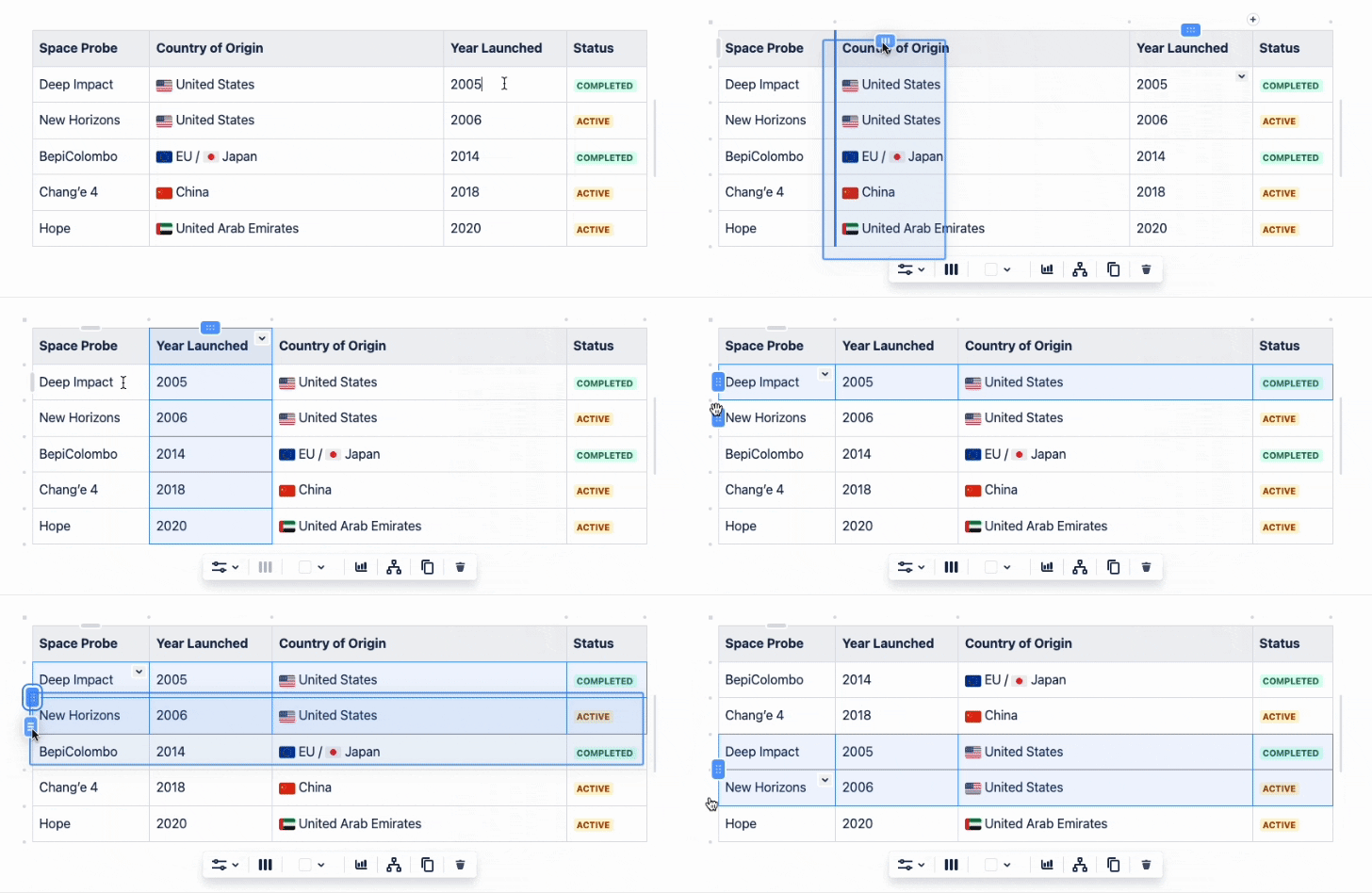
Native tables cover the basics well. You can structure information, present it clearly, and turn it into simple visualizations directly inside a Confluence page. Here’s a quick overview of the built-in capabilities.
Create, edit, and format tables
At their core, Confluence tables are designed to help teams organize information inside documentation pages. You can create tables directly in the editor and structure them as needed:
-
Add and remove rows or columns
-
Merge and split cells
-
Define header rows and columns
-
Reorder rows and columns
-
Resize tables and adjust column widths
-
Apply simple formatting, such as cell colors or alignment
-
Use numbered columns
-
Sort data in table columns
-
Keep headers visible with sticky header rows
In practice, this makes tables useful for documentation matrices, simple trackers, comparison tables, and structured knowledge bases.
For detailed instructions on creating and formatting tables, see the Atlassian documentation.
Turn table data into charts
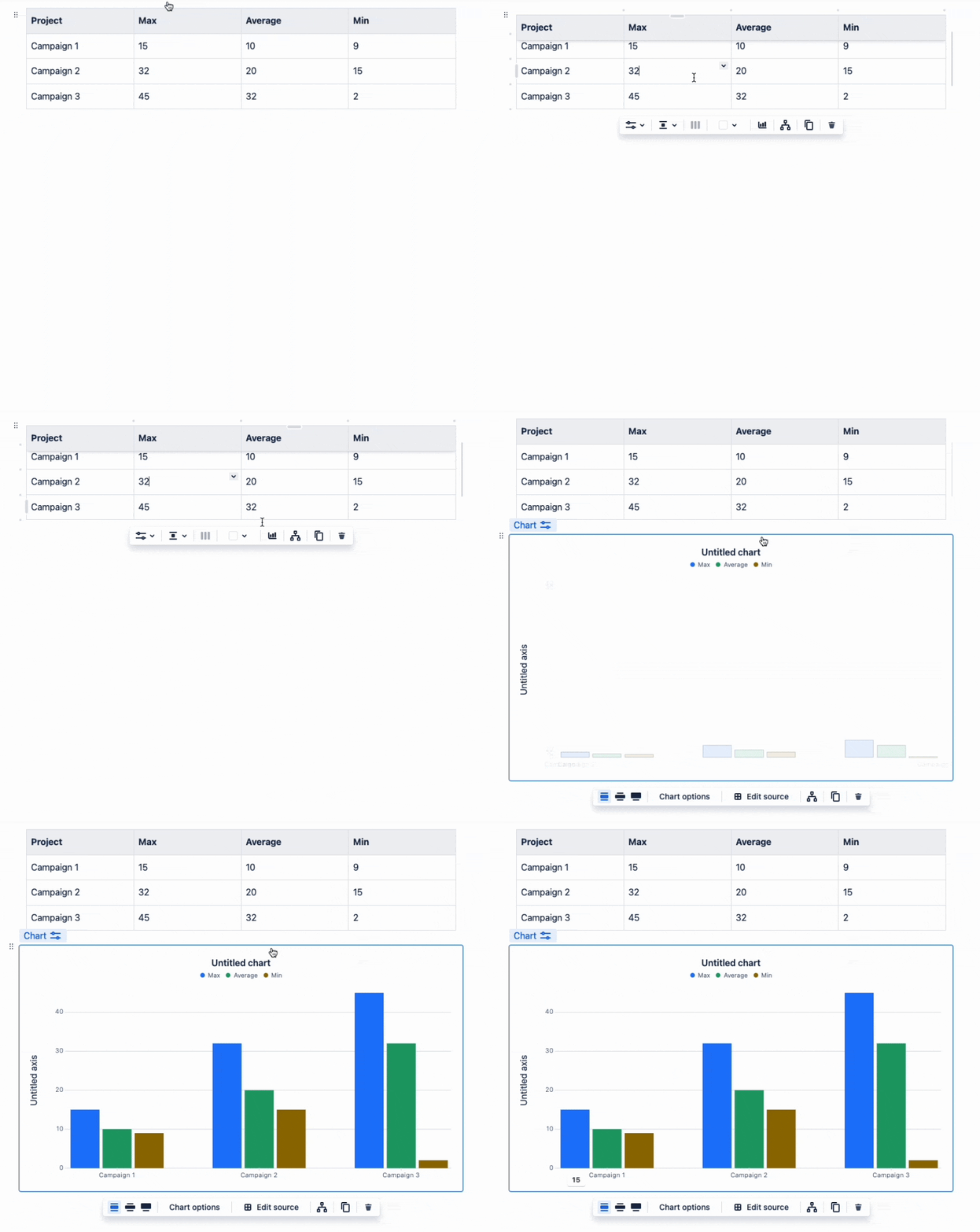
Native Confluence tables can also serve as the data source for simple charts.
This allows you to visualize table data directly on a page without exporting it to another tool. For example, you can convert a table into:
-
Bar charts
-
Line charts
-
Pie charts
Once a chart is created, you can configure elements such as data series, axes, colors, chart size, and legend placement. Charts remain connected to the underlying table, so updating the data automatically updates the visualization.
This capability works well for lightweight reporting or quick visual summaries embedded in documentation pages.
To see how chart creation works in detail, refer to the Atlassian guide.
Advanced data workflows and reporting with third-party apps
While native Confluence tables are useful for basic structuring and presentation, they start to fall short when you need more advanced data capabilities, such as creating reports and analyzing larger datasets.
This is where specialized apps come in. Tools like Table Filter, Charts & Spreadsheets for Confluence extend native tables with more advanced data workflows, allowing teams to analyze and visualize table data directly inside Confluence pages, without exporting to Excel.
The app includes a range of macros — page elements that add specific capabilities to tables, including filters, pivots, spreadsheets, charts, data transformation, and external data import.
Read on to learn about these capabilities in more detail.
Filter large tables
Native Confluence tables allow basic sorting, but they don’t support filtering. If you want to narrow a table to specific values (for example, a particular assignee or status) you can’t do that out of the box.
A macro like Table Filter can help solve this. It adds interactive column filters to Confluence tables, allowing you to narrow the data directly on the page. Instead of scanning the entire table, readers can focus only on the rows that match specific criteria.
Depending on the data type in a column, the macro can provide different filter options: dropdown selectors, text search, number or date ranges, etc. Multiple filters can be combined to drill down into very specific subsets of data.
Beyond filtering, the macro also improves how large tables are viewed and navigated. It supports additional table-view controls, such as:
-
column sorting
-
freezing rows or columns
-
automatic row numbering
-
hiding selected columns
-
pagination
-
calculations
Build pivot tables
Since Confluence doesn’t let you create pivot tables out of the box, the common workaround is to export the table to Excel or Google Sheets, build a pivot there, and paste the result back into Confluence. But that creates a static snapshot that must be rebuilt whenever the source data changes, leading to a lot of manual upkeep.
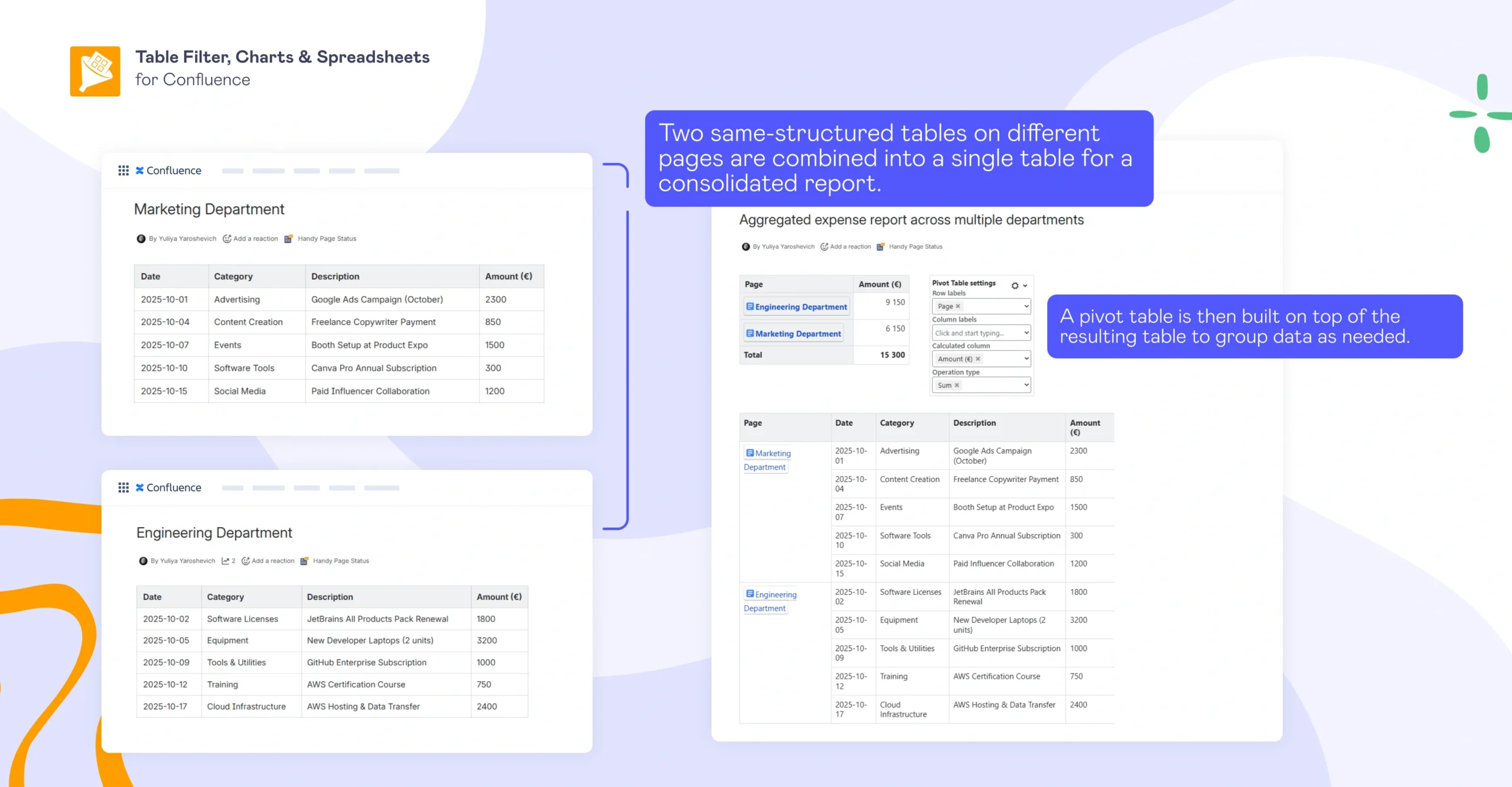
With the Pivot Table macro, you can summarize table data in an aggregated view without leaving Confluence. This is useful when a raw table contains too much detail, but stakeholders need a quick summary. Instead of making users scan every row, you can group the data by selected dimensions and surface the totals or counts that matter.
Create Excel-like spreadsheets
Native Confluence tables aren’t built like spreadsheets. When teams need familiar formulas or calculations, they usually end up doing everything in Excel and then passing files back and forth via email or attaching them to Confluence.
That creates several problems at once: data is scattered outside the platform and disconnected from the rest of project documentation, which stalls collaboration and makes relevant information much harder to find.
It doesn’t have to be that way. With Table Filter, Charts & Spreadsheets for Confluence, it’s possible to create and edit spreadsheets directly inside Confluence. Here are some of the main workflows you can handle using its macros:
-
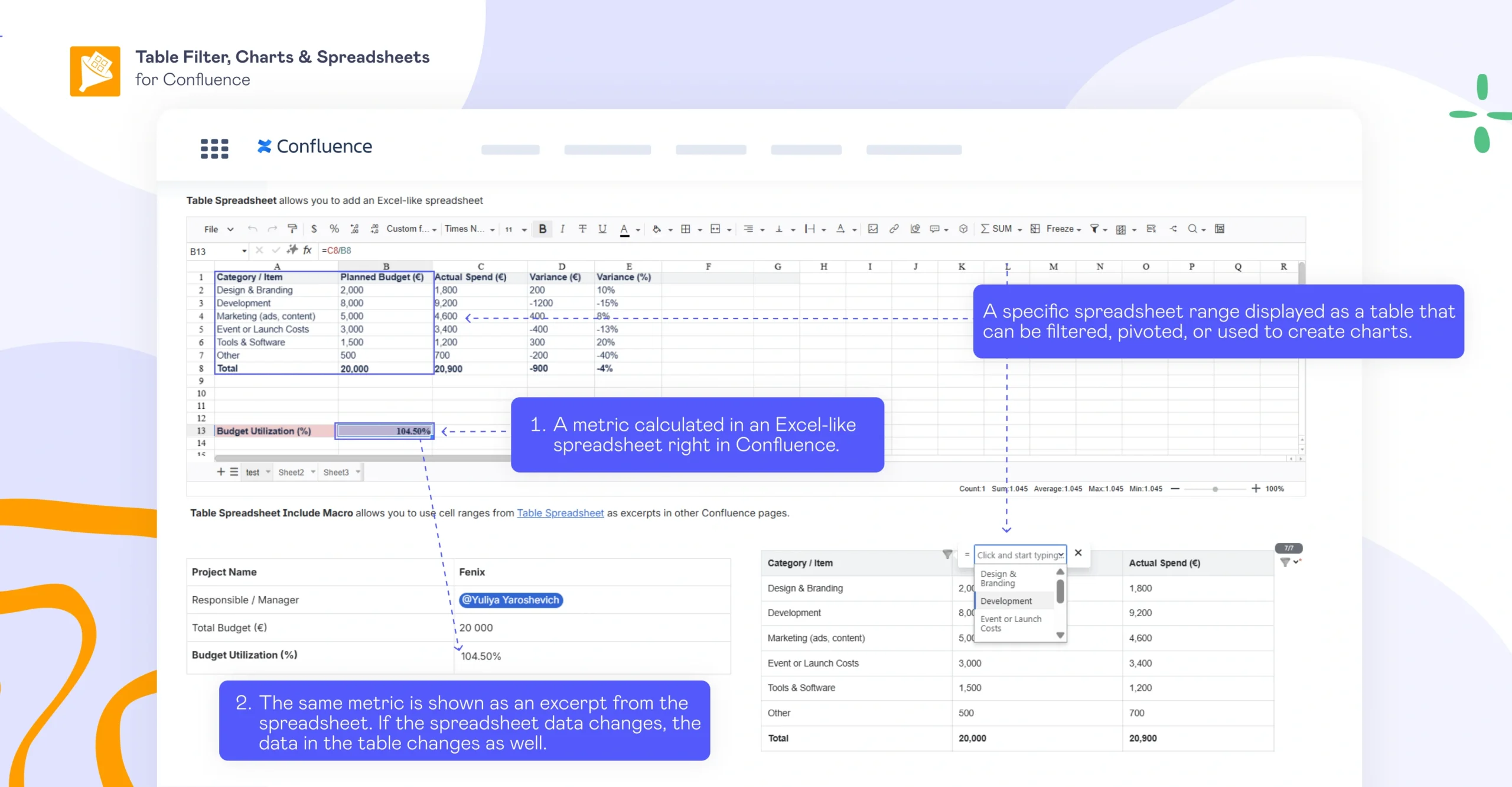
Create and edit Excel-like spreadsheets in Confluence with the Table Spreadsheet macro, including formulas, calculations, conditional formatting, and dropdown lists.
-
Turn Confluence tables or Jira work items into spreadsheets with the Spreadsheet from Table macro, so you can analyze existing data without rebuilding it.
-
Reuse spreadsheet ranges across Confluence pages with the Table Spreadsheet Include macro, and keep them automatically updated whenever the source data changes.
Visualize table data with charts
Even though native Confluence includes a basic chart macro, it isn’t suitable for more sophisticated reporting workflows: charts can only be created from a single table, and there are only three types available. So teams that use multiple data sources often have to export their tables to Excel and then paste static screenshots back into the Confluence page.
The Chart from Table macro lets you generate charts directly from Confluence tables and keep them in sync with the source data at all times. It supports 15 chart types, including Gantt. You can visualize both native Confluence tables and tables generated by macros, such as Jira work items or the Content properties report, as well as data from CSV and JSON files.
This way, you can build charts not only from raw table data but also from data that has already been filtered, summarized, or merged.
Export table data outside Confluence
Exporting a table from Confluence usually comes down to intent. If your goal is simply to share data externally (for example, export to Excel or Google Sheets), Confluence doesn’t support this, so the default option is manual copy-paste, which often leads to formatting issues and extra cleanup.
If you want a cleaner result, a macro like Table Filter lets you export your data to CSV, ready to use in Excel without formatting issues.
More often than not, however, export isn’t necessary. If you need to work with the data further, just like you would in Excel or Google Sheets, this can be done without leaving Confluence using macros from Table Filter, Charts & Spreadsheets:
-
Use the original table with the Table Filter macro, if you only need to filter, sort, hide columns, or otherwise adjust the current view.
-
Create a new spreadsheet on the page with the Table Spreadsheet macro, if you need formulas, calculations, or other spreadsheet-style features.
-
Turn an existing table into a spreadsheet with the Spreadsheet from Table macro, if the data already sits in a Confluence table and needs further analysis in an Excel-like layout.
Reuse a table on multiple pages
If you want your table data to appear in multiple places within your instance, the first thing that probably comes to your mind is to manually duplicate it. That’s possible, as long as you’re fine with those copies constantly drifting out of sync and having to update them every time the source changes.
The workflow needn’t be so twisted. The killer combo of Table Excerpt and Table Excerpt Include allows you to reference the original table wherever it’s needed (whether on the same page or on another one), without copying data.
You can also reference a spreadsheet created via the Table Spreadsheet or Spreadsheet from Table macro, or specific cell ranges from it by using Table Spreadsheet Include.
Combine data from multiple tables into a single report
If your data is spread across multiple tables, trying to bring it together in a single view through manual copy-paste is cumbersome and often leads to fragmented reporting. Copying everything to Excel, using VLOOKUP, and pasting the result back is possible, but it kind of sucks.
The right combination of macros lets you pull tables from different sources and join them into a single table without the headache. In doing so, you can combine:
-
Native Confluence tables
-
Tables generated from macros such as Jira work items, Content properties, and Task Report
-
External data from CSV or JSON
From what our customers say, here are the most common ways teams use this setup:
-
Combining the same-structured tables across pages into one consolidated report to bring together distributed datasets and then group or summarize them in one place. (Imagine reporting on 40+ Jira projects all at once. Pretty freaking insane, huh?)
-
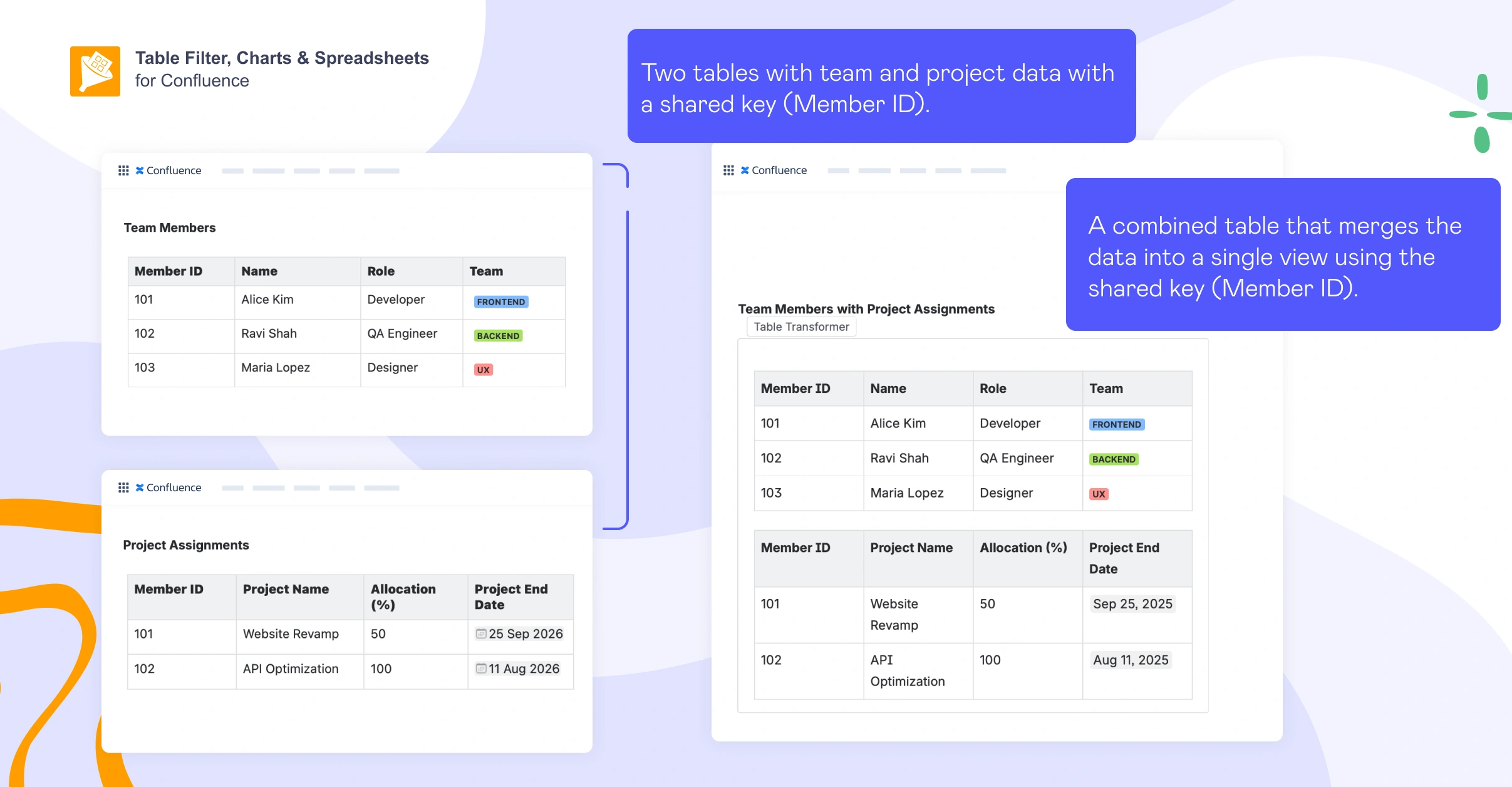
Joining related (yet different) tables by a shared column to merge two datasets into a single summary.
-
Merging Jira work item tables by issue keys or linked issues to connect related Jira data and build a more complete reporting view.
-
Combining CSV or JSON data with a Confluence table to enrich page-based records with reference data from an external source.
What’s more, the combined result doesn’t become a static snapshot. It remains connected to its sources, updating automatically when the underlying data changes. This creates a reporting layer across multiple pages, rather than a one-off collection of disconnected tables.
Reshape and enrich table data with custom logic
Teams often fall back on manual work or exporting to Excel when they need more customized or advanced table output. But this approach breaks down quickly as the dataset grows and changes.
The Table Transformer macro lets you treat a Confluence table like a structured dataset, using presets or custom SQL queries to express more complex table logic. Instead of editing rows one by one or rebuilding datasets externally, you apply the transformation once and keep it connected to the source data.
Based on our users’ feedback, the range of possible use cases is wide. Here are just a few examples to give you a sense of it:
-
Combine multiple tables into a single report: Merge datasets from different pages or sources into one unified view (for example, to consolidate reports across teams or departments).
-
Enrich a table with data from another table: Match and extend your data with additional context (for example, to map people to teams or adding metadata from a reference table).
-
Add calculated and derived columns: Create new fields based on existing data, such as totals, differences, deadlines, or other metrics.
-
Clean and normalize messy data: Standardize formats, fill in missing values, or restructure inconsistent tables so they can be used for analysis and reporting.
-
Reshape your data: Pivot, unpivot, split, or transpose tables to fit the format required for reporting or further processing.
Import and connect external data
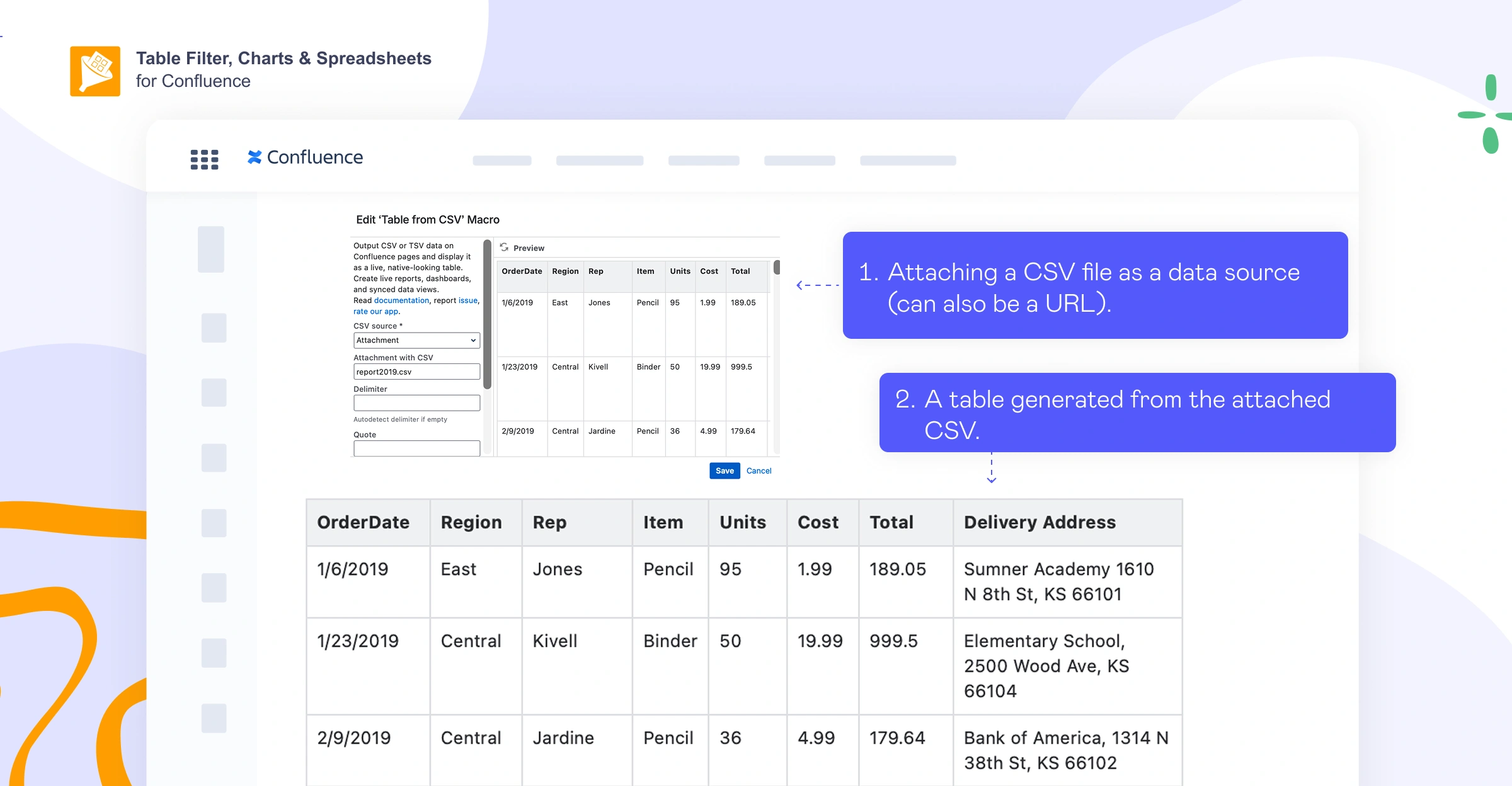
Use Table from CSV and Table from JSON from Table Filter, Charts & Spreadsheets for Confluence to bring external data into Confluence and render it as a table on the page. This works with the following types of data:
-
CSV files, either uploaded or fetched from a URL
-
JSON data, including files or API responses
Since the table is generated from the source, it automatically reflects updates in the underlying data.
Apply multiple macros to a single table
Confluence limitations often get in the way of more advanced table workflows. Here’s one that stands out: macros can’t be nested within each other. That becomes a problem as soon as you want to process the same table in several steps: for example, filter it first, then summarize it, then turn it into a chart.
The Table Toolbox was designed to work around that limitation. It lets you combine multiple table macros in a single wrapper, which is useful when one macro’s output needs to become another macro’s input. Instead of treating each macro as a separate, isolated step, it chains them together, allowing you to build more complex reporting or analysis workflows right on the page.
Build more interactive tables
Confluence tables can be awkward to maintain when the same values need to be updated repeatedly. Switching a status or changing a date may be minor, but having to reopen the page in edit mode each time quickly becomes inefficient.
This is where Handy Macros for Confluence can help. It lets you turn common table fields into lightweight interactive controls so recurring updates can happen faster and with less manual work.
Here are three common ways teams use it in tables:
-
Add dropdowns to frequently updated tables: The Handy Status macro lets you switch between predefined options directly in view mode, instead of typing values manually or reopening the page for every minor update. It’s useful for statuses and other recurring values that need to stay consistent across tables and pages.
-
Track recent status changes more easily: Handy Status also maintains a built-in status history so you can quickly see who changed a value and when. It stores up to 15 recent changes, which is useful when you need more visibility and control over recurring status updates.
-
Add date pickers to tables: Use Handy Date to update dates faster in workflows that rely on deadlines or review dates. The macro can also automatically color-code dates, helping you spot overdue and upcoming items more easily.
Handy Status and Handy Date can be nested inside tables generated with Table Filter, Charts & Spreadsheets macros.
Getting more out of tables in Confluence
Confluence tables are easy to start with, and just as easy to outgrow. They work well for basic table tasks, but once you start using them for more advanced reporting, you either hit a wall or end up doing extra manual work.
That said, you don’t have to move your data elsewhere to solve this. With the right apps from the Atlassian Marketplace, Confluence can handle much more of that workflow directly on the page. So if you’ve found yourself working around table limitations, explore how Table Filter, Charts & Spreadsheets and Handy Macros for Confluence can help you do more without leaving the platform.


FAQs
How do I create a table in Confluence?
Type /table in the editor or use the table icon in the toolbar. Then choose the number of rows and columns you want and adjust the structure as needed.
How do I add a row in a Confluence table?
Click inside the table, then use the toolbar or right-click menu to insert a row above or below the current one.
How do I insert a new row in a Confluence table?
Right-click a cell and choose Insert row above or Insert row below. You can also use the table controls in the editor toolbar.
How do I delete a row in a Confluence table?
Right-click anywhere in the row and select Delete row, or use the table toolbar options.
How do I add a column in a Confluence table?
Click in the table, then use the toolbar or right-click menu to insert a column to the left or right of the selected cell.
How do I merge cells in a Confluence table?
Select the cells you want to merge, then use the Merge cells option in the toolbar or right-click menu.
How do I copy a table in Confluence?
Select the whole table, copy it, and paste it into another location or page. In most cases, the formatting stays intact. If you need the same table in several places and want it to stay up to date, a macro-based approach is better than duplicating it manually.
How do I create a Confluence table from Excel?
Save your existing Excel table as CSV and use the Table from CSV macro to import it into Confluence. If you need an Excel-like experience inside Confluence, the Table Spreadsheet macro lets you work with the data using familiar formulas and functions.
How do I export a Confluence table to Excel?
Native Confluence does not support direct table export to Excel. The simplest workaround is to copy and paste the table into Excel or use a third-party app like Table Filter, Charts & Spreadsheets to export the data as CSV, avoiding formatting issues. However, if you need to use familiar spreadsheet features, you don’t really need to leave Confluence. The app allows you to turn any table into a spreadsheet, or create a new spreadsheet from scratch, running formulas and calculations just like you would in Excel.
How do I add a date in a Confluence table?
You can type a date manually or insert one with the date picker by typing //. If dates change often, a macro like Handy Date makes updates faster by letting you change them in view mode.
How do I add a dropdown in a Confluence table?
Native Confluence tables do not support dropdowns. To add dropdown-style fields, you need a third-party macro such as Handy Status.
How do I add a filter to a Confluence table?
You can do this using a third-party macro such as Table Filter, available in the Table Filter, Charts & Spreadsheets suite.
How do I freeze rows in a Confluence table?
Native Confluence supports sticky header rows but not full row or column freezing, as in spreadsheets. You can enable these features with macros such as Table Spreadsheet or Spreadsheet from Table, which provide familiar spreadsheet functionality, similar to Excel or Google Sheets.
