







How to Add Due Dates to Jira Checklist Items

As teams grow and projects multiply, something subtle starts happening to Jira work items. Tasks get longer and more detailed, yet somehow part of them are still being overlooked.
Because here’s the thing: a checklist without timing is just a wish list. You can list every step of a release, every QA action, every onboarding task… but if nobody knows when each step should happen, the checklist quietly turns into a comfort blanket instead of a control system: nice to have and easy to ignore.
In this guide, we’ll show how easily you can add due dates to Jira checklist items with the help of Checklists for Jira (Templates & Automation).
Quick context: Checklists for Jira (Templates & Automation) is a way to turn messy, easy-to-forget steps into a clear workflow. Instead of creating dozens of subtasks or keeping notes in random places, teams can break work into structured checklists, format them the way they need, reuse them as templates, automate repetitive processes, and keep track of progress with dashboards.
The moment checklists become real deadlines
Think about the typical Jira task: it has a due date, maybe a sprint deadline, maybe a release milestone.
But inside the task itself? Ten, fifteen, twenty checklist items… all equally vague in terms of timing.
Should QA start today or tomorrow?
Is documentation due before release or after?
Who owns the final review, and when should it happen?
When every item has the same invisible deadline (“sometime before this work item closes”), priorities blur, and people fall back on guessing.
Due dates on Jira checklist items change that dynamic completely. Suddenly, the checklist becomes a timeline.
The easiest way to add due dates to Jira checklist items (it takes two characters)
The best part? With Checklists for Jira, you don’t need to leave the editor. You simply type // or /date, and choose a due date. That’s it. 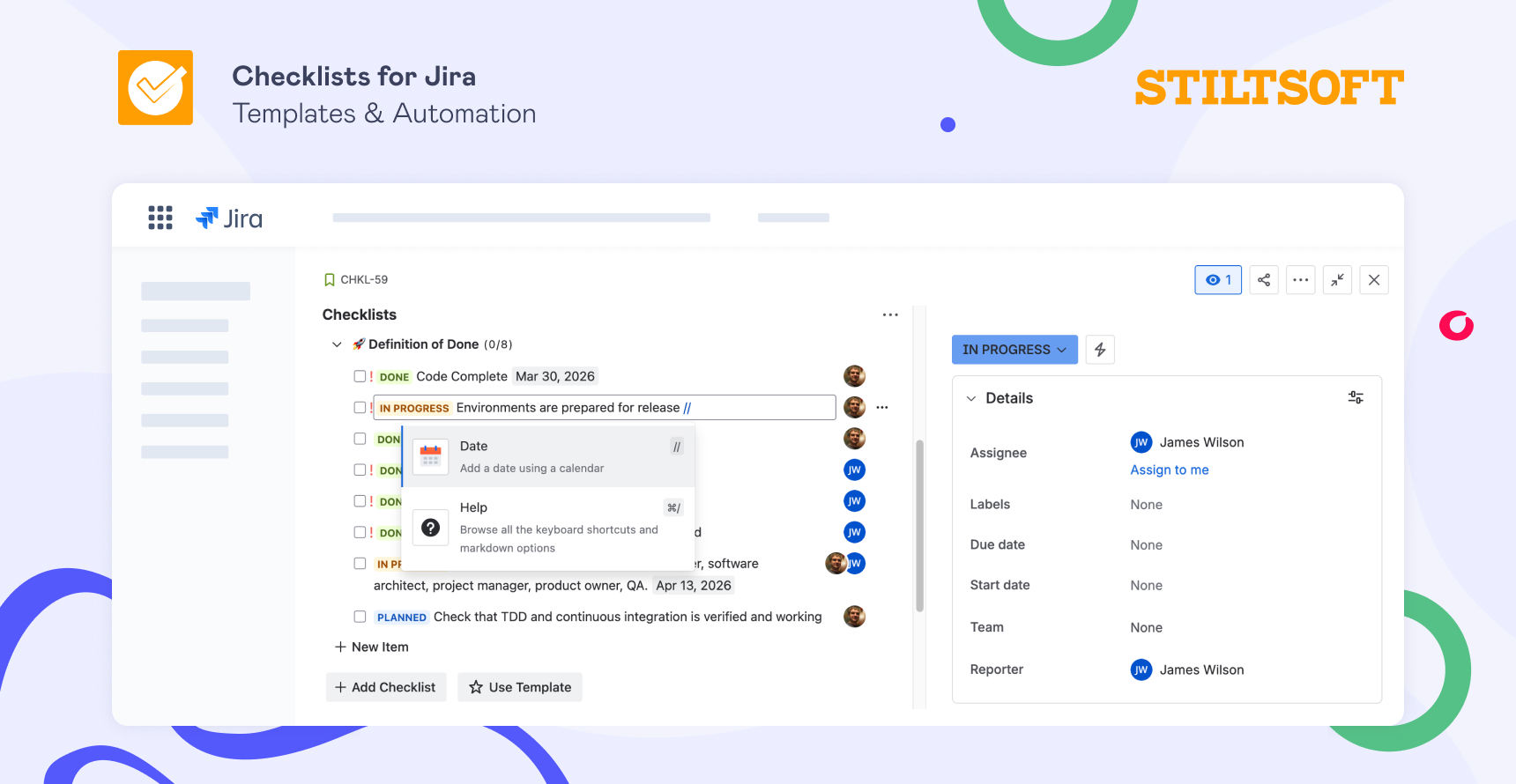
Because the checklist editor uses the Atlassian editor, you can add dates exactly the same way you would in Jira comments or descriptions. Start typing the command (//), pick the date from the calendar, and the checklist item instantly gets a deadline.
It feels natural because you’re using the same editing experience you already know. And thanks to the checklist integration with the Atlassian editor, in addition to dates, you can also easily add tables, panels, headings, notes, code, and many more to your checklists with the / command — and everything will look just like you’re used to.
Why deadlines make checklists more useful
When checklist items have deadlines, several things happen almost immediately:
-
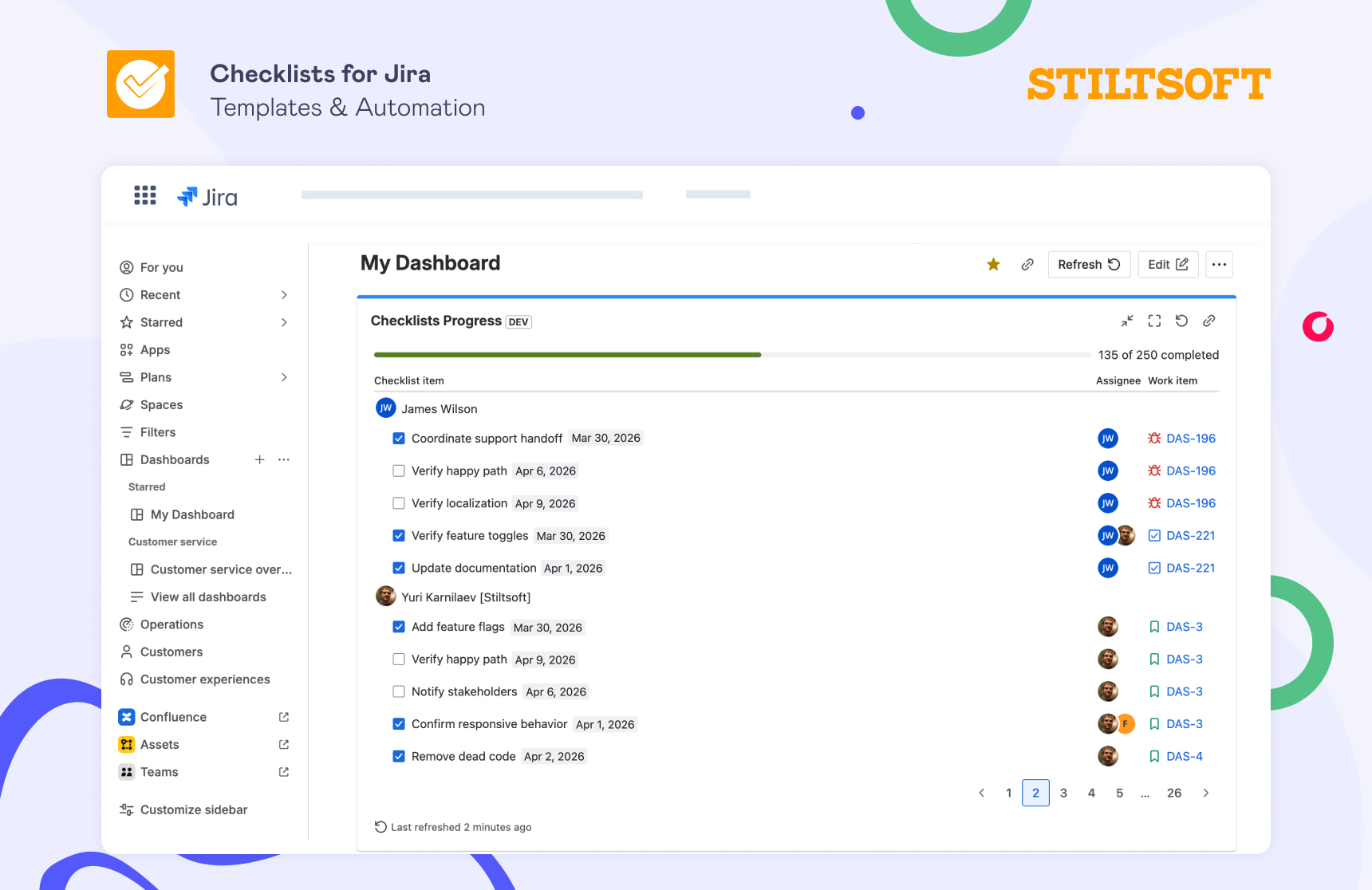
First, progress becomes visible. It’s easy to see what’s overdue, what’s coming next, and what’s already done. And with the Jira checklist app, you can track the progress of all your checklists in the Jira dashboards. Instead of scanning a wall of tasks, you will see a clear list of items with their timelines.
-
Second, accountability becomes lighter. Nobody needs to chase teammates or send reminder messages because the checklist itself communicates urgency.
-
And third, planning gets easier. Once teams start assigning dates to checklist items, they naturally begin thinking in terms of sequences rather than piles of tasks.
Small feature, big shift
Due dates on Jira checklist items might sound like a tiny improvement: two characters (//) -> calendar picker -> Done.
But the impact is bigger than it looks. Your checklist stops being a static list and becomes a living plan. Tasks stop competing for attention and start forming a sequence. And the quiet background question — “Are we on track?” — becomes much easier to answer.
Next time you create a Jira checklist, try adding a date to just one item. Chances are, you’ll end up adding dates to all of them.