






How to Use Formulas in monday.com: Native Limits & Workarounds

monday.com makes it easy to calculate values directly on your boards with the native Formula Column. For straightforward calculations, it works much like a familiar spreadsheet: multiply {Hours} * {Rate}, use an IF statement, calculate a percentage, or combine values from several columns.
That works well until your calculations become part of a larger workflow.
Maybe you want to trigger an automation when a calculated value reaches a certain threshold. Maybe the numbers you need are spread across several connected boards, or the rate you need is stored in a separate price list. Or perhaps you need to summarize values across items rather than calculate them one row at a time.
And while monday.com’s AI Formula Builder may help you write a formula, it doesn’t remove these underlying limitations. You can end up spending more time tweaking AI-generated formulas and trying different approaches, only to discover that the logic you need still isn’t supported by the native columns.
This is where native formulas start to feel less like a spreadsheet and more like a collection of workarounds.
The good news is that you don’t have to move your monday.com data elsewhere. In this guide, we’ll look at four common limitations of native formulas and show how Smart Spreadsheet can help you handle calculations, lookups, reporting, and automation workflows directly in monday.com.
Getting Started with Formulas in monday.com
Let’s start with a simple example.
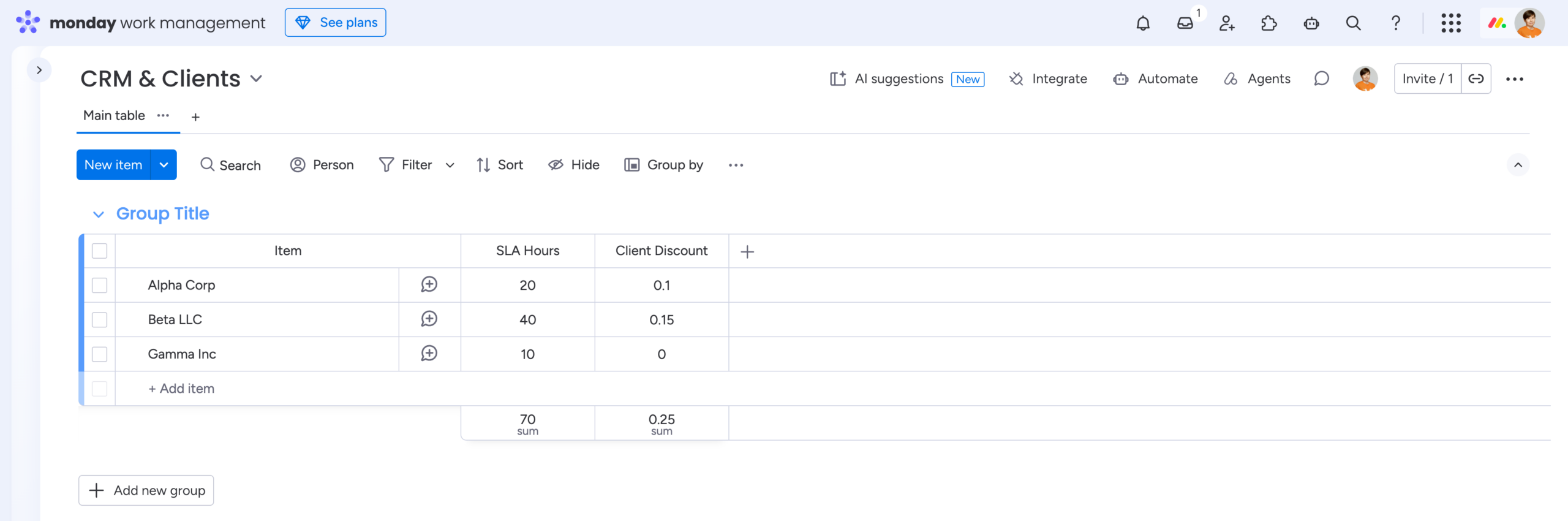
Imagine you have two boards:
-
CRM & Clients – your reference database with client information.
-
Projects & Finance – where you manage projects and calculate their financial results.
On the Projects board, use Connect Boards to link each project to a client from the CRM board. Then add a Mirror column to display the client’s discount.
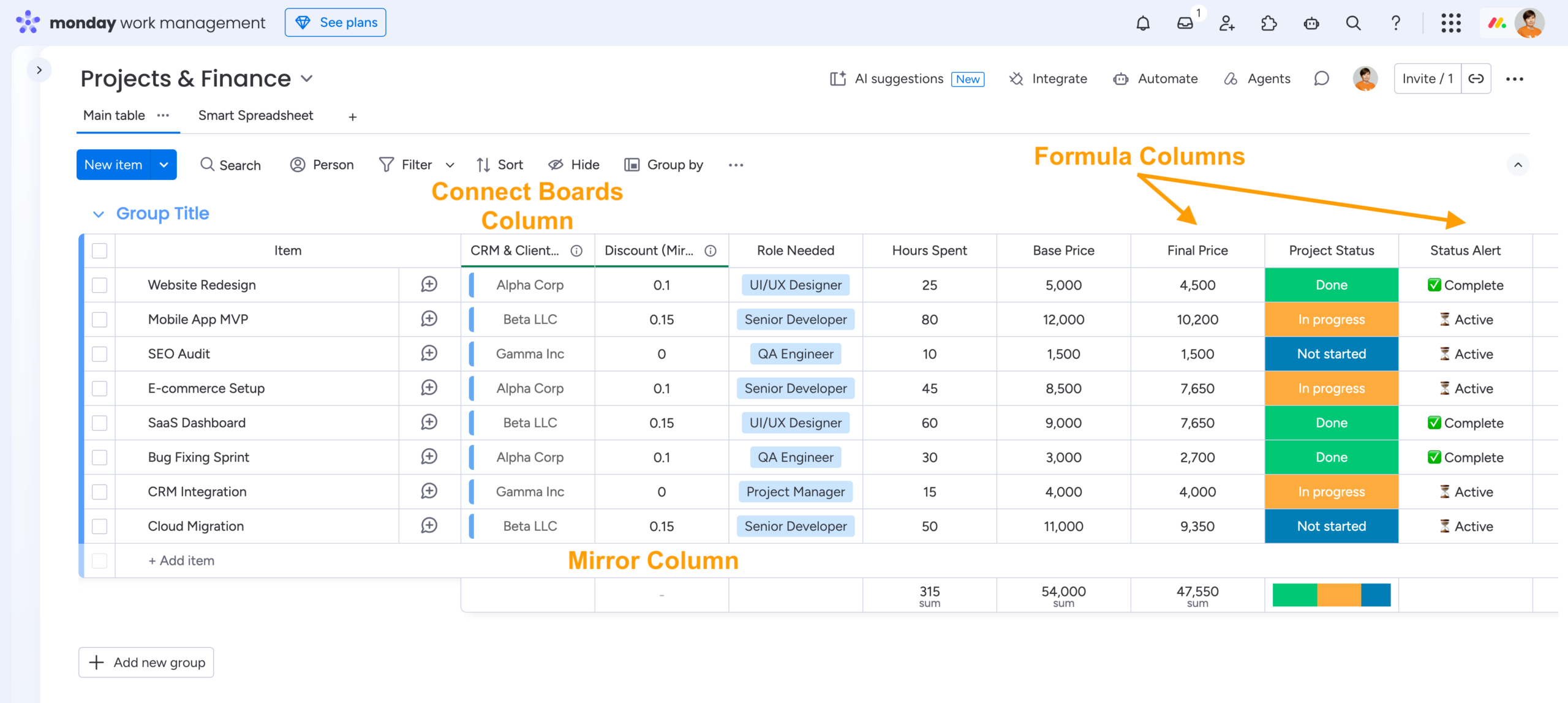
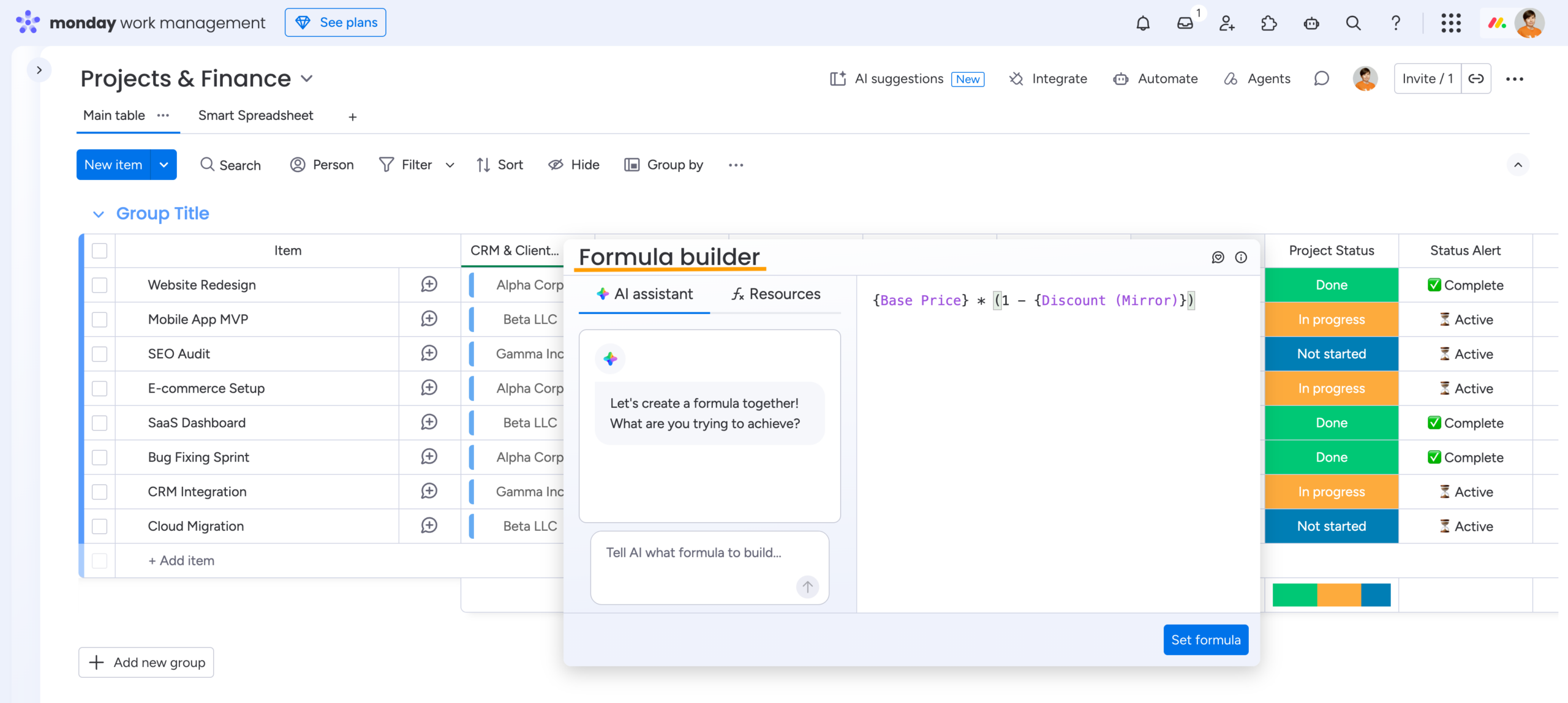
Now you can use that mirrored value in a Formula Column to calculate the final project price:
{Base Price} * (1 – {Discount (Mirror)})
If the base price is $5,000 and the discount is 10%, the formula returns $4,500.
You can also use formulas for simple conditional logic, for example:
IF({Project Status} = “Done”, “✅ Complete”, “⏳ Active”)
This is where native formulas work well: calculating and displaying a value for an individual item.
The limitations become more noticeable when you want to use those calculations as part of a broader workflow.
4 Places Where Native monday.com Formulas Fall Short
1. Formula Results Can’t Directly Trigger Automations
Suppose you want to set up a rule like:
When Final Price is greater than $10,000, notify the project manager.
A Formula Column can’t directly serve as the trigger for this automation. The formula result is calculated rather than stored as a regular column value, so you may need an additional column or workflow step to make the result available to an automation.
One common workaround is to copy the calculated value into a regular Numbers or Text column and use that column in the automation.
It works, but now a simple calculation requires an extra column and another piece of workflow logic.
2. Formulas Are Designed for Item-Level Calculations
Native formulas work with the data associated with an individual item. They aren’t designed to work like Excel formulas that can reference a range of rows and perform calculations across an entire dataset.
For example, you might want to find out:
-
What is the total revenue across all projects?
-
How much have we spent on each project category?
-
What is the average margin for each client?
-
Which project groups have exceeded their budget?
monday.com has other tools for summaries and reporting, but the Formula Column itself isn’t a general-purpose tool for calculations across multiple items or groups.
Once you move from “calculate this item” to “analyze these items”, you need another way to handle the dataset.
3. Calculated and Mirrored Values Are Hard to Use for Further Analysis
Native monday.com formulas are also limited when you want to take a calculated or mirrored value and use it for further analysis.
For example, Summary values aren’t supported for Mirror Columns, so you can’t simply total up mirrored values in the same way as regular numeric columns. Formula results and Mirror Columns can also be difficult to use as inputs for calculations and metrics in dashboard widgets.
This makes it harder to build a workflow where a calculated value is not the end result, but an input for another calculation, summary, or dashboard metric.
4. External Data Can Lead to Board Clutter
Another common situation: the information you need for a calculation isn’t actually present on your board.
Maybe it’s stored on another board, in a separate price list, or in an external spreadsheet. You need to bring that information into your calculation, look up the right value, and use it together with your existing board data.
With native monday.com formulas, this often means adding extra columns or manually bringing reference values onto the board. You might use Mirror Columns to display values from another board, or create additional columns to store values that come from an external reference table.
Imagine your Projects board contains:
-
Role Needed
-
Hours
-
Project Status
Your hourly rates, however, are kept in a separate reference table.
You want to find the correct rate based on Role Needed and use it to calculate the project cost.
A native Formula Column isn’t designed to work like a spreadsheet lookup against a separate reference table. The usual workaround is to bring the reference values onto the board first, which can mean extra columns, duplicated information, and more maintenance every time your price list changes.
And this is how a simple calculation can turn into board clutter.
How Smart Spreadsheet Extends monday.com Formulas
This is where Smart Spreadsheet adds another layer to monday.com. Your board data stays connected, but you get a spreadsheet environment where you can work with formulas, reference tables, Pivot Tables, and additional inputs.
Let’s look at the same four scenarios.
1. Turn Calculated Values into Automation-Ready Data
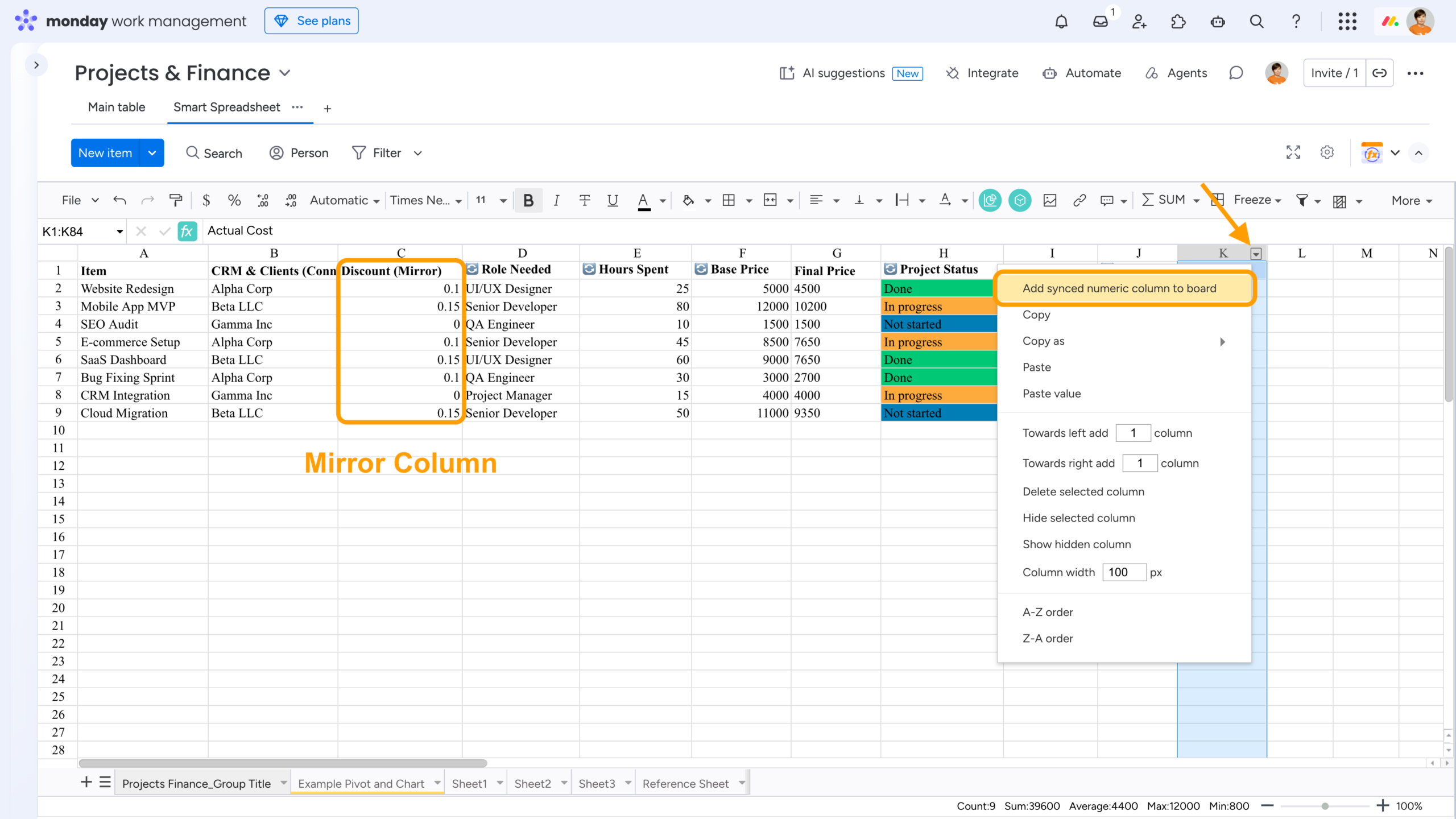
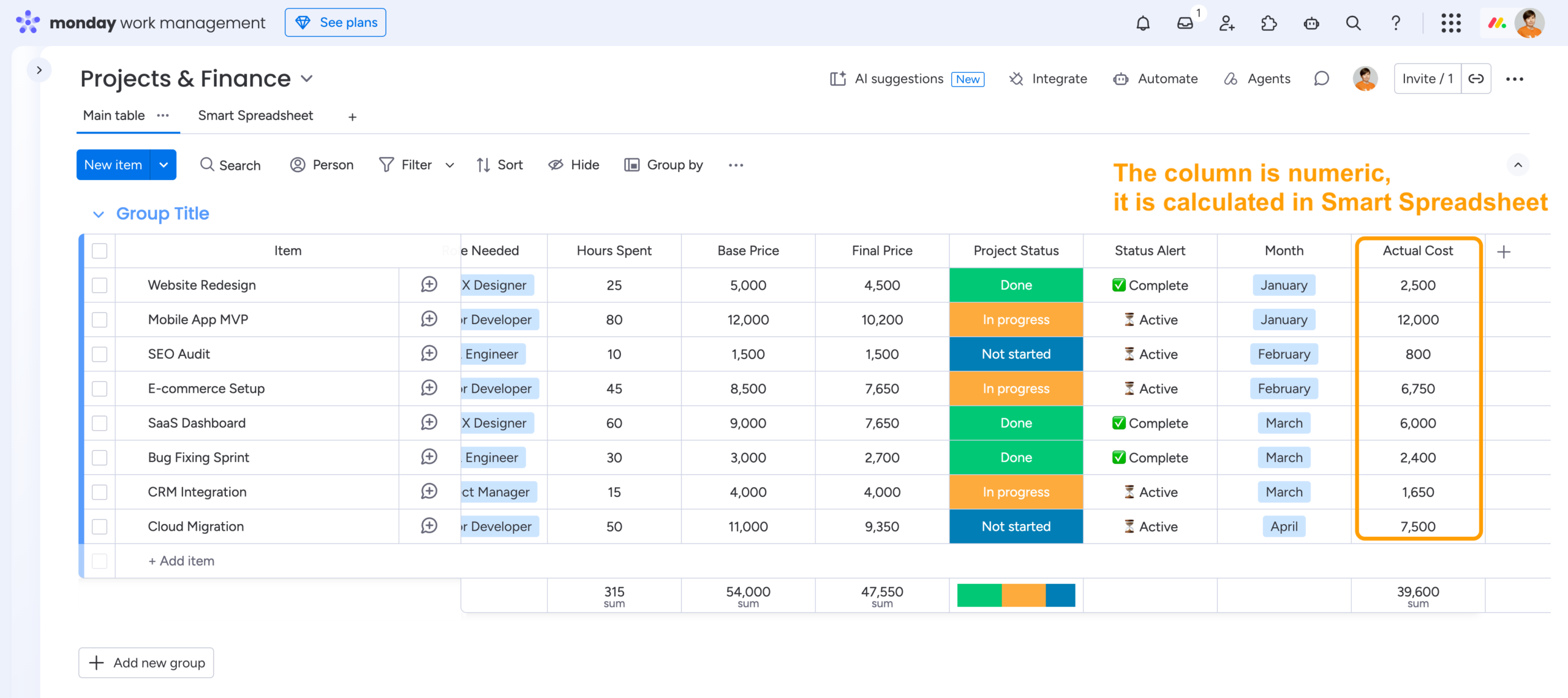
Smart Spreadsheet can calculate a value and push the result back to your monday.com board as a regular Numbers column using Add synced numeric column to board.
For example, let’s calculate the Actual Cost of a project:
Hours Spent * Hourly Rate
The calculation can combine live monday.com data with a rate stored in a reference table, which we’ll explore in more detail later.
After the calculation is ready, right-click the spreadsheet column and select Add synced numeric column to board. The result appears on the board as a regular Numbers column.
So the calculation stays in Smart Spreadsheet, while the result becomes part of the board workflow.
2. Analyze Multiple Items with Formulas and Pivot Tables
When you need to move beyond one item at a time, Smart Spreadsheet lets you work with your board as a dataset.
You can use familiar spreadsheet formulas and Pivot Tables to summarize information by:
-
project
-
client
-
status
-
category
-
team member
For example, a Pivot Table can turn a long list of project costs into a summary by category or client without adding a collection of helper columns to your board.
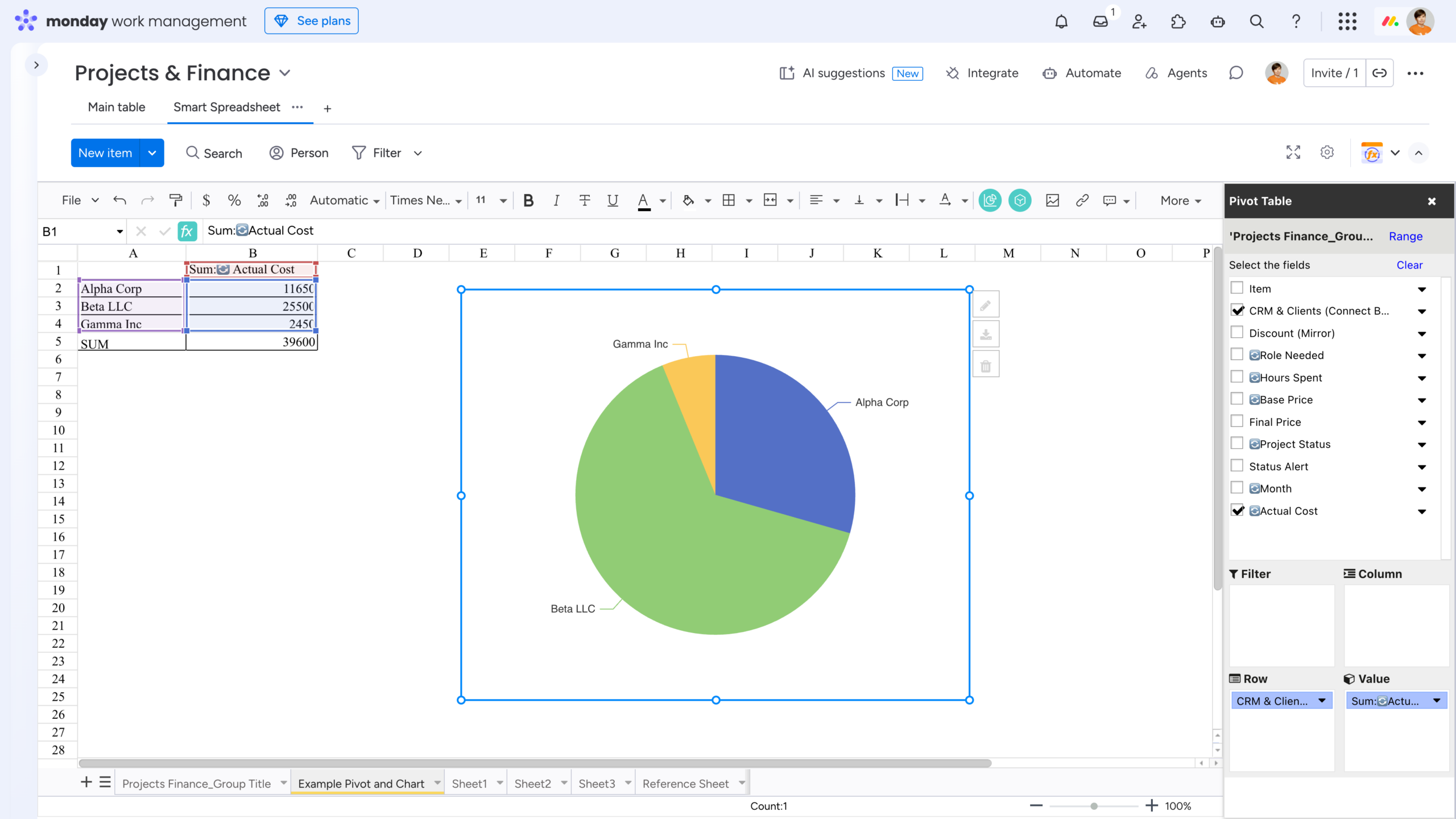
There is also ITEMVALUE(), which lets you reference a specific value from a monday.com item, including an item on another board. This is useful when you need one particular value for a calculation without bringing another set of columns onto your working sheet.
3. Work with Calculated and Mirrored Values Like Regular Spreadsheet Data
Smart Spreadsheet imports formula results and mirrored values as regular spreadsheet columns and cells. You can see an example in the first screenshot of the earlier Turn Calculated Values into Automation-Ready Data section. Once they’re in the spreadsheet, you can use them just like any other values in your calculations.
You can calculate totals and other summaries, use calculated or mirrored values in new formulas, and build Pivot Tables and charts from them. The same data can be analyzed in Smart Spreadsheet whether you use it as a Board View, Item View, Dashboard widget, or Docs widget.
4. Use External Reference Tables with VLOOKUP
Smart Spreadsheet can combine several types of input in the same calculation:
-
live monday.com board data
-
values entered directly in the spreadsheet
-
external reference data from local .xlsx or .csv files, Google Drive, or Google Sheets
For example, you can import a table with roles and hourly rates and use VLOOKUP to find the right rate for each project.
If D2 contains the role and E2 contains the number of hours, the calculation could look like this:
=VLOOKUP(D2, ‘Reference Sheet’!A:B, 2, FALSE) * E2
This calculates the Actual Cost we used in the first example – the same value that we then pushed back to the monday.com board as a Numbers column.
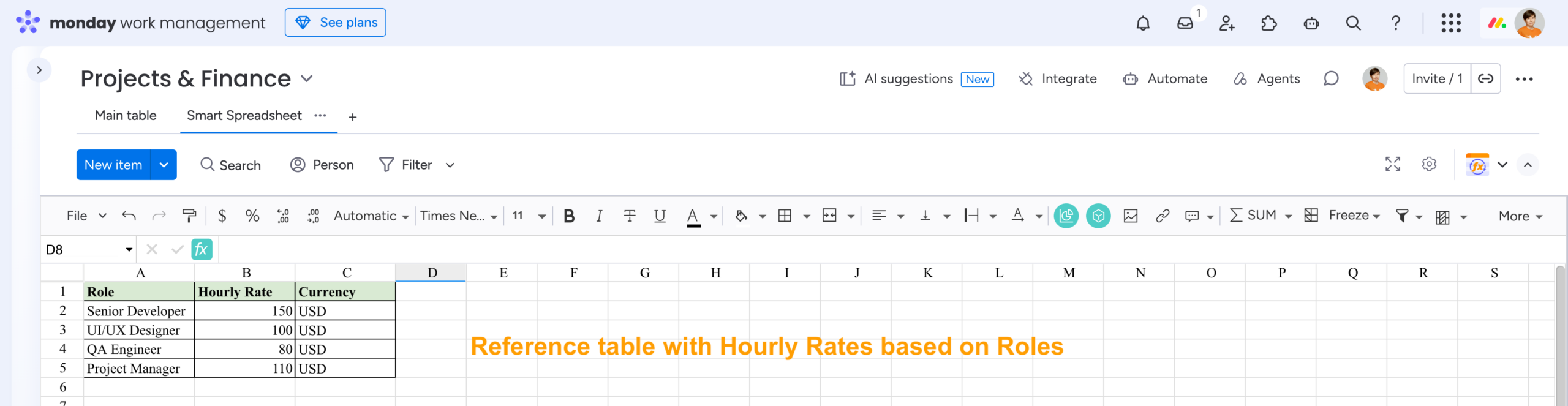
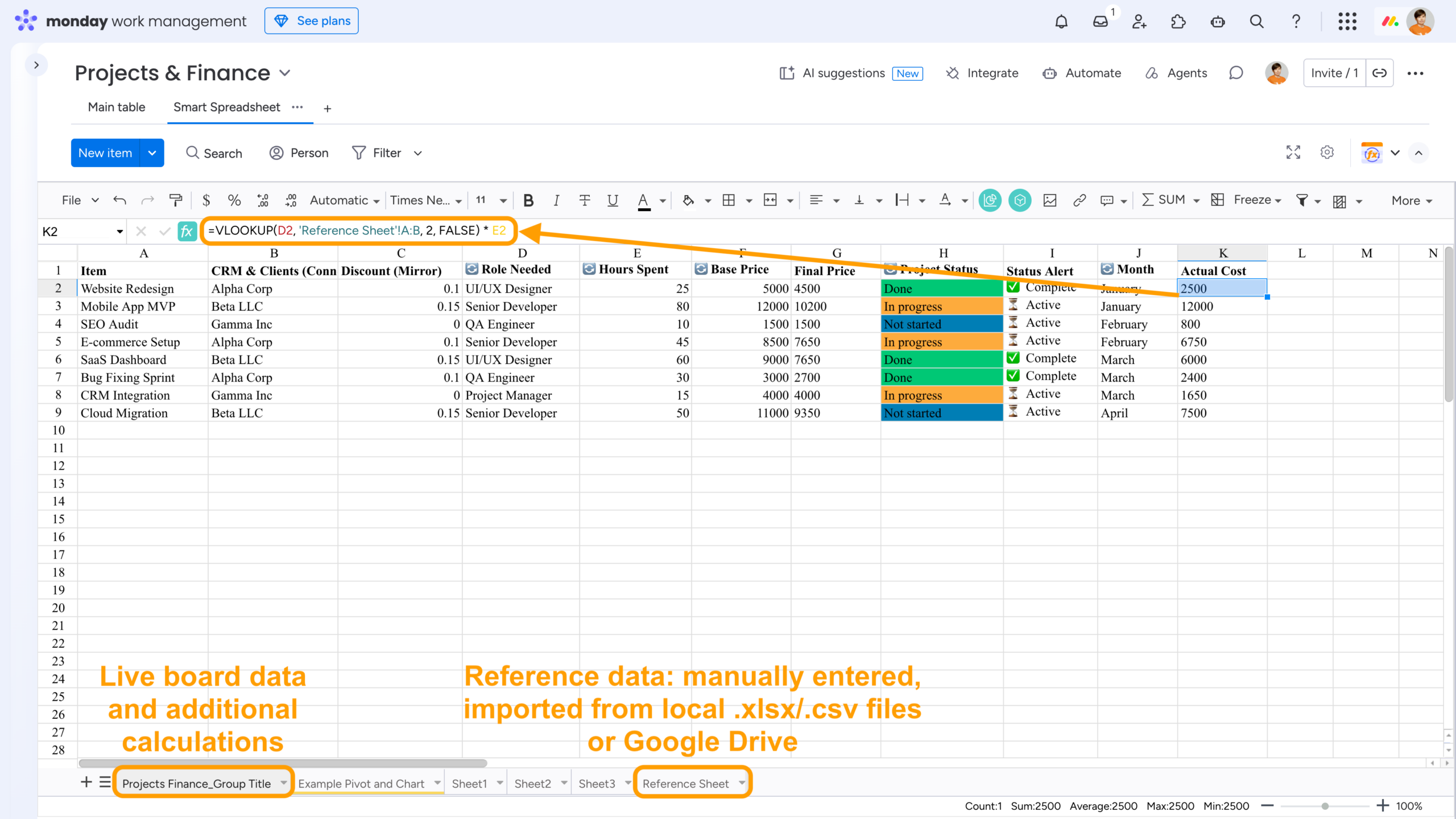
The reference table stays separate from your monday.com board, so you don’t have to duplicate the same rates across dozens of items. When the rates change, you can update the reference file instead of changing every item on the board.
And when your team already works with files in Google Drive, you can access them directly from monday.com.
With the Google Drive Embedder view, you can display Google Sheets, Google Docs, Slides, and other Google Drive files directly inside monday.com.
For example, you can keep a Google Sheets pricing database or reporting dashboard accessible from the same monday.com workspace, while using Smart Spreadsheet when you need more advanced calculations or analysis.

monday.com Formulas or Smart Spreadsheet?
The native Formula Column is a good fit for straightforward, item-level calculations.
When the task grows beyond that – cross-item analysis, multiple data sources, external lookups, Pivot Tables, or calculated values that need to feed back into your monday.com workflows – a spreadsheet-based approach gives you more room to work.
With Smart Spreadsheet, you can keep your live monday.com data connected while adding the spreadsheet tools you need for more complex calculations and reporting.
The workflow can look like this:
Live monday.com data → Calculations & external data lookups → Reports & analysis → Results synced back to monday.com
FAQ
Can monday.com formulas use data from other boards?
Yes. You can connect boards and use Mirror columns to bring values from one board into another. However, more complex calculations involving connected data may require additional columns or workarounds. Smart Spreadsheet lets you work with connected and mirrored values as regular spreadsheet data and combine them in more flexible formulas.
Can I use VLOOKUP in monday.com?
The native Formula Column isn’t designed to work like a spreadsheet lookup against a separate reference table. With Smart Spreadsheet, you can import or connect reference data and use familiar spreadsheet functions such as VLOOKUP to find values such as prices, rates, or other parameters for your calculations.
Does Smart Spreadsheet have templates for monday.com?
Yes. Smart Spreadsheet has its own Template Manager for saving and reusing Smart Spreadsheet views, including their formulas, formatting, and other settings. It is also fully integrated with the monday.com Template Center, so you can save and reuse complete monday.com setups with Smart Spreadsheet views.
Smart Spreadsheet also includes ready-made templates for common use cases in insurance, real estate, and construction.
Learn more about Smart Spreadsheet templates in our documentation.