







Two-Minute How-to: Auditing Team Workflows in monday.com Using the Activity Log

A monday.com board is great for checking the current state of a project – but it doesn’t tell you much about what led to that state. It’s not easy to track how ownership or deadlines have evolved over time, or to spot items that have quietly stalled without any activity. That’s where the Activity Log comes in: a simple yet powerful way to uncover deeper workflow insights. No matter your industry – IT, construction, finance, or beyond – visibility into stale items, workload shifts, ownership churn, and deadline changes is invaluable when auditing team workflows.
Accessing the Activity Log
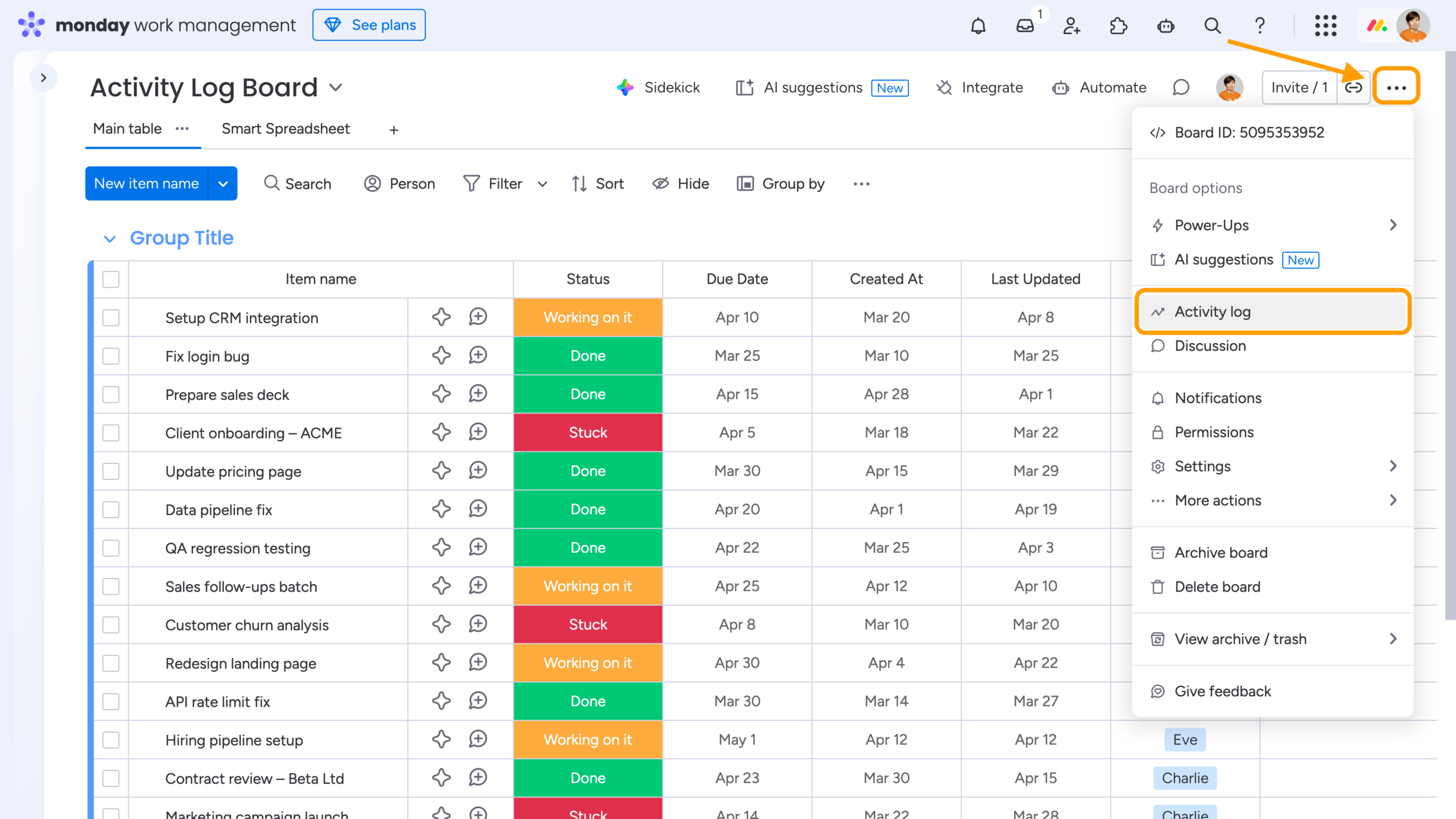
The Board Activity Log brings all past activity on a board into one place. Here, you can track changes to Dates and Statuses, movements between groups, and much more.
To access the Activity Log, click the three-dot menu in the top-right corner of your board and select the relevant option.
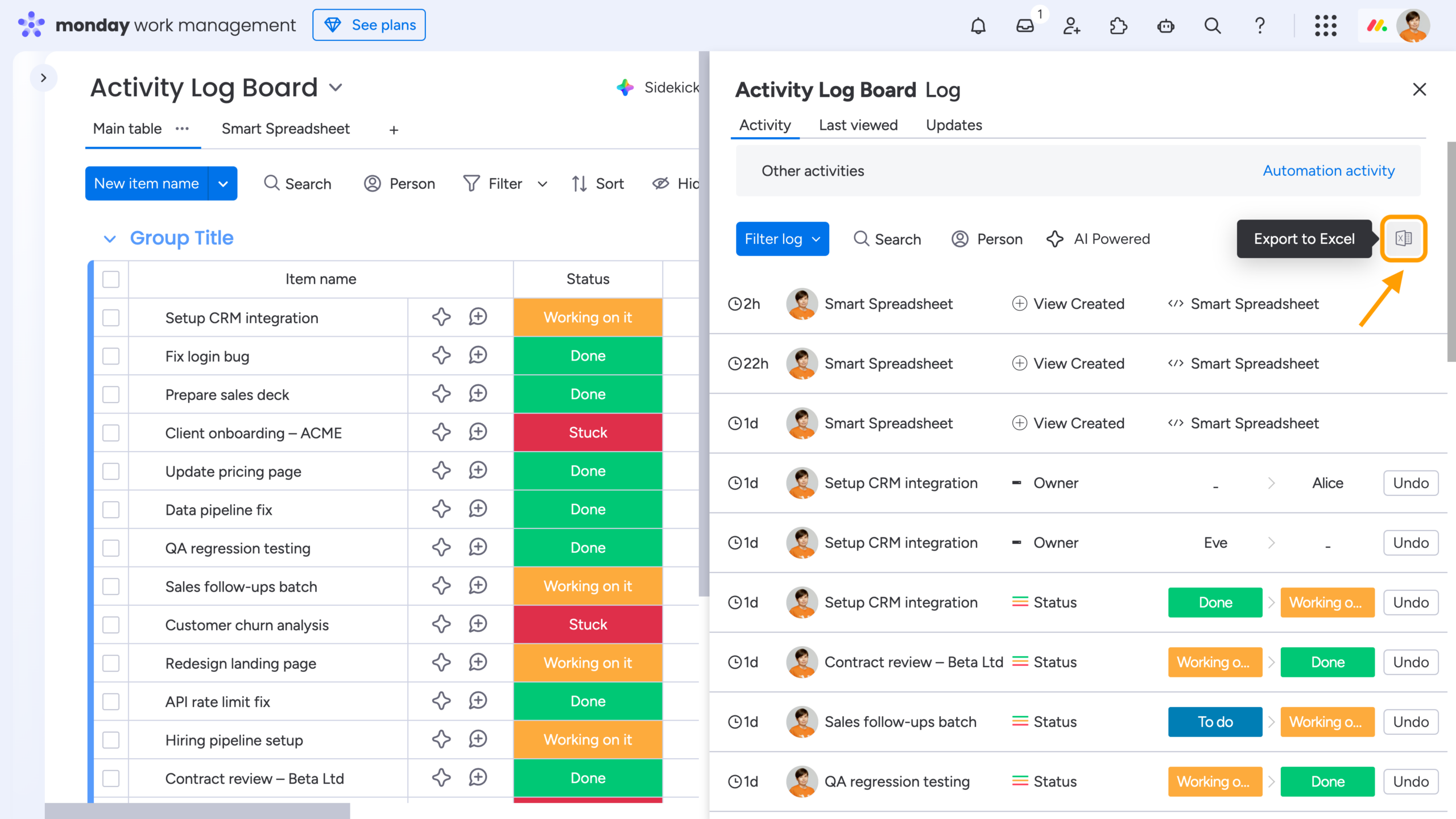
Once the log is open, you can export it to Excel using the Excel icon in the top-right corner of the Activity Log tab.
Analyzing the Activity Log
To analyze the Activity Log while keeping everything securely within your monday.com account – and easily accessible to your team – try the Smart Spreadsheet for monday app. Simply add Smart Spreadsheet as a Board View (or any other view you prefer, including a Custom Object), then open the File → Import menu and upload the exported file.
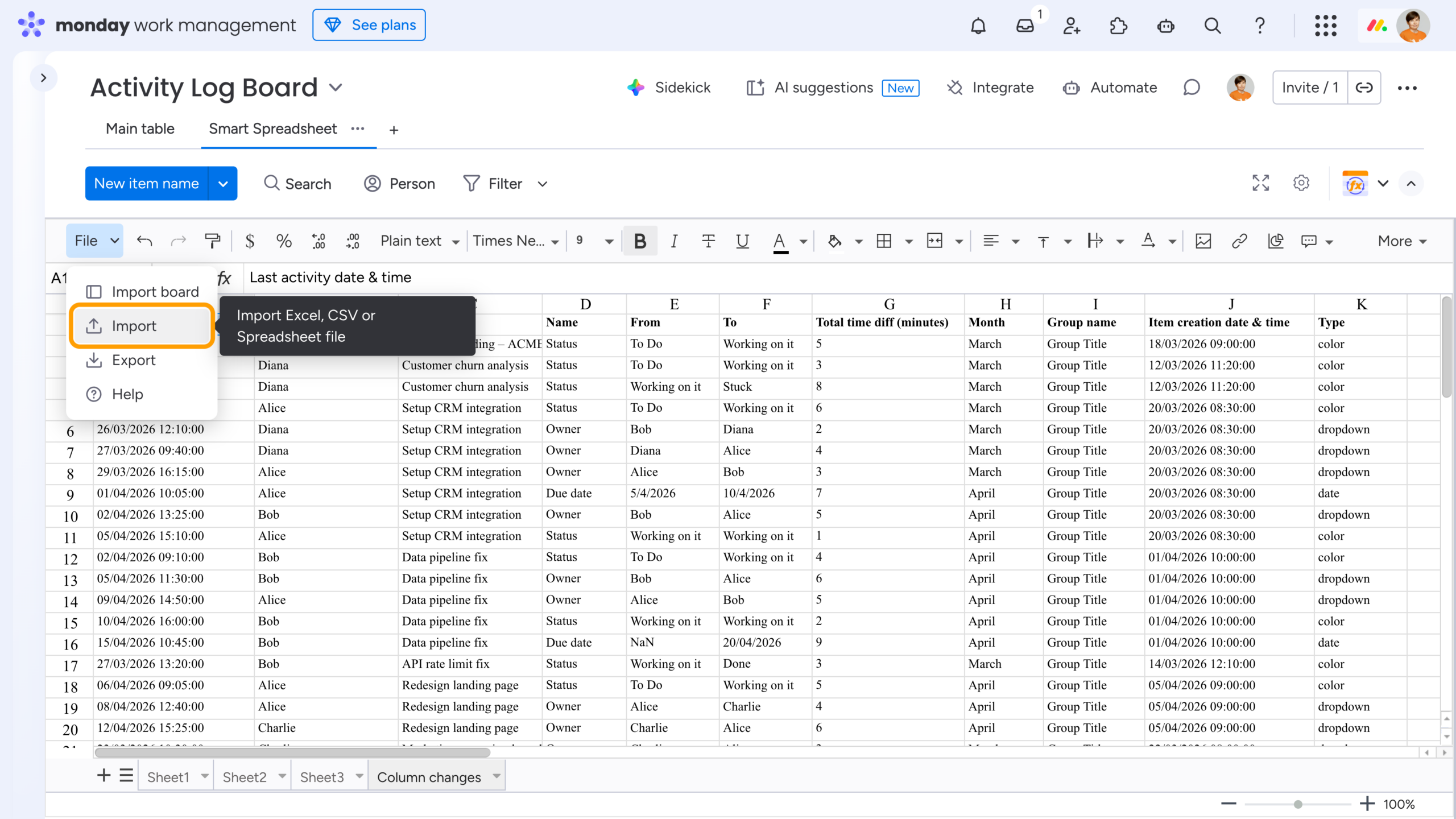
Once imported, you can work with the data using familiar Excel-like tools: pivot tables, charts, cell formulas, and conditional formatting.
Now, let’s look at a few common use cases.
Identifying Stale Items
Identifying stale items helps you quickly spot tasks with little to no activity. If a task was simple and has already been marked “Done” (which you can confirm on the board), there’s nothing to worry about. However, if an item shows no recent updates and remains in a different status, it may indicate a bottleneck – prompting a team lead to step in and check on its progress.
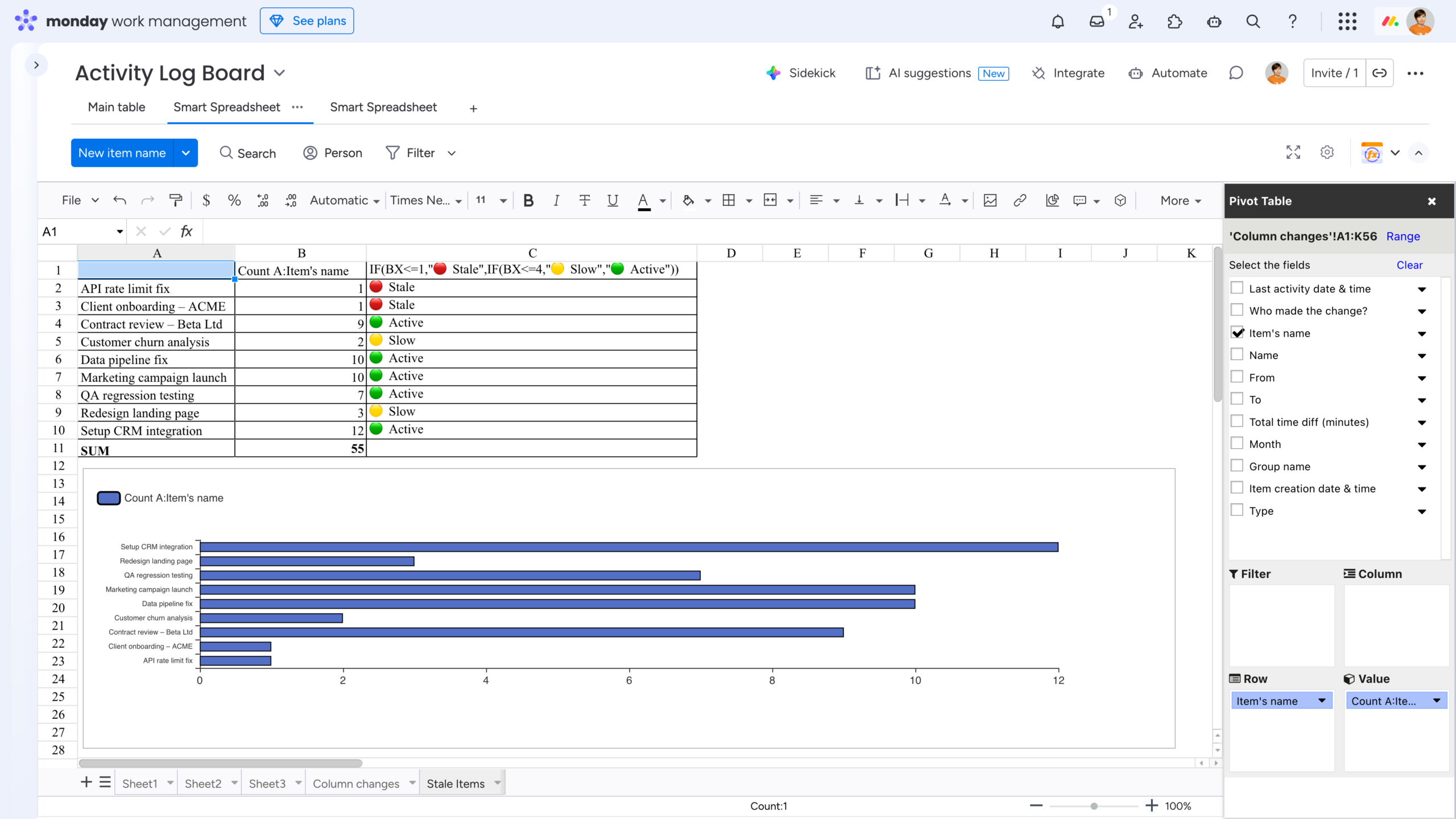
To calculate the number of updates per item, start by creating a simple Pivot Table:
-
Row: Item’s Name
-
Value: Count of Item’s Name
To make the results more insightful, you can apply a conditional formula such as: =IF(BX<=1,”🔴 Stale”,IF(BX<=4,”🟡 Slow”,”🟢 Active”)).
This will help you quickly categorize items based on their activity level. For a clearer visual overview, you can also build a bar chart based on the Pivot Table.
Analyzing Workload
Analyzing how many items each person has been involved in helps team leads and managers better understand workload distribution and identify who is contributing the most.
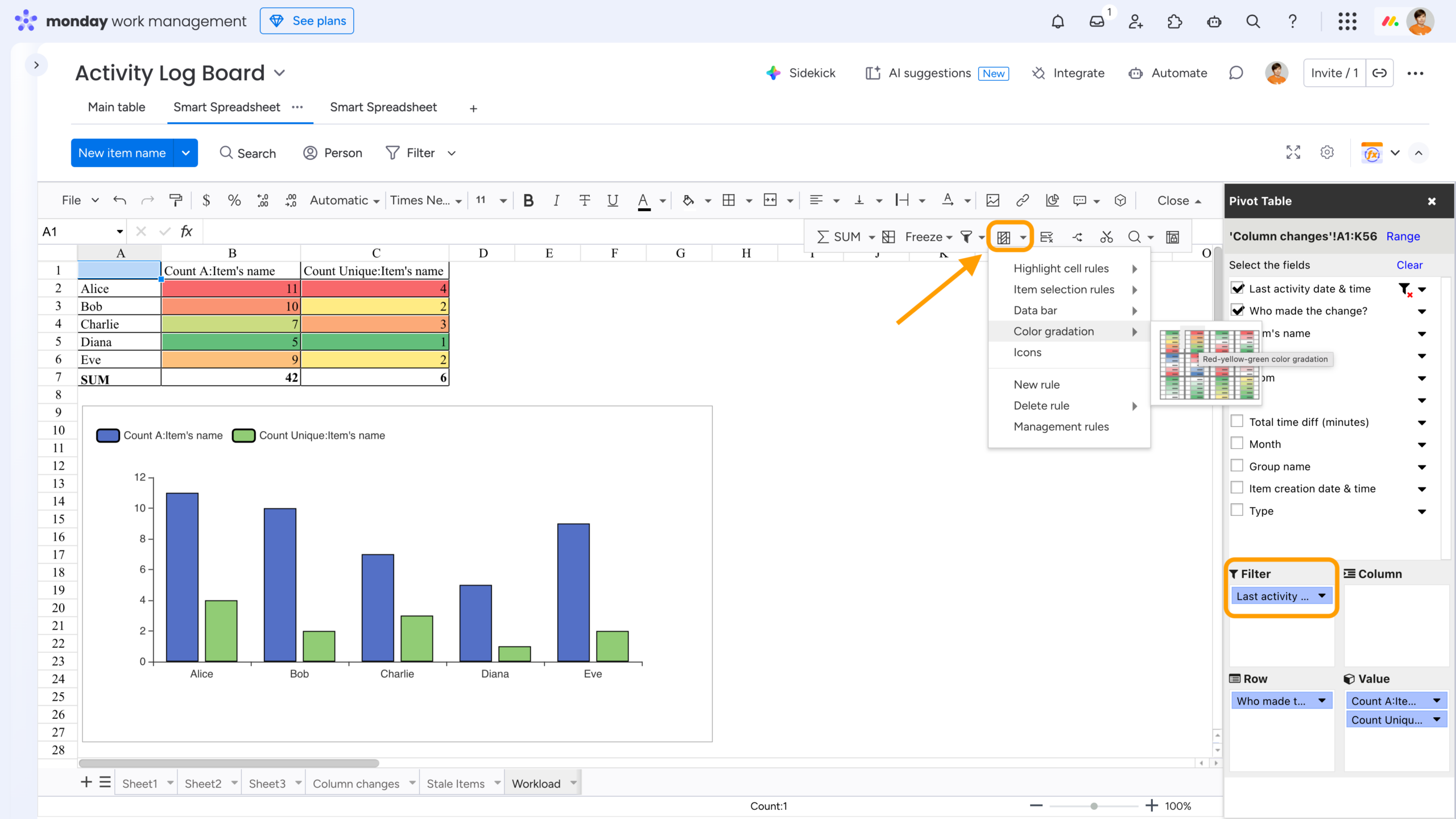
To calculate both the total number of updates and the number of unique items per person, create a simple Pivot Table:
-
Row: Who Made the Change?
-
Value: Count of Item’s Name, Count of Unique Item’s Name
If needed, you can refine the analysis by applying a filter on the “Last activity date & time” column -for example, to focus only on April 2026.
To make the results easier to interpret, consider using conditional formatting – such as a color scale – or a column chart to clearly highlight differences in activity levels.
Tracking Ownership Changes
Tracking ownership changes can reveal gaps in responsibility and highlight areas where workflows may be unclear – especially when tasks are frequently reassigned and it’s not obvious who should take ownership.
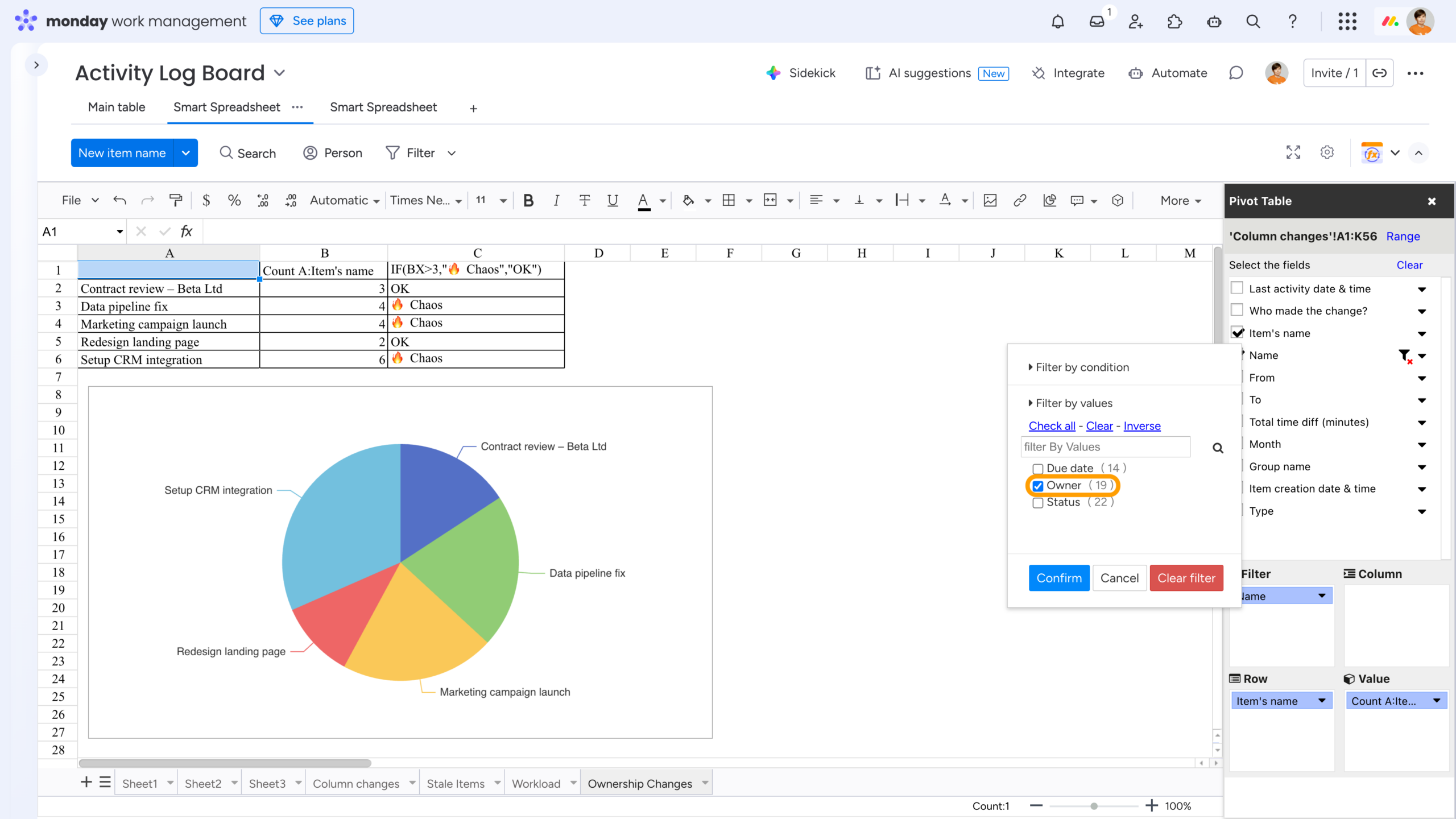
To identify items with multiple ownership changes, create a Pivot Table with the following setup:
-
Row: Item’s Name
-
Value: Count of Item’s Name
-
Filter: Name = Owner (where “Owner” is the board column that stores the item’s assignee)
To make the results more actionable, you can add simple visual cues – for example, a formula like =IF(BX>3,”🔥 Chaos”,”OK”) to flag items with frequent reassignments. You can also complement the analysis with a familiar visualization, such as a pie chart.
Monitoring Deadline Updates
Monitoring deadline updates can help uncover workflow issues – whether the team is generally overloaded or a specific complex task is causing delays and disruptions.
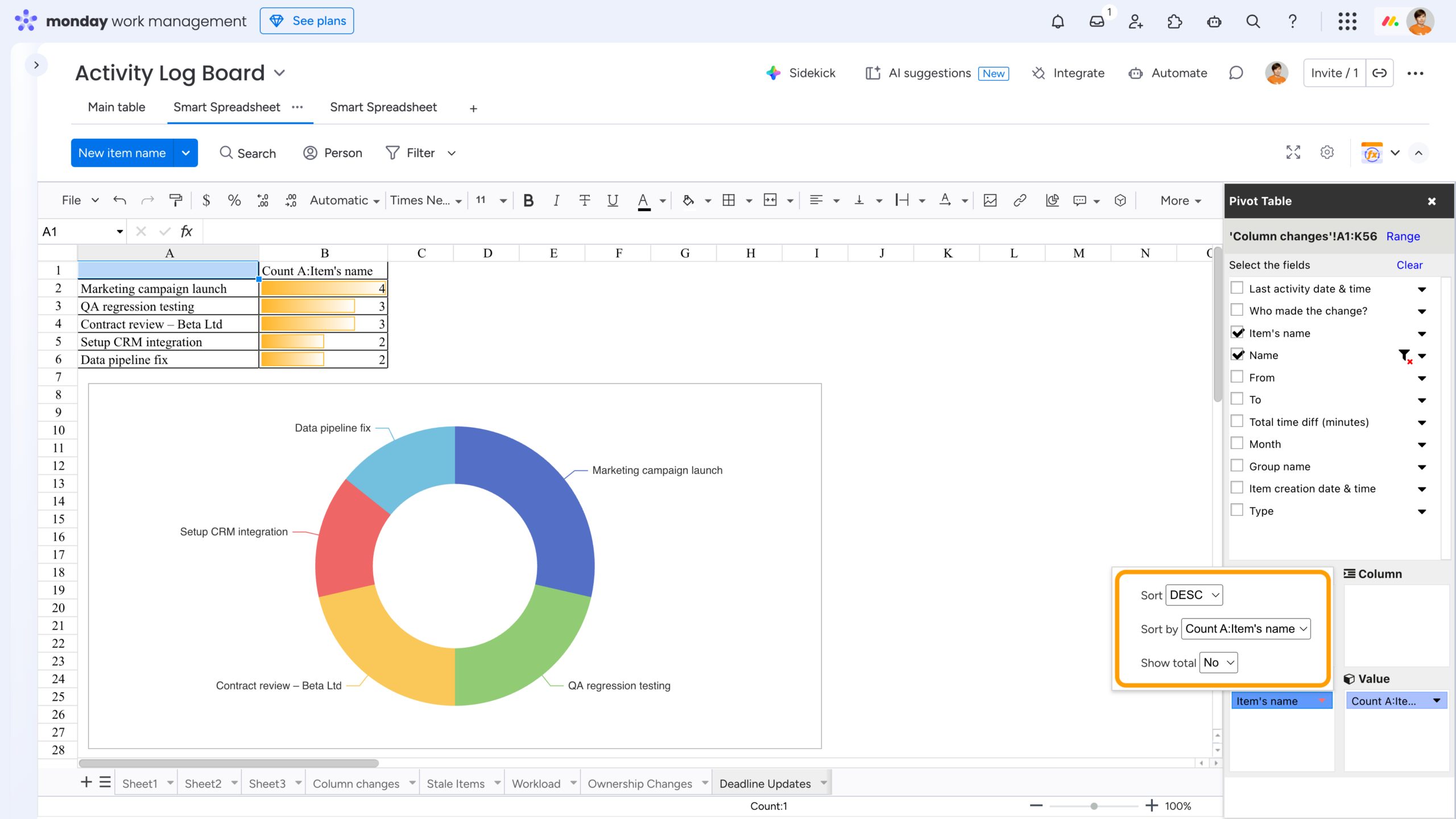
To identify where to start your analysis, build a Pivot Table with the following setup:
-
Row: Item’s Name
-
Value: Count of Item’s Name
-
Filter: Name = Due Date (where “Due Date” is the board column that stores each item’s deadline)
To make patterns easier to spot, add a visualization. While the examples here are simple, sorting, conditional formatting, and charts can make a significant difference when working with larger datasets.
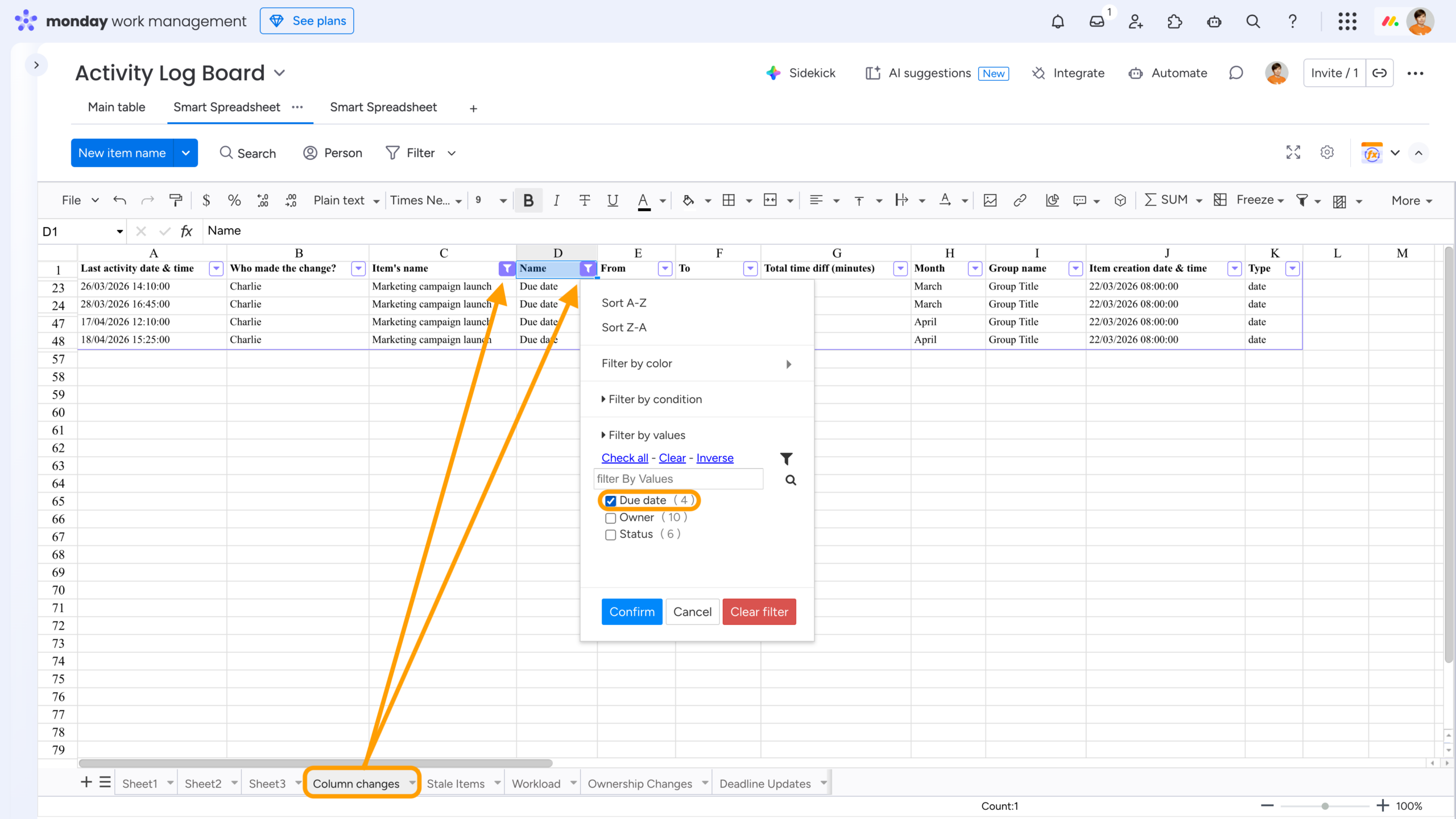
Once you’ve identified areas that need attention, you can always return to the original dataset and apply filters to dive deeper into the details.
 Pro Tip: If your company works with finances – and all teams track budgets in one way or another – you might find this helpful: check out our post “How to Use monday.com for Financial Management: Budgets, Tracking, and Reporting” for more practical tips on managing money in monday.
Wrap-Up
Auditing workflows in monday.com doesn’t have to be complex or time-consuming. By combining the Activity Log with structured analysis, you can quickly uncover what’s really happening behind the scenes – whether it’s stalled tasks, uneven workload distribution, frequent ownership changes, or shifting deadlines.
With the help of the Smart Spreadsheet app, you can take this even further: centralize your data, collaborate with your team in real time, and apply powerful, Excel-like tools to turn raw logs into clear, actionable insights – all without leaving your monday environment.
Start simple, explore the patterns, and refine your analysis over time. Even small improvements in visibility can lead to better decisions, smoother workflows, and a more accountable team.
FAQ
Is there only a Board Activity Log in monday.com?
No, there are also Item and Subitem Activity Logs that show updates related to a specific item or subitem. To access them, open the item or subitem card and navigate to the Activity Log tab.
How often should I audit team workflows in monday.com?
It depends on your team’s pace, but a bi-weekly or monthly review is usually enough to catch issues early and keep workflows running smoothly.
Do I need technical skills to analyze workflow data in monday.com?
No, basic spreadsheet knowledge is typically enough. With tools like Smart Spreadsheet, you can use familiar features – such as filters, pivot tables, and charts – to analyze data without any advanced technical setup.
Can I build historical reports in monday.com?
Yes. Besides analyzing Activity Logs, you can also build both current and historical status distribution reports using the Smart Spreadsheet app and its custom automation block. This approach helps teams track how workflows evolve over time and generate deeper operational insights.