







How to turn Salesforce data into a live Confluence dashboard

Salesforce stores some of the most valuable information in your organization—opportunities, customer accounts, support cases, forecasts, and revenue metrics. Yet many teams still rely on screenshots, spreadsheets, or manually exported reports to share that information in Confluence.
The problem is simple: the moment a report is exported, it starts becoming outdated.
If your sales, support, product, or leadership teams use Confluence as their daily workspace, having live Salesforce data available alongside documentation and project pages can make collaboration much easier.
In this article, we’ll look at a practical way to build a live dashboard in Confluence that stays synchronized with Salesforce.
Why build Salesforce dashboards in Confluence?
Confluence is where many teams already collaborate: documenting processes, planning releases, tracking projects, sharing meeting notes, and reviewing business metrics.
Instead of asking everyone to switch between Confluence and Salesforce, it is often more convenient to bring relevant Salesforce data directly into the pages where work happens.
Some common examples include:
-
Sales pipeline by stage
-
Open opportunities
-
Recently closed deals
-
Customer accounts
-
Support cases
-
Executive KPIs
The goal isn’t to replace Salesforce. It’s to make key business information available where teams collaborate every day.
Common ways to share Salesforce data
There are several approaches, each with its own trade-offs.
Export reports manually
Many teams export Salesforce reports as CSV files and paste them into Confluence.
This approach is simple but requires manual updates, making dashboards outdated quickly.
Embed static reports
Embedding reports can work well for simple viewing, but customization and integration with Confluence content may be limited depending on the reporting setup.
Build a custom integration
Using Salesforce APIs gives complete flexibility.
However, this usually requires development effort, ongoing maintenance, and authentication management.
Use a live integration
A live integration automatically synchronizes Salesforce data with Confluence, reducing manual work while keeping dashboards current.
Building a live dashboard step by step
One practical approach is to connect Salesforce directly to Confluence using Live Tables from CSV & JSON for Confluence (FREE).
The app imports Salesforce data as native Confluence tables that stay synchronized automatically.
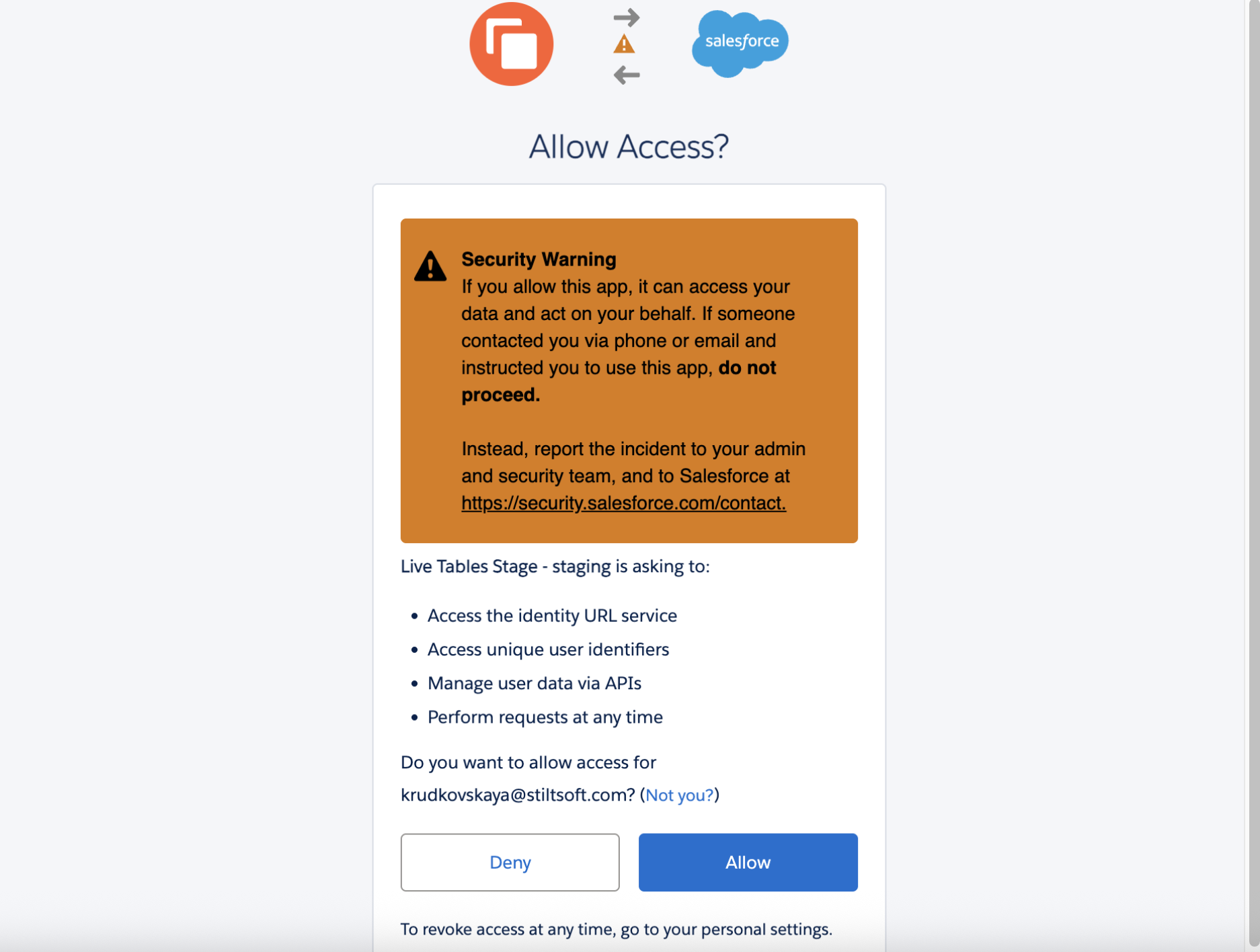
Step 1. Connect Salesforce
Configure your Salesforce connection once using OAuth 2.0 authentication.
After authorization, your Confluence instance can access Salesforce reports, objects, or custom SOQL queries.
Step 2. Choose the data you need
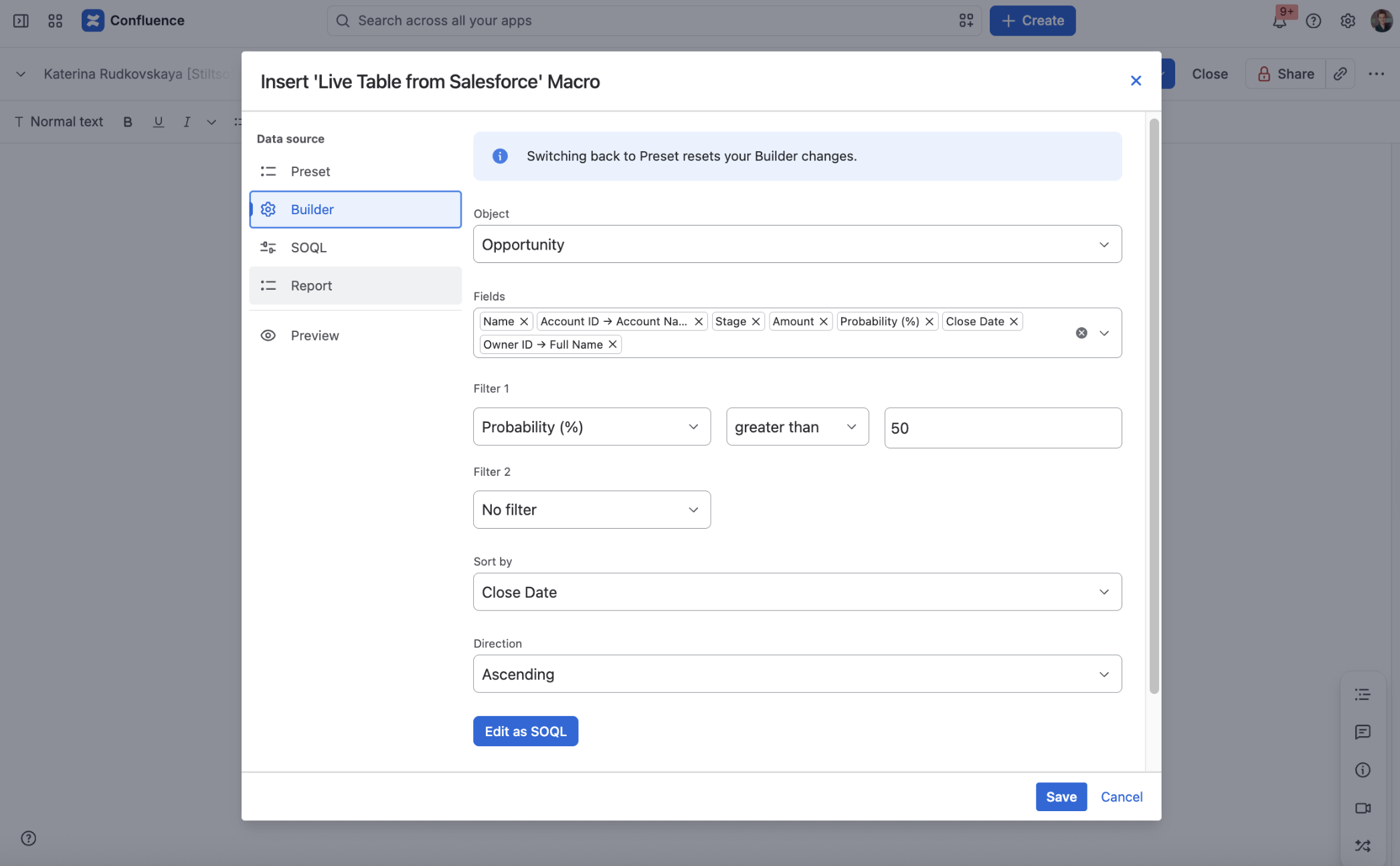
Depending on your use case, you can display:
-
Salesforce Reports
-
Standard Objects
-
Custom Objects
-
SOQL query results
Instead of exporting data manually, simply select the dataset you want to display.
Step 3. Display the data as a Confluence table
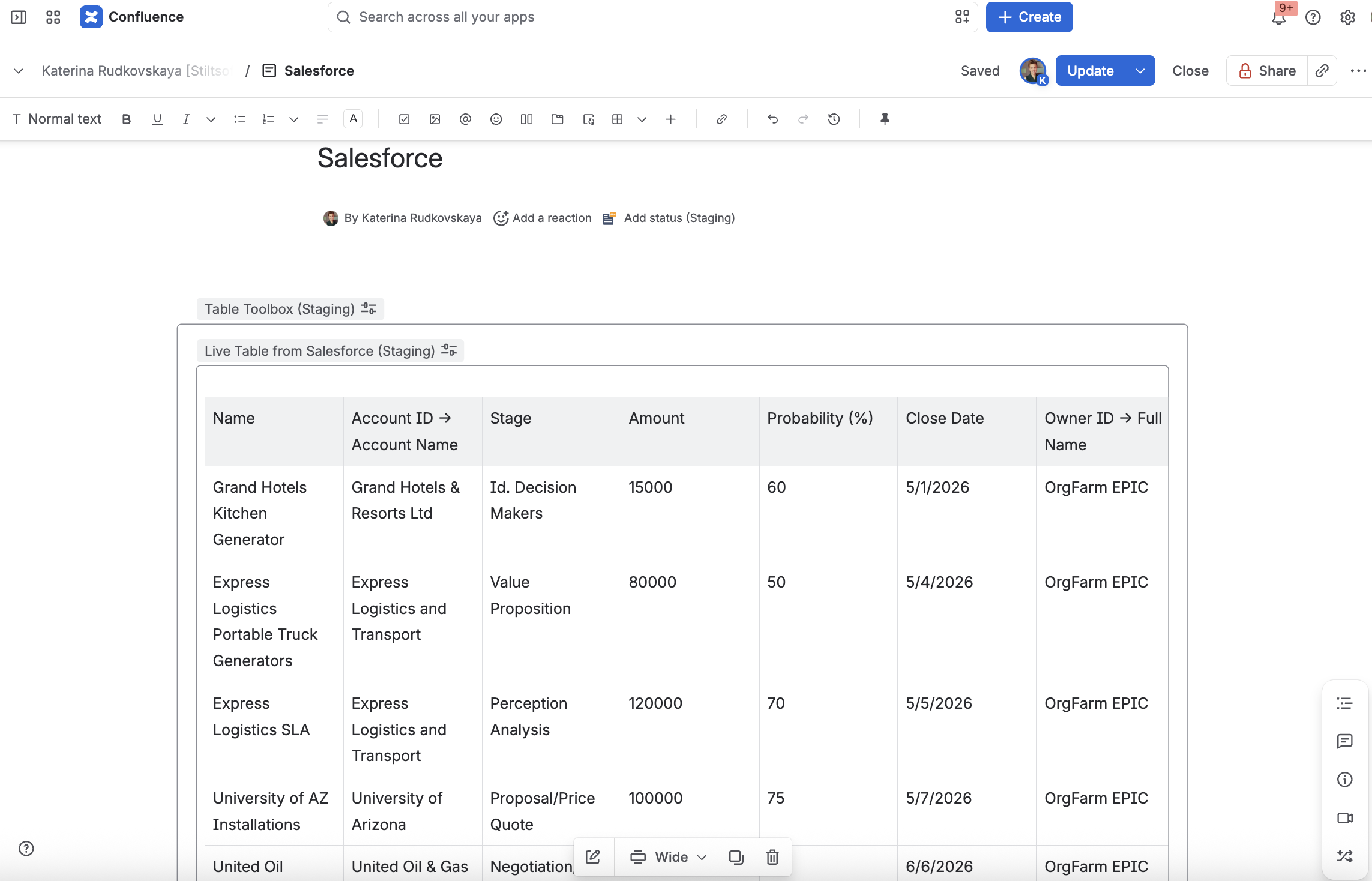
The selected Salesforce data is rendered as a Confluence table.
Because it’s a standard table, it can be referenced, and used by other Confluence apps.
Step 4. Keep data synchronized automatically
Whenever Salesforce data changes, your Confluence table can be refreshed automatically.
This removes the need for repeated CSV exports and helps everyone work with the latest information.
Turn data into dashboards
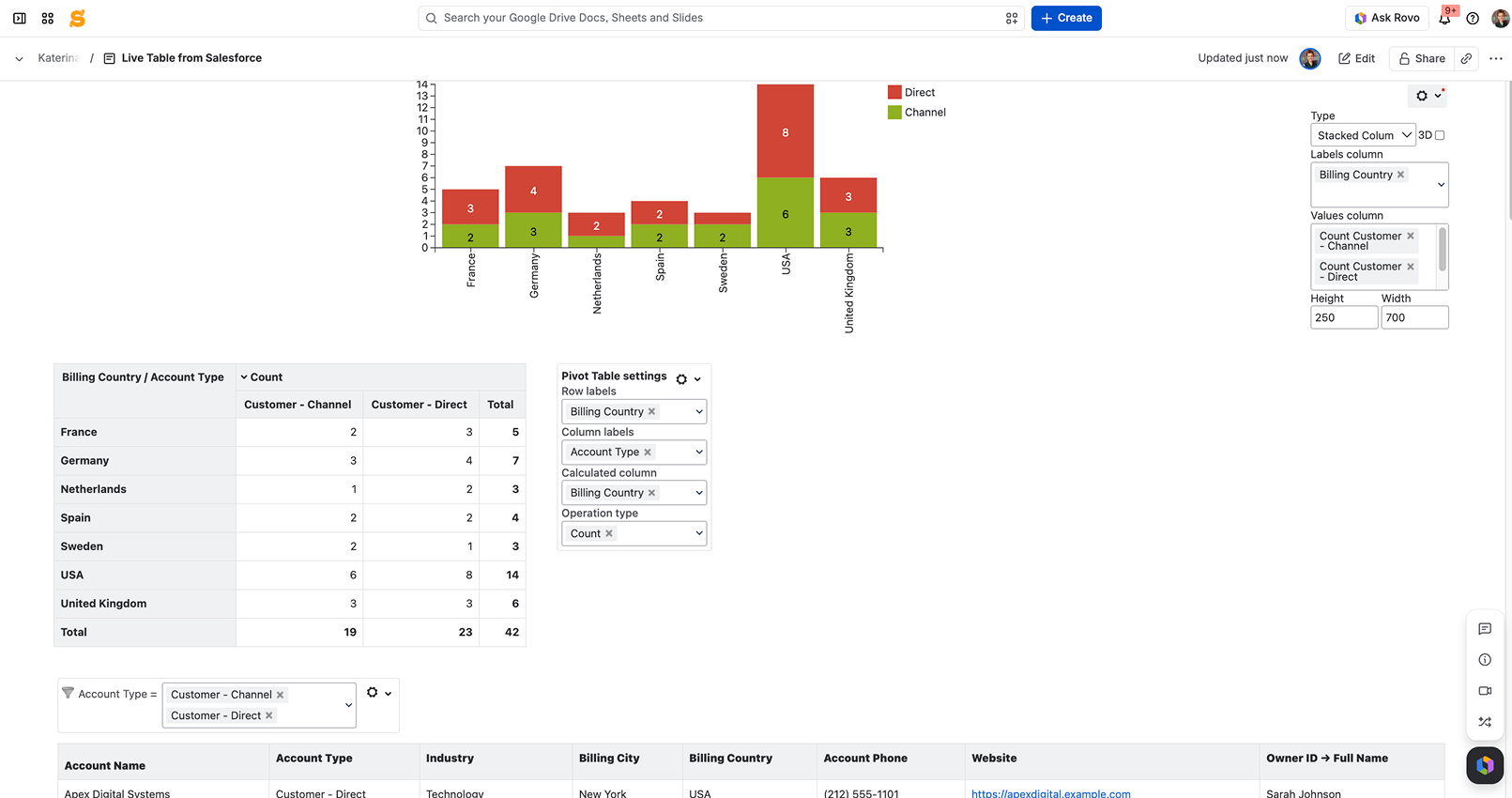
Once the data is available as a Confluence table, you can build interactive dashboards.
For example, using Table Filter, Charts & Spreadsheets for Confluence, teams can:
-
filter opportunities
-
build pivot tables
-
create charts
-
calculate KPIs
-
analyze trends
The result is a dashboard that updates as Salesforce data changes, while remaining fully integrated into your Confluence workspace.
Example dashboard ideas
Sales Pipeline Dashboard: Track opportunities by stage, forecast revenue, monitor win rates, and identify top accounts.
Customer Success Dashboard: Monitor active accounts, track renewals, analyze customer health, and review recent activities.
Executive Dashboard: Monitor revenue, compare regional performance, track quarterly KPIs, and review the sales pipeline.
Best practices
When designing Salesforce dashboards in Confluence:
-
Display only the information relevant to your audience.
-
Prefer Salesforce Reports when business users manage the data.
-
Use SOQL when you need custom datasets.
-
Combine multiple reports on a single page for a complete overview.
-
Add filters and visualizations to help users explore the data.
Final thoughts
A live dashboard helps teams collaborate around current business data instead of static exports.
Whether you’re reviewing pipeline performance, tracking customer accounts, or monitoring executive KPIs, keeping Salesforce information synchronized with Confluence reduces manual work and makes information easier to access.
With Live Tables from CSV & JSON for Confluence, Salesforce data becomes native Confluence tables that stay up to date automatically. Combined with Table Filter, Charts & Spreadsheets for Confluence, those tables can be transformed into interactive dashboards for reporting and analysis.