







Confluence for Project Management: What It Can Actually Do

For years, Confluence has been the go-to tool for teams that need a place to create, organize, and share knowledge. And apparently, it does that better than anyone else. In 2024, Atlassian was named a Leader in the Forrester Wave™ for Knowledge Management Solutions, with Forrester noting that Atlassian is the best fit for customers seeking to transform traditional silos into an enterprise-wide collaborative practice heavily embracing an AI-first strategy. The recognition comes down to three things Atlassian does particularly well: flexible knowledge creation across content types, powerful knowledge discovery through search and AI, and a connected platform that ties it all together through integrations with Jira, Loom, and the rest of the Atlassian ecosystem.
But knowledge management and project management are more connected than most teams realize. Every project generates knowledge – decisions made, plans agreed on, issues tracked, lessons learned. And every piece of that knowledge needs to live somewhere accessible, structured, and connected to the work itself. That’s exactly what makes Confluence for project management a more viable combination than most teams ever explore.
So while Confluence isn’t formally positioned as a project management tool, it has everything a project manager needs at every stage of the lifecycle. In this article, we’ll show you how it works from initiation to closure.
Key takeaways
-
Confluence can support the full project lifecycle without adding new tools to your stack.
-
Most teams have bad Confluence habits and don’t know it: outdated pages, impossible navigation, and a tool nobody reads are signs of a workflow problem, not a product problem
-
Jira tracks the work; Confluence is where everyone else sees it.
-
Not every artifact needs a third-party app; native Confluence handles more than most teams realize.
-
Where native features fall short, Table Filter, Charts & Spreadsheets fills the gap without leaving Confluence.
-
The best time to set up your project space in Confluence is at initiation; by closure, it builds itself.
Is Confluence a project management tool?
“To start with a bang and end with a whimper” – this saying might be the closest to describing how teams/companies adopt Confluence. We can bet you either experienced this yourself or heard from your colleagues how pointless and outdated Confluence is. From what we’ve seen as an Atlassian Marketplace vendor with more than 15 years of experience in the ecosystem, there are three distinct failure modes that recur.
-
The graveyard
“Confluence spaces become graveyards of outdated pages”, “Last edited: April 2024”. Sounds familiar? Well, you’re not alone. It’s one of the most popular issues with the tool. Pages are being created, but not updated, and with time become simply unreliable.
-
The cluttered maze
As Confluence grows, structure breaks down, and navigation becomes a problem in its own right. Teams pour years of information into the tool, resulting in hundreds of pages. And then it starts getting messy, especially if there’s no system in place. Confluence spaces tend to nest pages five or six levels deep, burying information and making maintenance impossible. Add on top of that the number of complaints about Confluence’s search, and you get the perfect recipe for a pile of pages that get written, then abandoned and never read.
Pro tip: Confluence’s native search works best when pages are consistently labeled and titled. For larger spaces, Rovo (Atlassian’s AI search) can surface relevant pages, decisions, and discussions across the entire project history in seconds, even if you don’t remember exactly where something was documented.
-
Just a wiki
One of our customers once said, “My team calls Confluence a corporate Wikipedia”. People publish in Confluence, but nobody reads it (one would argue that Wikipedia is in a better position here, since people actually read it). The tool becomes a one-way deposit box rather than a living source of truth. And we understand why. Confluence has been primarily positioned as a knowledge base and wiki since its early days, and that label stuck. When a tool gets introduced to a team as “the place where we document things,” that’s exactly how people use it, and nothing more. In other words, if your team’s default reaction to “where’s that document?” is to ask a person on Slack instead of searching the tool, your documentation has already failed.
Chances are, your team is only using a fraction of what Confluence actually offers, and this is a huge omission. Especially if you consider that Confluence is now split 50/50 between technical and non-technical teams, which means the reporting and collaboration workflows these teams need are increasingly expected to live within that ecosystem, not in external spreadsheets or BI tools.
With Atlassian switching from selling its products separately to offering them as a bundle, it is only logical to start using Confluence to its full potential. Although it isn’t formally considered a project management tool, it doesn’t mean it can’t be used as one and help teams at every step of the project.
More on how Confluence can be the center of teamwork in our article.
1. Initiation stage
Before jumping into planning, a project manager needs to meet with tens of stakeholders, document all goals, requirements, and constraints, validate those expectations with the team, come back with the information, get the green light, and get the project budget approved. Using Confluence gives full transparency and alignment, so the project doesn’t fall apart before it even starts.
Confluence has pre-defined templates and macros that can help track decisions, document project requirements, and collect notes from the meetings.
Decision log
Decision logs are an essential framework for proper alignment within the team and with the stakeholders. Without a paper trail, projects drift: teams relitigate the same decisions, stakeholders second-guess past calls, and context quietly disappears as work moves forward.
Confluence solution: Decision and Decision report macros, DACI Decision documentation template.
While the Decision macro will allow you to capture all resolutions and actions on the page, the Decision report macro collects all the decisions together in one table. This will allow you to see the decisions mentioned on any Confluence page, filtered by space, timing, and mentions.
The DACI template stands for Driver, Approver, Contributors, and Informed. It provides each project decision with its own structured page, so nothing gets lost, and the reasoning behind choices stays accessible long after the meeting ends. It captures high-level information like decision status, impact, involved parties, due date, and outcome, and assigns clear roles so everyone knows their level of responsibility.
Table Filter, Charts & Spreadsheets enhancement: filter the tables you created with the help of the native Confluence macros; create spreadsheets inside Confluence with the help of the Table Spreadsheet macro.
The Table Filter macro allows you to filter decision logs by date, owner, area, and contributors. However, if you prefer keeping your logs in a spreadsheet, you don’t have to do that in Excel or Google Sheets anymore. Table Spreadsheet macro lets you create full-on spreadsheets inside Confluence with formulas, sorting, imports/exports, and much more.
Project brief
The project brief is the starting point of the whole project. When a team member or stakeholder needs to quickly get key project information, this is the exact page they navigate to. And the (dis)advantage of this framework is that there’s no one-size-fits-all template for that because it really depends on the сomplexity and scope of the project.
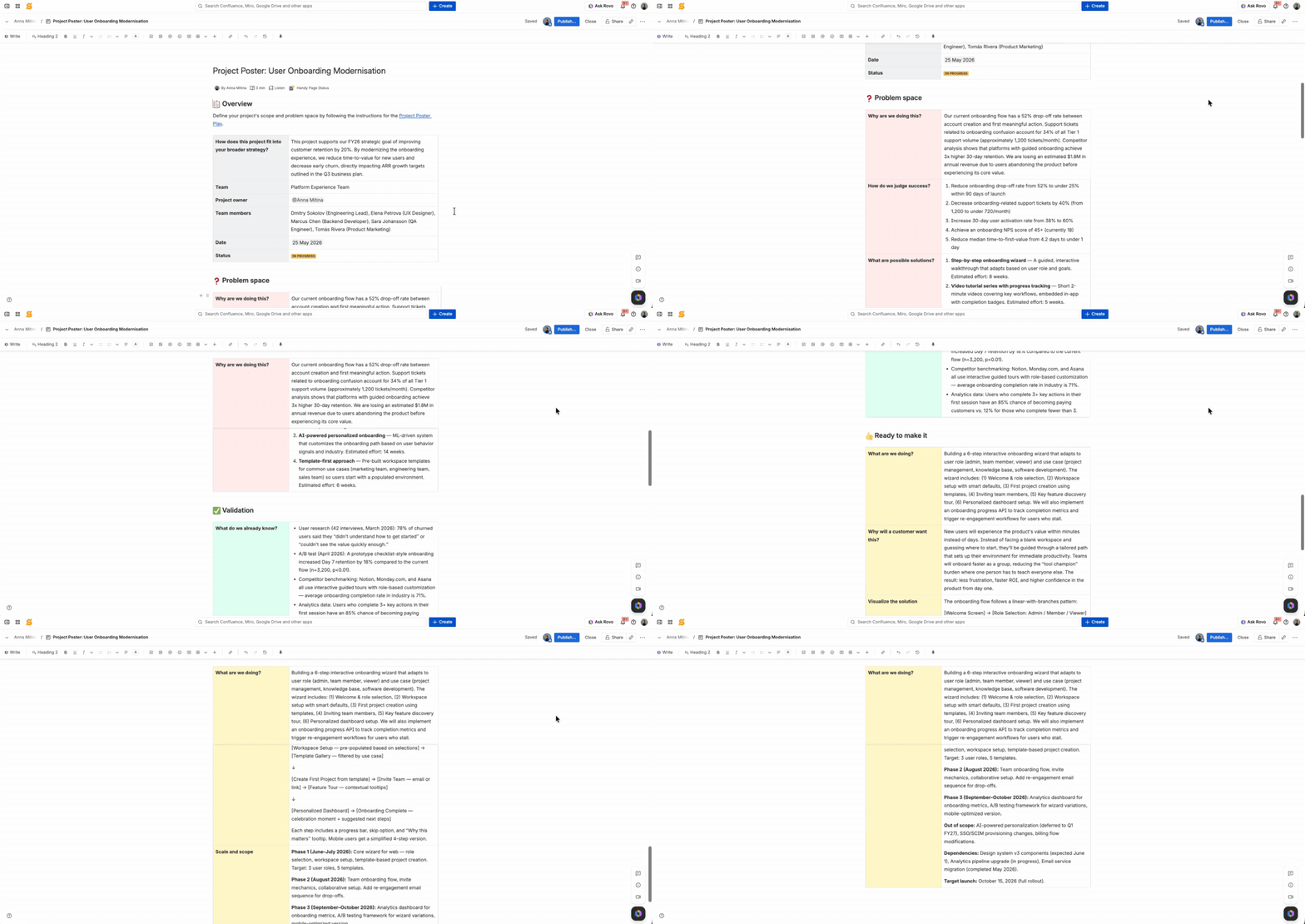
Confluence solution: Project poster template, Smart Links to embed related Jira epics or external docs.
Although there’s no universal way to produce the project brief, Confluence provides a good base to develop the document further. Project poster template equips you with 4 tables named: overview, problem space, validation, and ready to make it, which all question the main drivers behind any project. From there on it’s up to you how the information is visualized.
Pro tip: Structure your Confluence space as a page tree from day one: project brief at the top, then child pages for each stage. As the project progresses, every artifact naturally finds its place, and anyone joining mid-project can navigate the full history without asking anyone where anything is.
2. Planning stage
Once the project is approved, the real work begins. A project manager now needs to translate everything captured during initiation (the goals, requirements, constraints, stakeholder expectations) into a concrete plan that the team can actually execute against. That means breaking work into tasks, assigning owners, mapping dependencies, estimating timelines, and making sure everyone knows who is responsible for what. Without a clear plan, execution becomes guesswork.
Confluence gives you a single place to build and maintain that plan: visible to the team, accessible to stakeholders, and connected to the Jira data where the actual work is being tracked.
RACI matrix
The most common failure mode for a RACI (Responsibility Assignment) matrix is that it’s built in a planning meeting, everyone nods, and then nobody looks at it again until there’s a conflict over who was supposed to make a call. By then, it’s too late, the confusion has already cost time or damaged a relationship. In Confluence, the fix is to stop treating the RACI as a standalone document and start treating it as a live reference that’s woven into the project space. Link it from the project brief, embed it on the sprint status page, and reference it in meeting notes whenever ownership is in question.
Confluence solution: RACI chart template.
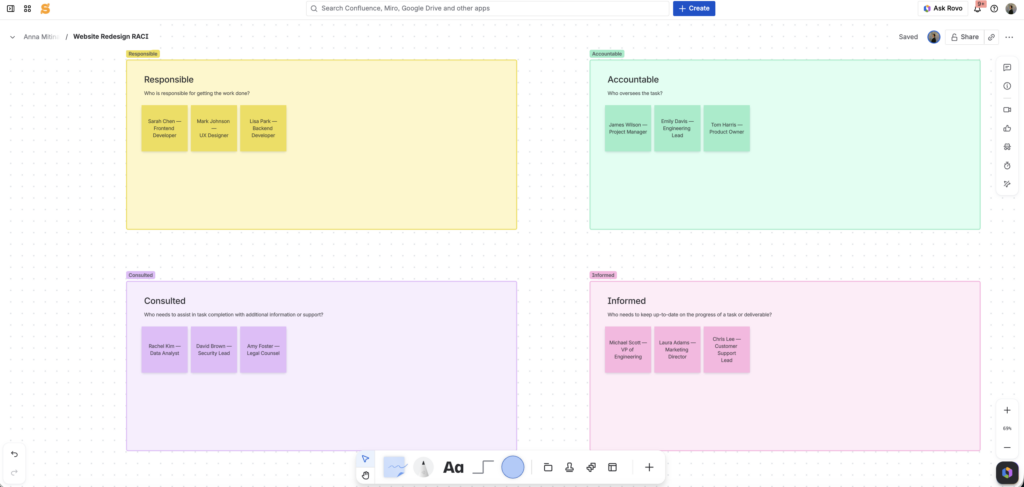
The RACI chart is a Confluence Whiteboard template. Think Miro but inside Confluence. Forget about figuring out how to connect third-party boards to the space everyone on the team uses. Create a Whiteboard in Confluence, then embed it on any page. The RACI chart template gives you sticky notes for every meaning behind the RACI acronym: Responsible, Accountable, Consulted, Informed.
RAID log
Every project carries hidden complexity into execution, dependencies on other teams, assumptions that haven’t been validated, risks that are possible but not yet certain, and issues that haven’t surfaced yet but will. The planning stage is exactly the right moment to surface all of it, before any of it has a chance to derail the work. A RAID log built during planning isn’t a reactive document, it’s a proactive one. The team that starts execution with a clear picture of what could go wrong is in a fundamentally better position than the one that discovers it in week three.
Usually, the RAID log lives in a spreadsheet checked out only by the project manager, so it never becomes a shared team habit and always depends on one person to keep it accurate. A common mistake is treating the RAID log as a project manager’s responsibility rather than a team’s responsibility. If only the project manager updates it, it will always be incomplete and always lag behind reality. The fix is to make RAID log updates an explicit part of the team’s workflow
Confluence solution: create a four-section Confluence page (Risks, Assumptions, Issues, Dependencies), each as a structured table; labels to categorize entries.
As the main goal of the RAID log is to keep the whole team using it, having it in Confluence is a great advantage because everyone already uses it. You can use Confluence Live Docs or Whiteboards to make the process even more collaborative, thanks to the real-time editing and multiplayer features built right in.
Table Filter, Charts & Spreadsheets enhancement: leverage the Table Filter and Pivot Table macros to enhance native table features.
If you, however, decide to use native Confluence tables, we would encourage you to amplify them with the Table Filter macro to filter RAID entries by category, owner, priority, or status; and the Pivot Table macro to summarize open issues by owner or type.
Project timeline (Gantt chart)
One of the main tools for project visualization is a Gantt chart. It is commonly used by project managers and is one of the most popular and useful ways to display tasks over time.
Confluence solution: Roadmap Planner macro.
There are two ways you can build a Gantt in Confluence. The first one is the native Confluence feature – Roadmap Planner macro. While it may look like a Gantt chart at first glance, it lacks some standard Gantt chart features and is not as advanced as a Gantt chart you can build with the help of the Table Filter, Charts & Spreadsheets for Confluence app.
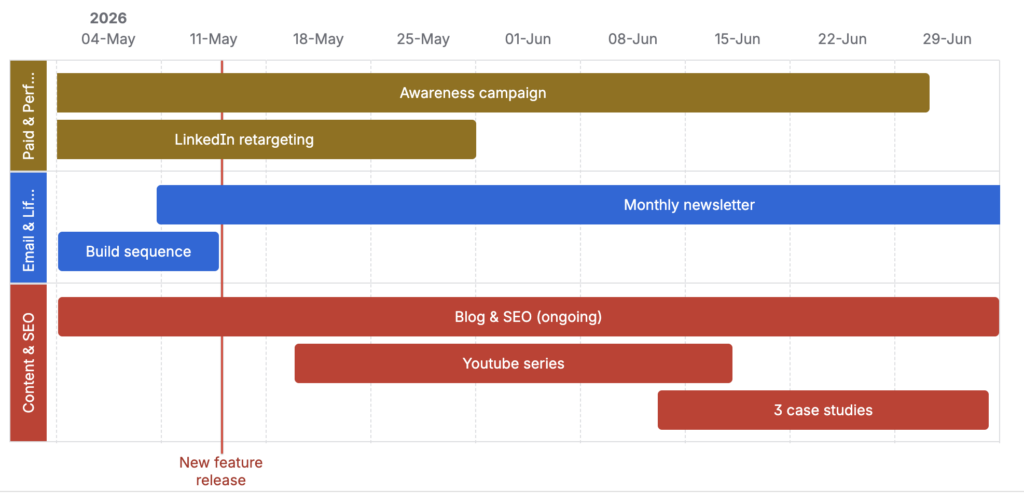
Native Confluence Roadmap planner:
|
+ |
– |
|---|---|
|
|
Table Filter, Charts & Spreadsheets enhancement: create a fully customizable and interactive Gantt chart using the Chart from Table macro.
If you want to elevate your planning stage with a proper data-driven Gantt chart, we recommend considering the Table Filter, Charts & Spreadsheets for Confluence app.
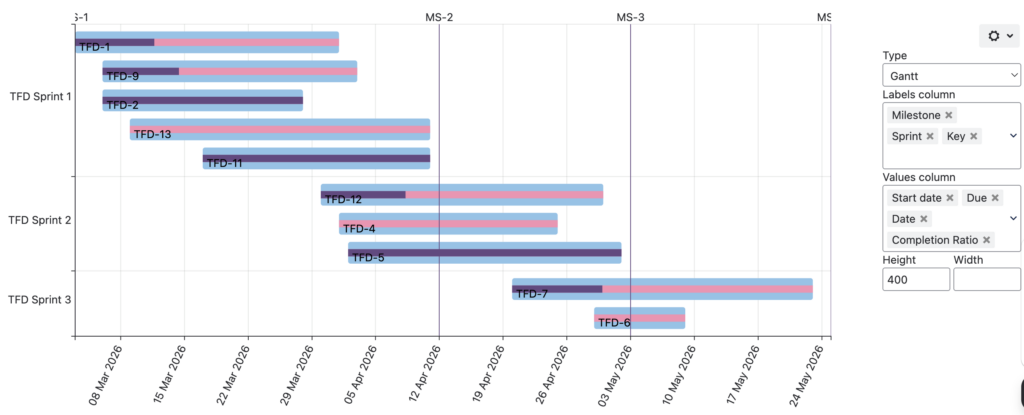
Pro tip: Pull live technical data from Jira (using a native Jira Work Items macro) and combine it with business-level milestones from Confluence, giving stakeholders a single, holistic view of both delivery progress and strategic goals.
TF Gantt chart:
|
+ |
– |
|---|---|
|
|
Read more on how to build both Gantt charts in our article.
Evaluate exactly what you need for your project planning stage, then choose the solution that best suits you.
3. Execution stage
The project is approved, the plan is in place, and the team is executing. This is the longest stage of the project lifecycle and the one where things most often go sideways. Not because the plan was wrong, but because reality never perfectly matches the plan. The project manager’s job during execution isn’t to prevent mess-ups from happening – it’s to make sure nothing falls through the cracks when they do.
That requires three things running in parallel: a clear picture of what the team is working on right now, a living record of everything that could derail the project, and enough visibility for stakeholders to stay informed without pulling the team into constant status meetings.
Confluence creates a single space where all three can happen: connected to the Jira data where the work lives, visible to everyone who needs it, and structured enough to be useful rather than just another place where information goes to be forgotten.
Meeting notes
Execution is where meetings multiply. Daily standups, weekly syncs, stakeholder check-ins, unplanned “do you have five minutes” conversations that turn into decisions nobody wrote down. Without a consistent place to capture what was discussed, decided, and assigned, the project accumulates a growing layer of undocumented context that only lives in people’s heads — until those people are on holiday, leave the team, or simply forget.
Confluence solution: Meeting notes template.
The Meeting Notes template gives every meeting its own structured page: agenda, attendees, discussion points, decisions made, and action items with owners and deadlines. All meeting pages nest under the project space automatically, creating a searchable timeline of everything that happened during execution.
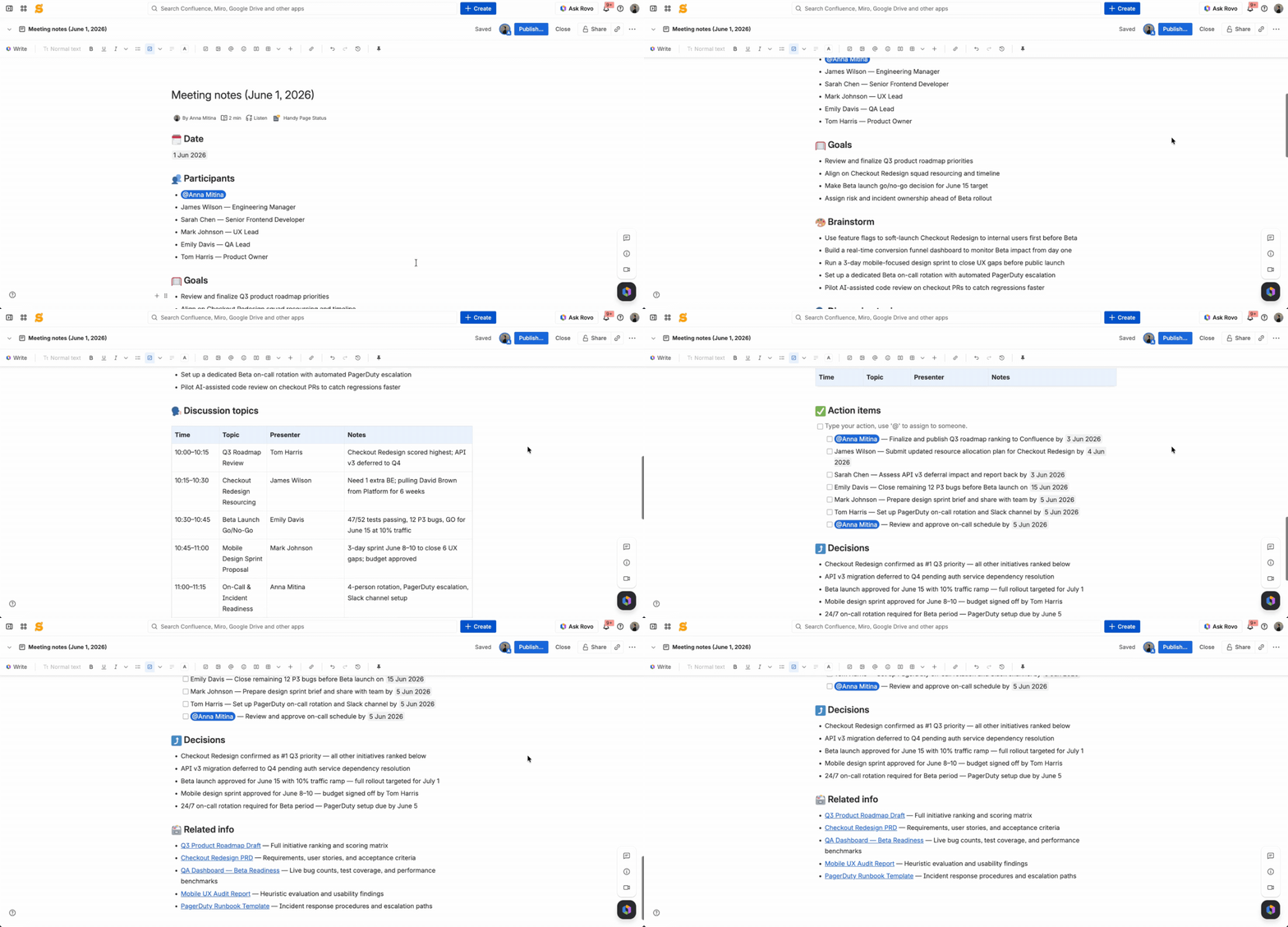
Pro tip: Link the Meeting Notes page directly to your RAID log. When a new risk, issue, or dependency surfaces in a meeting, the person taking notes has a one-click path to log it. The RAID log stops being a separate maintenance task and becomes a natural output of your meeting cadence.
Sprint status page
Typically, sprints are tracked in Jira as it has historically been considered a project management tool. However, if your stakeholders and less tech-savvy colleagues are living in Confluence, how do you get them access to important information?
Confluence solution: embed live sprint board data through the Jira Work Items macro right onto a Confluence page, create RAG indicators using the Status macro, and add @mentions for owners on blockers.
With Confluence and Jira now being not separate products but a holistic work system, you can pull and combine data from both systems seamlessly without switching tabs or copying data manually. Use the Jira Work Items macro to bring live sprint data into Confluence. Then build your sprint status page around it by adding a Status macro above or below for RAG indicators, and use @mentions in a separate notes or blockers section to assign owners to open issues.
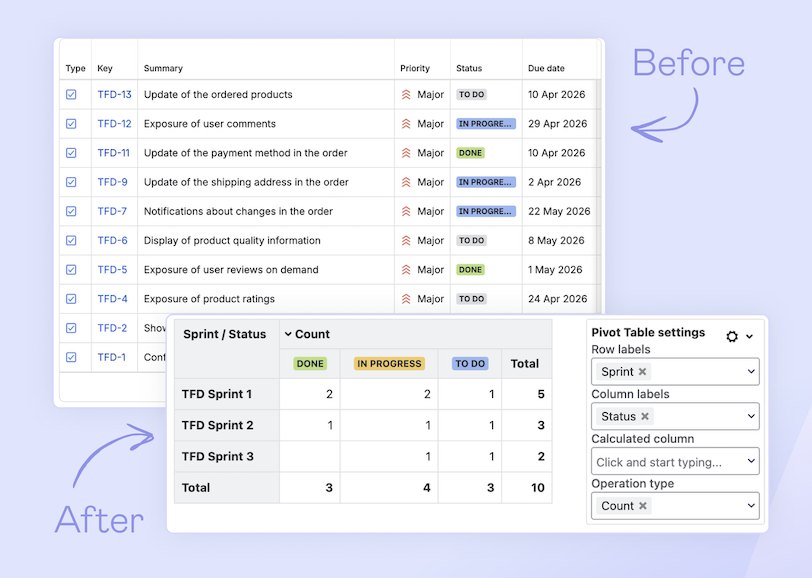
Table Filter, Charts & Spreadsheets enhancement: use the Chart from Table macro for visual sprint progress; add the Table Filter macro to filter tasks by assignee or status for standup views; and use the Pivot Table macro to summarize sprint data by assignee, status, or priority.
4. Monitoring and reporting stage
By the time a project reaches the monitoring and reporting stage, the work is well underway. Tasks are being completed, sprints are closing, and progress is being made. But progress that isn’t visible to the right people at the right time might as well not exist. This is the stage where the project manager’s attention splits in two directions simultaneously. Internally, the team needs visibility into blockers and day-to-day coordination, what’s stuck, who’s waiting on whom, and what needs to be resolved to keep things moving. Externally, stakeholders care about a much shorter list: are we on time, are we within budget, and are we on track to deliver the business outcome we promised. Two different audiences, two different views of the same project.
The gap between those two audiences is where most reporting falls apart. The team has all the data, but it’s scattered across Jira boards and sprints. Stakeholders need a clear picture, but don’t have the context or access to get it themselves. The project manager ends up spending hours every week manually assembling status updates that are already outdated by the time they’re shared.
Confluence closes that gap. Jira is where the work gets tracked, but analysis, reporting, and stakeholder visibility belong in Confluence. The same space where the team documents execution becomes the place where stakeholders get their view, without anyone having to manually reassemble data from Jira every Friday afternoon.
Burndown & velocity charts
For the team, the burndown is a daily check-in tool – a quick visual confirmation that the sprint is on track or an early warning that it isn’t. But stakeholders rarely think in sprints. Their horizon is the full project, the quarter, or the annual roadmap, and what they need isn’t a burndown. It’s confidence that the overall timeline is holding. That’s where the velocity chart becomes more useful: by showing completed work over multiple sprints, it gives stakeholders a data-backed view of whether the team’s pace supports the delivery date they’re planning around.
Both the burndown and velocity charts exist as native Jira features, but both come with the same fundamental limitations. The burndown only works within an active sprint and disappears once it closes. The velocity chart survives longer but is locked to Scrum boards, measures only story points or issue count, and can’t be customized. Both charts are only visible to people with Jira access, which typically excludes non-technical team members and stakeholders who need them most.
Table Filter, Charts & Spreadsheets enhancement: a burndown chart and velocity chart built from a manually maintained or Jira-imported data table and a combination of macros; persistent across sprints, customizable metrics, filterable, stakeholder-accessible in Confluence.
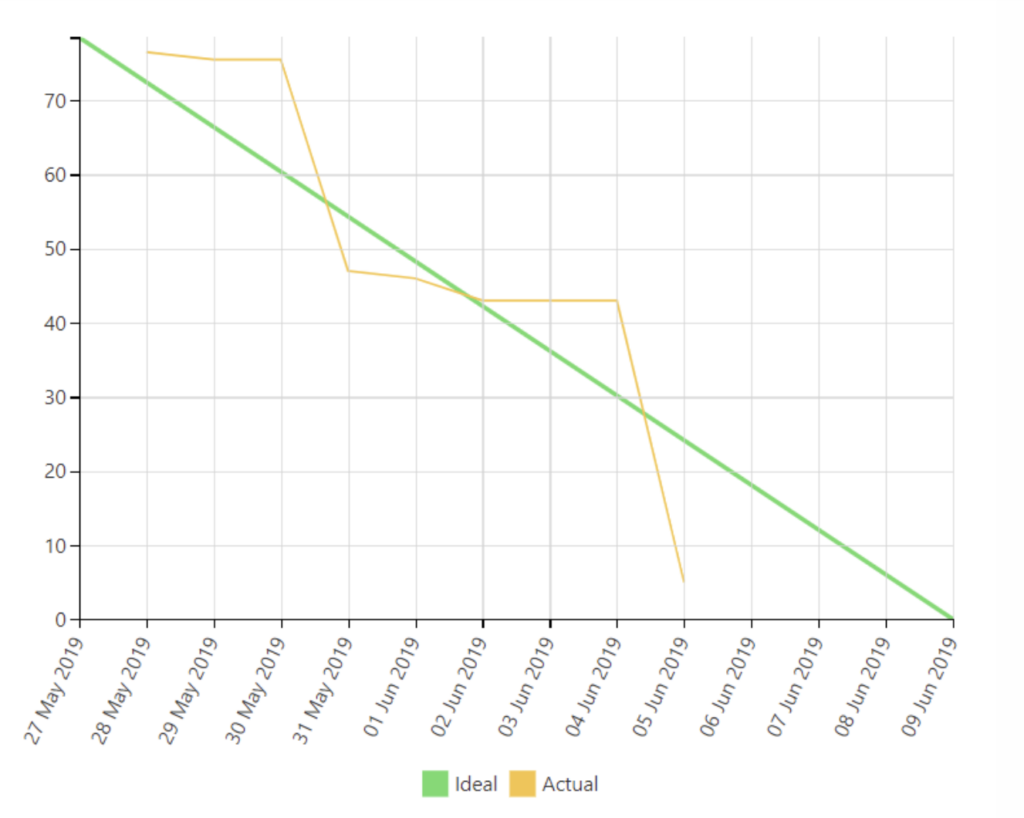
If you want to customize the charts and make them easily accessible to stakeholders, Confluence and Table Filter, Charts & Spreadsheets for Confluence are there to help. Customize and filter the charts to your liking, and, most importantly, make them easily accessible and readable for both the team and the stakeholders.
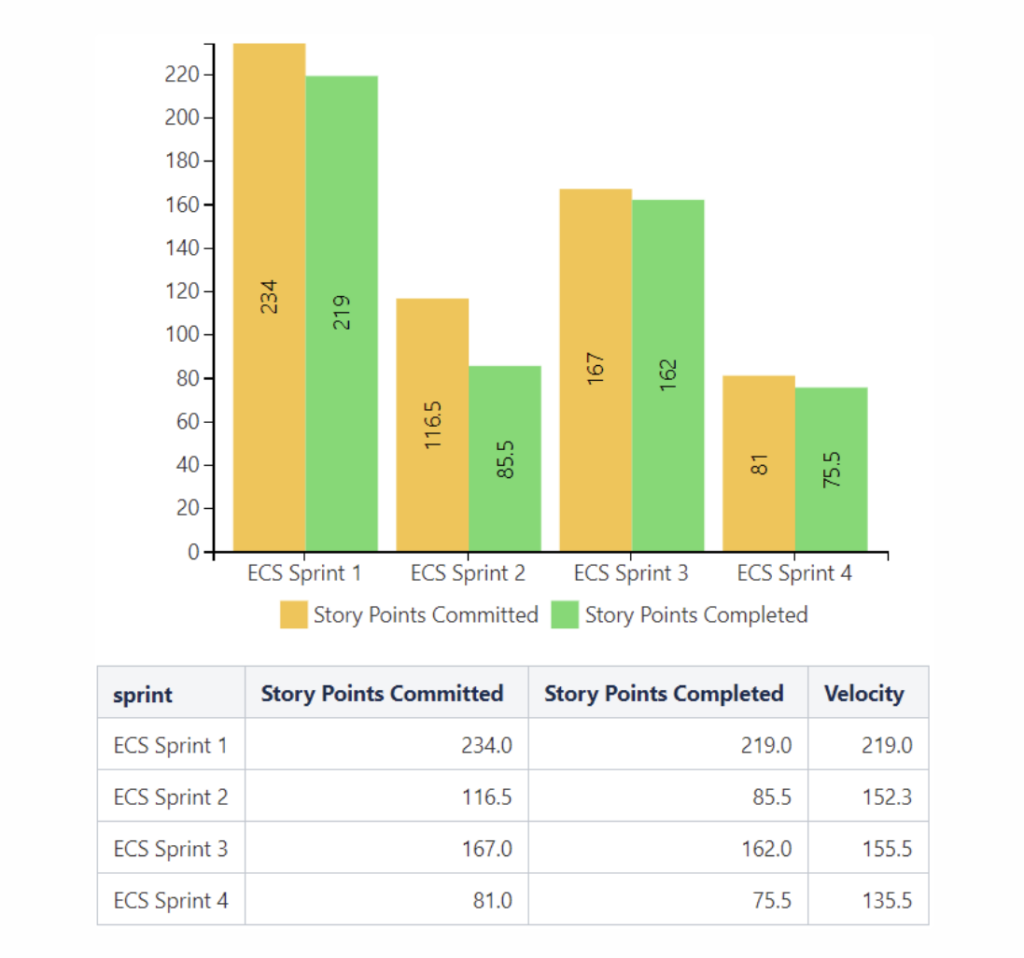
Pro tip: Produce the Created vs. Resolved issues report in Confluence the same way, using imported data from Jira and the Chart from Table macro.
Learn more about the burndown chart from our article.
5. Closure stage
The project shipped. The team celebrated, closed the Jira board, and moved on to the next thing. Nobody scheduled the retrospective. The handoff doc got added to someone’s to-do list and stayed there. The project space in Confluence, once the living center of everything, quietly became another graveyard of outdated pages. After weeks or months of execution, the finish line feels like permission to stop. And in the short term, nothing breaks. The cost of skipping closure shows up later, on the next project, when the same mistakes get made again because nobody captured what went wrong the first time.
Confluence makes proper closure the path of least resistance rather than an additional burden. Because the project space has been accumulating everything throughout the lifecycle, closure isn’t about creating new documentation. It’s about closing the loop on what’s already there, capturing what was learned, and leaving the space in a state that’s actually useful to whoever comes next.
Retrospective documentation
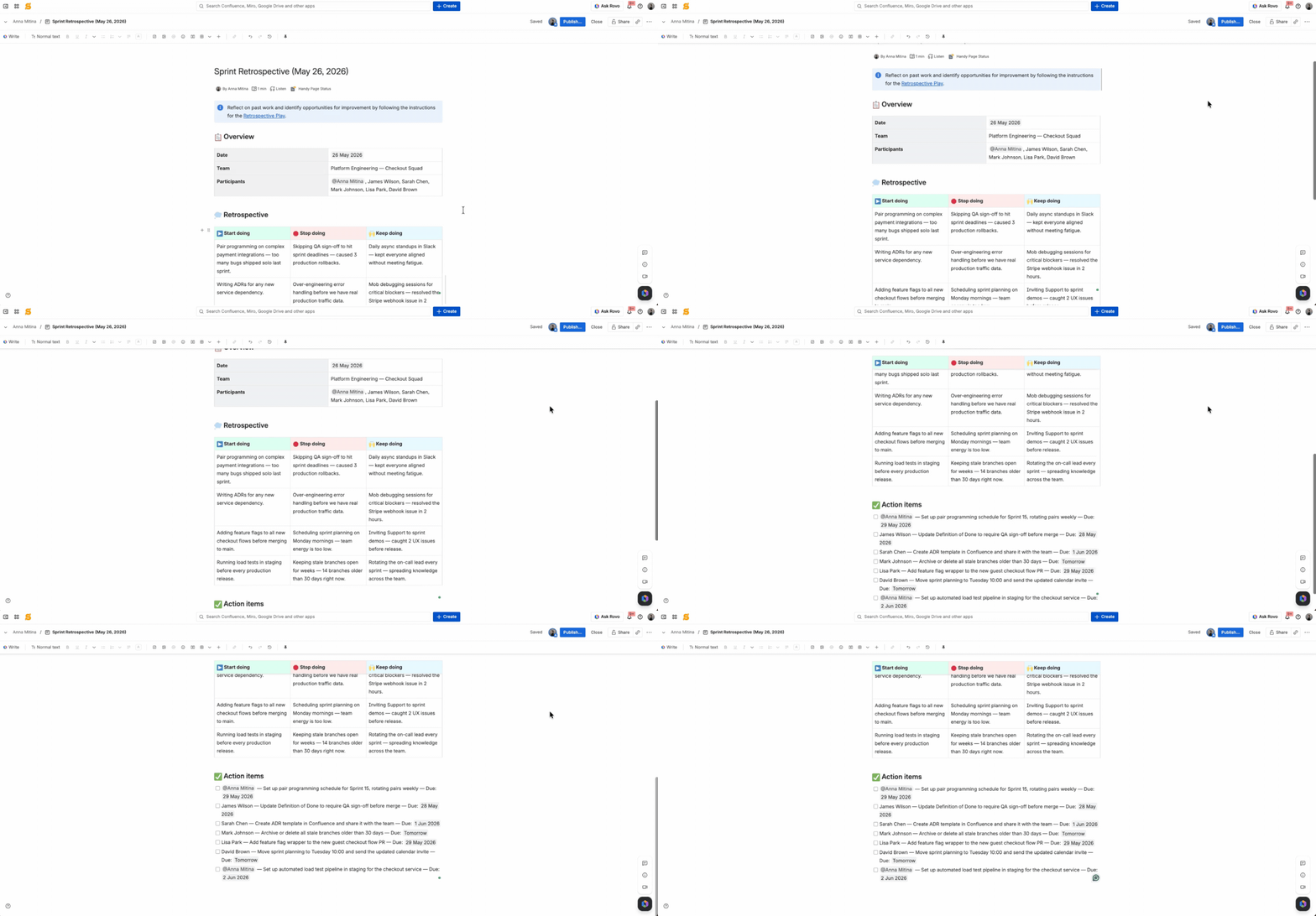
The retrospective is the most skipped meeting in project management and the most valuable one. Teams that run them consistently get faster, smoother, and better at predicting problems before they happen. Teams that skip them repeat the same mistakes across projects with different names.
Confluence solution: Retrospective template.
Confluence has a native Retrospective template that gives your team a structured space to reflect on what went well, what didn’t, and what to carry forward into the next project. It’s a simple template, but having it live in the same space as all your project documentation means the retrospective is always findable, always connected to context, and never lost in someone’s email or a forgotten Google Doc.
Handoff documentation
The monitoring dashboard you built during execution doesn’t disappear when the project closes. It becomes your final status report. A snapshot of that page at project close is a complete, visual summary of how the project performed against its plan, ready to share with stakeholders without building anything new.
Confluence solution: Excerpt and Insert excerpt macros.
If the information is scattered across different pages, collect it on just one page using native Excerpt and Insert excerpt macros, which will allow you to reuse the documented content on any other page.
Pro tip: Synced blocks let you update a piece of content once and have it automatically reflect everywhere it’s been embedded. For handoff documentation, especially, this means your final project status, key decisions, and outcomes stay consistent across every page a stakeholder might land on, without anyone having to manually update each one.
Table Filter, Charts & Spreadsheets enhancement: Table Excerpt and Table Excerpt Include macros.
In case you want to reuse any tables from other pages, we recommend using Table Excerpt and Table Excerpt Include macros.
Confluence is ready to be your project management hub
Most teams set up Confluence, fill it with documentation, and never look back. And that’s exactly the problem, not with Confluence, but with how it gets introduced. A tool is only as powerful as the workflow built around it, and most teams never get past day one.
But as this article shows, Confluence project management can cover the full lifecycle, from the first stakeholder alignment meeting all the way through to the final retrospective. The irony is that everything covered here: decision logs, RAID logs, Gantt charts, sprint dashboards, retrospectives, is already possible inside a tool most teams have been paying for and underusing for years. The gap isn’t about capability; it’s about habit.
Building a project management workflow in Confluence doesn’t happen overnight. But it starts with one stage where the pain of scattered information finally outweighs the comfort of familiar tools. From there, it compounds. Once the team sees a live sprint dashboard replacing a manually assembled status email, or a RAID log that everyone actually updates, the case for doing it everywhere else makes itself.
FAQs
Is Confluence a project management tool?
Not officially but in practice, it can function as one. Confluence wasn’t built as a dedicated project management tool and doesn’t replace Jira for issue tracking or task management. What it does offer is a connected workspace where every project artifact (decisions, plans, status updates, dashboards, retrospectives) can live in one place, visible to the whole team and accessible to stakeholders who don’t use Jira. When set up intentionally around the project lifecycle, Confluence becomes the layer where project work gets communicated, documented, and tracked across every stage.
How to use Confluence for project management?
Confluence supports project management across the full lifecycle, from initiation to closure. Set up a dedicated project space, structure it around the stages of your project, and use native templates, macros, and Jira integration to keep decisions, plans, status updates, and retrospectives in one place. The key is building the habit of going to Confluence first at every stage, not just when something needs to be documented.
Does Confluence have a Gantt chart?
Confluence has a native Roadmap Planner macro that resembles a Gantt chart; it lets you create a visual timeline with drag-and-drop bars. However, it lacks several standard Gantt features: there’s no task table, no progress tracking, no dependency mapping, and no connection to your Jira or Confluence data. For a proper data-driven Gantt chart with milestones, dependencies, and completion percentages, the Table Filter, Charts & Spreadsheets for Confluence app (which you can add to your Confluence) is the stronger option. It builds the chart from a structured data table, updates automatically when the data changes, and can combine Jira data with Confluence-side milestones into a single unified timeline.
How to set up Confluence for a project?
Start at initiation by creating a dedicated Confluence space for the project. Structure it as a page tree from day one – project brief at the top level, with child pages for each lifecycle stage: initiation, planning, execution, monitoring, and closure. Create your core initiation artifacts first, e.g., a project brief using the Project Poster template, a decision log using the DACI template, and a meeting notes page. As the project progresses, each stage adds its own pages naturally: the Gantt chart in planning, the RAID log and sprint status page in execution, and the monitoring dashboard in reporting. By the time the project closes, the space already contains everything needed for the final retrospective and handoff documentation without building anything from scratch.