






How to connect Salesforce to Confluence Cloud: comparing popular marketplace apps

Salesforce is the source of truth for customer and sales data, while Confluence is where teams collaborate, document processes, and share knowledge.
Bringing Salesforce into Confluence helps teams eliminate manual CSV exports, build live dashboards, and make CRM information available where work happens.
The Atlassian Marketplace offers several apps that integrate Salesforce with Confluence. While they all solve the same high-level problem, they differ significantly in configuration approach, authentication model, reporting capabilities, and target users.
In this article, we compare four popular Salesforce integrations for Confluence.
Compared apps:
-
Live Tables from CSV & JSON for Confluence
-
External Data for Confluence (Visualize Database & API Data)
-
PocketQuery – Connect SQL Databases & REST in Confluence
-
Salesforce for Confluence
Live Tables from CSV & JSON for Confluence (FREE)
Many business teams don’t just want to see Salesforce data – they want to analyze it.
Typical questions include:
-
Which opportunities are closing this month?
-
What does our sales pipeline look like?
-
Which accounts require immediate attention?
-
How is revenue distributed across regions?
For these scenarios, the goal isn’t simply to display Salesforce records. It’s to transform live CRM data into reports that teams can explore and share inside Confluence.
Live Tables follows this approach by importing Salesforce data directly into Confluence as live tables that stay synchronized automatically. It connects to Salesforce using secure per-user OAuth 2.0 authentication, so passwords are never stored. In addition, the app supports Salesforce custom domains (My Domain). Retrieved data respects the permissions of the connected Salesforce user, ensuring users only see information they are authorized to access.
Built entirely on Atlassian Forge, the app stores its data within Atlassian Cloud infrastructure.
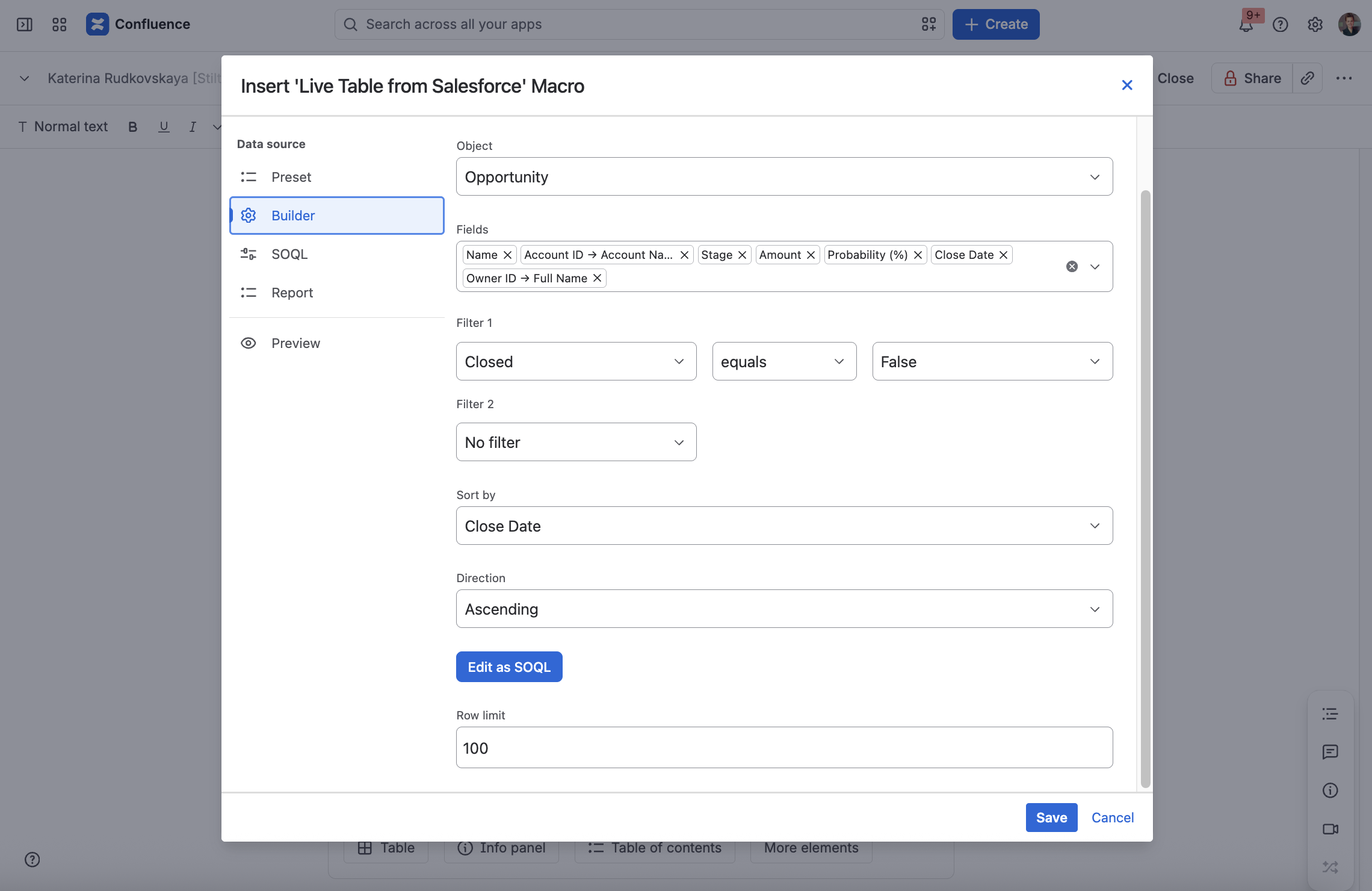
The Salesforce connector offers multiple ways to retrieve data, from quick setup to advanced customization:
-
Reports – instantly display existing Salesforce reports.
-
Presets – get started in seconds with predefined table configurations.
-
Visual Builder – configure standard and custom Salesforce objects, fields, filters, and sorting without writing code.
-
SOQL – build fully customized queries for maximum flexibility.
Salesforce is just one of many supported data sources. Live Tables also connects to Google Sheets, REST APIs, CSV and TSV files, JSON feeds, GitHub, GitLab, Bitbucket, and other external systems, making it suitable for organizations that work with multiple business platforms.
Live Tables is designed to work together with its companion app, Table Filter, Charts & Spreadsheets for Confluence. This combination extends Salesforce reporting with advanced filtering, pivot tables, charts, dashboards, and the ability to combine Salesforce data with other supported data sources in a single report.
Key points:
-
Per-user OAuth 2.0 authentication
-
Presets, Visual Query Builder, SOQL, Salesforce Reports
-
Multiple external data sources support
-
Advanced dashboards with Table Filter, Charts & Spreadsheets
External Data for Confluence (Visualize Database & API Data)
External Data for Confluence also treats Salesforce as one of many supported enterprise data sources.
Alongside Salesforce, it supports integrations with SQL databases, REST APIs, SharePoint, HubSpot, Snowflake, Airtable, and other business platforms. Like Live Tables, it’s designed as a general-purpose external data connector rather than a Salesforce-only application.
The main difference lies in how integrations are configured.
Connections are created centrally by administrators and use a shared authenticated account. End users work with predefined datasets rather than configuring integrations themselves.
Working with API responses often requires additional configuration:
-
JSONPath is used to filter data and configure tables and visualizations.
-
JavaScript is typically required for advanced data transformation scenarios.
Data from multiple sources is not combined automatically, so cross-source reporting typically requires additional scripting or manual implementation.
Key points:
-
Shared administrator authentication
-
Administrator-managed integrations
-
JSONPath & JavaScript customization
-
Multiple data sources support
PocketQuery – Connect SQL Databases & REST in Confluence
PocketQuery takes a similar general-purpose approach.
Salesforce is one of many supported data sources alongside SQL databases and REST APIs.
Integrations are configured through queries, scripts, and templates rather than a visual builder.
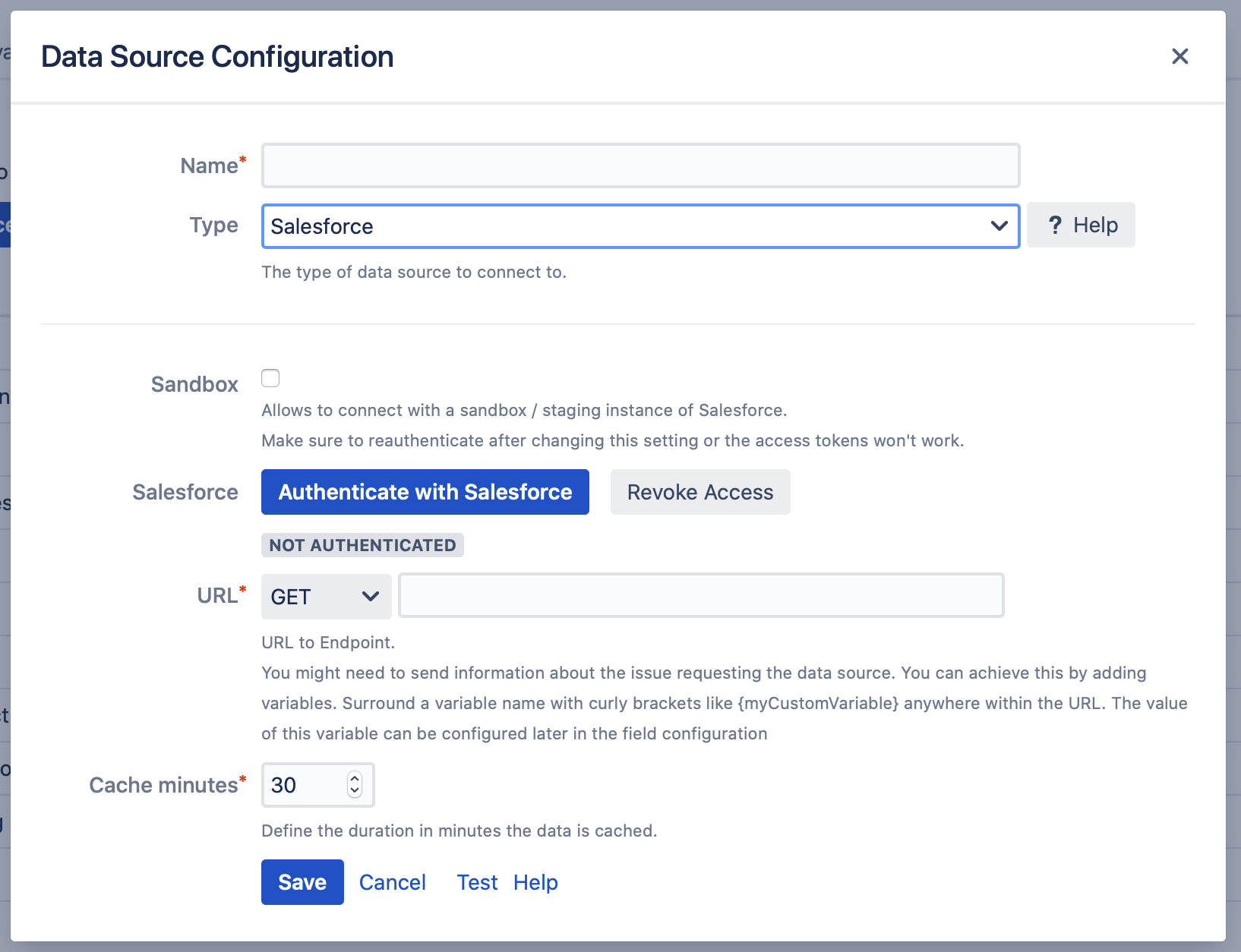
Authentication is administrator-managed. Administrators can grant access to a Salesforce data source by selecting one or more Confluence groups, allowing different groups of users to use different Salesforce connections as needed.
Administrators configure how data is retrieved and displayed, while business users primarily consume predefined queries and reports.
Building integrations typically requires administrators to use JavaScript, JSONPath expressions, and Velocity Template Language (VTL) templates to retrieve, filter, transform, and present Salesforce data.
Like External Data for Confluence, PocketQuery does not automatically combine data from multiple sources, so cross-source reporting requires custom implementation.
This approach allows technical teams to build customized tables, charts, and dashboards through scripting and template configuration.
Key points:
-
Shared administrator authentication
-
Support for Confluence group-based access control
-
JavaScript, JSONPath & VTL customization
-
Multiple data sources support
Salesforce for Confluence
Among the reviewed apps, Salesforce for Confluence is probably the closest to Live Tables in terms of purpose.
It focuses specifically on bringing Salesforce data into Confluence rather than acting as a generic external data connector.
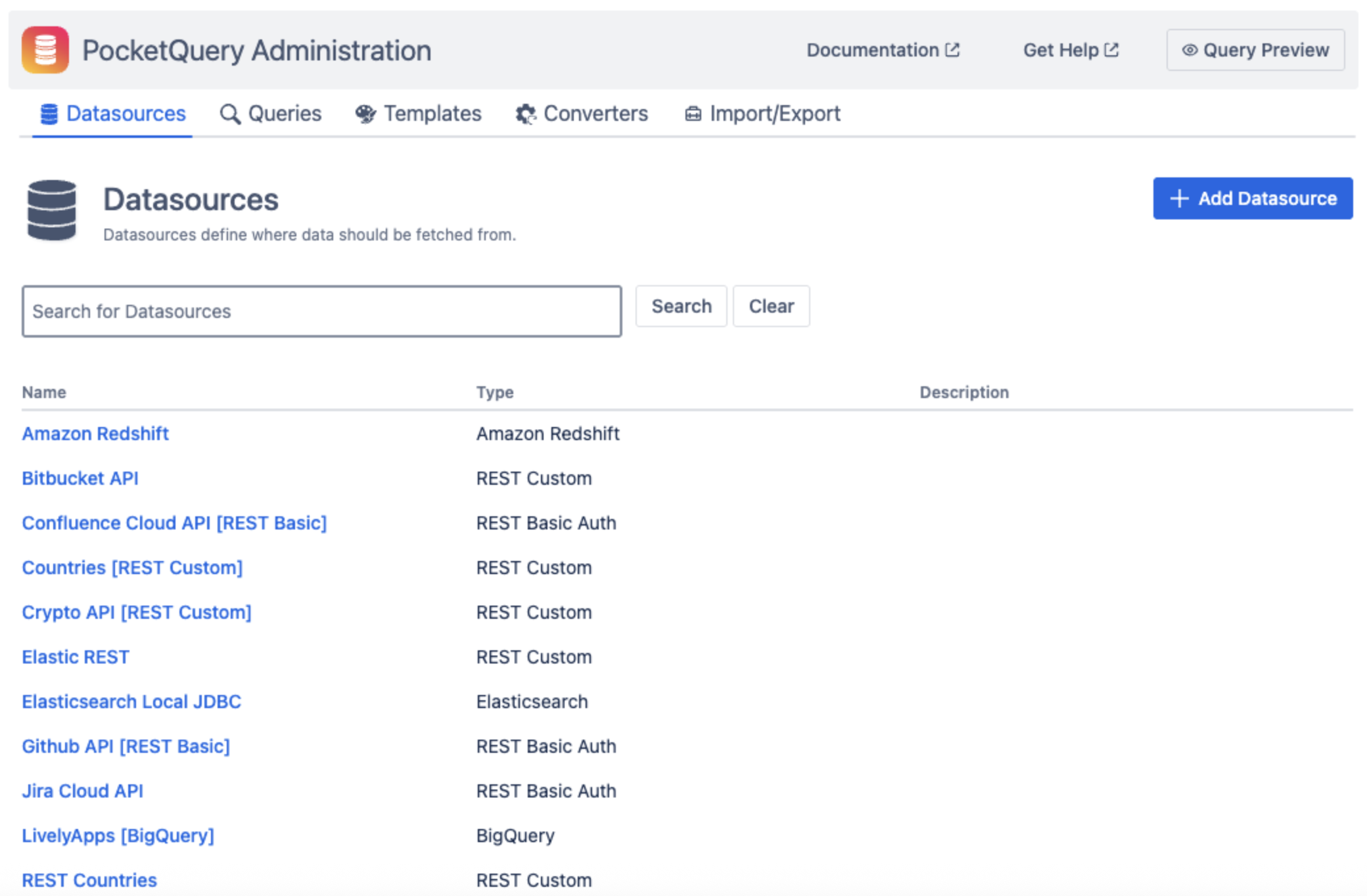
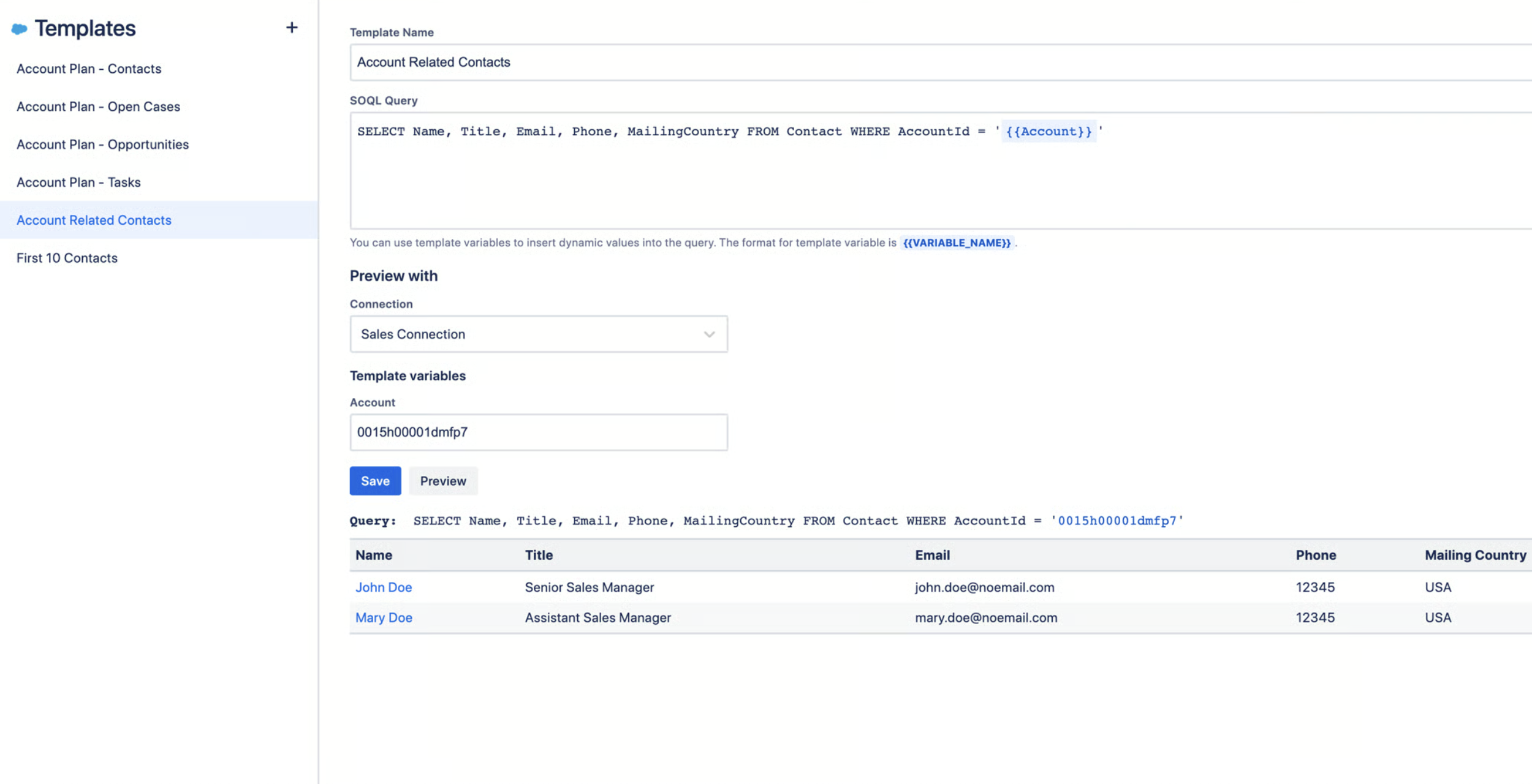
The app provides predefined templates that administrators can customize for common Salesforce scenarios. Advanced users can also write their own SOQL queries when more customized data retrieval is needed.
Like External Data and PocketQuery, authentication is based on a shared administrator-authorized connection.
Unlike Live Tables, the workflow is centered around templates and SOQL rather than a visual builder or existing Salesforce Reports. The app focuses on displaying Salesforce information in tables within Confluence and does not provide built-in charting or dashboard capabilities.
Key points:
-
Shared administrator authentication
-
Predefined templates, SOQL
-
Salesforce-focused solution
-
No built-in dashboards or charts
Comparison summary
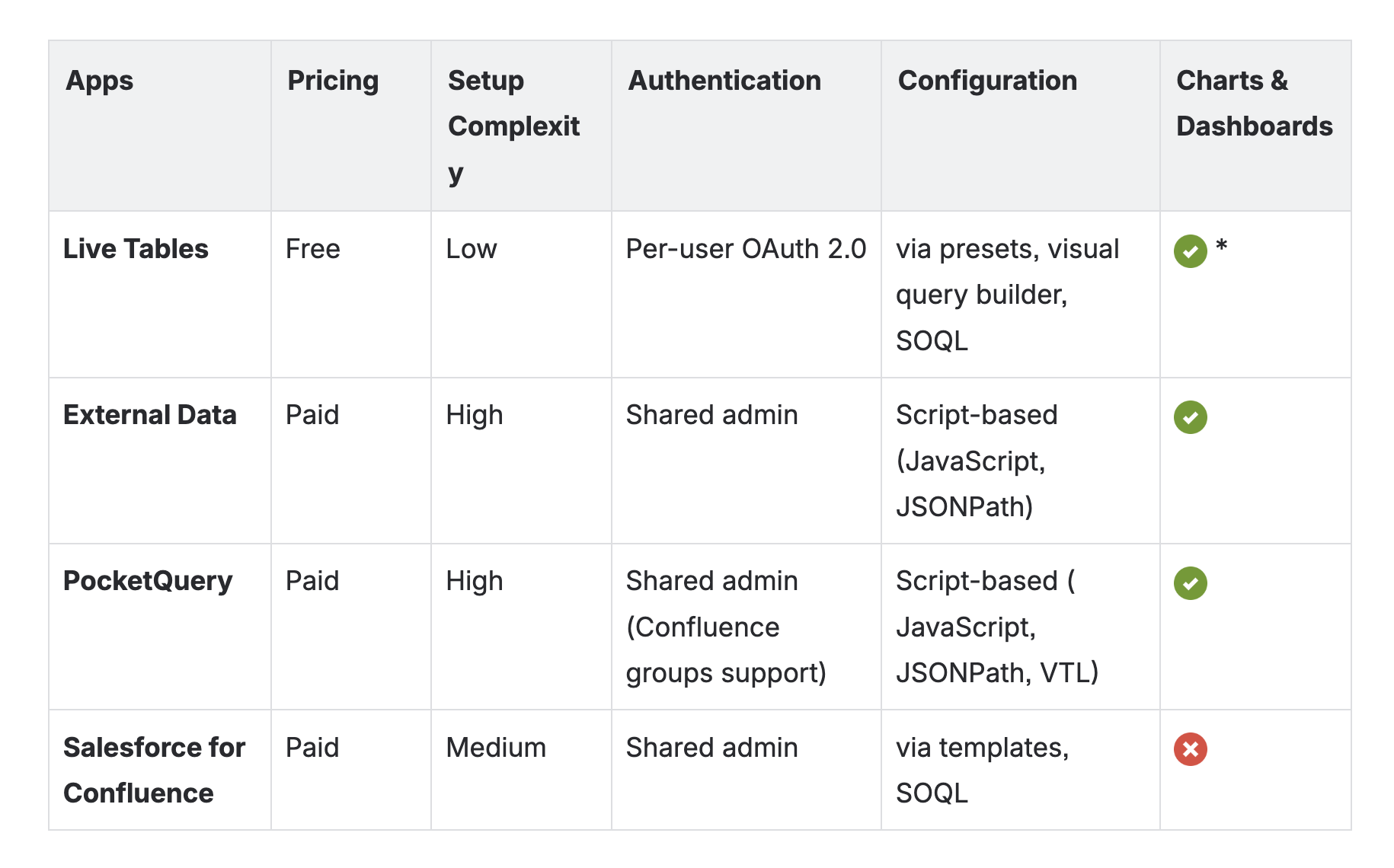
*via Table Filter, Charts & Spreadsheets
Final thoughts
All four apps bring Salesforce data into Confluence, but they take different approaches to authentication, configuration, and reporting.
If you’re looking for a business-friendly experience with guided configuration, Salesforce Reports support, and seamless integration with Table Filter, Charts & Spreadsheets – the bestselling app for data management and reporting – Live Tables offers a streamlined workflow with minimal setup.
If your organization prefers administrator-managed integrations, extensive scripting, or highly customized API-based configurations, External Data and PocketQuery are designed around that approach
If your focus is exclusively on Salesforce and template-based data retrieval, Salesforce for Confluence offers a specialized experience.
Ultimately, the best choice depends on how your team expects to work with Salesforce data inside Confluence.
FAQs
How can I integrate Salesforce with Confluence Cloud?
Install a Salesforce integration app from the Atlassian Marketplace, connect your Salesforce account using OAuth, and insert Salesforce data into Confluence pages as live tables.
Can I display live Salesforce data in Confluence Cloud?
Yes. Live Salesforce data can be displayed in Confluence and automatically synchronized to keep pages up to date.
How can I create reports and dashboards from Salesforce data in Confluence Cloud?
Import Salesforce data into Confluence, then use reporting tools to build interactive tables, charts, pivot tables, and dashboards.
Can Salesforce reports update automatically in Confluence?
Yes. Depending on the integration, Salesforce data can be refreshed automatically so reports always show the latest information.
Can I combine Salesforce data with other data sources in a single report?
Yes. Some integrations allow you to combine Salesforce data with sources such as Google Sheets, REST APIs, CSV, and JSON for unified reporting.
Is there a free app to connect Salesforce with Confluence Cloud?
Yes. Live Tables from CSV & JSON for Confluence is a free app that lets you connect Salesforce and display live data in Confluence.
Do I need SOQL to connect Salesforce to Confluence?
No. Many common scenarios can be configured through a visual interface. SOQL is only needed for advanced or custom queries.
Can business users create Salesforce reports without coding?
Yes. Modern Salesforce integrations let business users create reports and dashboards through visual configuration without writing code.