






Two-Minute How-to: Creating Dynamic Templates in monday.com

No matter what industry your company works in, teams often rely on repetitive pre-formatted documents that need to be filled with fresh data again and again – ideally automatically and without manual copy-pasting.
These can take many forms depending on the department or workflow:
-
invoices for clients in insurance agencies,
-
purchase orders in construction and manufacturing,
-
payroll and compensation sheets in accounting departments,
-
project estimation templates for professional services,
-
budget approval forms for finance departments,
-
customer quotes and proposals for sales teams,
-
maintenance reports in field service operations,
-
delivery and inventory documents in logistics,
-
campaign reporting templates in marketing teams,
-
subscription renewal summaries for SaaS companies.
In most cases, the document structure stays the same – only the actual data changes from one item, client, project, or employee to another.
And that’s exactly where dynamic templates become useful in monday.com.
monday.com Set Up
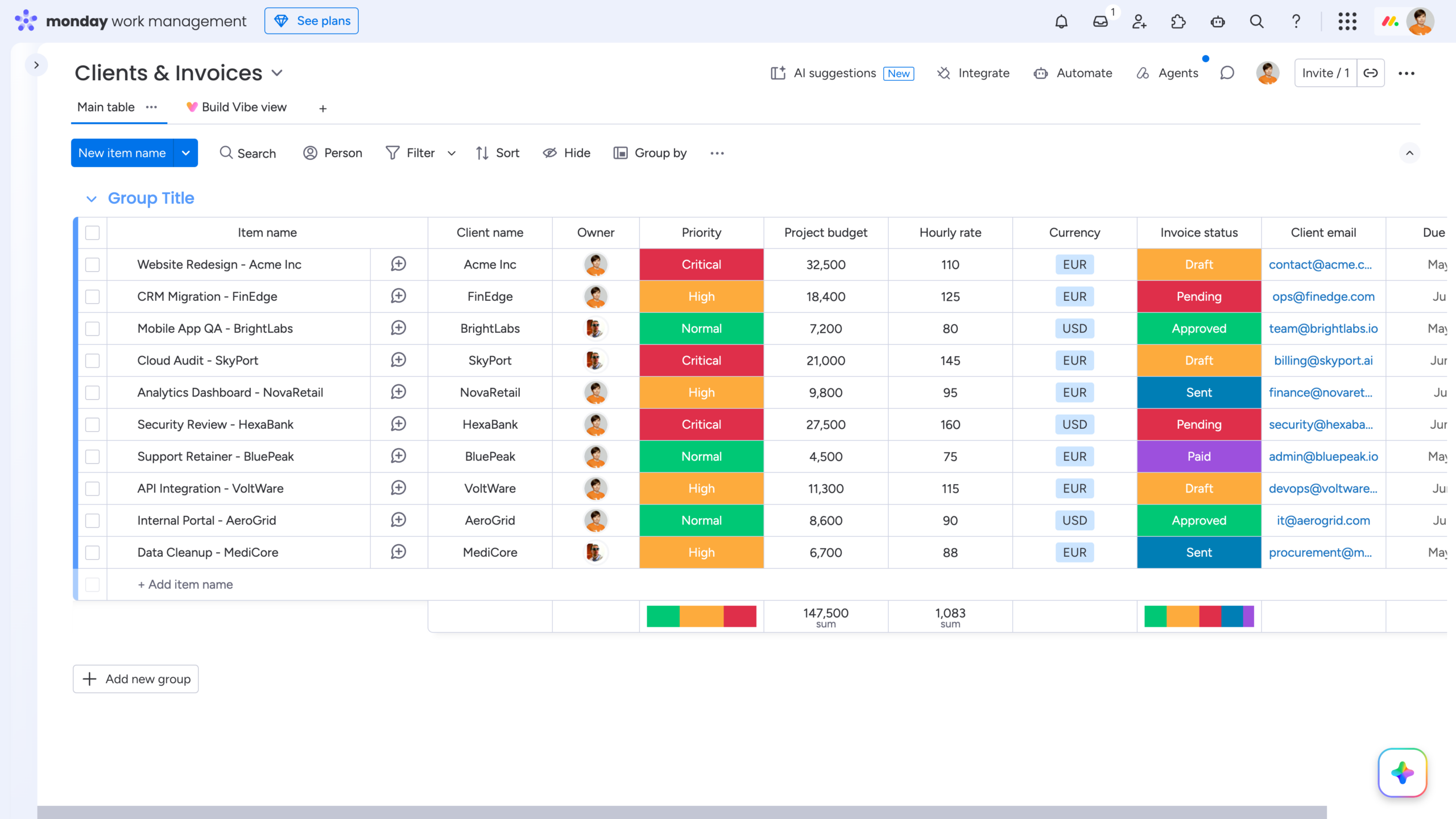
The first step is preparing your monday.com board with all the information you want to automatically pull into your document template later.
Depending on your workflow, this may include:
-
client and company details,
-
contact information,
-
invoice numbers and due dates,
-
products or services provided,
-
hourly rates and worked hours,
-
tax and discount values,
-
project status and approvals,
-
employee or contractor information,
-
payment details.
For example, an invoice workflow may contain columns for customer name, billing address, services, quantity, unit price, VAT, and final amount. A purchase order template may instead include supplier information, materials, delivery dates, and approval status.
The important part is simple: every value you may want to display in your final document should already exist as structured data on your monday.com board.
Building a Dynamic Invoice Template
The second step is creating a dynamic template.
Add a Smart Spreadsheet as an Item View and build the structure of your invoice: apply borders and formatting, add static (unchangeable) text, insert formulas, and organize the layout exactly the way you need. The experience is intuitive and familiar to anyone who has worked with Excel or Google Sheets.
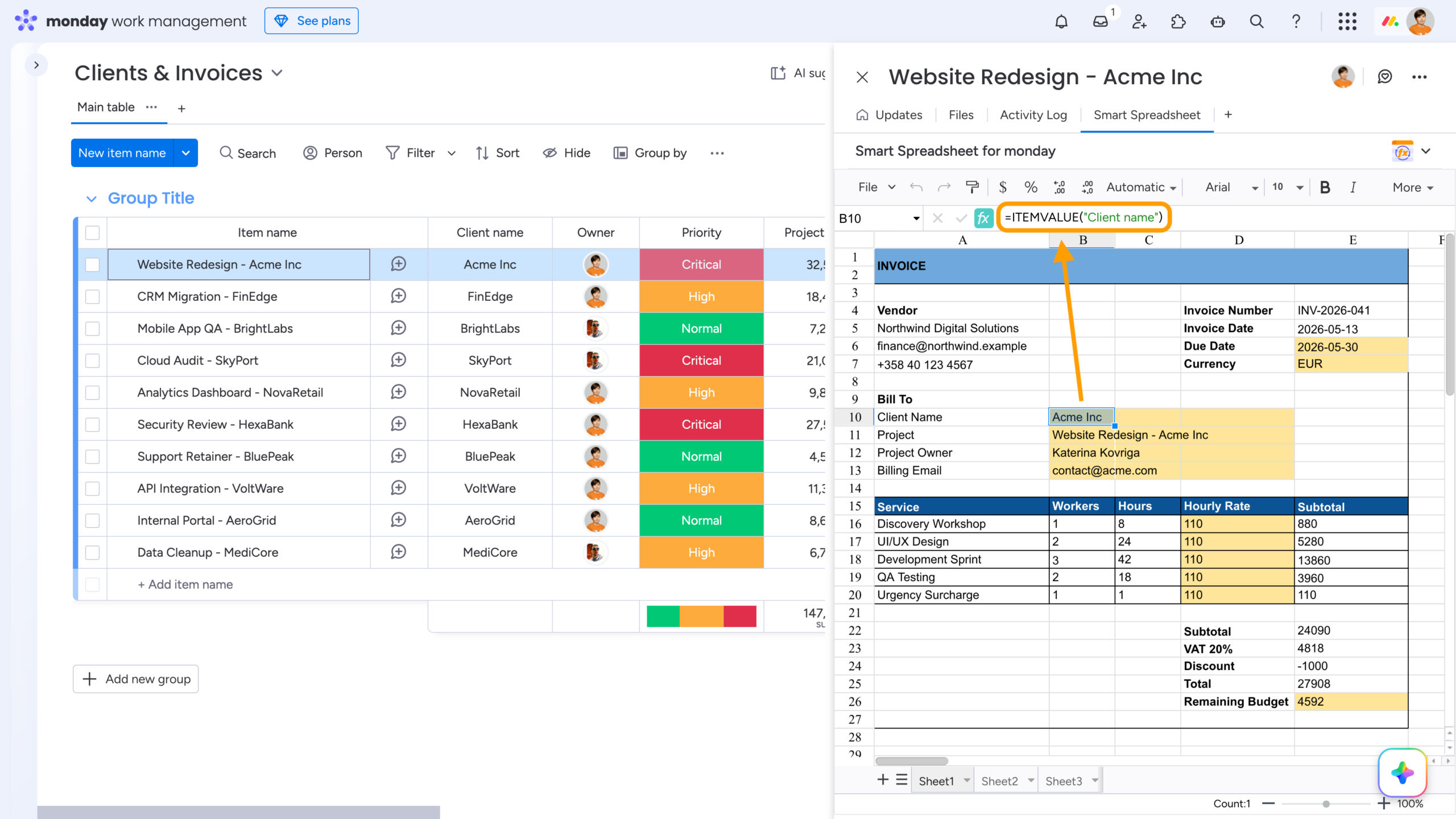
Once the layout is ready, you can make it dynamic by inserting live values directly from monday.com items – in our example, from the parent item.
To do this, use the ITEMVALUE() formula, which returns a value from a specific field of an item or subitem from any monday board.
=ITEMVALUE(column_name, [item], [board_id])
Where:
-
column_name – column title or column ID to retrieve the value from the target item,
-
item (optional) – item name or item ID. In Item View, the current item is used when omitted,
-
board_id (optional) – board ID. When provided, it overrides the current board context.
Examples:
=ITEMVALUE(“Status”, “Task name”)
=ITEMVALUE(“Amount”, 1234567890, 987654321)
On the screenshot below, the cells highlighted in yellow are automatically populated with values from the parent item.
Please note that although this example uses an Item View, the formula works in any Smart Spreadsheet view, including Custom Objects.
Even though a Custom Object is a standalone entity, you can still specify the board_id parameter and dynamically pull live data from monday.com items into your spreadsheet.
Reusing the Template
The third – and final – step is reusing the template you’ve created.
Option 1 (recommended)
Go to File → Templates, open the Templates Manager, save your spreadsheet as a template, and reuse it in any Smart Spreadsheet view whenever you need it.
Option 2
Export the spreadsheet as a .tfss file to preserve its layout, formulas, formatting, and dynamic references. Save the file locally, then import it into the required Smart Spreadsheet view whenever you want to reuse it.
In both cases, your invoice structure will instantly reappear – automatically populated with live data from the current item.
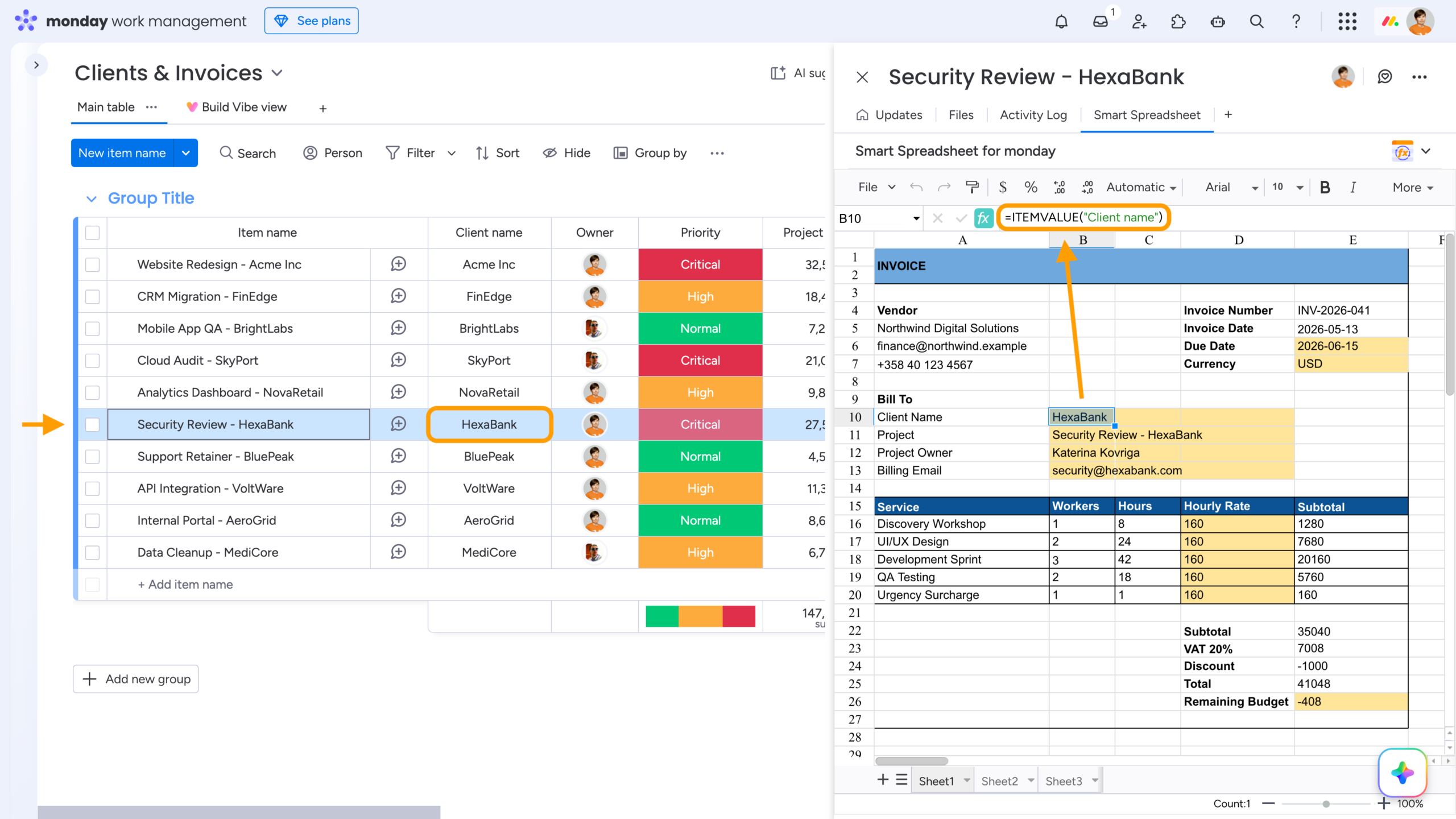
This approach allows teams to standardize repetitive business documents while still keeping every generated invoice, order, report, or calculation dynamically connected to monday.com data.
Wrap-Up
Dynamic templates help teams eliminate repetitive manual work while keeping documents accurate, standardized, and connected to live monday.com data.
With Smart Spreadsheet, you can build reusable invoices, purchase orders, financial calculations, HR documents, operational reports, and many other spreadsheet-based workflows – all powered by live board values through formulas like ITEMVALUE(). The formula is not limited to the current board context: you can dynamically pull data from any monday board, in any Smart Spreadsheet view – including Custom Objects – by creating cross-board references to the exact items and fields you need.
Whether you work in finance, operations, services, construction, HR, or SaaS, this approach makes repetitive document generation significantly faster and easier to maintain.
FAQ
Can I import and analyze files in other formats in Smart Spreadsheet views?
Yes. Besides the .tfss format – a dedicated Smart Spreadsheet format that preserves layouts, formulas, formatting, and dynamic references and is ideal for reusable templates – you can also import .xlsx and .csv files.
For example, in the blog post “Two-Minute How-to: Auditing Team Workflows in monday.com Using the Activity Log”, we demonstrate how to import and analyze monday Activity Logs with the help of Smart Spreadsheet.
As we briefly touched on finance in this post, do you have any tips for managing budgets in monday.com?
Yes. You may also want to check our recent article “How to Use monday.com for Financial Management: Budgets, Tracking, and Reporting”, where we explore budgeting workflows, financial tracking, reporting practices, and spreadsheet-based calculations in monday.com.
Where can I contact you if I have a feature request related to this use case?
We’d love to hear your ideas and feedback.
If you have suggestions, feature requests, or workflow scenarios you’d like to discuss, please contact our support team. User feedback helps us continuously improve Smart Spreadsheet and build features that solve real operational challenges.