







How to Document Calculations in Confluence

Calculations in Confluence are something most teams end up doing twice: once in a spreadsheet where the math actually happens, and again on a Confluence page where the results get pasted in for everyone to read. The page shows the numbers, but the calculation behind them stays somewhere else. So the page can show what the values are, but not where they came from.
That gap is worth closing, because a computed value with no visible reasoning invites the question every table eventually gets: where does this number come from? Documenting calculations in Confluence means putting both halves in one place — the live numbers and the formula that explains them — so the page stands on its own. This article walks through how to do that, with a worked example you can rebuild.
Key takeaways
- Native Confluence can’t document a calculation on its own. It neither performs table calculations nor renders math notation, so you’ll need a couple of Marketplace apps to do both on one page.
- To run the calculation, use the Table Filter, Charts & Spreadsheets for Confluence app: the Table Spreadsheet macro for Excel-style cell formulas, or the Table Transformer macro for SQL expressions on larger or linked tables.
- To explain the calculation and render the formula above the table or in table cells, use the LaTeX Math for Confluence app, so a reader sees not just what the number is, but what law it follows and what each symbol means.
Why Confluence can’t document calculations on its own
A Confluence table is static out of the box. It stores whatever you type, but it won’t multiply two columns, sum a row, or derive one value from another. The workaround is to calculate the numbers elsewhere and paste them into your table.
As for math notation, when you try to type a LaTeX formula on the page, the raw backslashes and braces are exactly what you get: P_{\text{out}} = V \cdot I \cdot \eta. The usual fallback is a screenshot, which exports badly to PDF and has to be remade by hand every time an assumption changes.
To close both gaps — to actually run the calculation and show the formula behind it — you need a couple of apps built for it. The good news is they live on the same page and divide the work cleanly.
The setup: one app for the data, one for the formula
The approach uses two Atlassian Marketplace apps, each doing one job. Table Filter, Charts & Spreadsheets for Confluence handles the data side — it turns a static Confluence table into something that can calculate, filter, sort, and total. LaTeX Math for Confluence handles the explanation — it renders the formula above the table as real notation. One does the math, the other explains it — and a reader gets both on a single page instead of taking the numbers on faith.
A worked example: a hardware power budget
To make this concrete, take a hardware power budget — the kind of table an electronics or robotics team keeps to track how much power each component draws.
|
Component |
Voltage (V) |
Current (A) |
Efficiency |
Output power (W) |
|
MCU |
3.3 |
0.05 |
0.90 |
0.149 |
|
Sensor array |
5.0 |
0.12 |
0.85 |
0.510 |
|
Drive motor |
12.0 |
1.40 |
0.80 |
13.440 |
This is exactly where the two halves come together. The number in the Output power column has to be computed (native Confluence can’t do that), and the formula above it has to be rendered (native Confluence can’t do that either).
How to run the calculation: the Table Spreadsheet macro
The most familiar way to calculate a column is the Table Spreadsheet macro, which puts an Excel-like sheet right on the page — same cell references, same formulas you’d write in Excel.
- After installing the app, edit the page, type /Table Spreadsheet, and insert the macro.
- Enter your columns and rows in the sheet.
- In the first cell of the Output power column, type the formula as you would in Excel and press Enter.
- Copy the formula down so every row calculates.
- Save your edits.
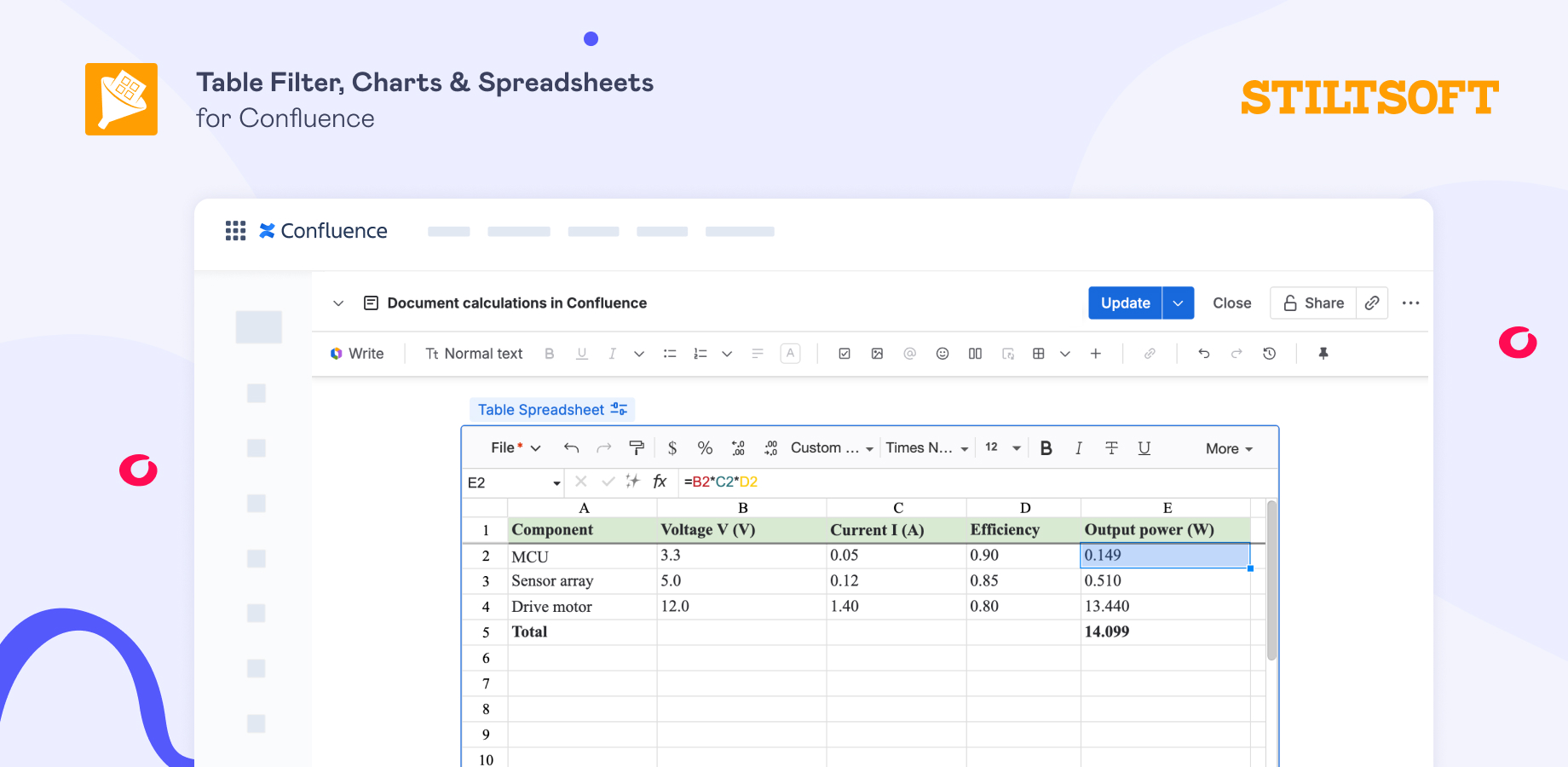
Once the spreadsheet is saved, the data is ready for more than just calculation. Right inside the Table Spreadsheet macro, you can sort and filter rows, add a pivot table, or build a chart from your numbers.
How to explain calculations in Confluence and add the formula: the LaTeX Math macros
To explain the calculations in Confluence behind your data and add the formula above the table, use the LaTeX Math for Confluence macros:
- Place the cursor above the table, type /latex, and choose the LaTeX Block Formulas macro.
- Enter the formula in standard LaTeX.
- Save. It renders as a real equation.
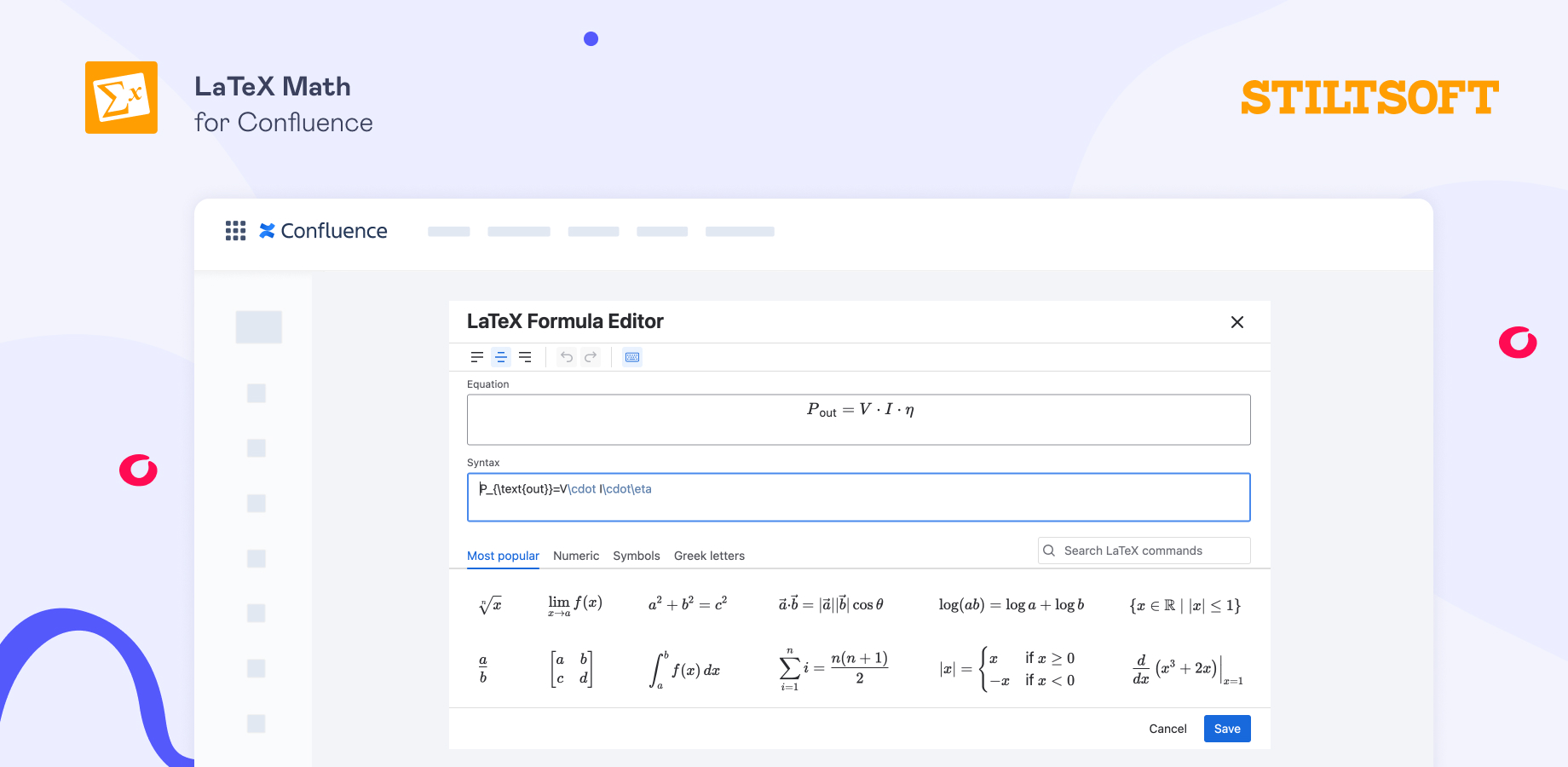
Tip: For a single symbol inside a sentence or table cell, you can use the LaTeX Inline Formulas macro.
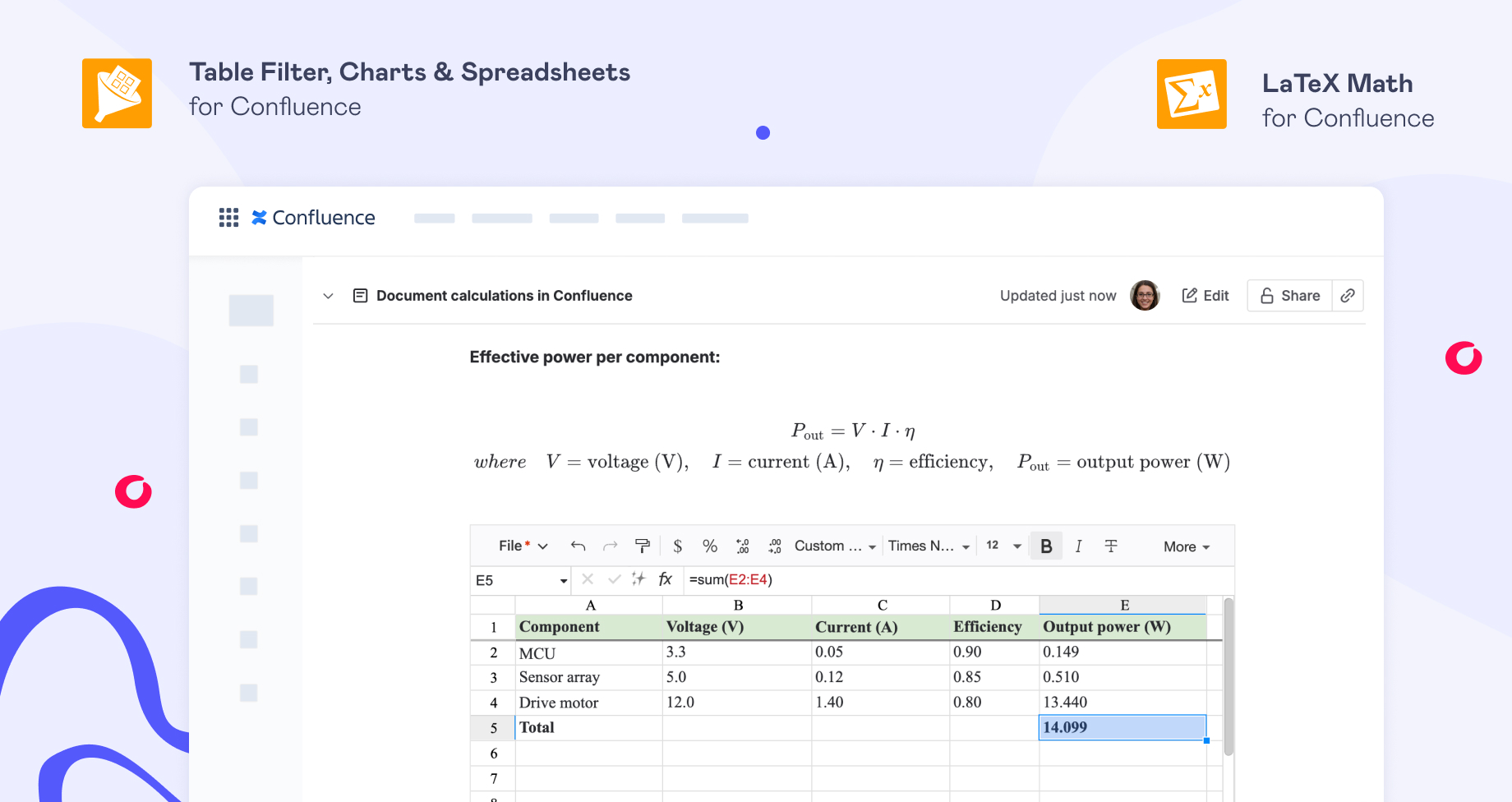
Now the spreadsheet computes and holds the live power figures, and the equation above them states the law they follow.
For larger or linked data: the Table Transformer macro
When the data is large, pulled from another table, or needs to be joined before the math, the Table Transformer macro is the stronger tool. Instead of a cell formula, it adds a computed column with an SQL expression.
For the same power budget:
SELECT *, ('Voltage (V)' * 'Current (A)' * 'Efficiency') ->toFixed(3) AS 'Output power (W)' FROM T1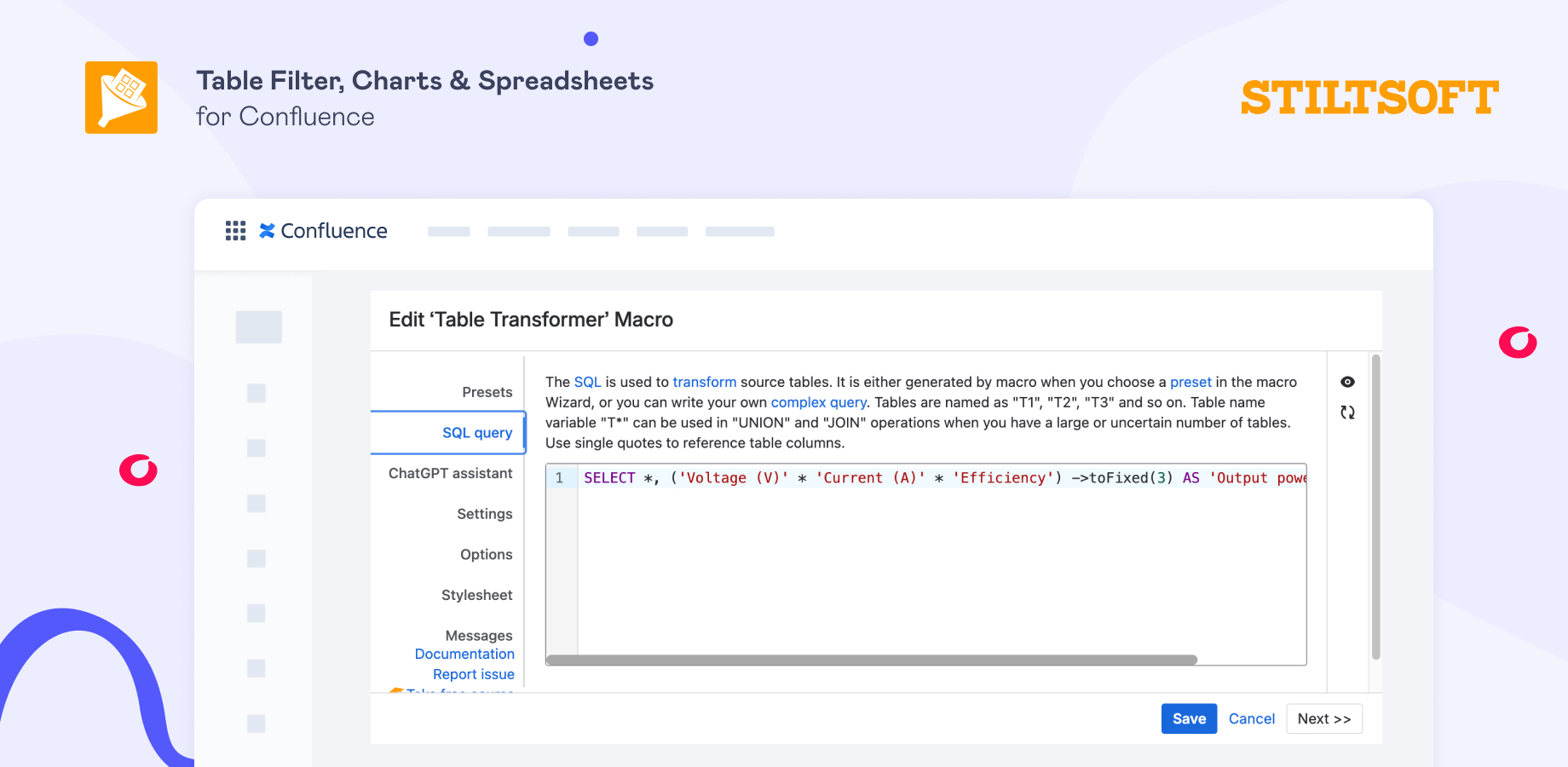
The parentheses build the calculation, AS names the new column, and ->toFixed(3) rounds to three decimals. Table Spreadsheet is friendlier for hand-entered data; Table Transformer wins on large or linked tables. Either way, the calculation runs on the data side, and LaTeX Math explains it above.
The same pattern works for calculations in Confluence far beyond engineering
A power budget is just one shape of the idea. Any field that keeps a formula behind a table fits the same structure: calculate the column with Table Filter, Charts & Spreadsheets for Confluence, and explain it with LaTeX Math for Confluence.
Getting started
Both apps are on the Atlassian Marketplace for Confluence Cloud and work on the same page:
- Table Filter, Charts & Spreadsheets for Confluence — free 30-day trial
- LaTeX Math for Confluence — free 30-day trial
If you already use Table Filter, Charts & Spreadsheets for Confluence, adding the LaTeX Math for Confluence app takes about five minutes, and your first formula takes about a minute after that.
FAQ
How can I document calculations in Confluence?
To document calculations in Confluence and put the data and the formula on the same page, you can use Table Filter, Charts & Spreadsheets for Confluence to calculate the data, and LaTeX Math for Confluence to render the formula as proper notation above the table. Native Confluence does neither on its own, which is why both apps are needed.
Can native Confluence perform table calculations?
No. A standard Confluence table is static — it stores values but won’t multiply columns, sum rows, or derive one value from another. Calculations need an app like Table Filter, Charts & Spreadsheets for Confluence, whose Table Spreadsheet macro runs Excel-style formulas or Table Transformer macro runs SQL expressions.
Does the formula export to PDF?
Yes, you can export formulas rendered with LaTeX Math for Confluence to PDF. Equations render correctly through Confluence’s built-in PDF export and Scroll PDF Exporter, appearing as proper notation rather than plain text or broken images.
Does LaTeX Math for Confluence calculate the numbers for me?
No, LaTeX Math for Confluence renders the formula to explain the data; it doesn’t perform the arithmetic. The numbers come from the Table Spreadsheet or the Table Transformer macros and are stored in the table.