







How to Merge Tables in Confluence and Reuse Content for Cross-Team Reporting

Reporting in Confluence quickly becomes complicated when the data comes from multiple sources. What starts as a simple update can turn into a patchwork of scattered tables, Jira work items, and spreadsheets that need constant manual cleanup. The bigger the reporting workflow gets, the easier it is for the output to drift out of sync with the sources.
This article shows a more reliable way to merge tables in Confluence and reuse content more systematically across pages, spaces, and teams. Instead of manually merging tables in Confluence every time or using external tools, you can create a repeatable workflow: collect source data from different places, turn it into a report-ready dataset, build report views, and reuse them across pages.
Key takeaways
-
Scattered source data makes reporting in Confluence fragmented and ineffective; manual copy-pasting creates static outputs that quickly drift out of sync.
-
Consolidated reporting turns that process into a repeatable workflow inside Confluence.
-
Table Filter, Charts & Spreadsheets for Confluence supports each step: collecting, transforming, building, and reusing.
-
The result is a single report-ready dataset that can power filtered views, summaries, and charts, all of which can be reused across pages.
Why merging tables in Confluence often feels like a hassle
If you regularly build reports across teams, you probably know the pattern.
One team keeps a project status table. Another one keeps release-related data in a Jira project. A third exports their Jira work items into a separate page before every meeting. Then you have to merge everything manually, fix formatting, and remove duplicates, hoping you are looking at the latest version.
Instead of putting together a report, you are chasing data all over the place. But the fact that it sits in different places is only part of the problem. The other is that when you copy and paste it, the data quickly goes stale, leaving you with yet another dead document.
This is hardly an edge case. Our customer research points to the same problem: bringing data together from multiple sources and reusing it on other pages often requires more manual work than it should.
Gartner reported in 2023 that the average desk worker uses 11 applications to complete their tasks, up from six in 2019. In 2026, with even more tools in the mix, this feels increasingly unacceptable.
Luckily, there’s a better approach. Instead of manually chasing scattered data and rebuilding reports every time something changes, you can create a workflow that pulls everything together and keeps the report (and any pages that reuse it) updated automatically.
For this kind of workflow, the Table Filter, Charts & Spreadsheets for Confluence app adds capabilities that Confluence lacks out of the box. Its macros are designed to support the entire reporting process, helping you bring data together, turn it into a usable dataset, and reuse the results where they matter.
How to combine and reuse data in Confluence for different reporting needs
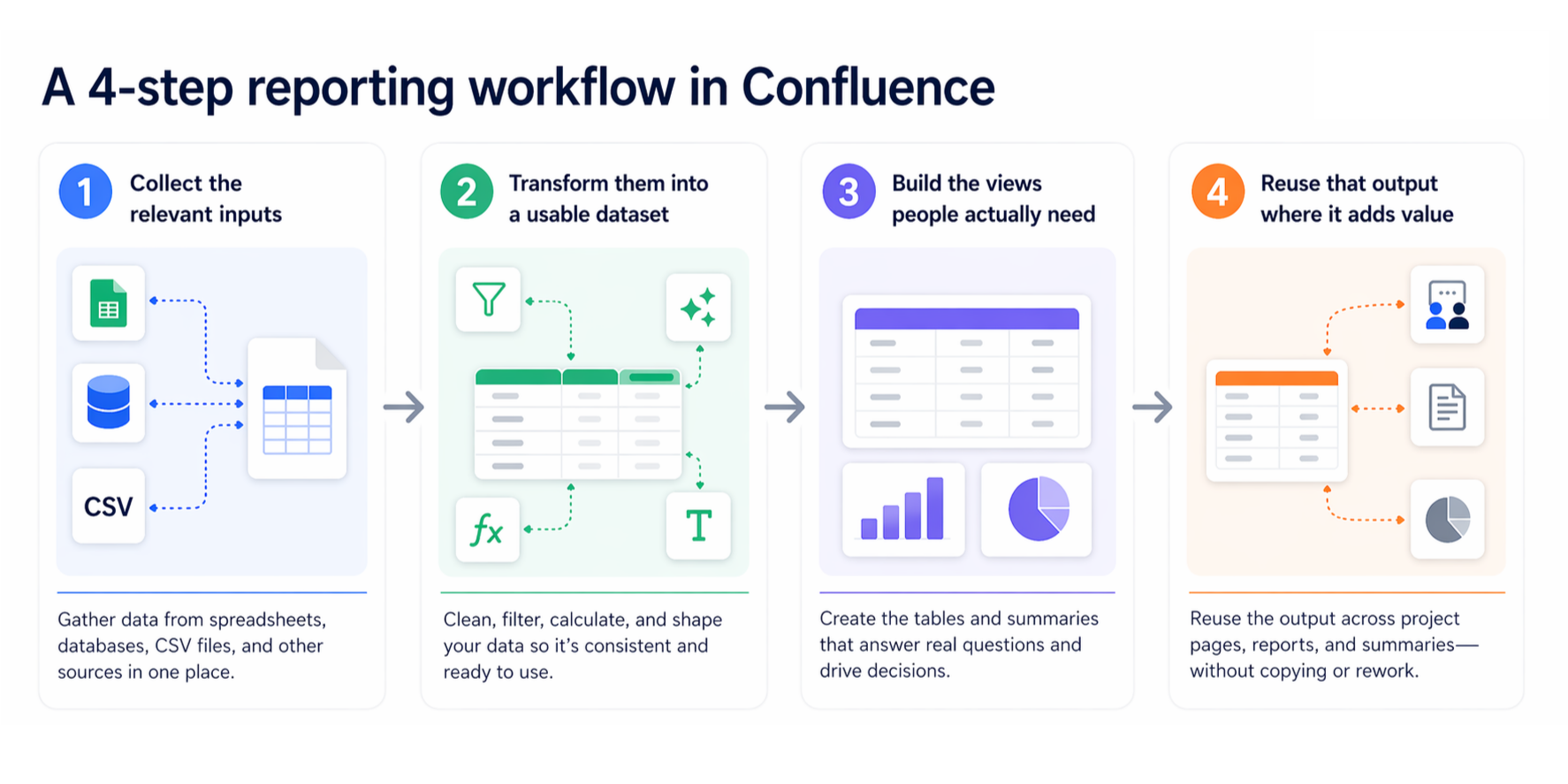
There is more than one way to build a reporting workflow from multiple data sources. The right setup depends on how your data is structured and what kind of output you need. The use cases below introduce the main setups, following the same core flow:
-
Collect the relevant inputs
-
Transform them into a usable dataset
-
Build the views people actually need
-
Reuse that output where it adds value
Use case 1: Merge tables from multiple pages
Best for
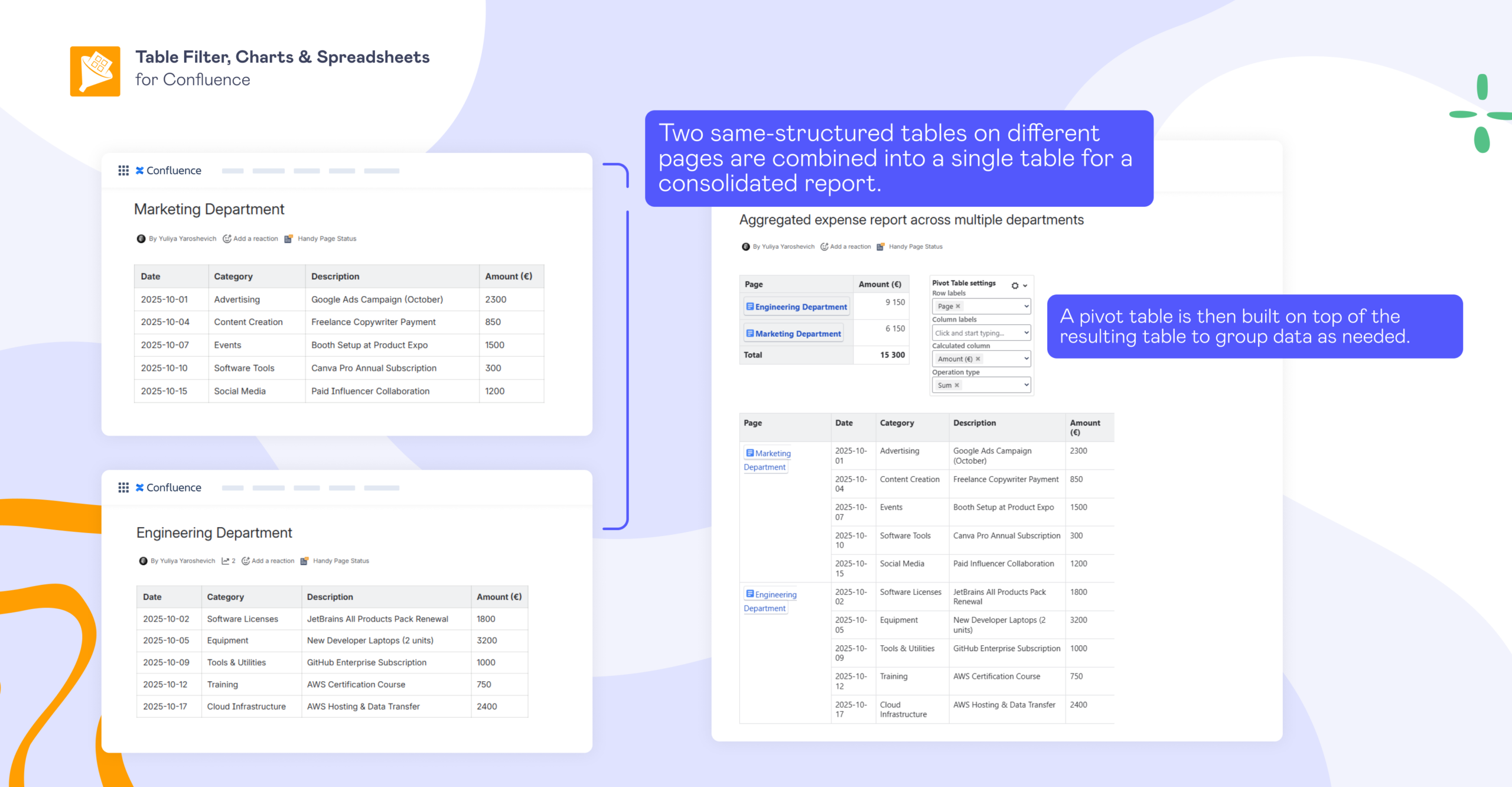
Use this when similar tables are maintained on different Confluence pages, but you need a single combined report. For example, when you want to:
-
roll up budgets or expenses
-
consolidate tool inventories across teams
-
build an employee list across a department or division
-
track progress across multiple projects or teams
Typical problem
Different teams keep their own status, budget, risk, or KPI tables on separate pages. The structure is close enough to combine, but every time you need a roll-up, you end up copying rows into a master table, rebuilding summaries, and checking whether the source pages have changed again.
How to do it
Collect
Use the Table Excerpt macro on each source page to mark the tables you want to reuse, then collect them on a reporting page using Table Excerpt Include. That lets you bring matching tables together without duplicating sources of truth.
Transform
Once the source tables have been collected into a single view, you can further shape the result in Table Excerpt Include: add extra metadata fields such as the page creation date or labels, or transpose the source tables if that makes the final report easier to work with.
Build
From there, shape the combined dataset into the right output. Use the Table Filter macro for a more focused working view; Pivot Table for a roll-up by team, status, or period; and Chart from Table if the result is easier to read visually.
Reuse
Once that output is ready, you can reuse it on other pages with Table Excerpt and Table Excerpt Include. This way, your reporting workflow supports several audiences.
What you get
You get a single consolidated report built from multiple source pages, while each team retains ownership of its data where it already lives. That reduces copy-paste work, keeps local maintenance intact, and makes the roll-up easier to trust.
Use case 2: Join related tables by a shared field
Best for
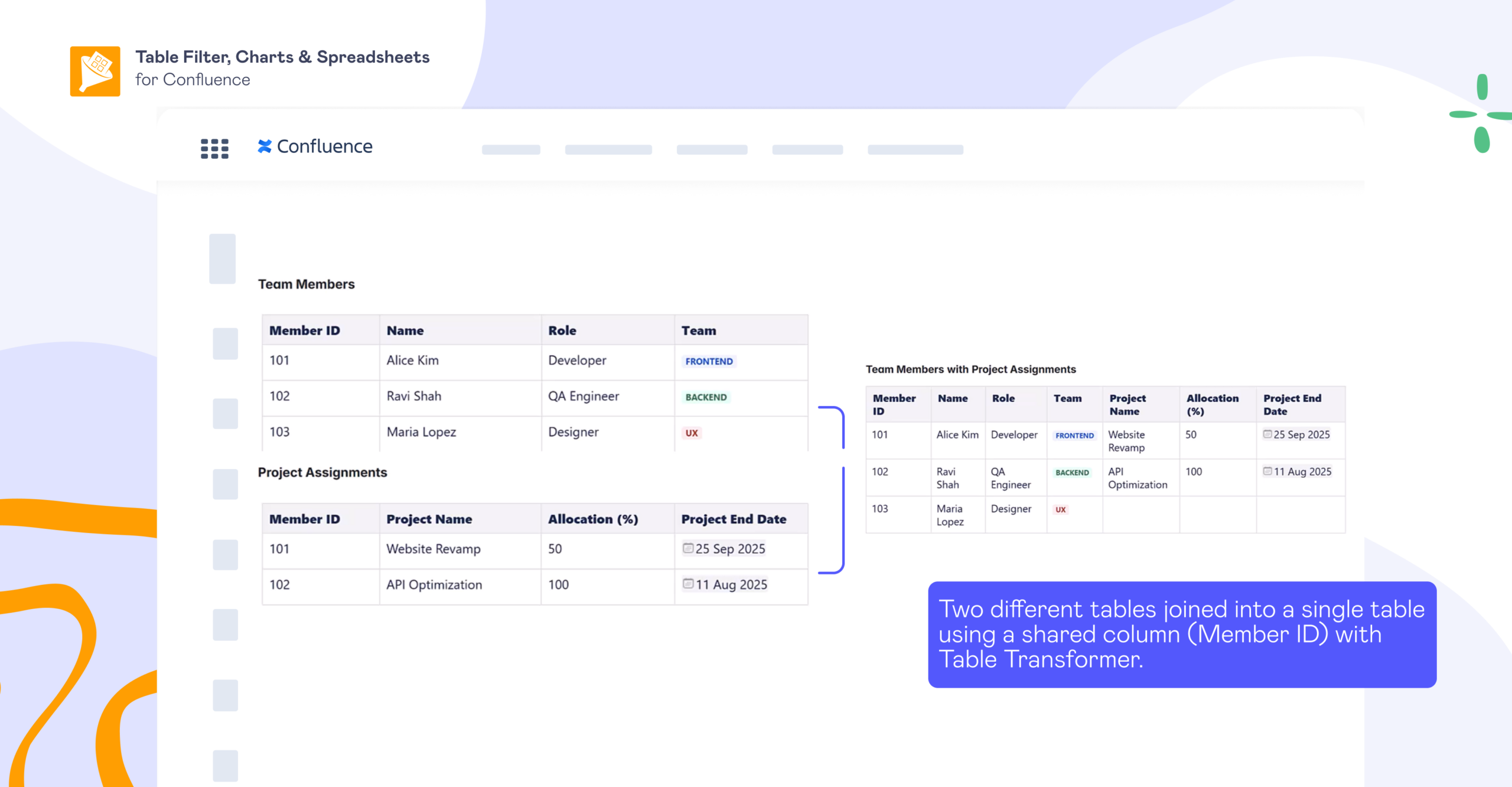
Use this when you have two related Confluence tables connected by a shared field and want to combine them into a single report. This often applies when you need to:
-
match tasks with owner details kept in a separate table
-
connect assets with location or category data
-
combine project records with reference information stored elsewhere in Confluence
Typical problem
You may have one table with project data and another with reference fields tied to the same records. Without a proper join, you either keep jumping between them or export both to another tool just to combine a few columns.
How to do it
Collect
If the tables are not already on the same page, pull them in from other pages using Table Excerpt and Table Excerpt Include first.
Transform
Use the Table Transformer macro with its Lookup Tables preset to match rows on that shared field and combine the related values into a single output. This is what turns two connected datasets into a single report-ready table so the shared information appears together rather than being split across separate sources.
Build
After that, build the kind of report stakeholders need. Use Table Filter to surface the part of the joined table that matters for the report. Create a pivot table, if the goal is to summarize the enriched data. Use Chart from Table when a visual summary is more useful than raw rows.
Reuse
Once the joined output is ready, wrap it in Table Excerpt and surface it on other pages with Table Excerpt Include, rather than recreating the same lookup logic in several places. That lets one enriched dataset feed multiple reports, dashboards, or stakeholder pages without repeating the join.
What you get
You get one readable report instead of two separate tables. The related values are brought together in a single reporting view, making the full picture easier to read.
Use case 3: Bring together Jira-based data
Best for
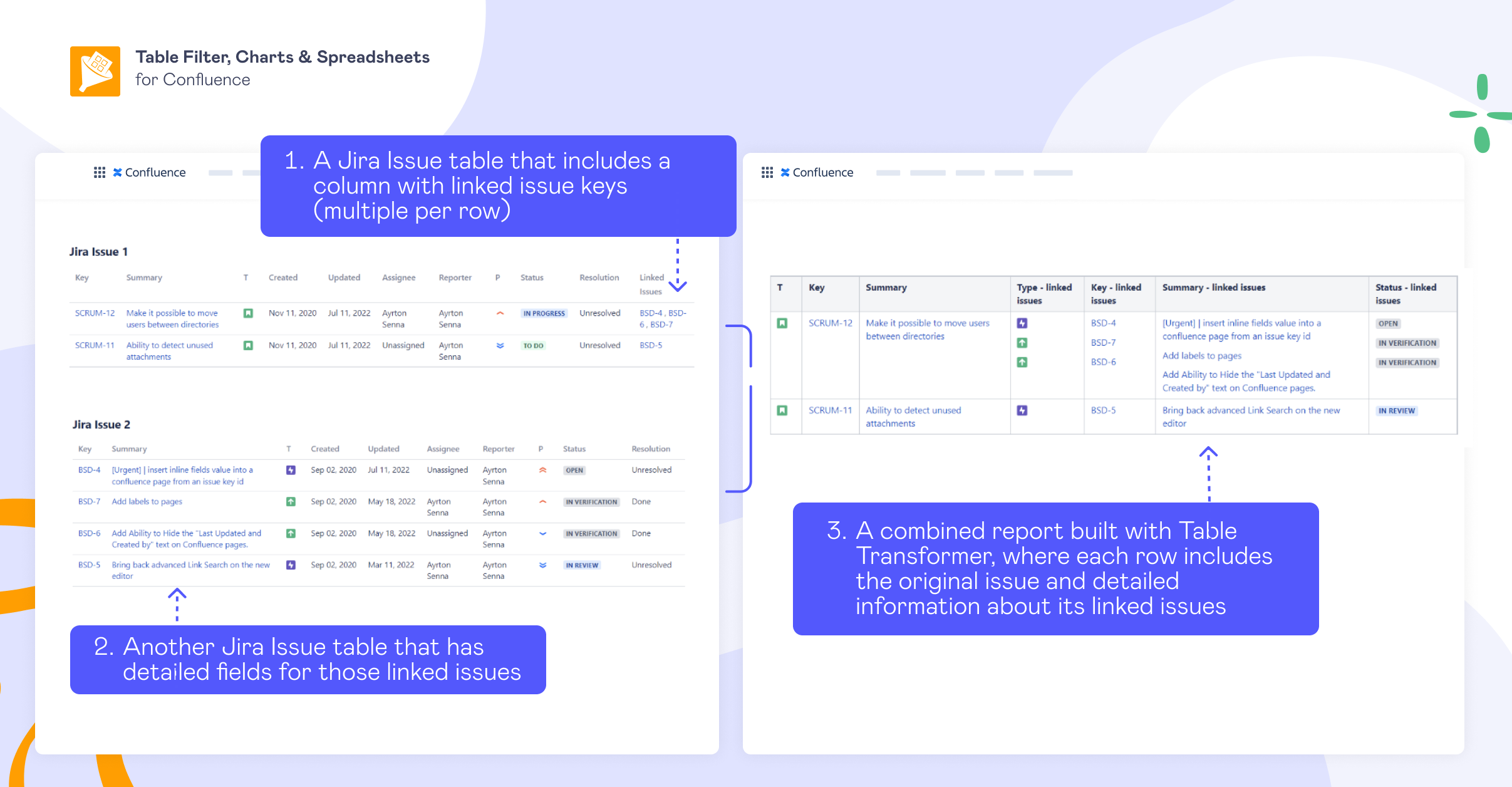
Use this when the reporting problem involves Jira-based tables and the result needs to be easier to read, summarize, or reuse inside Confluence. It’s useful when you want to:
-
combine work item data with linked dependencies
-
roll up delivery information for stakeholder reporting
-
bring related Jira outputs into one page for project reviews, release tracking, or cross-team coordination
Typical problem
You may have one Jira-based table with the main work items and another with related records that matter for reporting. The reporting view is fragmented. People end up switching between Jira outputs, manually following work item links, or exporting data just to reconstruct the picture elsewhere.
How to do it
Collect
Start by pulling the Jira-based tables you want to work with onto the same reporting page, typically using the Jira work items macro.
Transform
Use Table Transformer to combine those Jira-based datasets into a single usable output. In simpler cases, this may involve a more standard transformation. When the relationship is harder to model with a simple lookup, this macro also gives you room for custom SQL logic. That opens up virtually any custom reporting setup you need — for example, bringing Jira data from 20 different projects into a single report.
Build
Then turn the transformed Jira-based data into the kind of reporting layer the page needs. In some cases, the right output is still a detailed table, refined with Table Filter. In others, a summarized view built with Pivot Table or a visual snapshot from Chart from Table makes the result easier to review and share.
Reuse
Once the output is ready, wrap it in Table Excerpt and reuse it with Table Excerpt Include on the page where the broader reporting story belongs. That lets you keep the data and decisions together without having to rebuild the reporting layer in multiple places.
What you get
You get Jira-based reporting that is easier to review and reuse in Confluence, with a single, clearer view instead of several disconnected outputs.
Use case 4: Build spreadsheet-based views
Best for
Use this when the work calls for spreadsheet-style calculations, and you want to handle them in Confluence rather than exporting to Excel or Google Sheets. Common examples include:
-
importing external data and continuing the analysis inside Confluence
-
replacing an Excel or Google Sheets workflow with a spreadsheet that stays on the page
-
reusing calculated metrics, ranges, or selected cells across project pages or reports
Typical problem
Keeping spreadsheet work in a separate tool adds an extra layer of back-and-forth, while copying the results into Confluence turns them into another static snapshot.
How to do it
Collect
Let’s say part of the reporting data sits outside Confluence and needs to be pulled in before you can work with it on the page. Bring it into Confluence using the Table from CSV macro, then convert it into a spreadsheet with Spreadsheet from Table. This gives you a spreadsheet-style workspace on the page, so you can keep working with the data in Confluence instead of switching back and forth between Confluence and Excel or Google Sheets.
Transform
Process the data the way you would in a spreadsheet: apply formulas, calculate metrics, and prepare the specific values you want to reuse.
Build
At that point, the spreadsheet itself may already be the main working view. But if the goal is to surface only part of it, define the exact cell range or sheet that should be shown elsewhere. That way, you do not have to expose the entire spreadsheet just to reuse one result.
Reuse
Use the Table Spreadsheet Include macro to display the excerpt on other Confluence pages. Any updates made in the spreadsheet are reflected in the reused output, sparing you the need to manually replace the same data on every page.
What you get
You keep spreadsheet work in Confluence, making the results easier to reuse across pages. Instead of maintaining the calculations in one place and copying the outputs somewhere else, you can work in a spreadsheet and surface the right parts where they are needed.
Move from copy-paste reporting to a reusable workflow
Done well, consolidated reporting helps make Confluence the center of teamwork. It gives teams three things at once: data that stays close to its context, a workflow that does not have to be rebuilt every time, and reports that are easier to scale and trust.
Once the source tables are reusable and the reporting logic is centralized, the report ceases to be a one-off artifact. With Table Filter, Charts & Spreadsheets for Confluence, you shape it once and reuse the output in the form each stakeholder needs.
Instead of constantly recreating summaries and pasting static snapshots into pages, you keep the reporting flow connected to the source from start to finish. The result is less manual rework, fewer conflicting versions, and more confidence that people are looking at the right data in the right context.


FAQs
How do I merge tables in Confluence?
Use Table Excerpt to mark each source table, then collect them on one page with the Table Excerpt Include macro. If the tables share the same structure, you can show them as one report table. If they do not, use Table Transformer to merge and standardize them.
How can I embed a table from another Confluence page?
Wrap the source table in the Table Excerpt macro, then display it on another page with Table Excerpt Include. This lets you reuse the same table without copying it manually.
How do I include a table from another Confluence page?
Use macros from the Table Filter, Charts & Spreadsheets for Confluence app available on the Atlassian Marketplace: Table Excerpt on the source page and Table Excerpt Include on the target page. These macros let you reuse the same table across pages while keeping it connected to the original source.
Can I insert a table from another page in Confluence?
Yes, with the Table Excerpt and Table Excerpt Include macros, you can surface a table from another page directly on the page where you need it.
How do I link a table from another Confluence page without duplicating it?
Instead of copying the table, reuse it with the Table Excerpt and Table Excerpt Include macros. That way, updates made to the source table can flow through to the reused version.
How do I display content from another Confluence page?
If you need to display table-based content, the Table Excerpt and Table Excerpt Include macros from Table Filter, Charts & Spreadsheets for Confluence let you reuse it across pages. This is especially useful when the same data needs to appear in multiple reports or dashboards.
Can I embed content from another Confluence page?
Yes, wrap the source in the Table Excerpt macro and pull it into another page using Table Excerpt Include.
How do I display content from another page in a report?
You can collect source tables from multiple pages with Table Excerpt Include, then use macros such as Table Filter, Pivot Table, or Chart from Table to turn that reused content into a live report view.
Can I build one report from tables stored on different pages?
Yes, mark the source tables with the Table Excerpt macro, collect them with Table Excerpt Include, and, if needed, use Table Transformer to merge them into one report-ready dataset. This way, you can build live reports from reused Confluence tables instead of copying and pasting them into one page.
How do I reuse the same table on multiple Confluence pages?
Use the Table Excerpt macro on the source page and Table Excerpt Include wherever else the table needs to appear. This avoids duplicate maintenance and keeps the workflow easier to manage.