






How to Monitor Project Health in monday.com with Custom Reports

In fast-moving projects, the biggest challenge is rarely viewing the current state of work – monday.com boards already do that well. The real challenge is understanding how the project evolves over time: what changed, what needs attention, and whether the project is moving in the right direction.
While monday.com boards are great for day-to-day collaboration, stakeholders often struggle with questions like:
-
Which deliverables changed this week?
-
Are deadlines slipping?
-
Which tasks are stuck in review?
-
What progress was made since the last update?
-
Which team members are overloaded or inactive?
And if your stakeholders are outside monday.com, reporting quickly becomes manual: exporting boards, comparing statuses, filtering updates, compiling screenshots, and writing summary emails.
That’s exactly where custom reports in Board Email Reports help you stay on top of project health. With custom reports, you can automatically generate tailored XLS reports based on your workflow rules: define triggers, choose which columns to analyze, configure reporting periods, and send reports directly via email – even to people outside your monday.com instance.
Detect Workflow Bottlenecks and Understand Why Tasks Get Delayed
When projects slow down, the problem is often hidden inside workflow transitions: tasks getting stuck for too long, constantly switching statuses, or moving unpredictably between stages.
Without visibility into status history, teams may notice delays too late – without understanding where the process actually breaks down.
To stay on top of project health, teams often need answers to questions like:
-
Which workflow stages slow tasks down the most?
-
Which items stayed “Stuck” for too long?
-
Are tasks constantly bouncing between statuses?
-
Where do blockers appear most frequently?
-
Are delays caused by one major issue or repeated smaller problems?
These cases can be covered with the Status Report.
The report includes two tabs that provide different views of workflow activity.
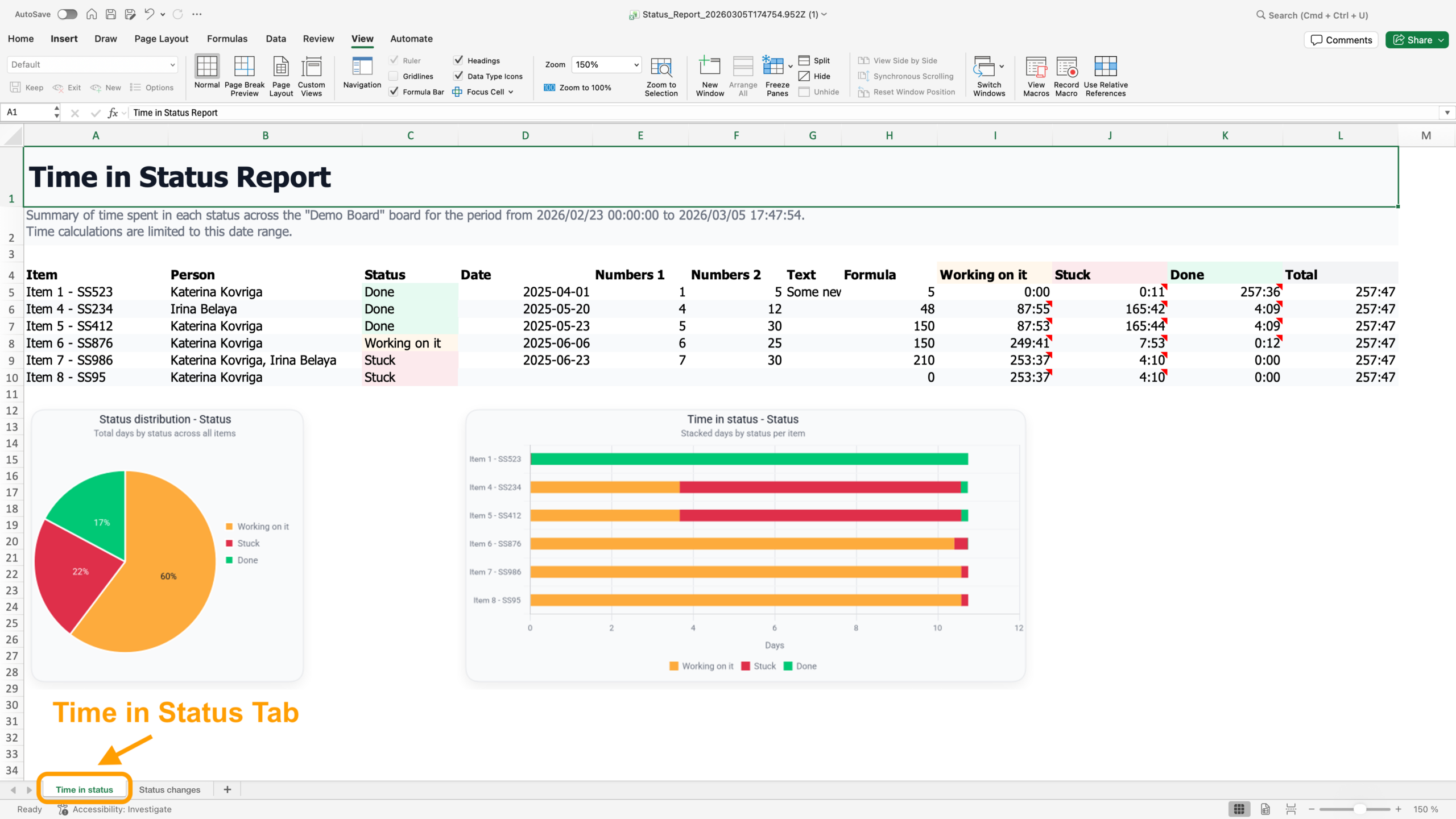
1. Time in Status
This tab summarizes how much time items spent in each status during the selected reporting period. It helps teams quickly identify workflow stages where work slows down or gets blocked.
For example, a team lead can see when items remain in the “Stuck” status for unusually long periods and decide when intervention is needed to resolve blockers or dependencies.
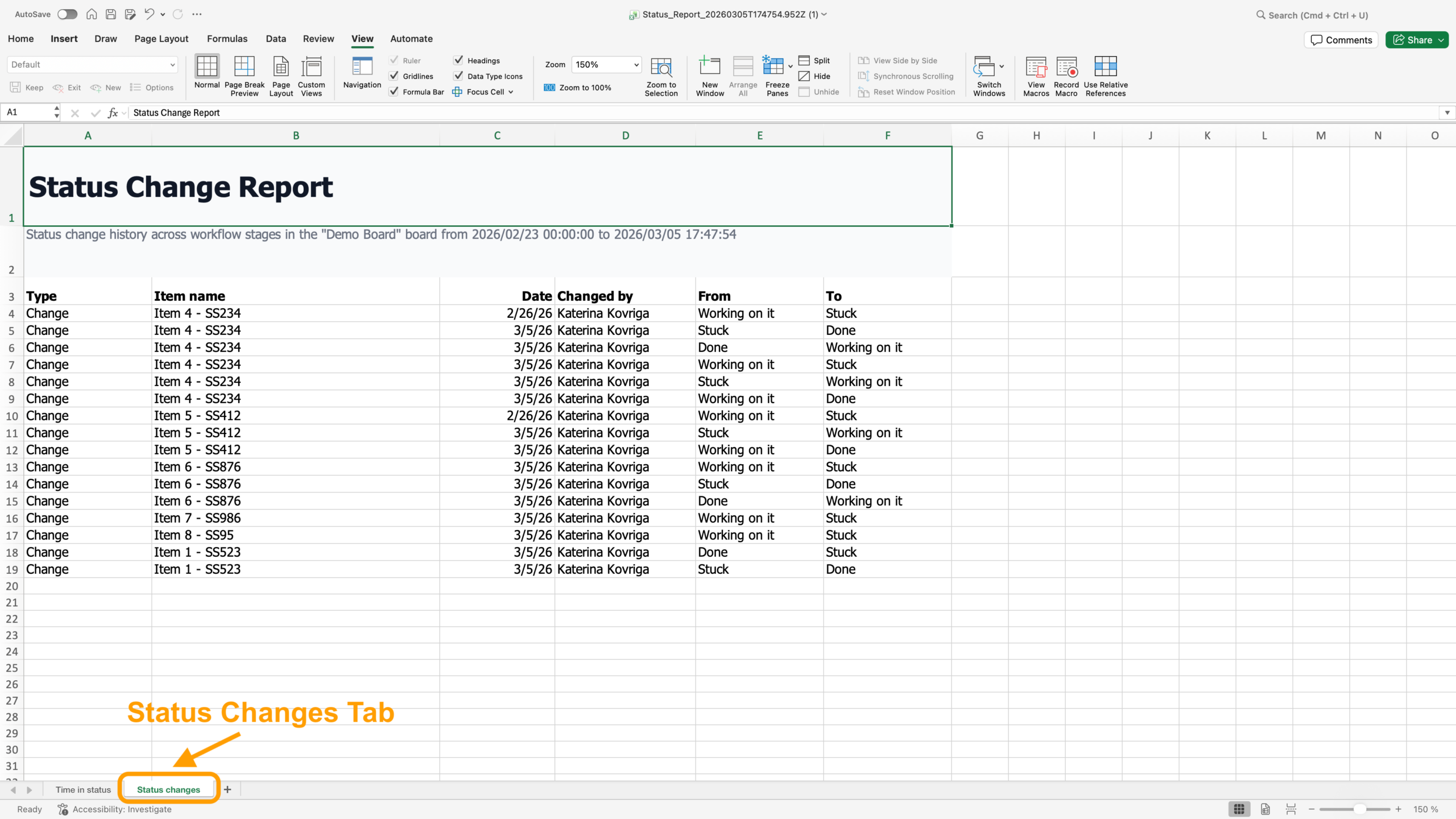
2. Status Changes
This tab provides a chronological history of all status changes for the selected items. It helps teams understand why delays happen by showing how tasks moved through the workflow over time.
For example:
-
A single long “Stuck” period may indicate a major blocker.
-
Frequent switching between “In Progress” and “Stuck” may reveal recurring smaller issues, missing information, or poor task preparation.
 Takeaway: Use the Status Report to identify workflow bottlenecks, understand the root causes of delays, and improve process stability across your projects.
Identify Silent Tasks and Monitor Team Communication Activity
One of the earliest signs of project risk is often a lack of communication around tasks. When items stop receiving updates, it becomes harder to understand whether work is progressing, blocked, or simply forgotten.
At the same time, managers and team leads often need visibility into who is actively contributing to project discussions: reviewing feedback, coordinating work, or following up on blockers.
To stay on top of project health, teams typically need to answer questions like:
-
Which tasks received updates this week?
-
Which items have gone silent?
-
Are critical tasks actively discussed?
-
Who is contributing updates across the project?
-
How actively is a specific team member participating in discussions?
These cases can be covered with the Last Updates Report and Last Updates by User Report.
The Last Updates Report shows item updates added within a selected time period, helping teams identify inactive tasks, prevent delays, and maintain steady project progress.
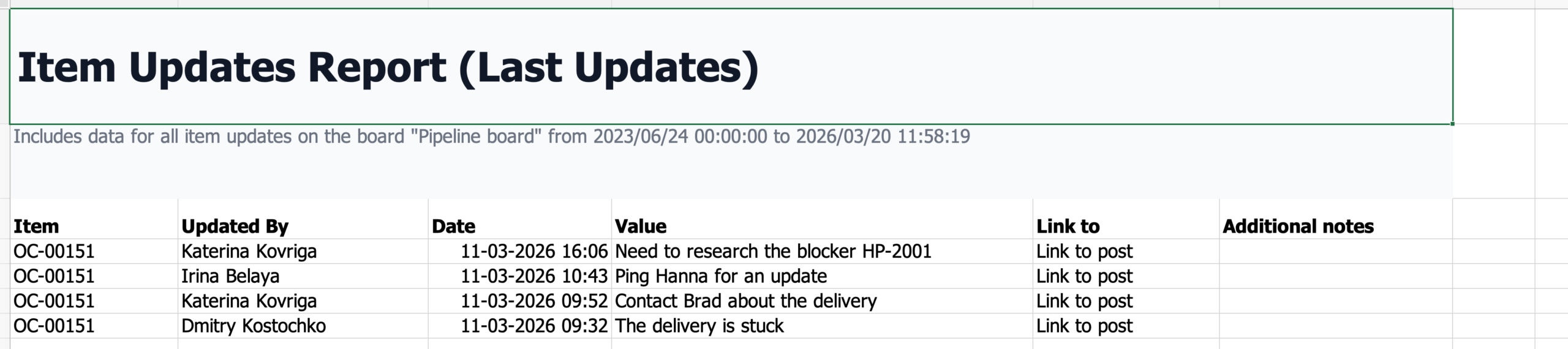
The Last Updates by User Report follows the same structure, but adds a filter for a specific update author. This helps managers review communication activity for individual team members across multiple project items.

By “updates,” we refer to the Updates section inside monday.com items.
Takeaway: Use the Last Updates and Last Updates by User reports to identify silent tasks, monitor team communication activity, and keep projects moving forward.
Monitor Workload Growth and Spot Bottlenecks Early
In growing projects, task volume can increase faster than teams realize. Without visibility into how many new tasks are being created, managers may miss early signs of overload, uneven work distribution, or process bottlenecks.
To stay on top of project health, teams often need answers to questions like:
-
How many new tasks were created this week?
-
Is workload growing too quickly?
-
Which groups or workflows receive the most new items?
-
Are tasks distributed evenly across the team?
-
Is the backlog expanding faster than work gets completed?
These cases can be covered with the Tasks Created Report.
The report shows all new items created within a selected time period, helping teams monitor workload growth, analyze task creation trends, and improve resource planning. For example, a team lead can receive a weekly report showing how many new tasks were added to the “To Do” group during the past 7 days.
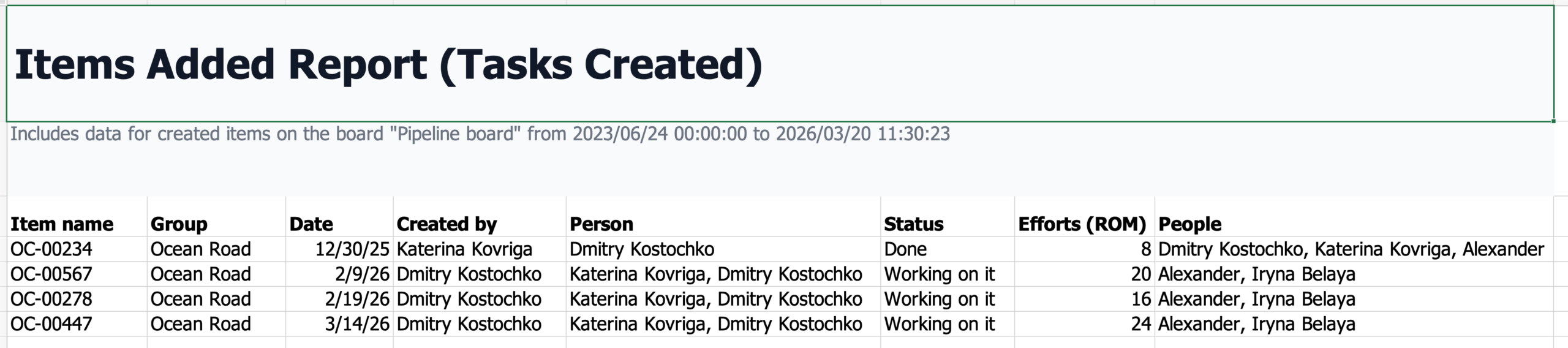
Takeaway: Use the Tasks Created Report to monitor workload growth, detect bottlenecks early, and keep task distribution under control.
Monitor Team Workload and Understand Where Time Is Spent
Tracking project progress is important, but understanding how team time is actually distributed across tasks is equally critical for maintaining healthy workflows and balanced workloads.
Without visibility into time tracking changes, managers may struggle to identify overloaded team members, underestimated tasks, or projects consuming more effort than expected.
To stay on top of project health, teams often need answers to questions like:
-
Which tasks is the team actively working on?
-
Where is most of the team’s time being spent?
-
Are some tasks taking longer than expected?
-
Is workload distributed evenly across the team?
-
Which employees may be overloaded or underutilized?
These cases can be covered with the Time Tracking Change Report.
The report shows updates to time tracking within a selected reporting period, helping teams monitor workload, evaluate time distribution across tasks, and assess individual performance. For example, a team lead can receive a weekly report summarizing all tasks where time tracking was updated during the past 7 days.

Takeaway: Use the Time Tracking Change Report to monitor workload distribution, identify overloaded teams, and gain visibility into where project time is actually spent.
Track Budget Changes and Monitor Financial Adjustments
In many projects, budgets, estimates, and revenue projections change constantly. Without visibility into these changes, teams can easily miss unexpected cost increases, inaccurate forecasts, or financial discrepancies that impact project health.
To stay on top of project health, managers and finance teams often need answers to questions like:
-
Which budget values changed this week?
-
Were there unexpected increases in project costs?
-
Which tasks received updated financial estimates?
-
Are revenue and expense projections staying aligned?
-
Which financial changes require additional review?
These cases can be covered with the Number Change Report.
The report tracks updates to numeric columns within a selected reporting period, helping teams monitor budget changes, financial adjustments, and forecasting updates. For example, a finance manager can receive a weekly report showing all tasks where number values – such as budgets, expenses, or revenue figures – were updated during the past 7 days.
Regular monitoring helps teams identify discrepancies early, maintain accurate forecasts, and keep financial reporting up to date.
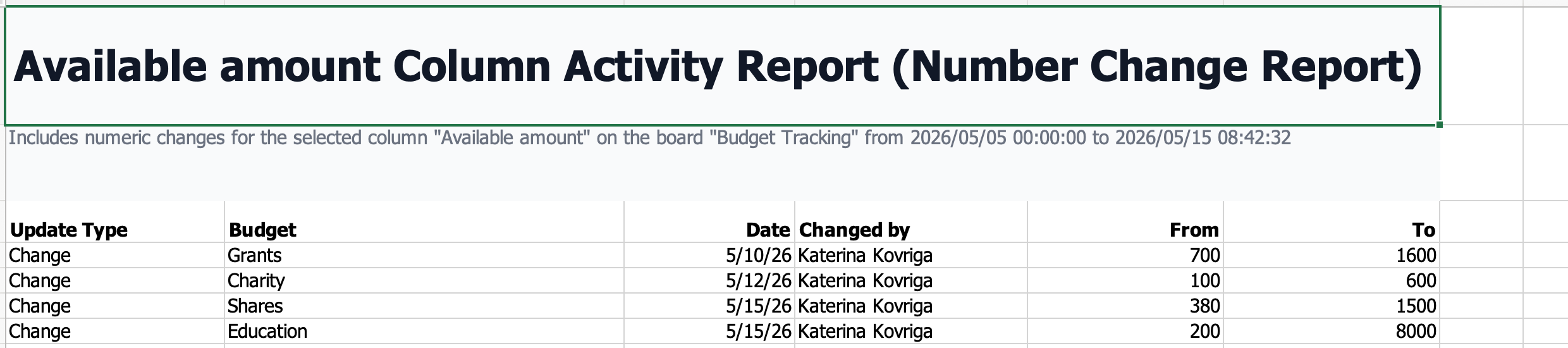
Takeaway: Use the Number Change Report to monitor budget changes, track financial adjustments, and spot unexpected cost increases before they become project risks.
Identify Overdue Tasks Before They Impact Delivery
Missed deadlines are one of the clearest indicators of project risk. But in busy workflows, overdue tasks can easily get buried among active items – especially when multiple teams and dependencies are involved.
Without proactive visibility into overdue work, managers may only notice delivery risks after timelines have already slipped.
To stay on top of project health, teams often need answers to questions like:
-
Which tasks missed their deadlines?
-
Which overdue items still remain in progress?
-
Are delays isolated or becoming a broader trend?
-
Which teams or workflows generate the most overdue tasks?
-
Which urgent items require immediate attention?
These cases can be covered with the Overdue Items Report.
The report shows items with past deadlines within the selected reporting period, helping teams monitor delays, prioritize urgent work, and proactively resolve blockers before they impact project delivery.
For example, a project manager can receive a daily report listing all tasks in the “In Progress” group with deadlines that passed during the last 24 hours.

Takeaway: Use the Overdue Items Report to identify delivery risks early, prioritize overdue work, and keep projects moving toward deadlines.
How to Set Up Custom Reports in monday.com
Board Email Reports allows teams to create custom reports in several different ways depending on how much flexibility and automation they need.
The most customizable approach is through the monday.com Automation Center. Teams can create reports fully from scratch by defining their own automation trigger and then adding a Board Email Reports action block. This setup works well for organizations that need highly specific reporting logic tailored to their workflows.
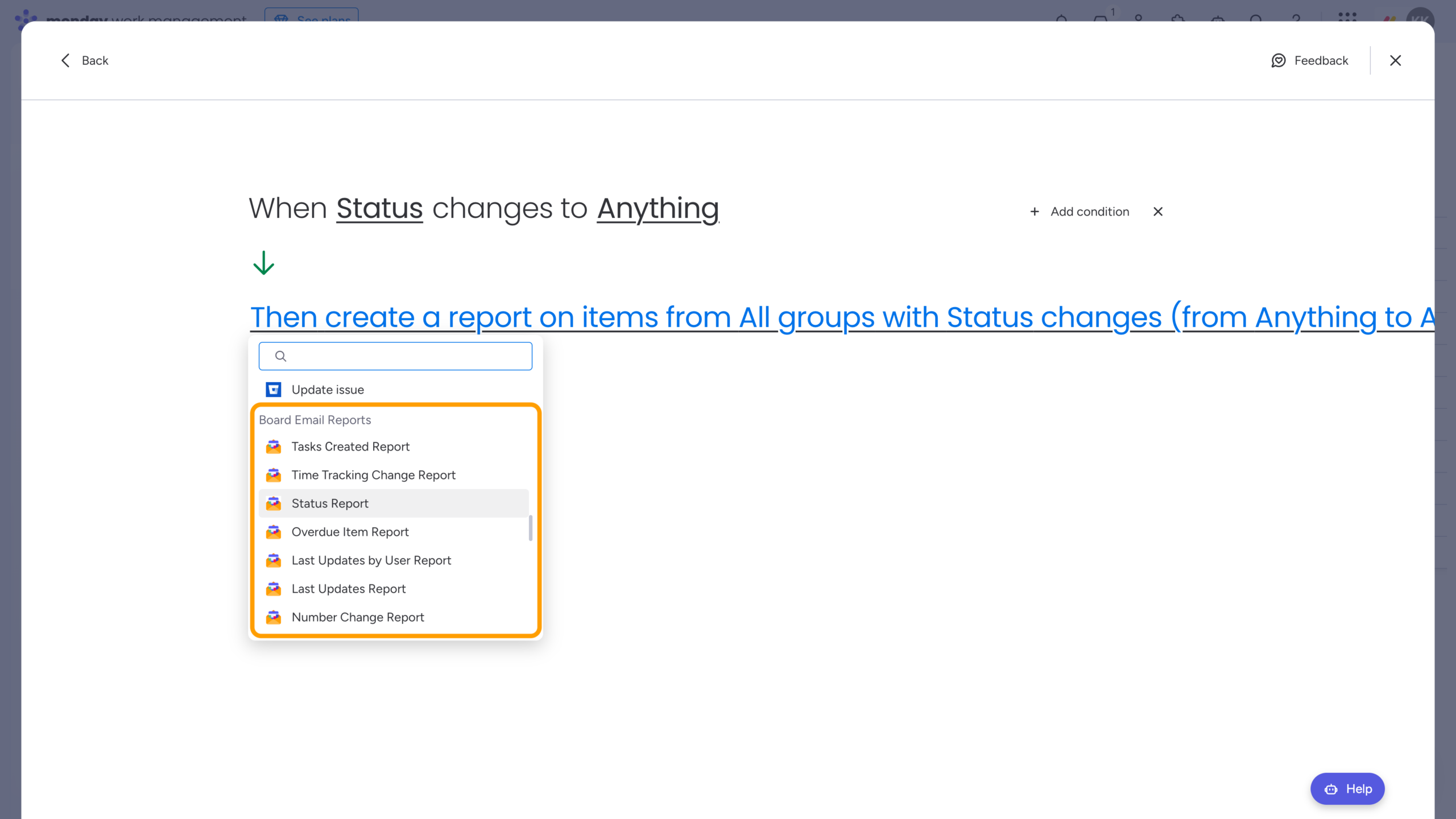
For faster setup, teams can also use ready-made report templates available inside the Board Email Reports folder in the Automation Center. These templates already include predefined triggers, making it easier to launch common reporting scenarios without building automations manually.
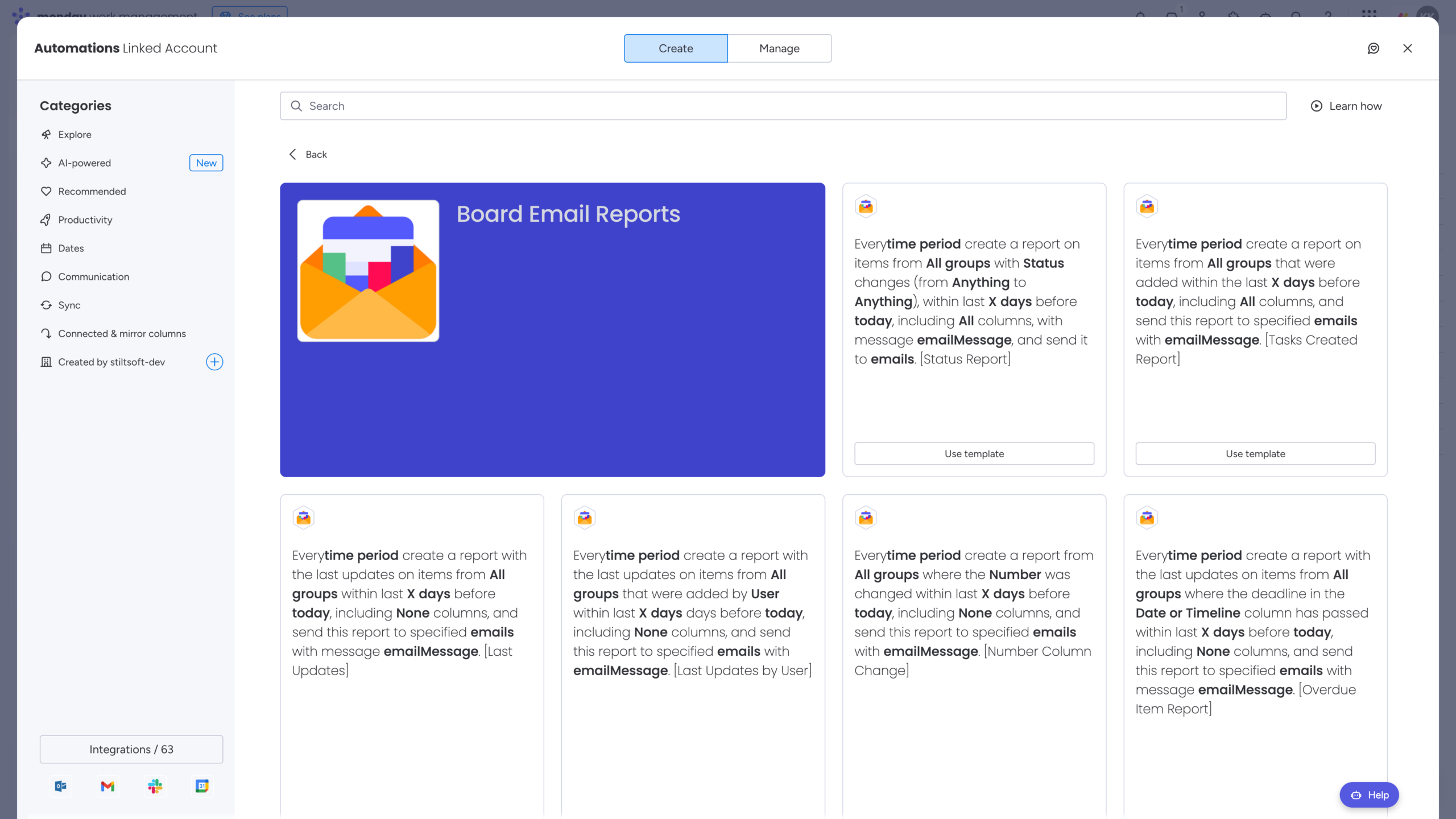
Another option is creating reports through monday Workflows. In this case, teams can add Board Email Reports blocks directly into workflows alongside other business processes and automations.
This flexibility allows teams to build reports around their actual workflows instead of adapting workflows to static reporting limitations.
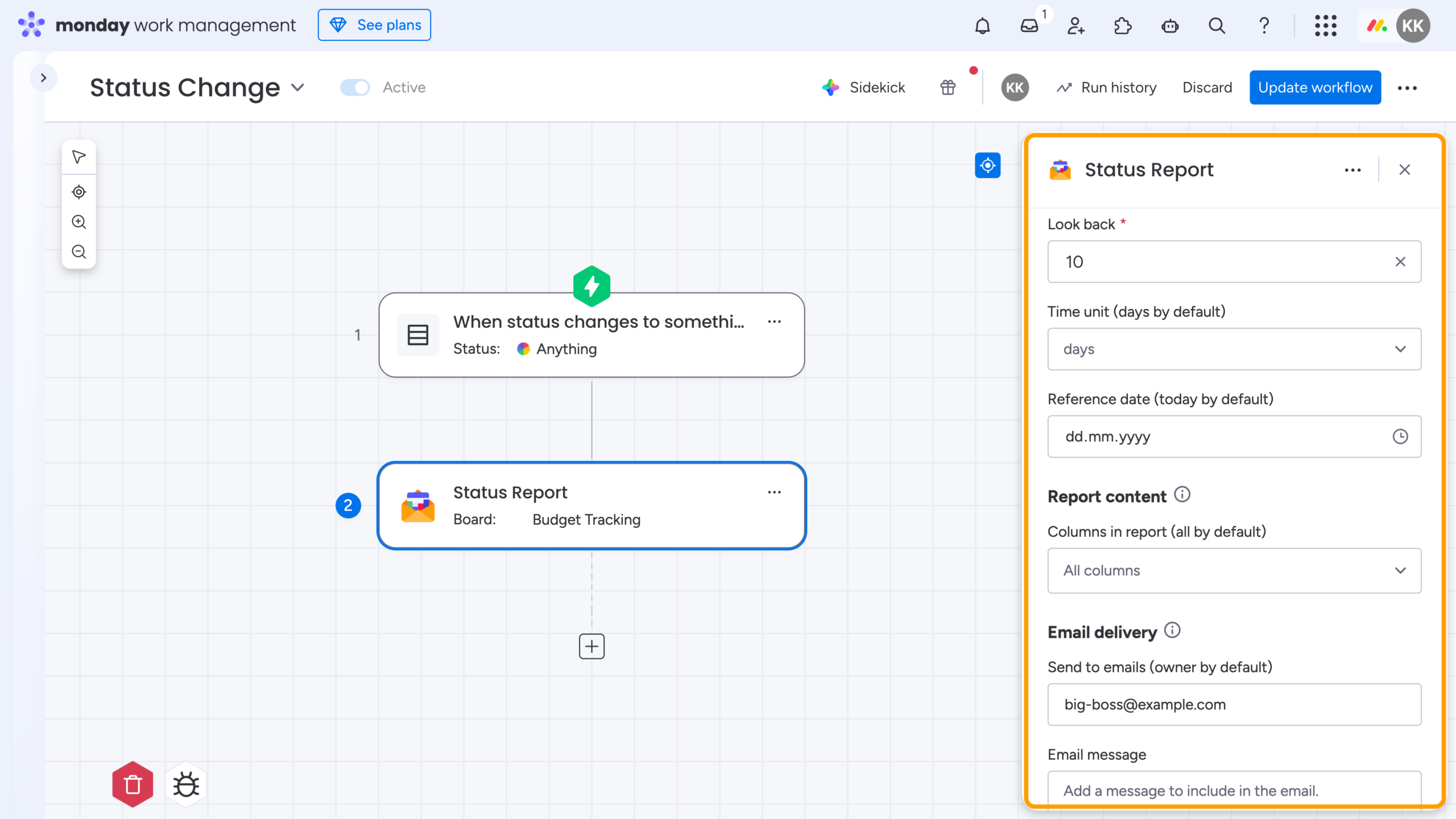
Takeaway: Custom reports in Board Email Reports can be tailored to your exact workflow – from simple ready-made templates to fully customized automated reporting processes in monday.com.
Wrap-Up
Healthy projects are not just about completing tasks – they’re about maintaining visibility into progress, workload, risks, delays, communication, and changing priorities over time.
While monday.com boards provide an excellent real-time view of ongoing work, custom reports in Board Email Reports help teams see the bigger picture: identify bottlenecks, monitor workflow health, track overdue work, analyze team activity, and detect project risks before they impact delivery.
Instead of manually compiling updates and reviewing board history, teams can automate reporting around the metrics and workflow events that matter most to their projects.
Whether you need to monitor silent tasks, balance workloads, track budget changes, or understand why work gets stuck, custom reports help you stay on top of project health – automatically.
FAQ
What if the report I need isn’t available?
If you need a specific custom action block or reporting scenario that isn’t currently available, feel free to contact our team with your request. We continuously expand reporting capabilities based on customer workflows and use cases, and we’ll be happy to discuss possible implementation options.
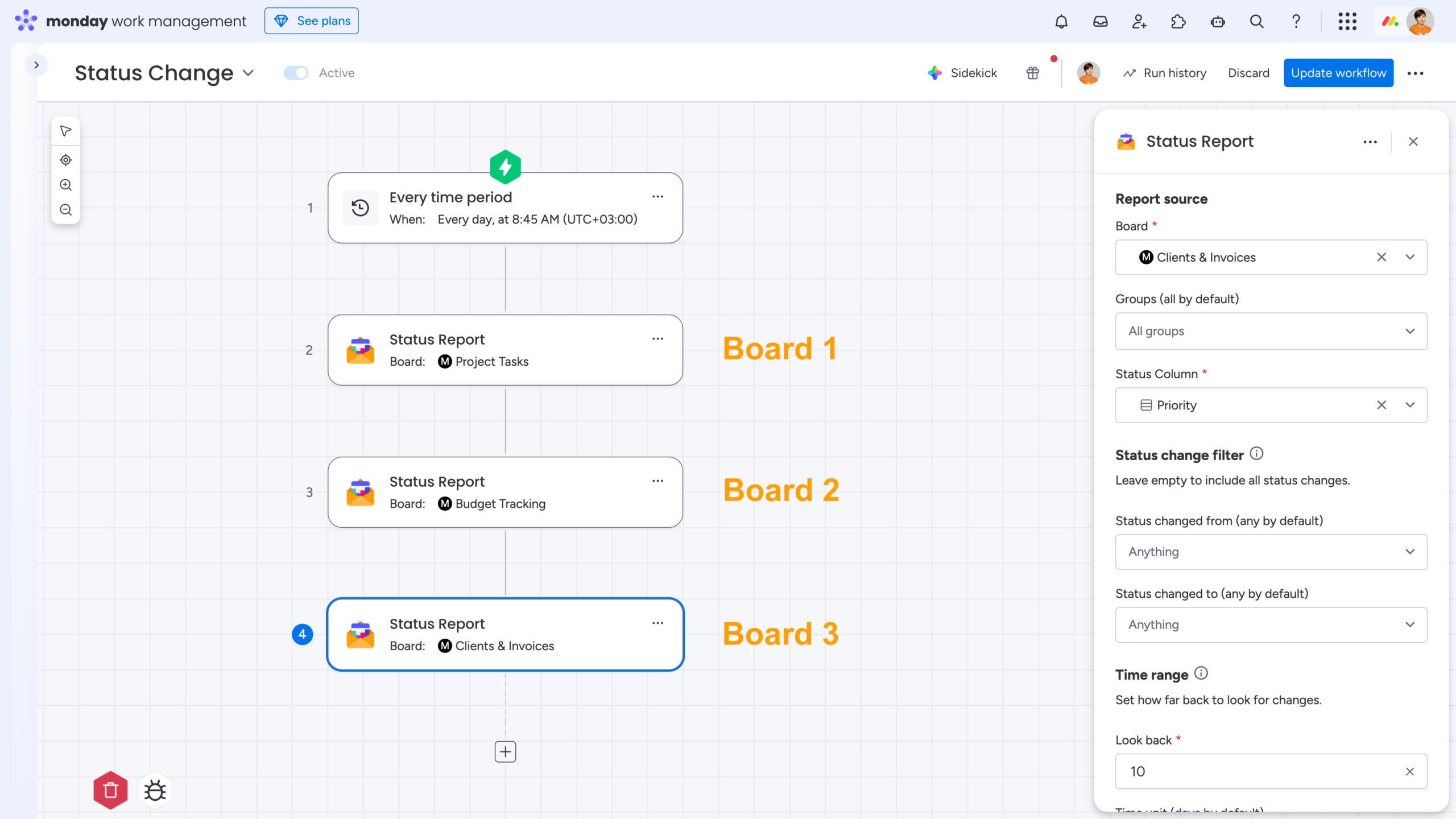
How can I send reports from multiple monday.com boards?
You can add several Board Email Reports action blocks to the same monday Workflow – one block per board. While each board will still generate its own report, this approach allows you to manage all report automations from a single workflow configuration.
Can reports be sent to users outside monday.com?
Yes. Reports can be delivered via email to both monday.com users and external stakeholders. This is especially useful for clients, executives, or partners who need project visibility without requiring additional monday.com licenses.