






How Dashboards Work in monday: An Overview Tutorial for Teams
As teams scale and work becomes more complex, relying on individual boards alone is no longer enough to understand what’s really happening across projects. Dashboards in monday are built to solve this problem by bringing data from multiple boards into a single, visual workspace. In this tutorial, we’ll break down how dashboards work in monday, how data flows from boards into widgets, and what teams should know to build dashboards that deliver clear, actionable insights.
What is a monday Dashboard?
A monday Dashboard is a centralized location for real-time data visualization based on one or several boards. How to use dashboards in monday? The answer is pretty obvious: teams use them for an instant summary overview of their projects, making it easy to monitor progress, track performance, and make informed decisions at a glance.
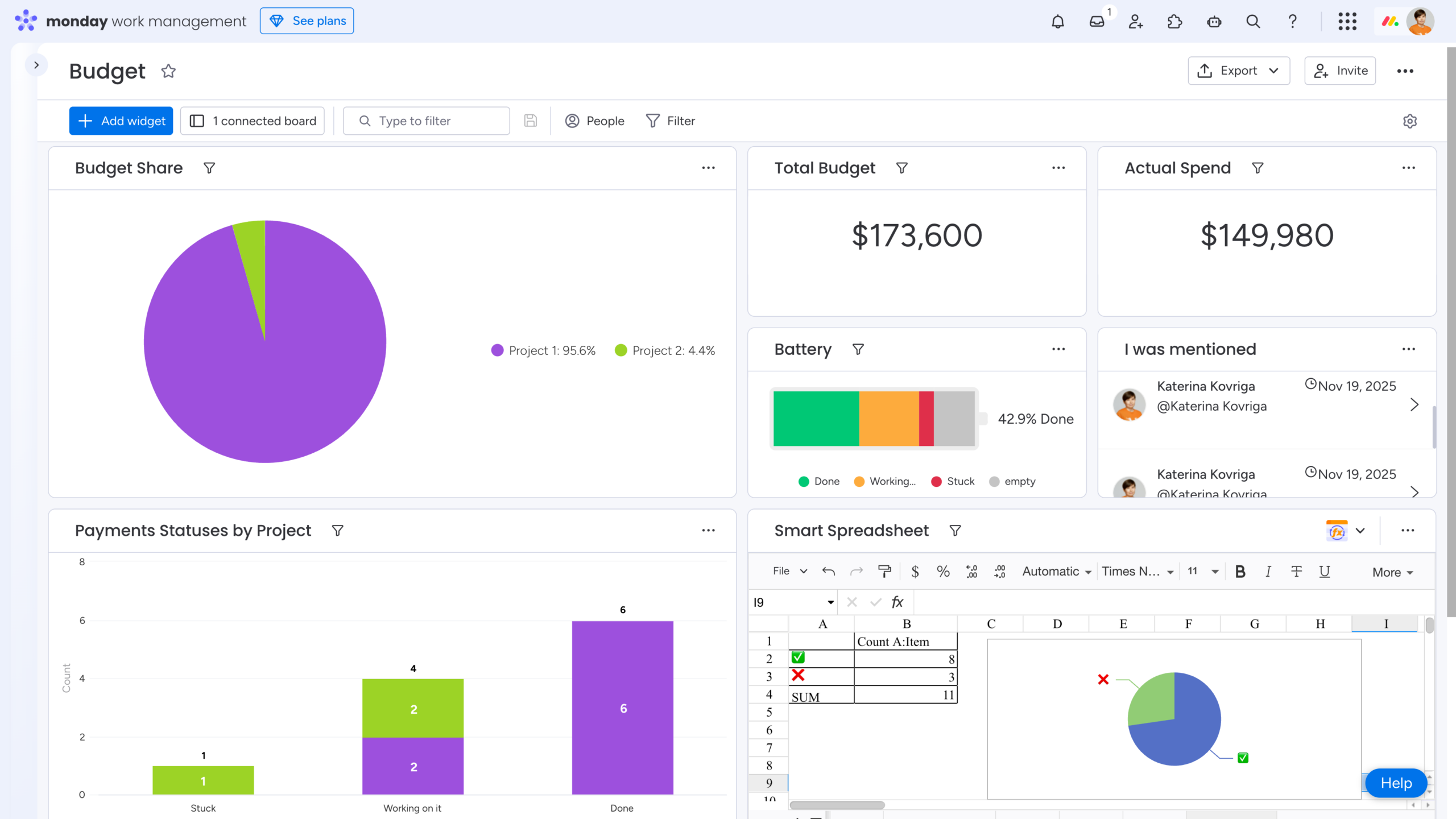
💡 Takeaway: Use monday Dashboards for real-time summary data visualization across your projects.
How to Add a Dashboard in monday?
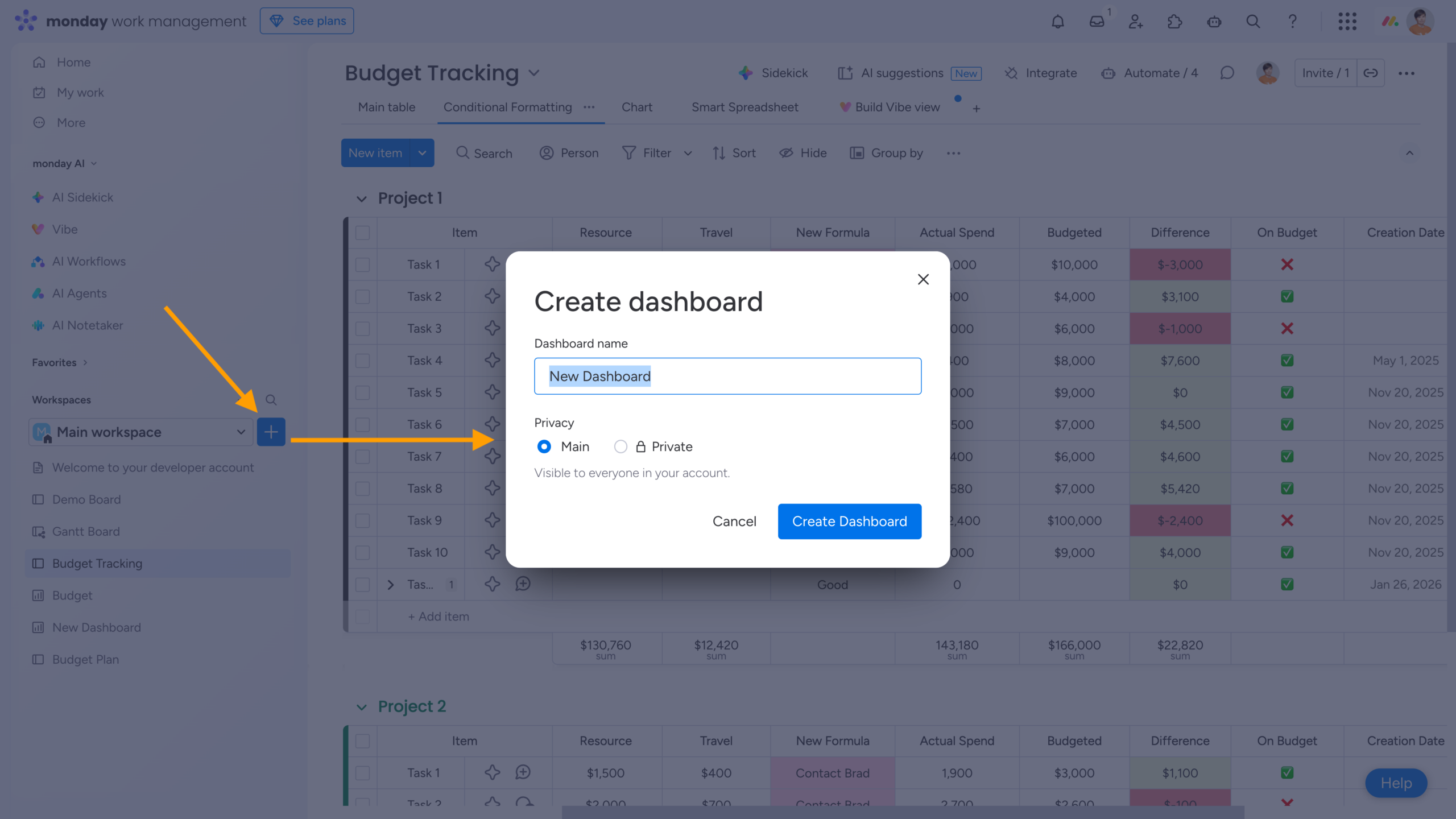
To add a new Dashboard to a Workspace, click the “+” button below the workspace name and select “New Dashboard.” This simple process is explained step by step in an official monday.com guide.
When creating a dashboard, you’ll be prompted to choose whether it should be public or private:
-
Public – visible to everyone in your account
-
Private – visible only to you and the specific team members you invite
However, dashboard permissions go beyond this initial setting. Dashboard widgets always respect the permissions of the connected boards, which means that two users with different access rights may see different data on the same dashboard.
If you notice unexpected differences in widget data, check the following:
-
Are any connected boards located in private workspaces?
-
Are any of the connected boards private?
-
Are there hidden columns for some users?
-
Are there any item view restrictions in place?
By comparing board- and user-level permissions, you can usually identify the reason for differences in widget output and data display.
To avoid confusion around complex permission settings, you can also refer to an official monday article that explains dashboard and board permissions in detail.
💡 Takeaway: While creating a dashboard is simple, ensuring that everyone has the correct access can be more complex. Different data shown in dashboard widgets usually means different underlying permissions.
How to Create a Cross-Board Dashboard?
With the Standard plan, monday allows you to link up to five boards to a single dashboard, while advanced plans support larger cross-board setups. For a complete breakdown of plan features, refer to the official monday documentation.
When connecting boards, you’ll be prompted to choose whether the newly selected boards should be added to existing widgets. If you leave this option unchecked, you can add the boards later manually, widget by widget.
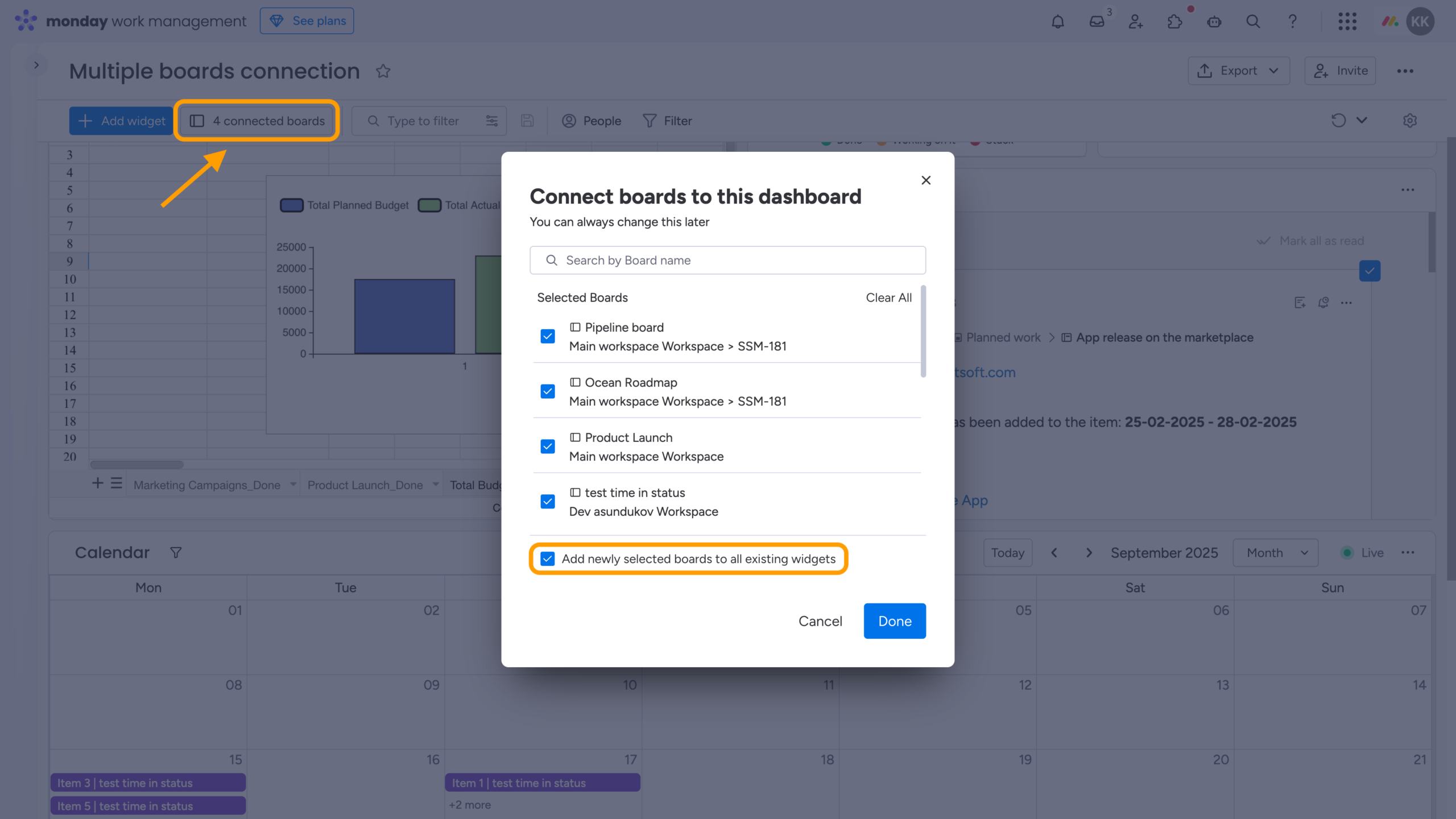
You can also connect additional boards directly from each widget’s settings, giving you flexibility as your dashboard evolves.
💡 Takeaway: Paid monday plans allow you to create a cross-board (cross-project) dashboard for a consolidated, high-level overview.
How to Set Up a Dashboard in monday?
To set up a dashboard, you need to add widgets and configure them to match your needs. Simply open a widget’s settings, select the relevant boards and columns, apply filters, and adjust the appearance to highlight the data that matters most.
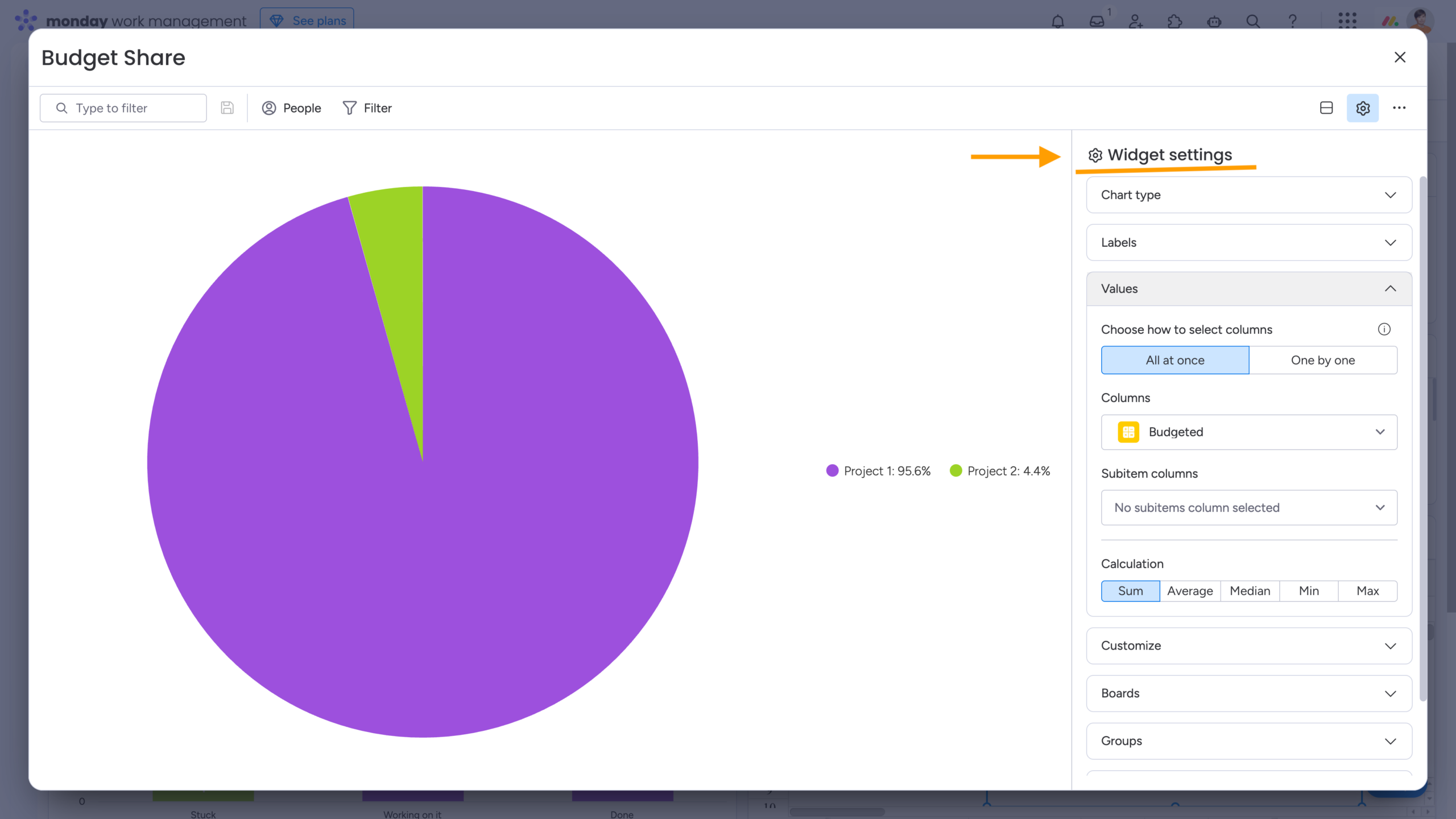
Below are some of the most popular dashboard widgets used by monday users:
-
Chart Widget
Visualizes data using pie, bar, line, and other chart types, making it easy to spot trends and compare metrics across connected boards. Pro Tip: Want to build a historical status distribution report? Check out our latest guide: Two-Minute How-To: Getting Current and Historical Status Distribution in monday.com.
 -
Timeline / Gantt Widgets
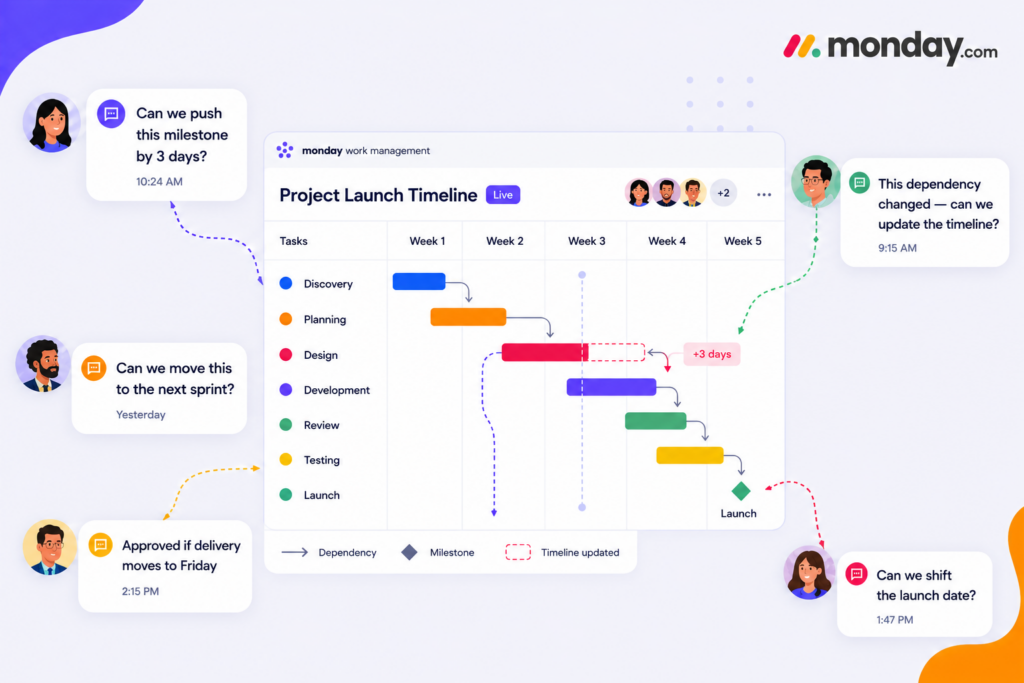
Display schedules and timelines across multiple boards, making them ideal for milestone tracking, project planning, and deadline management. Pro Tip: Want cleaner, more reliable Gantt charts in monday? Our latest blog post, 5 Tips to Become a Gantt Chart Expert Using monday.com, covers practical ways to structure timelines, track changes, and review project schedules with customers without losing control of the plan. -
Workload Widget
Helps balance team capacity by showing how much work is assigned to each person, allowing you to identify bottlenecks and prevent overloading. -
Numbers Widget
Provides a quick snapshot of key metrics from one or more boards – perfect for tracking totals such as hours, budget, or task counts. -
Battery Widget
Shows progress visually using intuitive battery-style indicators, offering an at-a-glance view of completion status.
You can explore additional widgets in the monday documentation and further customize your dashboards to fit different teams and use cases.
💡 Takeaway:Choose and configure dashboard widgets that best suit your reporting needs.
How to Extend a monday Dashboard with Smart Spreadsheet?
Beyond native widgets, monday dashboards can also be extended with third-party apps. For example, in our blog post How to Use monday.com for Financial Management: Budgets, Tracking, and Reporting, we show how Smart Spreadsheet is added as a Board View, but it can also be used as a Dashboard widget. Just add it like any native widget, start from scratch or connect existing boards, and build summary calculations, pivot tables, and charts based on live project data.
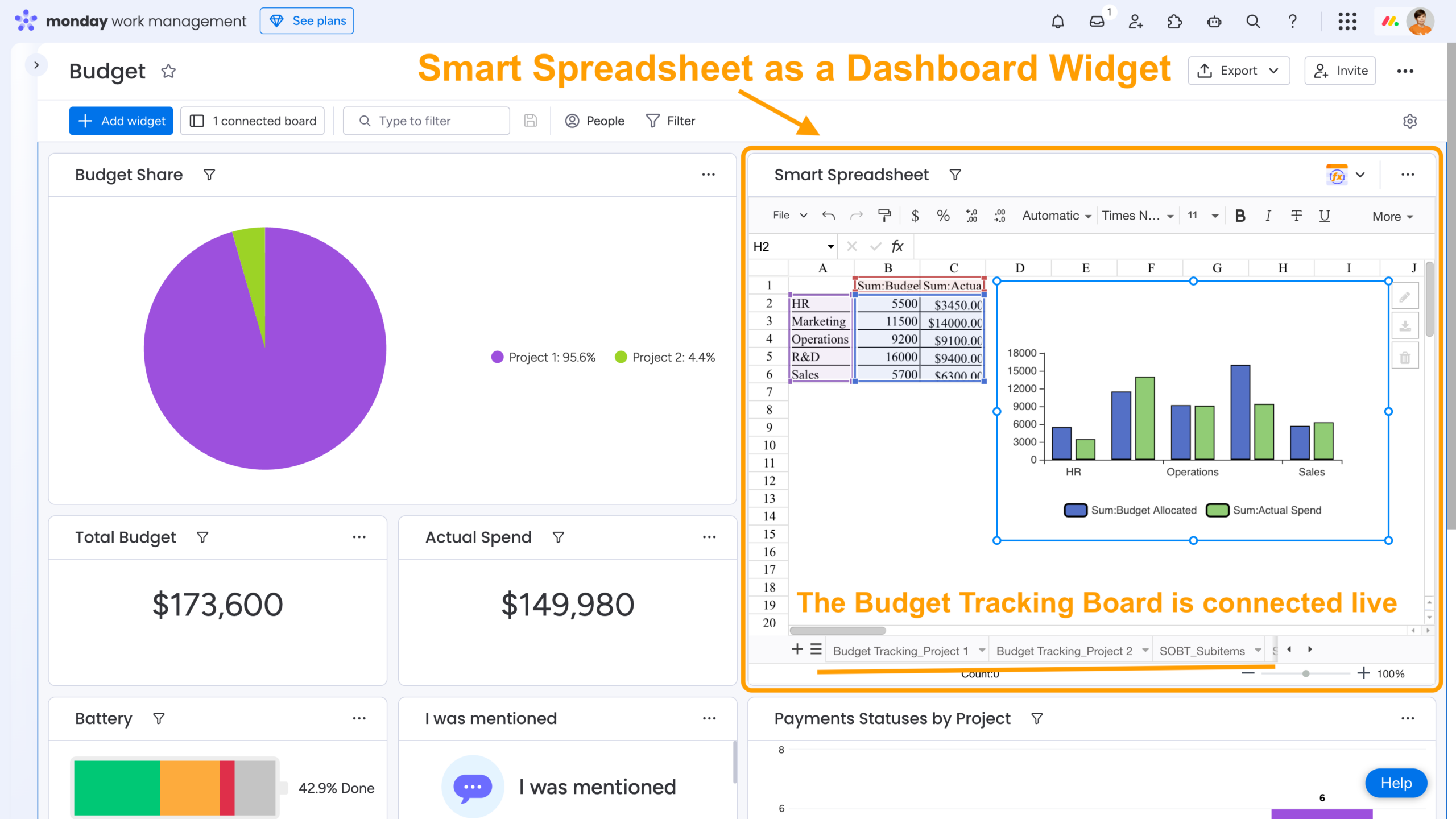
Here’s where Smart Spreadsheet clearly outperforms native dashboards:
1. Advanced formulas beyond monday dashboard calculations
Native dashboard widgets support only simplified calculations. For more complex logic, formulas must be created in advance as board columns, which reduces flexibility and slows down ad-hoc analysis.
Smart Spreadsheet allows you to:
-
Use Excel-like formulas directly inside the widget
-
Perform calculations on the fly, without changing board structure
-
Reference entire boards, specific groups, or subitems
-
Apply formulas row by row, just like in a spreadsheet
This makes Smart Spreadsheet ideal for financial metrics, KPIs, forecasts, and custom logic that native dashboards can’t handle.
2. Editable widgets, not read-only dashboards
Native monday dashboards are read-only: you can view data, but you can’t interact with it.
With Smart Spreadsheet, you can edit data directly inside the widget, and any changes are automatically synced back to the original board. You can also run calculations directly on the dashboard and instantly add the results to the board. This eliminates the need to switch between dashboards and boards, allowing dashboards to evolve from static reports into fully interactive workspaces.
3. No plan-dependent limits
Native dashboards come with plan-based limitations. For example, the number of connected boards is strictly capped, and Pivot widgets are available only on Enterprise plans.
Smart Spreadsheet removes much of this friction:
-
External Excel data can be imported directly into the widget without creating new boards
-
Pivot tables are created in an Excel-like format and are available by default
-
Board and external data can be combined seamlessly for further analysis
This reduces the need to constantly balance real business requirements against plan constraints and cost considerations.
4. More flexible pivots and charts
In native dashboards, charts, numbers, and pivots (when available) are split across separate widgets.
Smart Spreadsheet brings everything together by combining pivot tables, formula-based calculations, and charts built on the same dataset. This gives you greater control over grouping, aggregation, and data structure, while enabling faster iteration without rebuilding multiple widgets – resulting in significantly more analytical flexibility in a single place.
5. Multiple views in one widget
Native dashboards often become cluttered because each visualization requires a separate widget.
Smart Spreadsheet helps reduce this clutter by supporting multiple sheets (tabs) within a single widget. This is especially valuable for executive and portfolio dashboards, where clarity matters.
Beyond on-screen analysis, Smart Spreadsheet lets you export data in spreadsheet-friendly formats while preserving formulas, pivots, and the overall structure. These reports can be easily shared with finance teams, leadership, or external stakeholders without any additional rework.
6. Complete subitem reporting
Subitems aren’t consistently supported across native monday dashboards. While some widgets (such as Gantt, Timeline, Workload, Battery, Number, and Calendar) can display subitems, many others don’t support them. This makes it difficult to build reports that include both parent items and their subitems.
Smart Spreadsheet removes these limitations by importing both items and subitems into the same spreadsheet, where subitems can be used in formulas, pivot tables, and charts.
Whether you’re tracking project phases, financial breakdowns, or task hierarchies, Smart Spreadsheet gives you complete visibility into your data – even when native dashboard widgets can’t.
 Pro Tip: Want a realistic, end-to-end workflow that shows how teams actually use Smart Spreadsheet inside a monday dashboard?
Imagine you’re a project operations or finance manager responsible for tracking costs, effort, and delivery status across multiple ongoing projects. You already have several active monday boards for different projects and existing Excel spreadsheets with reference data (rates, budgets, targets). Now you need one consolidated dashboard without rebuilding everything in monday.
1. Add Smart Spreadsheet as a Dashboard widget
2. Import reference Excel sheets using the File → Import option, or simply copy and paste the required data manually. Common examples of reference sheets include hourly rates by role (such as Developer, Designer, or QA), project budgets, target margins or KPIs, and cost centers or departments. Once imported, these Excel sheets appear as separate tabs inside Smart Spreadsheet, making them easy to reference in calculations and analysis.
3. Import one or multiple boards into Smart Spreadsheet using the File → Import Board option. For each imported board, Smart Spreadsheet lets you customize the import structure. Import all board groups into separate sheets (one sheet per group) or combine them into a single sheet – whichever best fits your workflow. If required, subitems can also be imported into a dedicated sheet. Any updates you make in these sheets are instantly synced back to the corresponding boards – no manual switching required. These sheets can also be referenced directly in formulas and calculations, just like standard spreadsheet tabs.

4. Perform cross-sheet calculations using standard cell formulas. For example, you can calculate actual cost per task as Hours (from board items or subitems) × Hourly rate (from an imported Excel reference sheet), or compute budget variance as Budget (reference sheet) − Actual cost (board data).
Referencing data from another sheet follows the standard spreadsheet format, making formulas easy to read and maintain, for example, =Sheet_name!A1. You can find the full list of supported functions in our documentation.
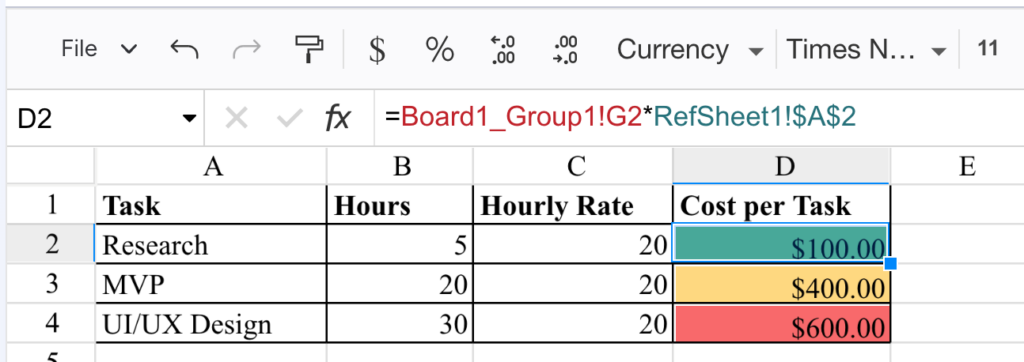
Build pivot tables and charts from the same dataset once calculations are in place. For example, you can analyze cost by project and role, budget vs. actual spend by month, or workload versus cost efficiency, and extend this approach to many other analytical scenarios – all within a single widget (See the fourth question in the FAQ section for an example of using pivots and charts).
💡 Takeaway: Combine native and third-party widgets to tailor dashboards to your real needs. While monday dashboards are excellent for real-time overviews, Smart Spreadsheet extends them into a spreadsheet-powered analytics layer – removing calculation limits, reducing dashboard clutter, and enabling deeper insights, all without leaving monday.
Wrap-Up
monday Dashboards are a powerful way to visualize real-time summary data across your projects and keep everyone aligned around a single source of truth. While creating a dashboard is quick and intuitive, it’s important to remember that access control can be more nuanced – the data shown in each widget depends on the underlying board permissions, so visibility may vary from user to user.
If you’re on a paid monday.com plan, you can take this even further by building cross-board dashboards, giving you a consolidated, high-level view across multiple projects and teams. To maximize the value of your dashboards, combine native widgets with third-party ones and tailor them to your specific use cases.
One example is our Smart Spreadsheet, which can be used as a Board View, Dashboard widget, and Docs widget – all while maintaining a live connection to one or multiple boards. It’s a flexible option to extend monday dashboards from simple visualization to full-scale, spreadsheet-powered analysis – without data limits, without plan restrictions, and without leaving monday.
FAQ
Is monday good for dashboards?
Yes. monday dashboards are well suited for real-time, operational reporting, especially for tracking projects, team performance, and ongoing work.
Are monday dashboards real time?
You can choose to enable or disable live data streaming on a dashboard. When live data is enabled, any changes made to connected boards are reflected in real time, allowing you to see updates immediately as they happen.
When live data is disabled, the dashboard becomes a read-only report of your boards and updates only when you refresh the page or click the “Refresh” button. For more details on how live data streaming works, you can refer to the relevant monday article.
What filters are available in monday dashboards?
Dashboard filtering helps you tailor the data shown to what’s most relevant for you and your team. By applying filters, you can reduce noise and highlight only the information that matters – such as tasks assigned to a specific person, items within a defined timeframe, or work with a particular status. Filters can be applied globally across the dashboard or individually within each widget, giving you flexible control over how data is displayed.
How do I create a project management, team performance, or marketing dashboard in monday?
Dashboards for project management, team performance, or marketing are often built around KPIs tracked over time (for example, quarterly results). A common setup starts with a simple board where each item represents a KPI and columns store its values over time.
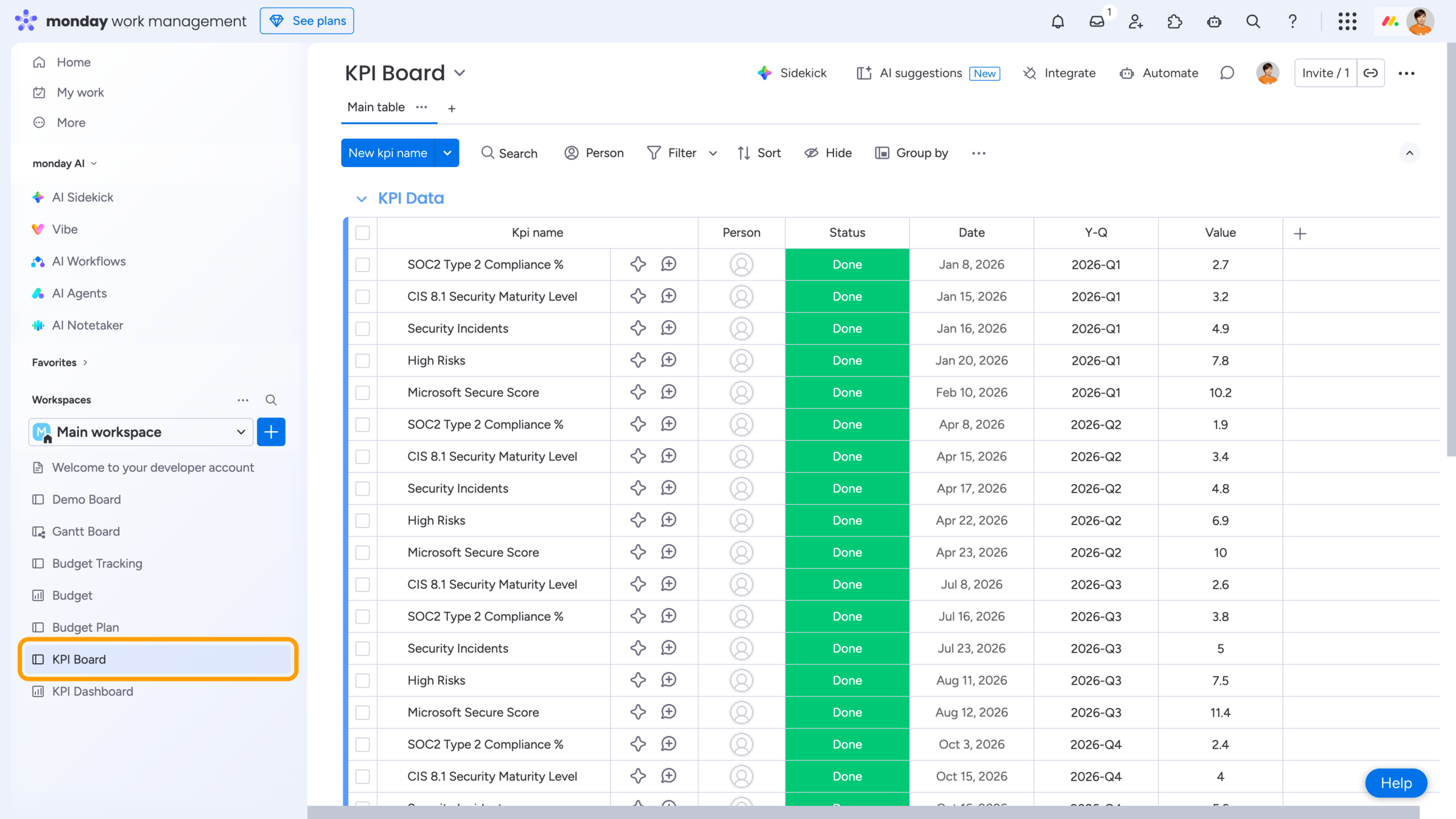
To visualize multiple KPIs, you can use native monday widgets such as Chart or Pivot Board (the latter is currently available only on the Enterprise plan at the time of publishing). However, if you want to work in a familiar, Excel-like environment and keep everything live and in one place, Smart Spreadsheet offers a flexible and practical alternative:
1. Add it as a Dashboard widget
2. Import the required board(s) to keep your report connected to live data
3. Build a Pivot Table based on that data (similar to Excel or Google Sheets):
- Filter it to include only the KPIs you need
- Hide totals if necessary (via the label menu)
- Apply conditional formatting for better readability
4. Create a chart directly from this Pivot Table
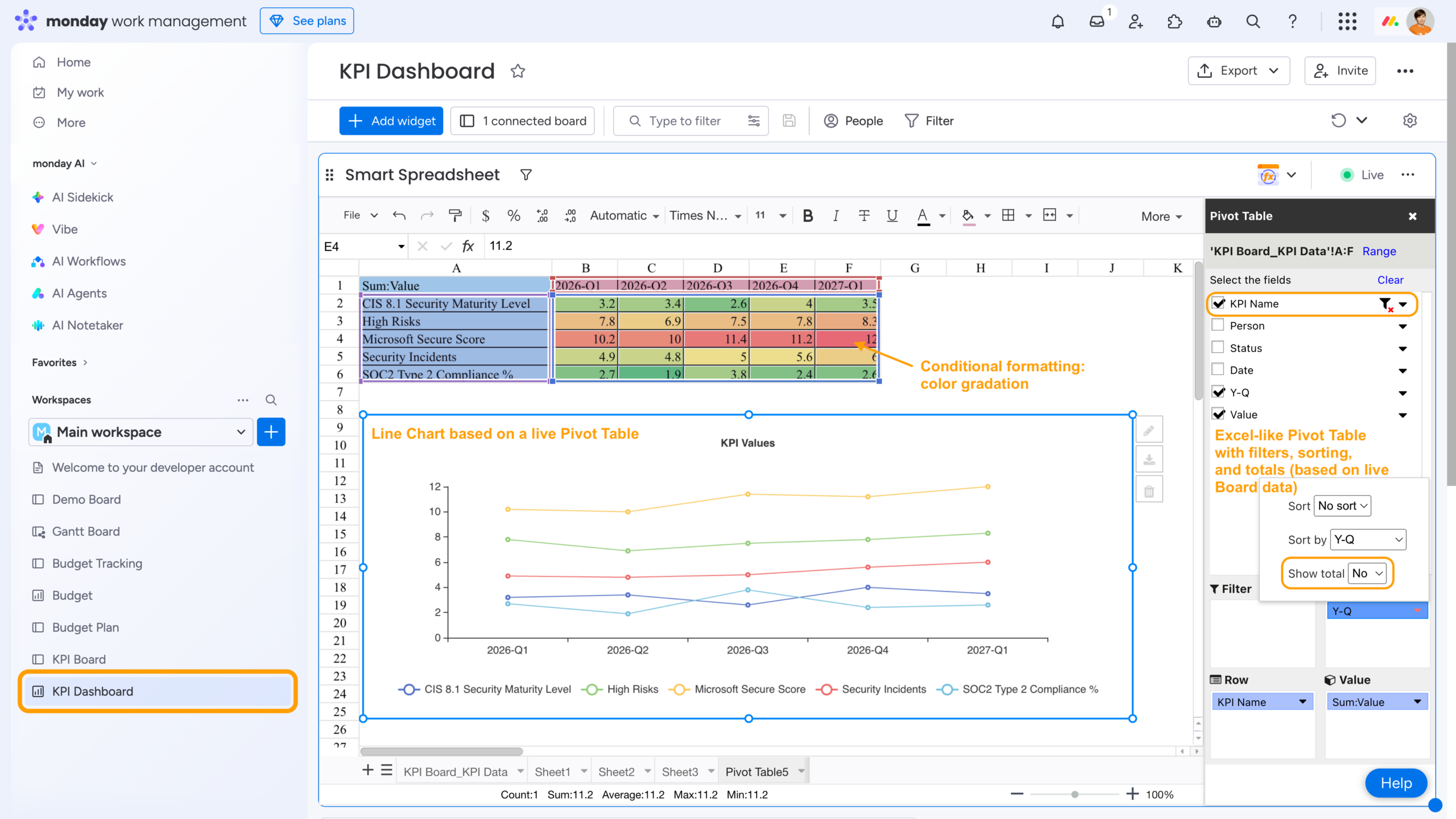
Beyond a single chart, you can add multiple pivot tables, charts, and sheets within the same widget, use Excel-like formulas, and even combine data from several connected boards. This allows you to build a fully functional, consolidated dashboard inside one widget – reducing visual clutter while keeping all calculations and visuals in sync with live board data.
In short, native widgets work well for simple cases, while Smart Spreadsheet gives you more flexibility, familiar spreadsheet behavior, and a cleaner dashboard structure when reporting needs grow more complex.
What are the limits of monday dashboards?
Some dashboard limitations exist due to performance and capacity constraints, especially when working with large datasets or multiple connected boards. You may learn more in the relevant monday article.