







Building dynamic Confluence reports from SharePoint and OneDrive data

In modern enterprise workflows, data and documentation often live in separate worlds. Teams keep raw datasets, operational tracking files, and financial logs securely in Microsoft 365, while relying on Atlassian Confluence as their primary centralized knowledge hub with live Microsoft 365 inputs.
This division usually forces a frustrating manual routine: downloading files from SharePoint or OneDrive, extracting relevant figures, and copy-pasting static tables into Confluence. The second the source data changes in Microsoft 365, the Confluence report becomes outdated.
Instead of settled data silos and manual maintenance, you can now use your SharePoint and OneDrive data as the foundation to build dynamic, real-time reports directly inside Confluence Cloud.
Why connect SharePoint or OneDrive to Confluence?
Integrating Microsoft 365 file storage with Atlassian workspace documentation delivers key operational benefits:
-
Decoupled Data and Presentation: Keep master files, raw exports, and sensitive calculations protected in SharePoint and OneDrive, while serving aggregated, readable reports in Confluence.
-
Single Source of Truth: Any edit saved to the underlying file in SharePoint or OneDrive automatically updates your Confluence reports and visualizations.
-
Contextual Collaboration: Enable teams to discuss, annotate, and make decisions right alongside the live business metrics instead of switching tabs.
-
Interactive Data Exploration: Stakeholders can filter and analyze the data right on the Confluence page without needing edit rights to the source SharePoint or OneDrive document.
You can connect Microsoft SharePoint or OneDrive with Confluence using third-party marketplace apps like Live Tables from CSV & JSON for Confluence to establish a direct live link between your Microsoft 365 storage and Confluence Cloud.
Methods for working with SharePoint or OneDrive content in Confluence
Depending on your documentation and reporting needs, several options exist to display SharePoint/OneDrive assets in Confluence:
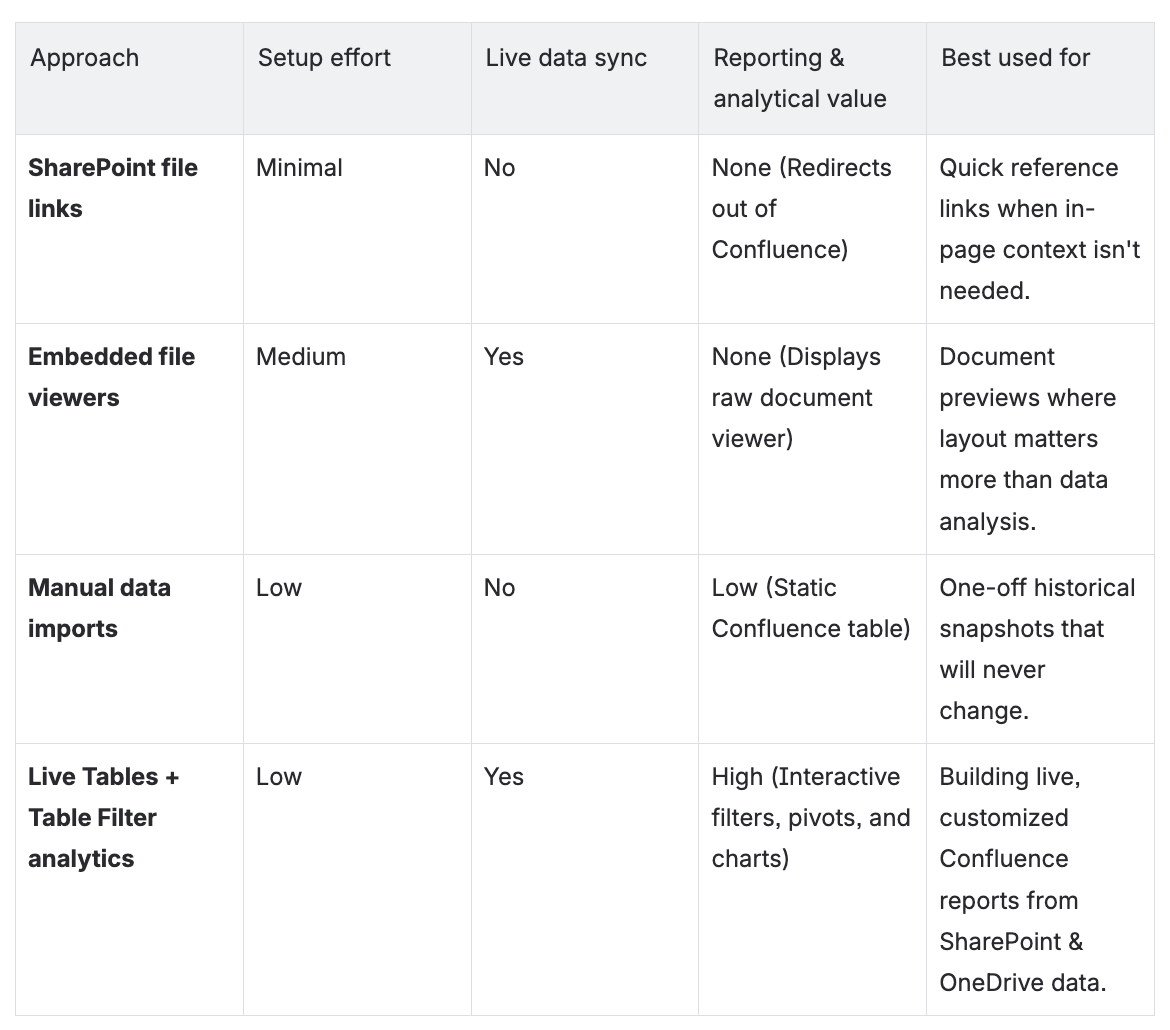
How to connect Microsoft SharePoint or OneDrive to Confluence
If you are looking for a step-by-step guide on how to connect Microsoft SharePoint or OneDrive to Confluence, follow these quick steps to bring your live data onto the page:
-
Install Live Tables: Ensure Live Tables from CSV & JSON for Confluence is installed in your Confluence instance.
-
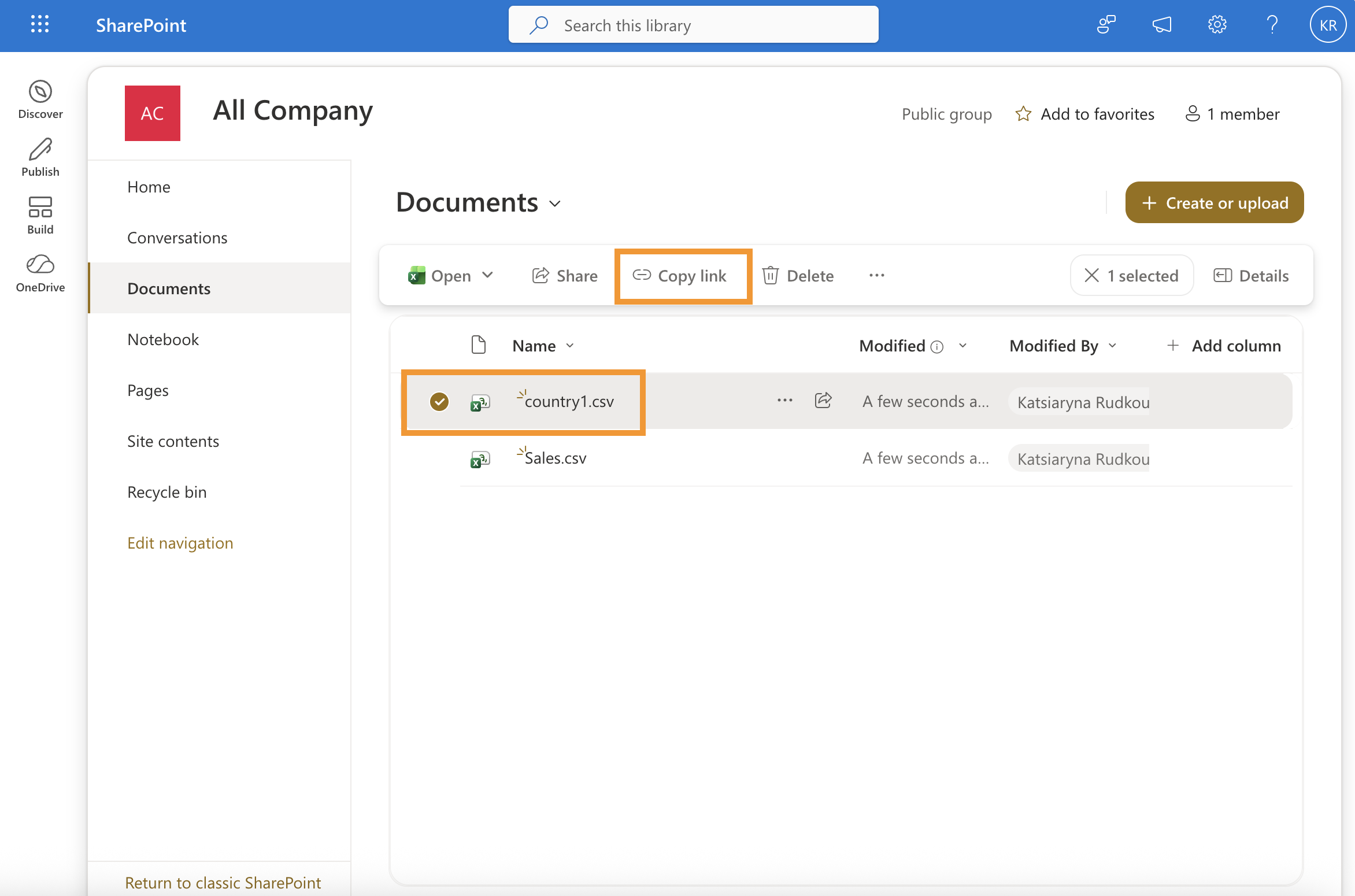
Copy the SharePoint or OneDrive link: Open your file in SharePoint or OneDrive, click Copy link, and retrieve the URL.

-
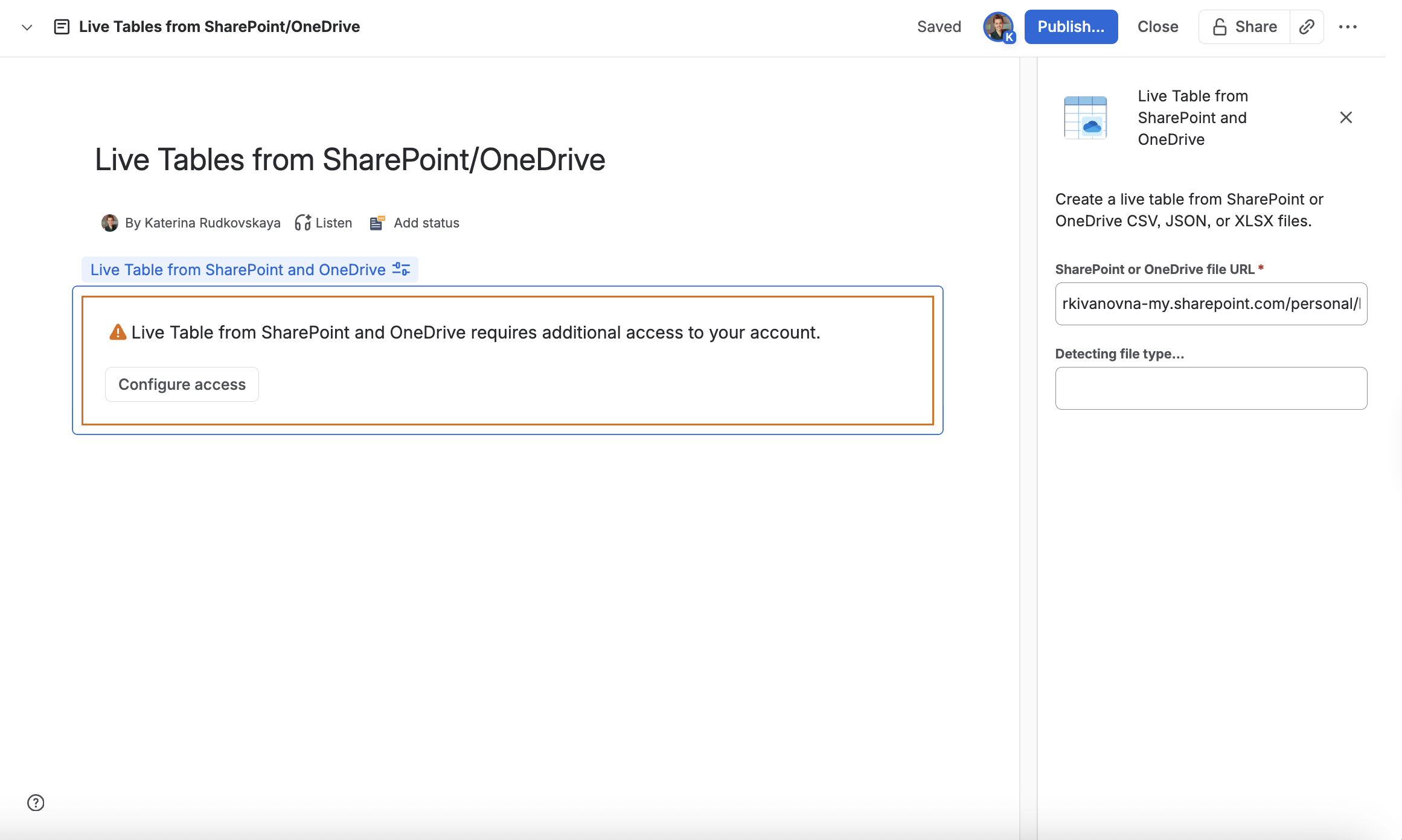
Add the macro: insert the link into a Confluence page

-
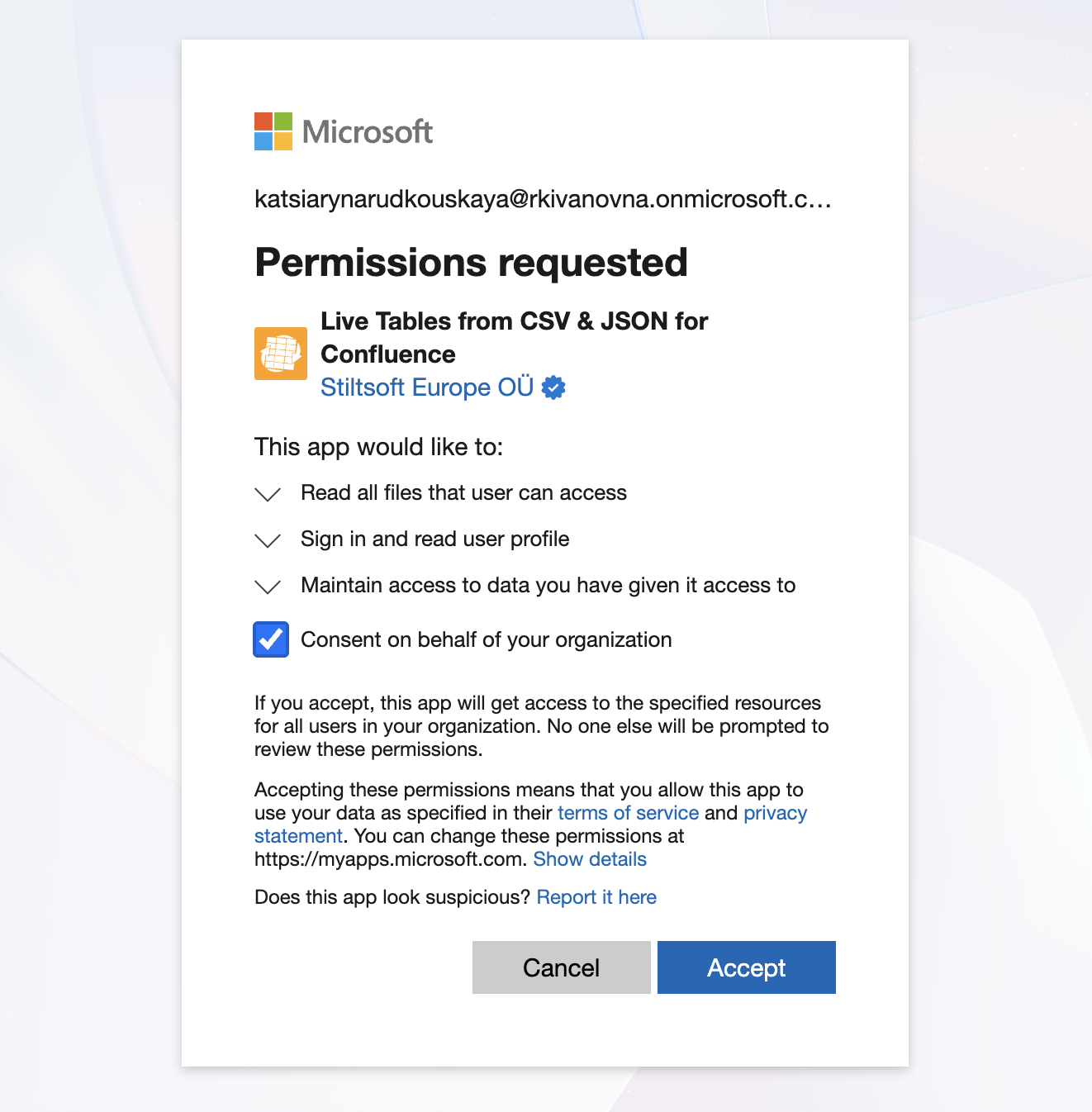
Authenticate: Complete the brief authorization prompt to connect your Microsoft account.

-
Render the data: Save the live table on your page.

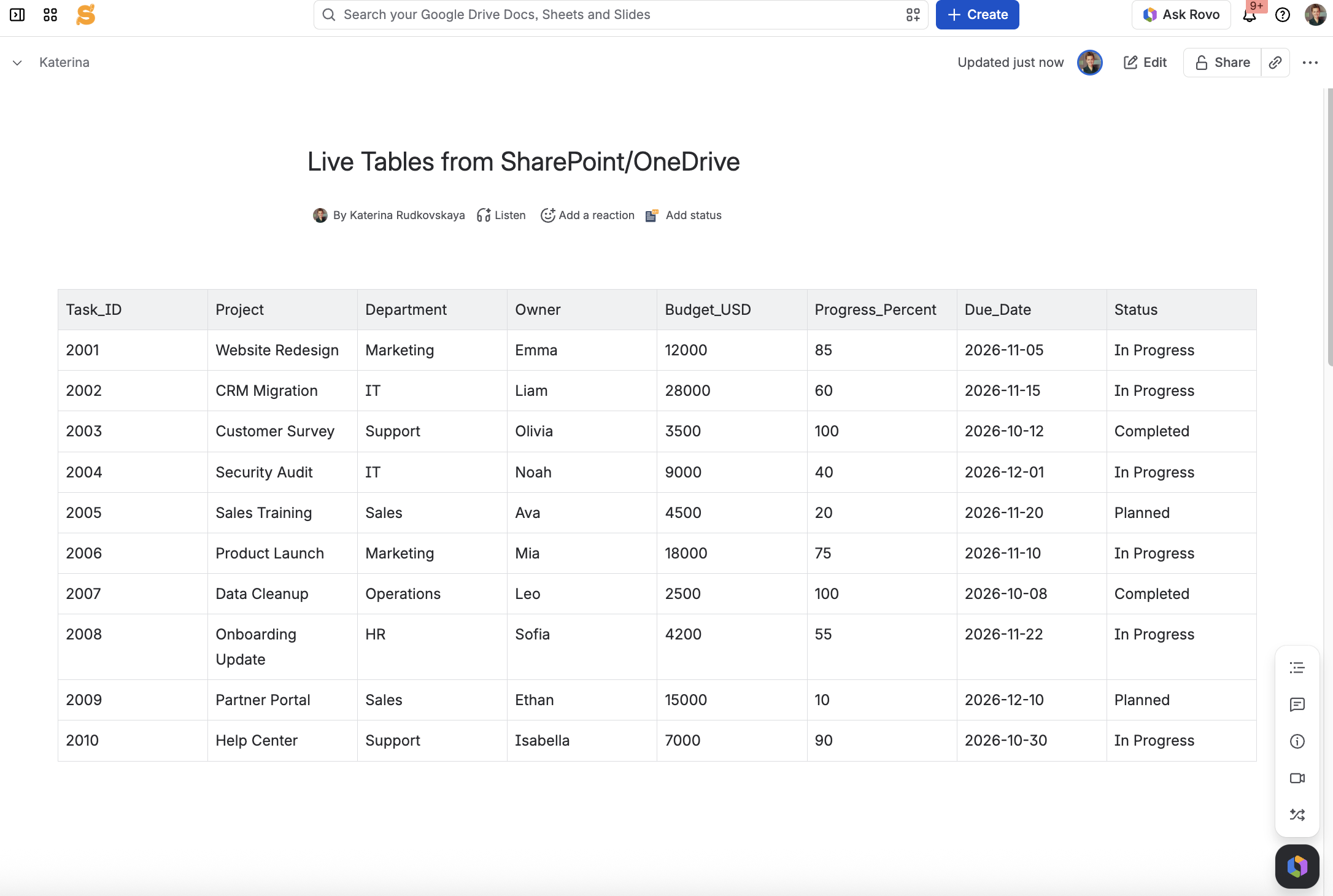
Turn SharePoint and OneDrive data into dynamic Confluence reports with Table Filter, Charts & Spreadsheets for Confluence
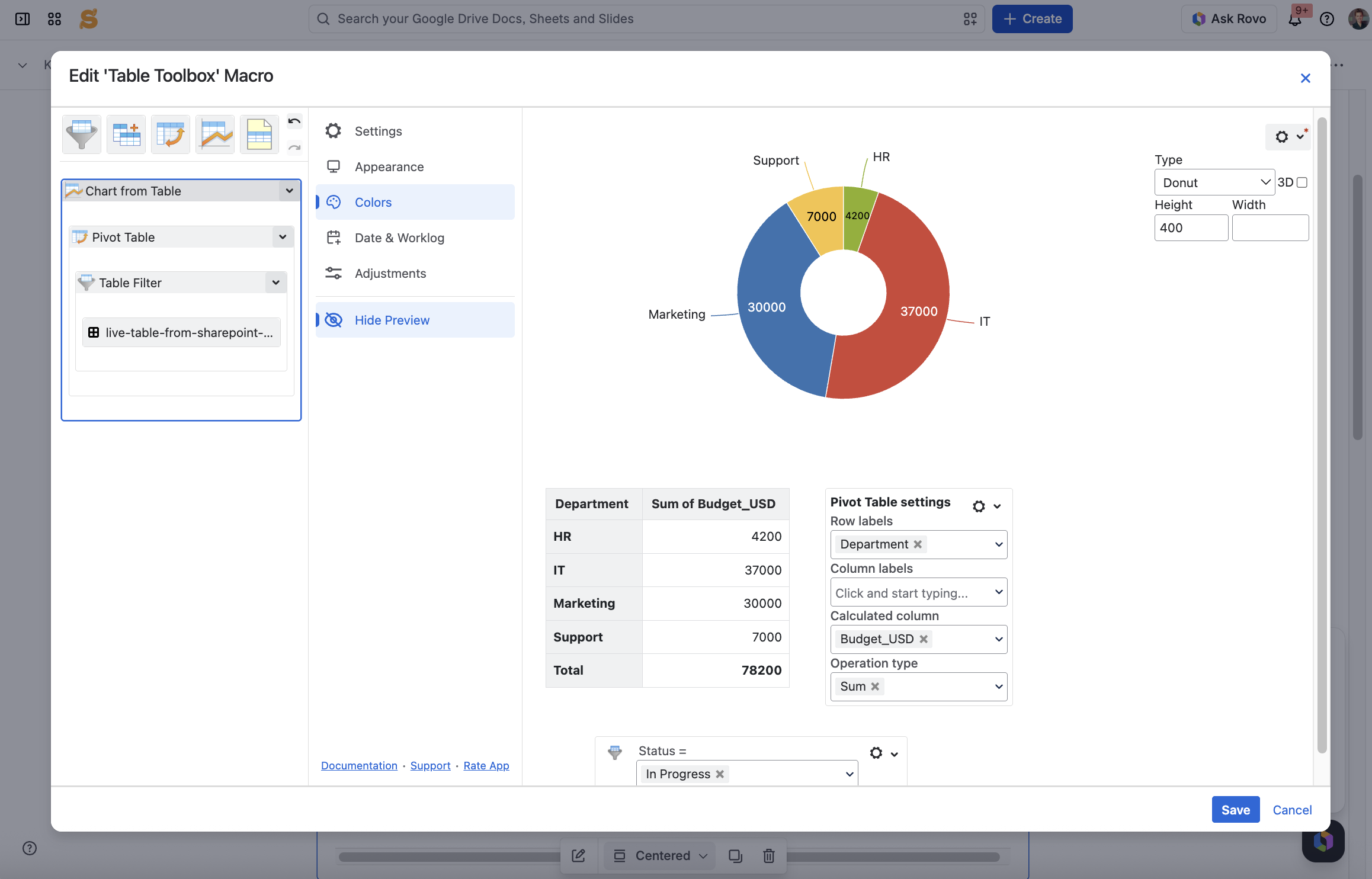
Importing live raw data is just the foundation. To build a complete report and deliver a native-like content experience, wrap your Live Tables output inside macros from Table Filter, Charts & Spreadsheets for Confluence:
1. In-Page interactive filtering
Enclose your live SharePoint or OneDrive table in the Table Filter macro. Team members can filter the report by date ranges, drop-down menus, status tags, or keywords directly on the Confluence page – without altering the original dataset in SharePoint or OneDrive.
2. Live pivot summaries
Use the Pivot Table macro to aggregate raw SharePoint or OneDrive data into executive summary metrics (e.g., total quarterly spend, open task counts by team, or regional performance breakdowns).
3. Dynamic charts & dashboards
Transform live rows into visual pie charts, bar graphs, or trendlines using the Chart from Table macro. As soon as new data is added in SharePoint or OneDrive, all connected charts in Confluence adjust automatically.
Practical reporting use cases
-
Project & resource tracking: Resource allocation logs live in SharePoint, while project hubs display filtered workload reports and milestone progress charts in Confluence.
-
Financial & budget reports: Sensitive financial master sheets remain secure in SharePoint, surfacing live read-only expenditure summaries and interactive budget breakdown charts for management in Confluence.
-
Operations & supply chain dashboards: Operations teams update inventory or shipment logs in OneDrive, instantly updating stock level summaries and operational KPI reports in Confluence.
-
Sales & ream metrics: Monthly sales exports stored in SharePoint are aggregated into dynamic leaderboards and visual funnel reports for stakeholder reviews.
FAQs
Is it possible to integrate Microsoft SharePoint and OneDrive with Confluence?
Yes, absolutely. While native options are limited to simple hyperlinking or static previews, you can connect Microsoft SharePoint and OneDrive to Confluence using third-party marketplace apps like Live Tables from CSV & JSON for Confluence . This allows you to securely authenticate your Microsoft account and stream live tabular data directly onto your Confluence pages.
Will Confluence reports update automatically when files change in SharePoint or OneDrive?
Yes. Live Tables maintains an active connection to your source files in SharePoint document libraries or personal/shared OneDrive folders. Whenever a teammate updates the source dataset or saves changes in Microsoft 365, the changes reflect across your connected Confluence tables, pivot summaries, and charts without manual re-uploads.
Can I build interactive dashboards and charts from SharePoint and OneDrive data?
Yes. Once your live data is displayed on the page, you can nest the Live Tables macro inside Table Filter, Charts & Spreadsheets for Confluence. This combination lets you apply real-time dropdown filters, generate multi-dimensional pivot tables, and visualize trends with dynamic charts directly inside Confluence.
Which file formats are supported for live reporting?
You can stream data from common structured tabular files stored in SharePoint or OneDrive, including Excel spreadsheets (.xlsx, .xls) and flat export files (.csv, .tsv, .json).
Final Thoughts
Disconnected tools lead to data silos and unnecessary manual work. By using your SharePoint and OneDrive files as a live data engine and building your reporting layer directly in Confluence Cloud with Live Tables from CSV & JSON for Confluence and Table Filter, Charts & Spreadsheets for Confluence, you transform Confluence into a centralized knowledge hub powered by live Microsoft 365 inputs.
Ready to upgrade your reporting workflow? Explore Live Tables from CSV & JSON for Confluence and Table Filter, Charts & Spreadsheets for Confluence on the Atlassian Marketplace today, and start turning raw SharePoint and OneDrive data into dynamic, automated Confluence reports.