







How to Add Images and Files to a Jira Checklist

Many checklist steps are about a file: “Reproduce the bug” needs a screenshot of what broke, “Approve the contract” needs the contract, or “Review the design” needs the mockup. Usually, that file lives somewhere else: a comment, a description, a shared drive, so whoever works on the step has to go find it.
With Checklists for Jira (Templates & Automation), you can put files right where they belong. In this article, we’ll show you how to add images and files to a Jira checklist and where it helps most.
Checklists for Jira (Templates & Automation) is an app that integrates with both Jira and JSM and lets teams break down work into actionable steps, save them as reusable templates, and add them automatically with Jira Automation. It’s built on Atlassian Forge, so all your data stays safe within Atlassian’s infrastructure.
TL;DR: You can attach files, images, and screenshots directly to сhecklist items in Jira using Checklists for Jira (Templates & Automation) by Stiltsoft. When a step is about a file: a screenshot of a failed test, the contract to approve, a design mockup, a deploy log, you put that file right on the step instead of in a comment, a description, or a separate document. It helps a lot with QA, design reviews, releases, bug reports, and onboarding
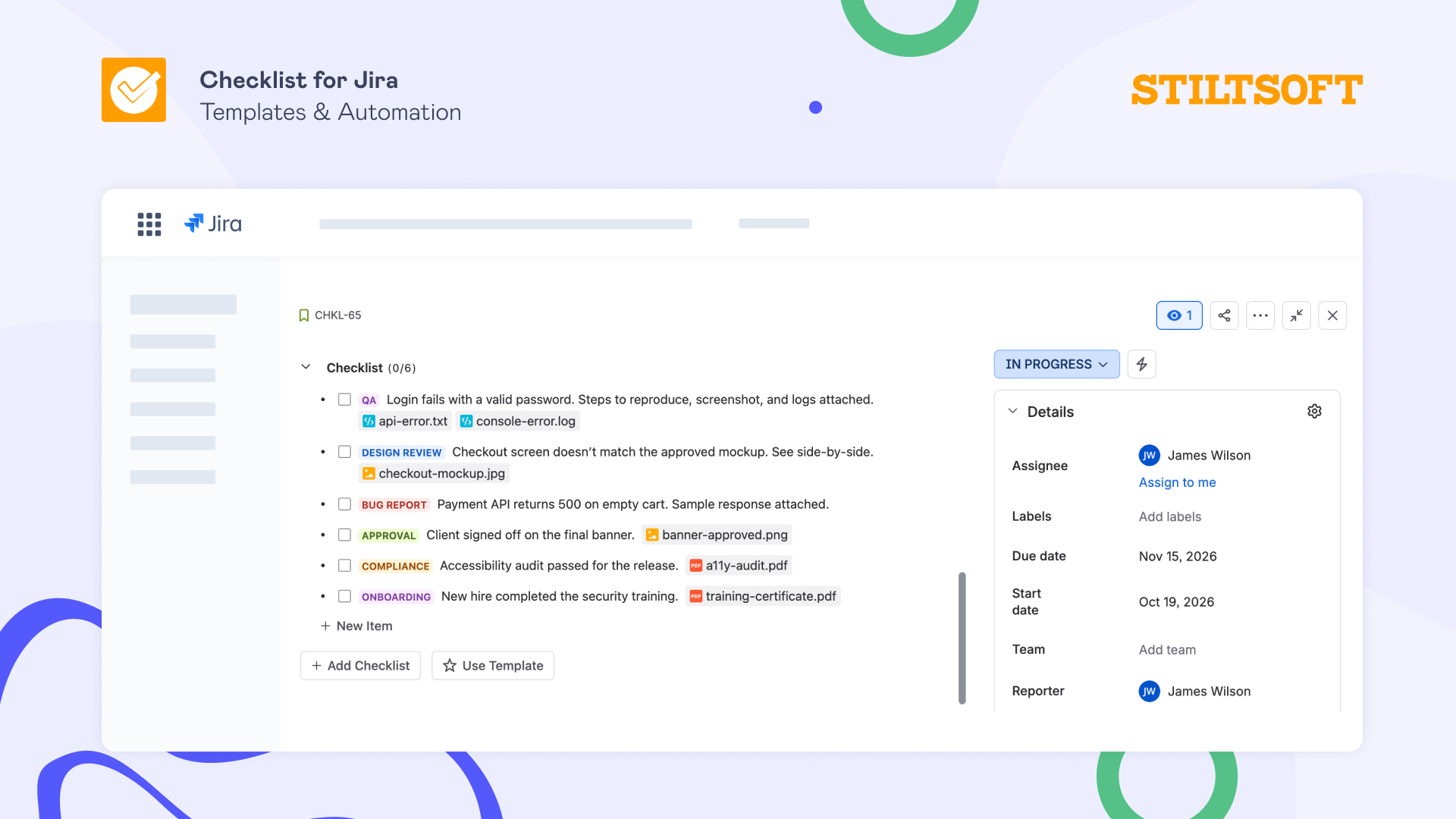
When to use Jira checklists with attachments
Checklists for Jira by Stiltsoft lets you attach screenshots, images, logs, PDFs, mockups, and reference documents to any checklist item. Here’s where it helps most:
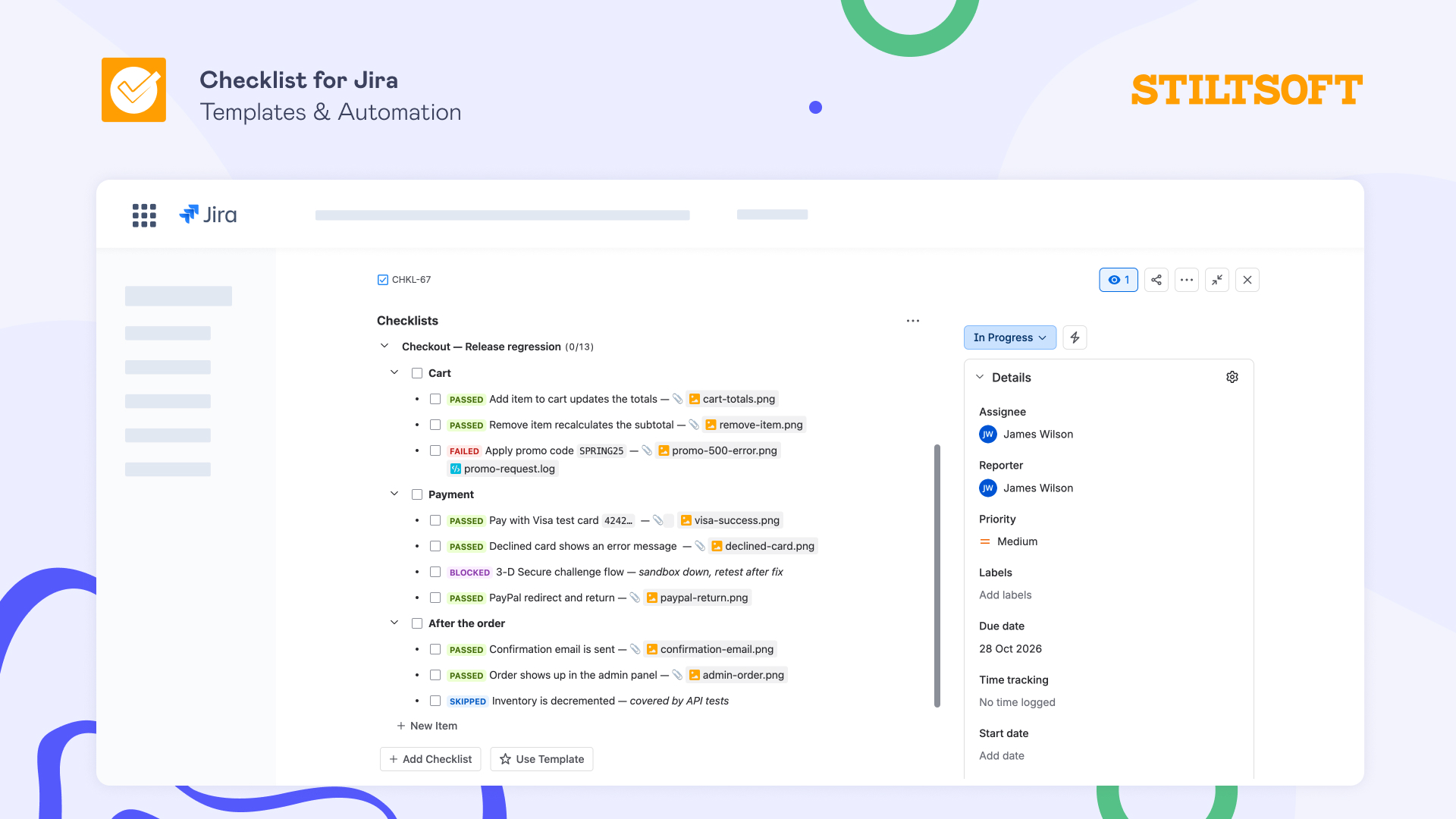
QA and testing
A Jira checklist with attachments turns an issue into a lightweight test management tool. You write your test cases as checklist items, go through them step by step, and mark each one passed or failed with a checklist status. When a check fails, attach the screenshot or the log as proof right on that item. When it passes, attach the evidence the same way.
Your test runs and their results stay on the task instead of scattered across comments, Excel files, or a standalone QA tool, so nothing gets lost and there’s nowhere else to look. For the checks you repeat every release, save the checklist as a reusable template and add it with a couple of clicks, or set up a Jira Automation rule so the test checklist appears automatically when an issue moves to “Ready for testing.”
Design reviews
Keep the whole design review on the task instead of in a chat thread. Attach the mockup, the exported version, or an annotated screenshot to the review step, so the feedback and the file it refers to sit together.
Reviewers see exactly which version they’re signing off on, and developers know later which design was approved without digging through Figma links or Slack to find the right one.
Releases and runbooks
Run a release from a checklist where each step carries its own proof. Attach the deploy log, a screenshot of the monitoring dashboard, or the config you changed right to the item, and you get a clear record of what was done and how, without writing it up in a separate document afterward.
Since releases follow the same steps each time, save the runbook as a template or have Jira Automation add it when the issue reaches the release stage, so no one has to rebuild the list by hand.
Onboarding and SOPs
Replace a screenshot-heavy “how we do it” document with a checklist where every step carries its own instruction. A new hire follows the process and sees what each step should look like, right there on the task. The SOP and the actual work live in one place, so there’s no separate doc to keep in sync. Add statuses and checklist assignees on top, and you can also see how far along each person is.
How to add images and files to a Jira checklist item
Adding images and files to a Jira checklist takes seconds and works just like adding an image anywhere in Jira or Confluence. It takes seconds, and you’ve got three ways to do it depending on your preferences:
- The /image command: type it on a checklist item and choose the needed file from your computer.
- If you’ve just grabbed a screenshot, paste it right onto the item with Cmd+V / Ctrl+V.
- When the file is already sitting on your desktop, drag it onto the item without opening edit mode at all.
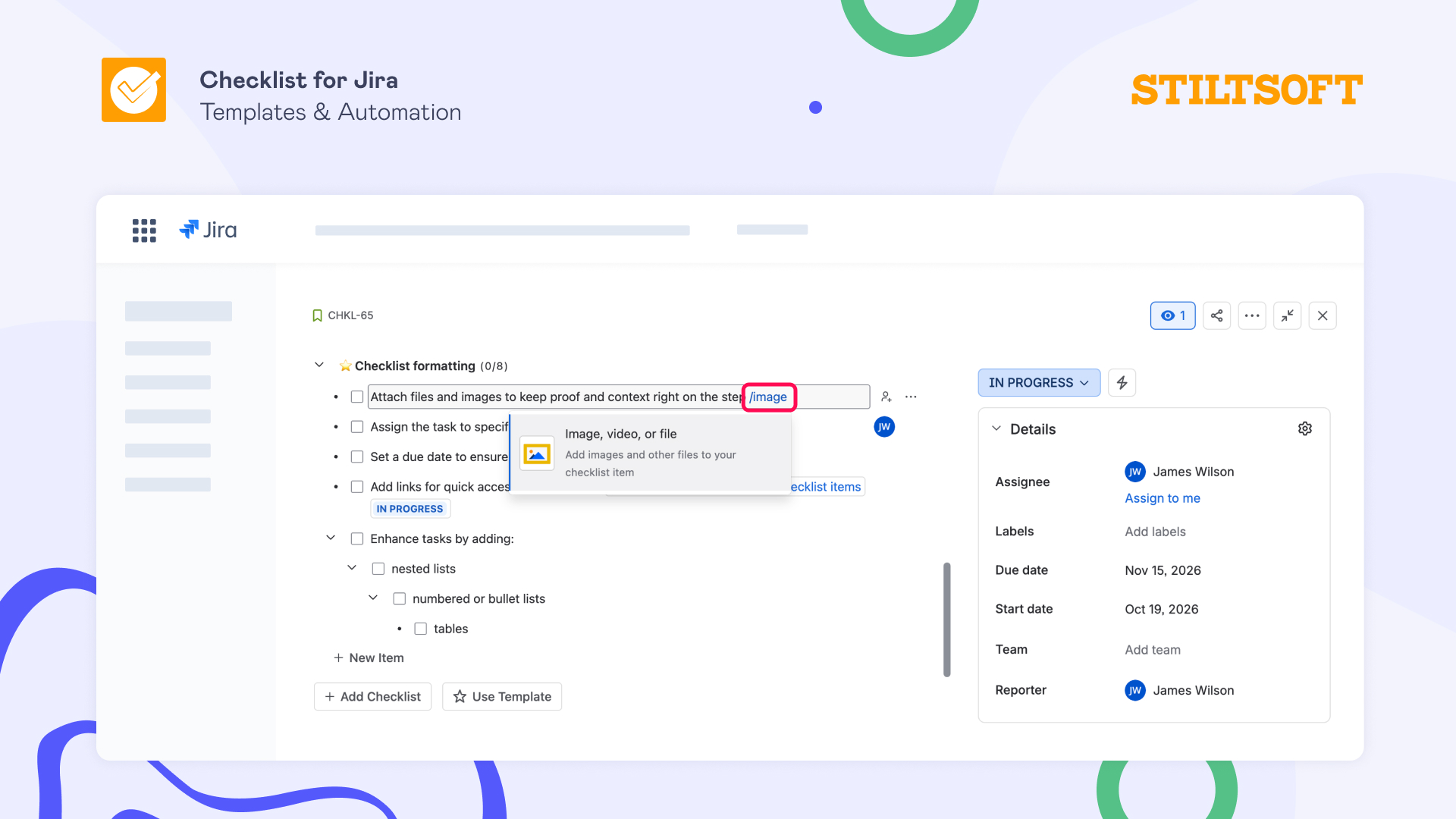
Regardless of how you add an attachment, the file lands on the step itself and stays with the checklist wherever it goes.
Why keep attachments on the checklist step
Keeping attachments on the step instead of on the Jira issue description, in a comment, or in a separate document, pays off in a few ways:
- Everything in one place. The task and its proof live together, so there’s nothing to hunt for later.
- Fewer subtasks. You no longer need to spin up a subtask just to store a file. The ticket stays simple.
- Clear accountability. Anyone can open the checklist and see not just that a step is done, but the evidence behind it.
- Easier handovers. New team members get the reference images and examples right where they need them.
- A built-in trail. Releases, QA runs, or compliance steps keep their proof on the record without extra admin.
Keep your steps, images, and files together in a Jira checklist
When you keep the needed file right on the checklist step, your work is easier to follow and organize. You don’t need to create piles of subtasks, switch tools, or dig for evidence, as whoever picks up the step has everything in front of them.
👉 Try Checklists for Jira (Templates & Automation) free for 30 days and add images and files to a Jira checklist in a few clicks.
FAQ
Can I add images to a Jira checklist?
Yes. With Checklists for Jira (Templates & Automation) by Stiltsoft, you can attach a file, image, or screenshot to any checklist item, so the proof sits on the exact step it belongs to, not just on the work item as a whole.
How do I attach a file to a Jira checklist item?
Checklists for Jira (Templates & Automation) by Stiltsoft provides three ways to attach a file to a checklist item, all like adding an image anywhere in Jira: type /image on the item and pick a file, paste a fresh screenshot with Cmd+V / Ctrl+V, or drag a file from your desktop straight onto the item without opening edit mode.
What file types can I attach to a checklist item in Jira?
You can attach common file types, including images (PNG, JPG), PDFs, logs, and documents (Word, Excel), using Checklists for Jira (Templates & Automation) by Stiltsoft.
Where are checklist attachments stored?
Your files stay within Atlassian’s infrastructure and don’t leave for a third-party server, as the app is built on Atlassian Forge.
How is this different from attaching a file to the Jira work item?
A standard Jira attachment lives on the issue as a whole. A checklist item attachment is tied to one specific step, so anyone can see exactly which task a file is proof for.